
Never Miss Your Doorbell While Wearing Headphones on iPhone
Source: MacRumors
Never Miss Your Doorbell While Wearing Headphones
Noise‑cancelling headphones are fantastic for blocking out distractions, but they can also muffle sounds you need to hear—like a courier at the front door with an important package. Thanks to an Apple accessibility feature, your iPhone can listen for you and alert you when your doorbell rings.
What is Sound Recognition?
Sound Recognition is an iOS accessibility feature that uses the iPhone’s built‑in microphone to continuously monitor for specific sounds (doorbells, alarms, baby cries, etc.). When a target sound is detected, the iPhone sends a notification that:
- Plays through any connected headphones or AirPods
- Vibrates the iPhone (or an Apple Watch if you’re wearing one)
Who Can Benefit?
| Audience | Why It Helps |
|---|---|
| Deaf or hard‑of‑hearing users | Provides a reliable way to stay aware of important sounds. |
| Remote workers | Prevents missed deliveries or alerts while wearing noise‑cancelling gear. |
| Anyone who uses AirPods/Headphones | Keeps you informed without having to remove your earbuds. |
How to Enable Sound Recognition
- Open Settings → Accessibility → Sound Recognition.
- Toggle Sound Recognition On.
- Tap Sounds and select the sounds you want the iPhone to listen for (e.g., Doorbell).
- (Optional) Ensure Notifications are allowed for Sound Recognition under Settings → Notifications.
Tip: Pair your iPhone with an Apple Watch for an additional vibration cue on your wrist.
What to Expect
- The iPhone continuously monitors in the background (minimal battery impact).
- When the chosen sound is heard, you’ll receive a banner notification, an audible alert through your headphones, and a vibration.
- You can tap the notification to view details or silence future alerts for that sound.
Bottom line: With Sound Recognition, you can keep your focus—and your headphones—on the task at hand while still staying aware of crucial sounds like the doorbell. 🎧🔔
How to Enable Doorbell Alerts
-
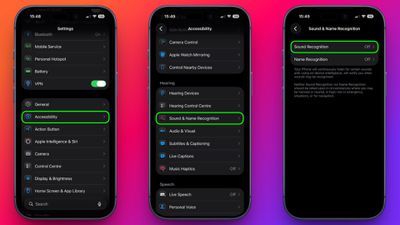
Open Settings on your iPhone.
-
Tap Accessibility.
-
Under Hearing, select Sound & Name Recognition, then go to Sound Recognition.
-
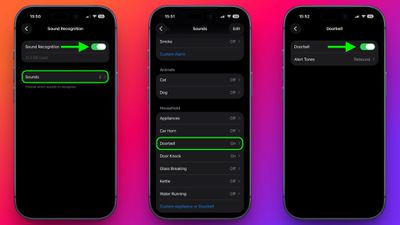
Toggle Sound Recognition on, then tap Sounds.
-
Under Household, tap Door Bell and toggle it on. You can also choose a specific alert tone.
-
Note: The iPhone may need to download a small file (≈ 30 MB) before the feature becomes active, so a Wi‑Fi or cellular connection may be required.
Training Your iPhone to Recognize Your Doorbell
If your iPhone doesn’t reliably detect your specific doorbell, you can train it to recognize the sound by following these steps:
- Open Settings → Accessibility → Sound & Name Recognition → Sound Recognition → Sounds.
- Tap Custom Appliance or Doorbell, then give it a name.
- Place your iPhone near the doorbell and tap Start Listening.
- Ring the doorbell.
- Repeat steps 3‑4 five times to complete the training.
Quick Access via Control Center
Once Sound Recognition is enabled, iOS automatically adds a toggle to Control Center. From there you can press‑and‑hold the Sound Recognition icon to quickly enable or disable specific sounds without diving into Settings—handy if you only want doorbell detection while you’re at home wearing headphones.
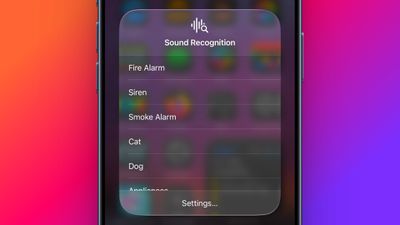
Sound Recognition can also detect smoke alarms, dog barking, babies crying, water running, and more. Keep in mind that Apple advises against relying on this feature in high‑risk or emergency situations.
Popular Stories
1. Apple Shows Off a Key Reason to Upgrade to the iPhone 17
Link:
Date: Saturday, February 7 2026 · 9:26 am PST
Author: Joe Rossignol
Apple released an ad highlighting the upgraded Center‑Stage front camera on the iPhone 17 Pro/Pro Max. The new camera automatically expands and rotates the frame as more people join a group selfie, showcasing a clear advantage over previous models.
2. Apple Says These 7 U.S. States Plan to Offer iPhone Driver’s Licenses
Link:
Date: — (no timestamp provided)
Apple Wallet now lets residents of select states add a driver’s license or state ID to their iPhone or Apple Watch for proof of identity or age at airports, businesses, and supported apps. The feature is already live in 13 states + Puerto Rico and is slated to expand to at least seven additional states.
3. Apple Expected to Launch These 10+ Products Over the Coming Months
Link:
Date: Tuesday, February 10 2026 · 6:33 am PST
Author: Joe Rossignol
After a quiet start to 2026 (only a new AirTag and a special Apple Watch band), Apple’s roadmap includes:
- MacBook Pro models with M5 Pro and M5 Max chips
- iPhone 17e (a lower‑cost variant)
- A MacBook powered by an iPhone‑class chip
- Updated Apple TV and HomePod mini
- And several other rumored devices.
4. New MacBook Pros Could Now Arrive in March
Link:
Date: — (no timestamp provided)
Bloomberg’s Mark Gurman reports that MacBook Pro models featuring M5 Pro and M5 Max chips may ship as early as Monday, March 2. The rollout is tied to the upcoming macOS Tahoe 26.3 release, with the “Power On” newsletter indicating a possible launch week of March 2‑8. Gurman also notes that current M4 Pro/Max models remain on sale.
5. Why You Shouldn’t Buy the Next MacBook Pro
Link:
Date: Tuesday, February 10 2026 · 4:27 pm PST
Author: Juli Clover
Apple is expected to release new 14‑inch and 16‑inch MacBook Pro models with M5 Pro and M5 Max chips in early March. However, the upgrades are limited to the processor; there are no design, display, or feature improvements. The article advises waiting for the next generation, which is rumored to bring more substantial changes.