
I tried Google’s new iPhone-only camera app, and now I need an Android version ASAP
Source: Android Authority
Ryan Haines / Android Authority
I’m always on the hunt for new camera apps. Sure, the base iPhone experience is good, and I love to whip out my Pixel for a few quick snaps, but there’s often something underwhelming about their processed perfection. In fact, I’d much rather have at least a little bit of the raw, flawed imperfection that comes with something like a film camera.
So, when I saw that Google was opening up the camera feature in its Snapseed photo editor, I knew I had to give it a try.
Do you want an Android version of Google’s Snapseed camera?
Votes: 103
Wait, that Snapseed?
Ryan Haines / Android Authority
Yes, seriously — that Snapseed. You know, the free photo‑editing app that everyone used before Google Photos and Lightroom Mobile became as good as they are. That Snapseed.
But wait a minute: why replace my camera app when there are already so many photo‑editing options? The thing is, I don’t like editing my photos. Call me lazy if you want, but the truth is I’ve shot with a Fujifilm camera for as long as I can remember. I love the simplicity of programming a film simulation and snapping away, knowing that my straight‑out‑of‑camera JPEGs are all I need. So, if Snapseed can get my iPhone photos to even a fraction of that reliability, I’ll be happy.
I didn’t expect an old‑favorite editing app to suddenly become relevant again.
With newfound hopes of an updated camera experience in mind, I headed to the App Store and downloaded Snapseed — something I never thought I’d do in 2026. I opened the app (apparently for the very first time on iOS) and immediately ran into a roadblock. I couldn’t figure out how to open the camera interface — I tapped around, opened the settings menu, and nothing. I even went back to see if there were hidden instructions in the announcement of the wider Snapseed camera rollout, and still no dice.
When I gave up and opened a photo to edit — the original purpose of Snapseed — it all came together. One photo in my library gave me access to all the controls I expected. I could finally tap back and forth between my library and the camera app, and it was time to start snapping.
So simple, yet so, so good
Ryan Haines / Android Authority
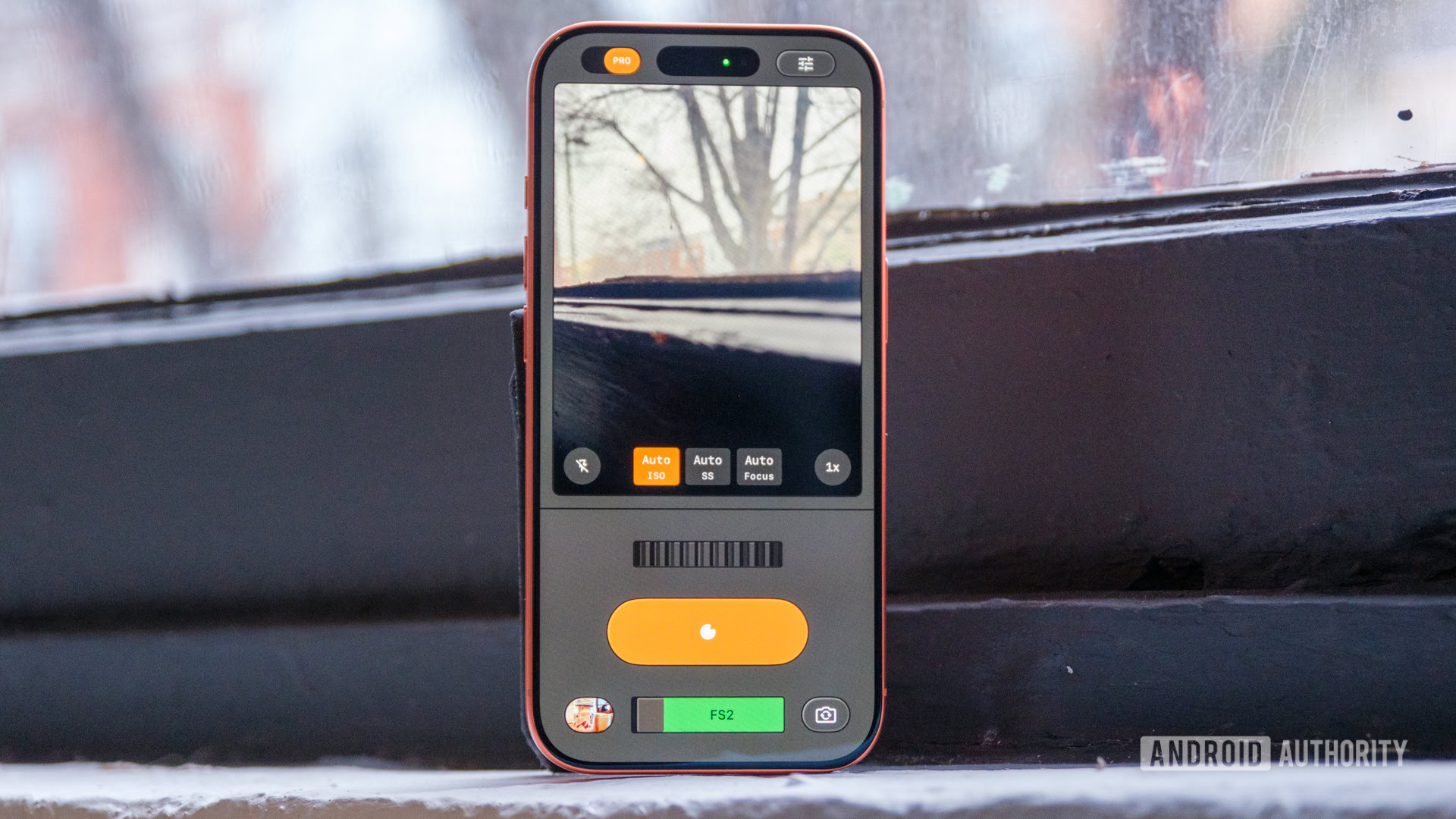
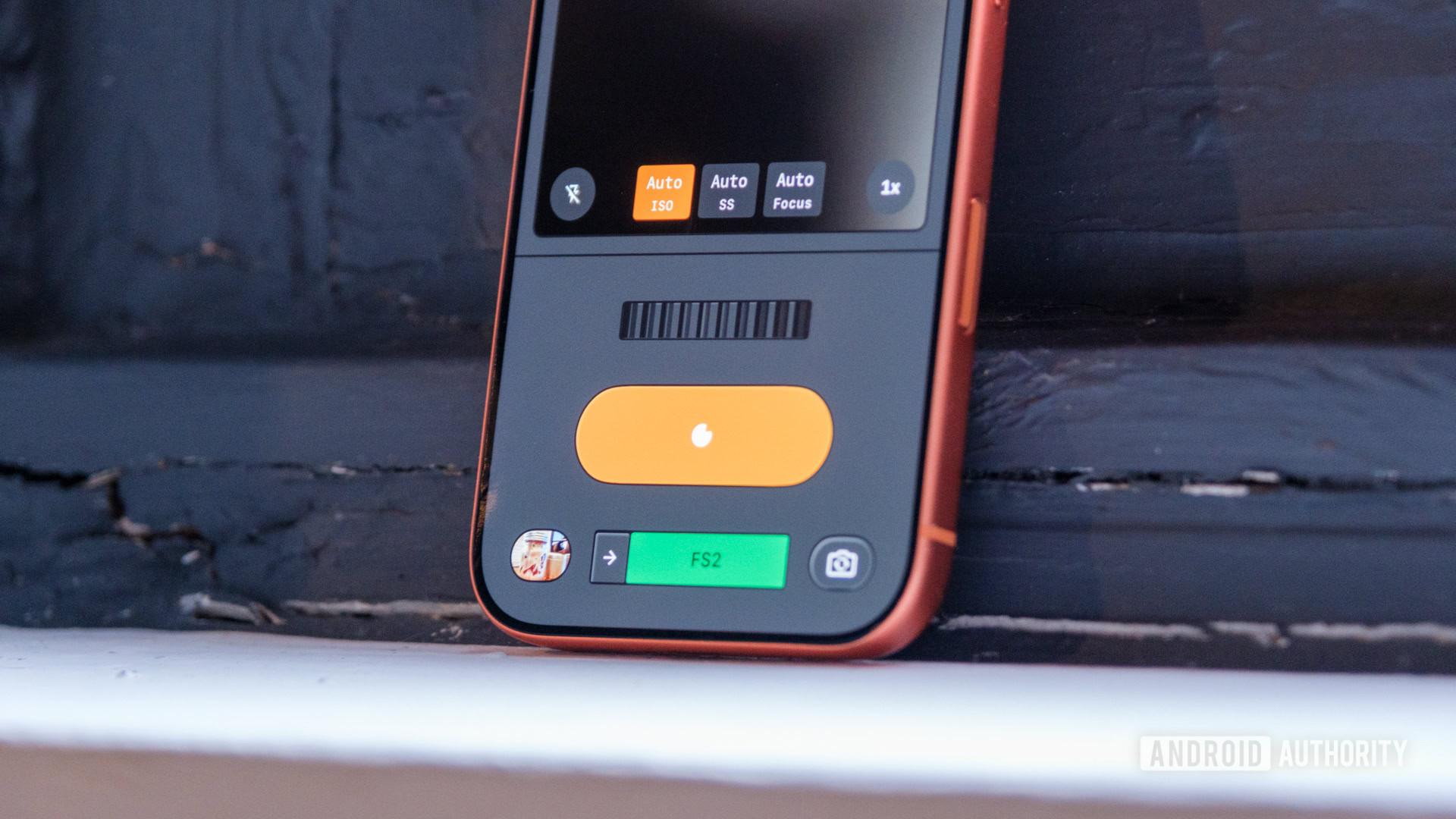
Once you finally figure out how to access the Snapseed camera interface — which you’ll probably do much faster than I — it’s time to start learning your way around. And, if you’re anything like me, you’ll absolutely love the fact that it feels like an analog camera. Everything, from the way you select your film simulation to the way you adjust your ISO and shutter speed, feels manual. But unlike loading a camera with a roll of Portra 400 and committing to 36 snaps, you can switch emulations between photos.
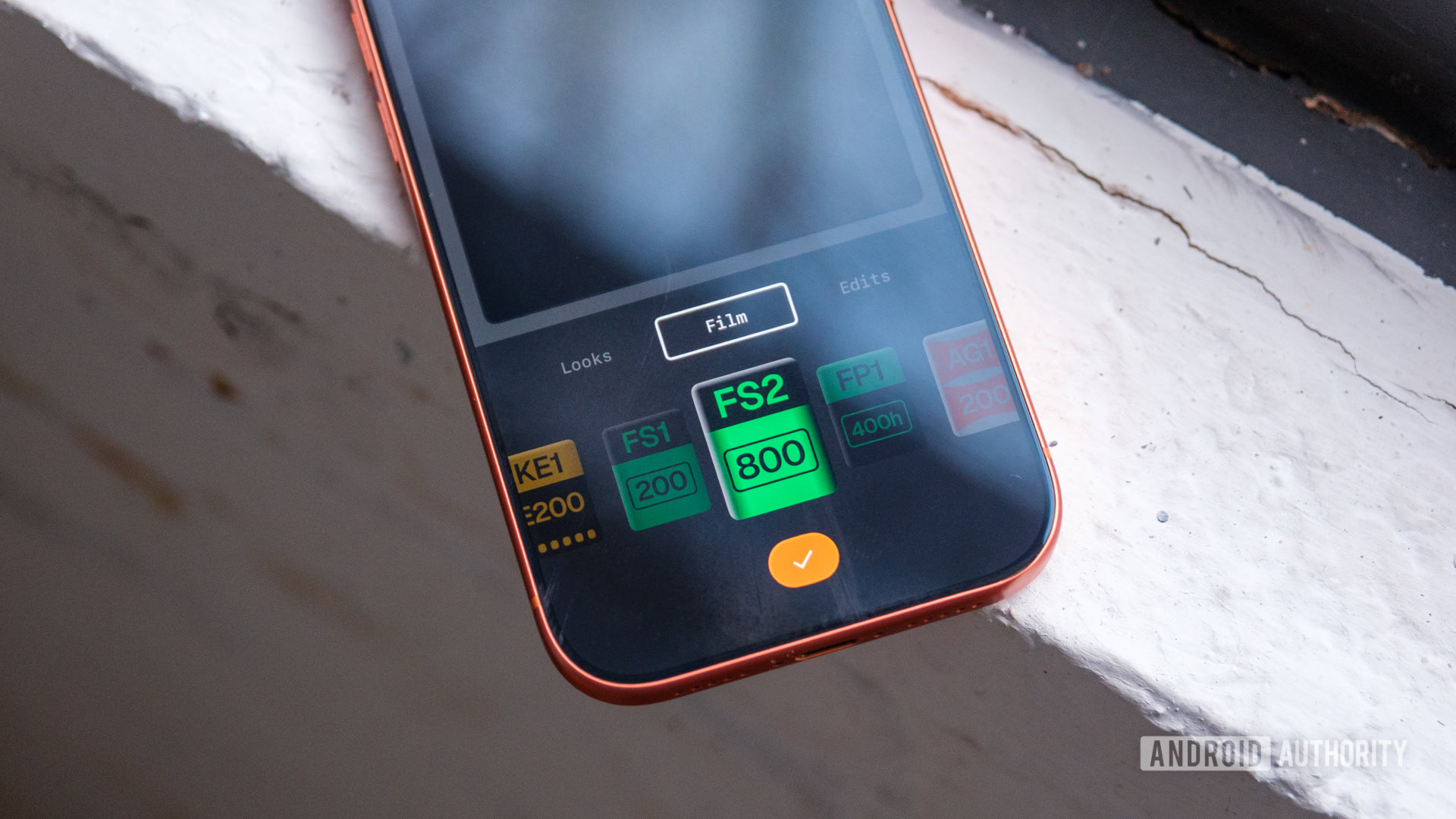
Honestly, this might be my favorite part of the Snapseed camera. I already try to make my photos look at least a little bit like film, whether that’s via Lightroom Mobile or my Fujifilm presets, so letting Snapseed handle that makes my life easier. The app has a pretty comprehensive list, too, covering everything from Kodak’s Portra and Gold to Fujifilm’s Superia and Agfa’s black‑and‑white Scala. They’re not perfect replicas — and you can’t preview the film grain before you press the shutter — but I like the look a lot more than Apple’s Photographic Styles.
Film simulation vs. Pro controls
- Film simulation – Choose from a range of emulations (Kodak, Fujifilm, Agfa, etc.). You can switch after every shot.
- Pro controls – If you enable manual mode, you’ll get a single dial that adjusts ISO, shutter speed, and focus, giving the experience of an analog camera.
In reality, it’s kind of like priority mode on a mirrorless or DSLR camera. When you adjust the ISO, the shutter speed adjusts to maintain your exposure, and vice‑versa. Manual focusing might be the coolest — but most difficult — part of this interface. Although I like having control over my depth of field, it’s hard to dial in focus on a moving subject with any accuracy. Something like focus highlights would go a long way in making sure I’m locked in, because I’ve already missed focus on about half of my snaps.
Auto vs. Pro mode
- Pro mode – Full manual control; great for creative shots but requires more attention.
- Auto mode – Flip the toggle and treat your iPhone like a point‑and‑shoot camera. Perfect for everyday use and when you don’t want to miss a shot.
For every missed shot in Pro mode, there’s the convenient flexibility of Auto mode. I can simply switch back and capture quickly, which is much more convenient for my everyday needs.
Imagine a Pixel with This Kind of Power
Ryan Haines / Android Authority
Because I’m sitting here thinking about my everyday snaps, I may as well think about my everyday phone, the Pixel 10 Pro XL. When I do, I have to wonder just how much fun I’d be having by backing the Snapseed camera with Google’s own Tensor processing. After all, I’ve come to trust my Pixel for everything from long‑range zoom to near‑perfect portraits, and it’s almost surprising not to at least have the option of the Snapseed camera.
Besides, with everyone from Google to Samsung to Nothing trying to build their own toolbox of camera filters, why not trust an existing editing platform to create the right film‑like look? Sure, it would probably be more complicated for Google to fine‑tune the Snapseed camera for all the different types of Android phones, but it would have far more power at its disposal with up to 100× zoom on the table.
Google’s image processing + Google’s film emulation = a win‑win, right?
There is, of course, another reason I want an Android‑ready version of the Snapseed camera: Magic Editor. Yes, I know Apple already has Clean Up, but if you’ve used it, you already know it’s not very good. I’d love to be able to snap a photo in Snapseed, hop over to Google Photos to clean it up, and then finish my edits right back where I took the picture. It would be a much more capable one‑two punch than trying to make the same kind of magic in Apple Photos.
But, as far as I can tell, that’s not on the table yet. Instead, the Snapseed camera will stay the highlight of a very short list of Google‑built iOS features, but at least it gives me something new to complain about.
Seriously, Google, try it on the Pixel 10 series. I’m sure you’ll like the results.
Follow
Thank you for being part of our community. Please read our Comment Policy before posting.