
Your old Android phone already has the Galaxy S26’s powerful document scanner
Source: Android Authority
Rita El Khoury / Android Authority
The new Galaxy S26 packs a bunch of new features—some genuinely useful for everyday use, and others that make you raise an eyebrow and wonder what our lives have become. The feature that struck me the most was the Galaxy S26’s new document‑scanning capability, which is built on AI—because, of course, nothing works without AI these days!
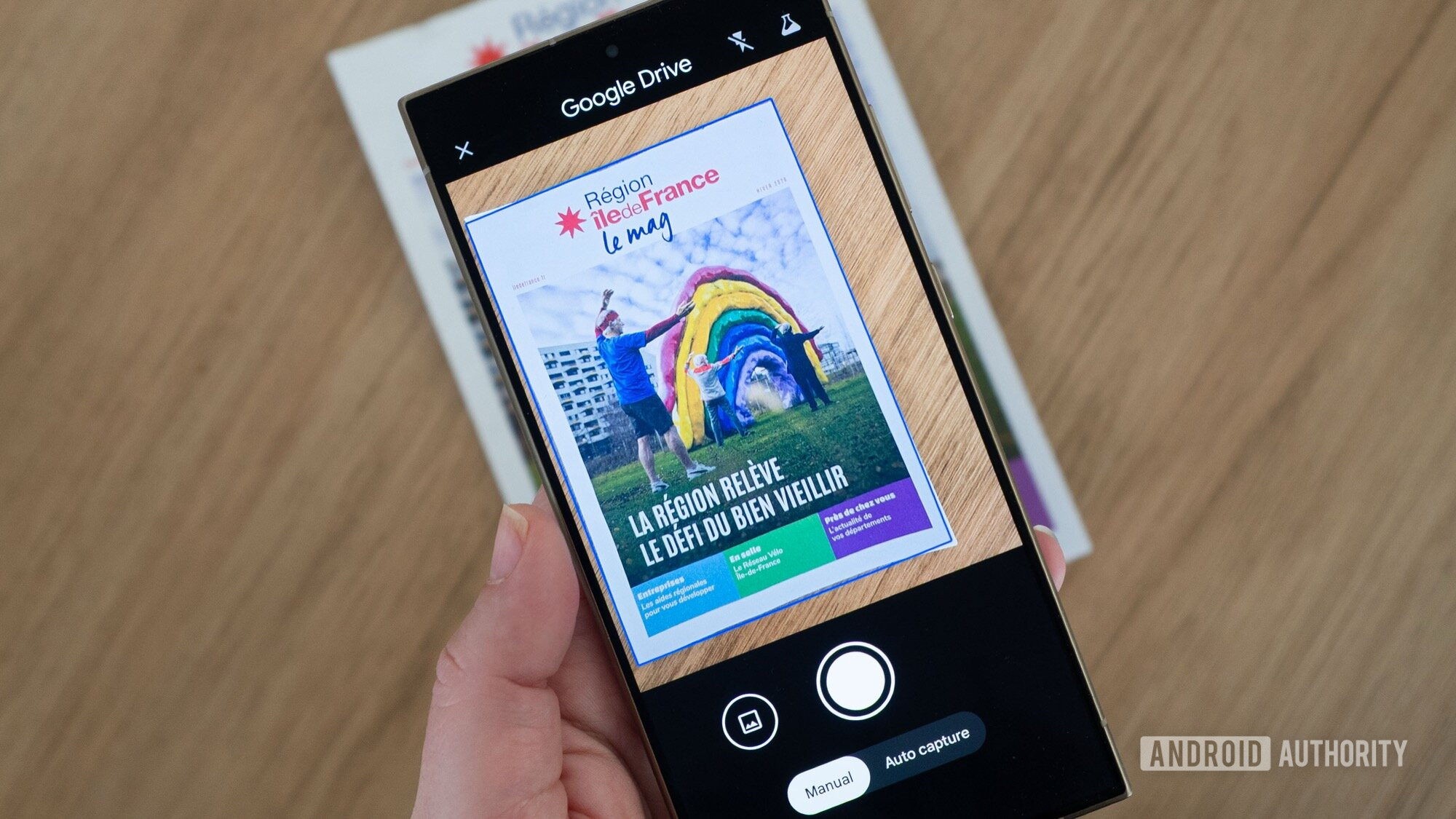
Except… no. Every Android phone has a powerful document scanner built straight into the Google Drive app. You don’t need fancy AI or a Galaxy S26 to scan documents, clean them up, and make a PDF. Let me show you how Google Drive does it on any Android phone, from a Galaxy S24 Ultra to a Nothing Phone 2 or a Pixel.
Do you use Google Drive’s built‑in document scanner?
73 votes
How to Use Google Drive’s Built‑In Scanner
Steps
-
Open Google Drive on any Android phone.
-
Tap the big “+” button in the bottom‑right corner.
-
Choose Scan (or tap the camera icon that appears at the top of the “+” menu).
This opens the scanner with two modes:
- Manual – Align the document and tap the shutter button yourself.
- Auto capture – The app automatically captures the page when it detects a proper scan.
What the Scanner Does Automatically
- Document detection – Whether it’s a full‑size page or a tiny receipt, Drive finds the borders and ignores the background (couch, table, wall, etc.).
- Auto‑crop – The image is cropped to the document’s edges, even if the perspective is skewed.
- Auto‑enhance –
- Removes shadows.
- Corrects white balance for a true‑white page.
- Boosts text contrast for readability.
Manual Controls (If You Need Them)
- Adjust the crop or rotate the image.
- Choose a color filter (e.g., grayscale or black‑and‑white).
- Disable shadow removal.
- Clean up smudges or other imperfections.
In practice, the default processing is usually perfect, so you rarely need to tweak these settings.
Adding Multiple Pages
- Tap the page‑plus icon (bottom‑right) to add another scan.
- Beta feature: Scan several pages in one go by moving from page to page; the app captures each as a batch and then takes you to the edit screen.
- Note: The auto‑capture can be a bit fast, so you may need to pause briefly to align each page properly.
Finishing Up
-
Tap Next when you’re done scanning.
-
Give the document a name.
-
Choose the export format:
- PDF (single file for multiple pages)
- JPEG (individual images for each page)
-
Select the destination folder in Google Drive and tap Save.
Quick Tip
If your goal is simply to back up a document, the scanned file appears instantly in the chosen Drive folder. If you need the file elsewhere, you can download it from Drive or share it with other apps.
Now you have a clean, searchable copy of any document—no extra cropping, alignment, or color‑correction steps required.
The Only Document Scanner I Use
Before discovering Google Drive’s built‑in document scanner, I spent 10 + minutes on every scan:
- Align the document
- Focus the camera
- Snap the photo
- Rotate & crop
- Adjust contrast / brightness
- Save & convert to PDF (or merge multiple captures)
Shadows, smudges, and low‑light conditions made the process even more tedious. I sometimes handed the job to my husband, who used a traditional scanner—still a time‑consuming chore. Third‑party apps were either paid or riddled with ads and pop‑ups.
How Google Drive Changed the Equation
- Speed – A scan now takes a few seconds.
- Simplicity – One tap to capture, auto‑crop, and enhance.
- Quality – Results look like they came from a physical scanner, with no manual tweaking required.
- Cost – Free and available to anyone with a Google account.
The built‑in scanner removes shadows and boosts contrast automatically, so I can breeze through multiple pages and merge them into a single PDF in moments.
Why It’s a Game‑Changer for Everyone
- Family‑friendly – My parents can snap a document, drop it into a shared Drive folder, and I receive a clean scan instantly. No need for perfect lighting or steady hands.
- Device‑agnostic – I’ve used the scanner on a three‑year‑old Nothing Phone 2, a Galaxy S24 Ultra, a Pixel 10 Pro XL, and now the Galaxy S26. It works the same on every Android phone.
- No “fancy” AI required – While Drive does employ basic AI for auto‑capture, cropping, and enhancement, it isn’t the buzz‑worthy generative AI that removes fingers from receipts. It’s simply a reliable, low‑effort solution for everyday documents and receipts.
Bottom Line
You don’t need a 2026‑era flagship or a dedicated AI scanner to get high‑quality scans. Google Drive’s built‑in document scanner is fast, free, and works on any Android device. Save the heavy‑duty AI for tasks that truly need it, and let Drive handle the everyday paperwork.
Disclosure: This article reflects my personal experience with Google Drive’s scanner. No sponsorship or compensation was received.
Thank you for being part of our community. Please read our Comment Policy before posting.