
The best way to transfer to a new MacBook is faster (and cheaper) than you'd think
Source: ZDNet
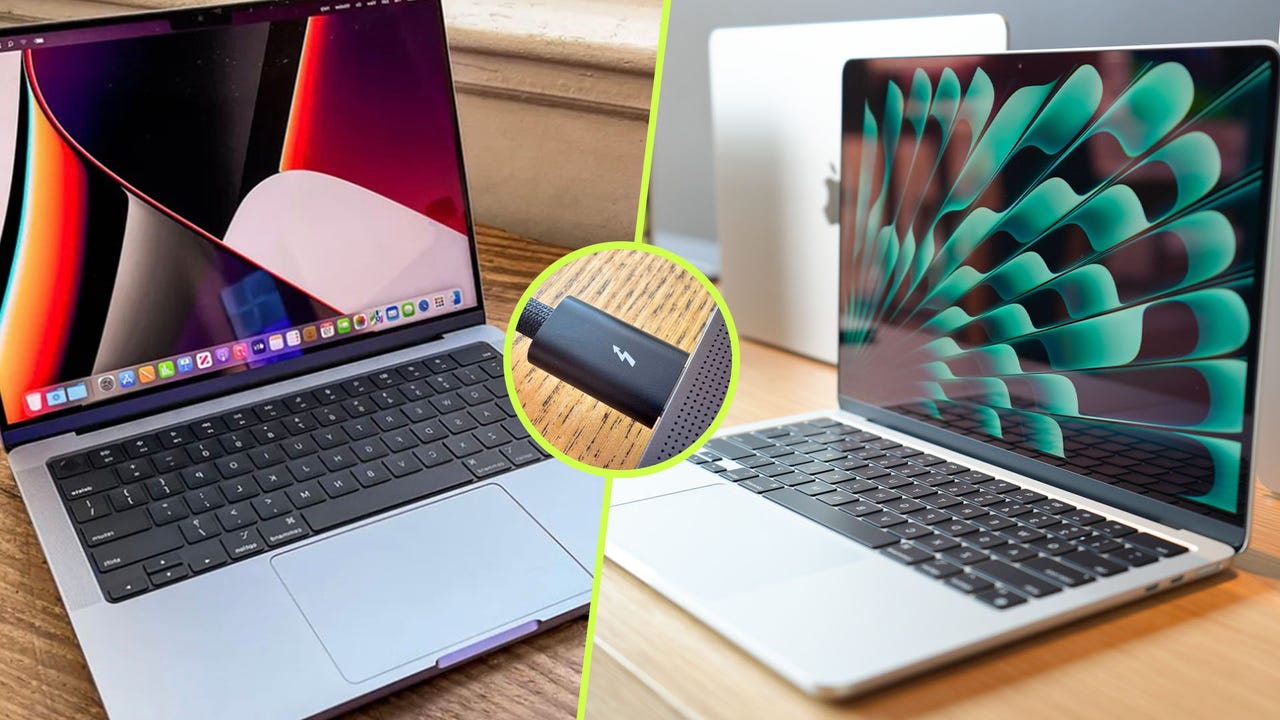
ZDNET’s key takeaways
- Transferring to a new MacBook over Wi‑Fi can take several hours.
- Using a Thunderbolt 4 or 5 cable is much faster.
- Cheaper third‑party cables work just as well as Apple’s expensive options.
Why I needed a faster transfer
Over the last few years the files on my MacBook Pro have piled up. I regularly back up to a NAS, but the machine still holds close to a terabyte of data—mostly video files I edit. When I upgraded to a newer MacBook Pro with a faster processor, more RAM, and extra storage, moving all that data became a headache.
Normally I’d fire up Apple’s Migration Assistant, connect both Macs to the same Wi‑Fi network, and let it run. In this case the estimate was almost 20 hours, which was clearly unacceptable.
The better way: a Thunderbolt cable
The solution is simply a Thunderbolt cable.
The tiny Thunderbolt logo distinguishes it from ordinary USB‑C.
I have several cables, including Apple’s Thunderbolt 4 Pro cable, but you don’t need to spend close to $200. A third‑party option such as Satetchi’s Thunderbolt 5 Pro cable (around $40) works perfectly. Just make sure the cable bears the Thunderbolt logo—USB‑C cables deliver far poorer performance.
- Also: Forget Apple’s pricey Thunderbolt 5 cables – I found a quality one for $40
- Also: This tiny charger has every feature you need – and an adorable smart display
- Also: What is Thunderbolt, and how is it different from USB‑C?
Transfer process
- Connect the two Macs with the Thunderbolt cable.
- Open Migration Assistant on the new Mac. It automatically detects the fastest connection (Thunderbolt).
- Follow the prompts to select the source Mac and the data you want to migrate.
Migration Assistant reported transfer speeds of over 700 MB/s and gave an estimated completion time of about three hours. In reality, the whole migration finished in just under an hour.
Results
Because my data set includes a mix of small and very large files, the time estimate was a bit off, but the actual performance far exceeded Wi‑Fi migration. If you have a modest amount of data, Wi‑Fi may be acceptable, but for anyone with hundreds of gigabytes (or a terabyte) of files, using a Thunderbolt cable is the fastest and most reliable method.