
I found a trick to easily check for new Android updates — here’s how
Source: Android Authority
Rita El Khoury / Android Authority
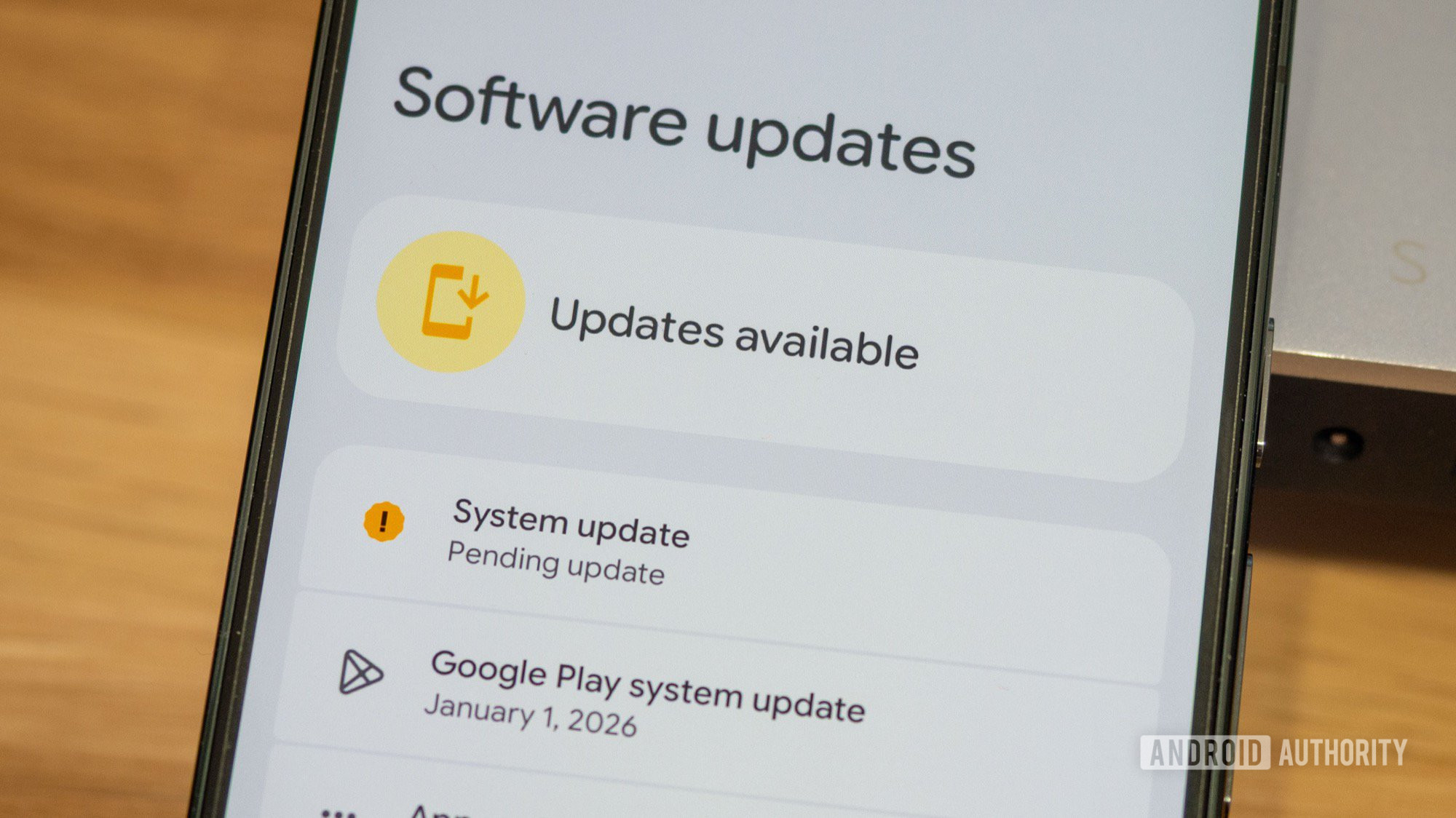
I don’t know about you, but on any given week I manually check for new Google Play System updates, new betas, monthly patches, or QPRs several times. Dropping down the notifications shade, opening the app drawer, tapping Settings, scrolling to System, and then Software updates gets tedious.
This is especially true when a hot new Android 17 beta is supposedly being released right away, and I have to keep checking for the OTA every few minutes before Google changes the rollout schedule. I wanted a faster shortcut to get to updates, and I found two tricks.
How often do you check for new updates on your phone?
80 votes
The easy way: Use the Settings widget
Android has long included a Settings widget that can turn any settings submenu into a home‑screen shortcut. It’s still present in Android 16.
- Create a new home‑screen widget.
- Tap Browse and select the Settings widget.
- Drop it on the home screen; a menu of settings categories appears.
- Scroll down, find System, and choose it.
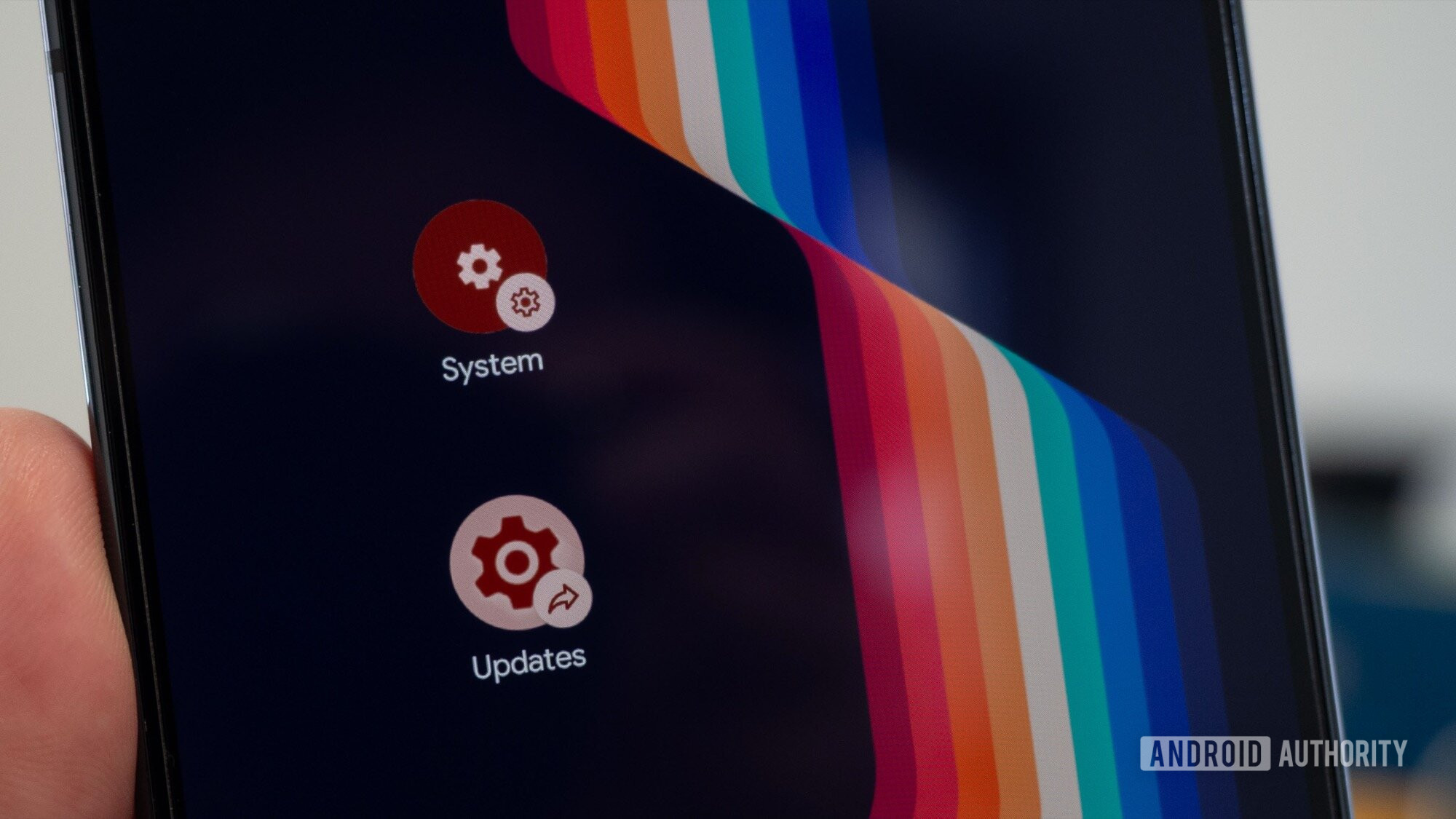
The widget now opens the System settings menu, where you can tap Software updates. It saves a couple of taps and swipes each time you check for an update—a handy productivity hack if you manage multiple devices.
Create a direct shortcut to Software updates
The widget still requires an extra tap to reach the actual update screen. Android exposes an activity that opens the Software Updates page directly:
- Install the free Shortcut Maker app.
- Open it and tap Settings in the top shortcut icons.
- Choose Settings Activities.
- Search for “update” and select
com.google.android.settings.update.SoftwareUpdateActivity. - Edit the shortcut name (e.g., “Updates”) and icon if desired, then tap Create Shortcut and Add to home screen.
The new shortcut opens the Software Update screen instantly, bypassing the System menu.
Rita El Khoury / Android Authority