
How to disable privacy indicators on external displays connected to your Mac [Video]
Source: 9to5Mac
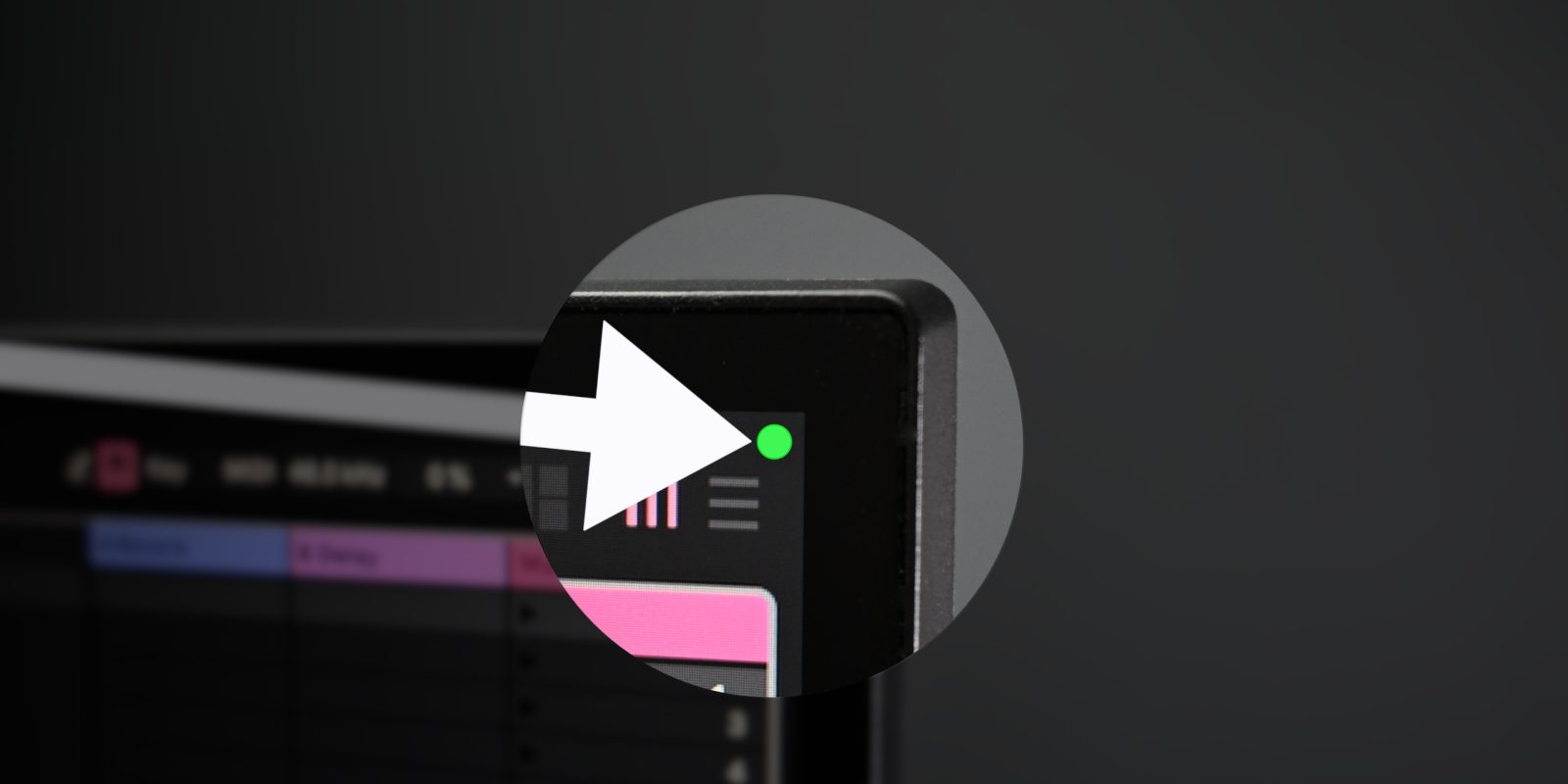
Apple includes privacy indicators in the upper‑right corner of your Mac’s display to show when critical hardware is in use. An orange indicator means the microphone is active, while a green indicator means the camera is active. These indicators help users stay aware of apps that may be using the camera or microphone.
While useful, they can be distracting when taking screenshots or recording an external display. Starting with macOS Sonoma 14.4, Apple added the ability to disable privacy indicators on external displays. Indicators will always appear on the Mac’s main display and in the menu bar, but they can be hidden on external screens when the menu bar itself is hidden (e.g., in full‑screen mode). If both the microphone and camera are active, the green (camera) indicator takes precedence.
Video: How to disable privacy indicators for external Mac displays
Subscribe to 9to5Mac on YouTube for more videos
How to disable external display privacy indicators
-
Start up in macOS Recovery – Shut down your Mac, then hold the power button until “Loading startup options…” appears.
-
Click Options → Continue to boot into macOS Recovery.
-
Select your user account → Next, enter your password, and click Continue.
-
In the menu bar, choose Utilities → Terminal.
-
At the Terminal prompt, type the following command and press Return:
system-override suppress-sw-camera-indication-on-external-displays=on -
If FileVault is enabled, you’ll be prompted to unlock the data volume. Enter your password and press Return.
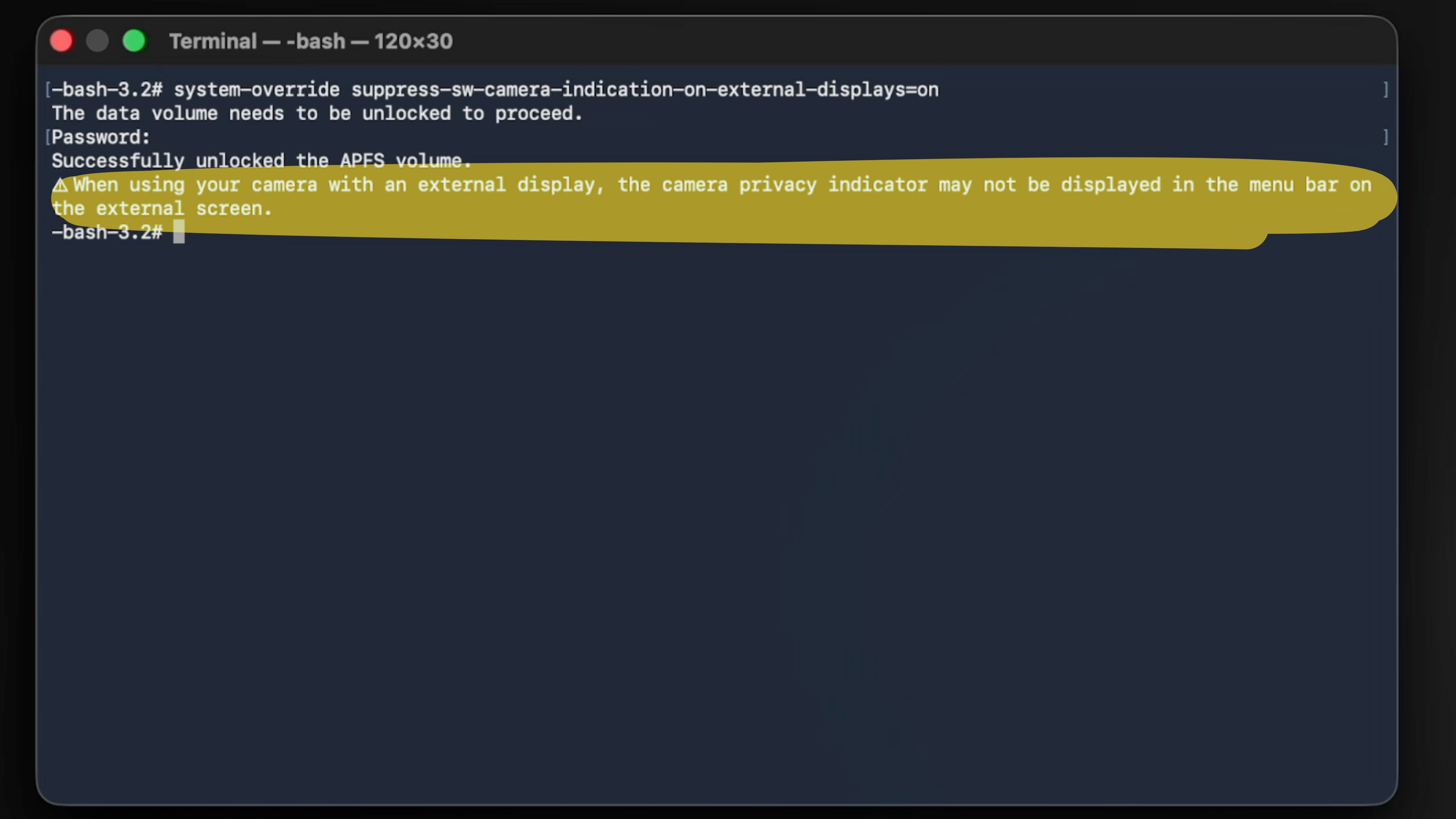
If the command succeeds, you’ll see a message similar to:
When using your camera with an external display, the camera privacy indicator may not be displayed in the menu bar on the external screen. -
In the menu bar, click → Restart and log back into macOS.
-
Open Settings → Privacy & Security → Camera (or Microphone).
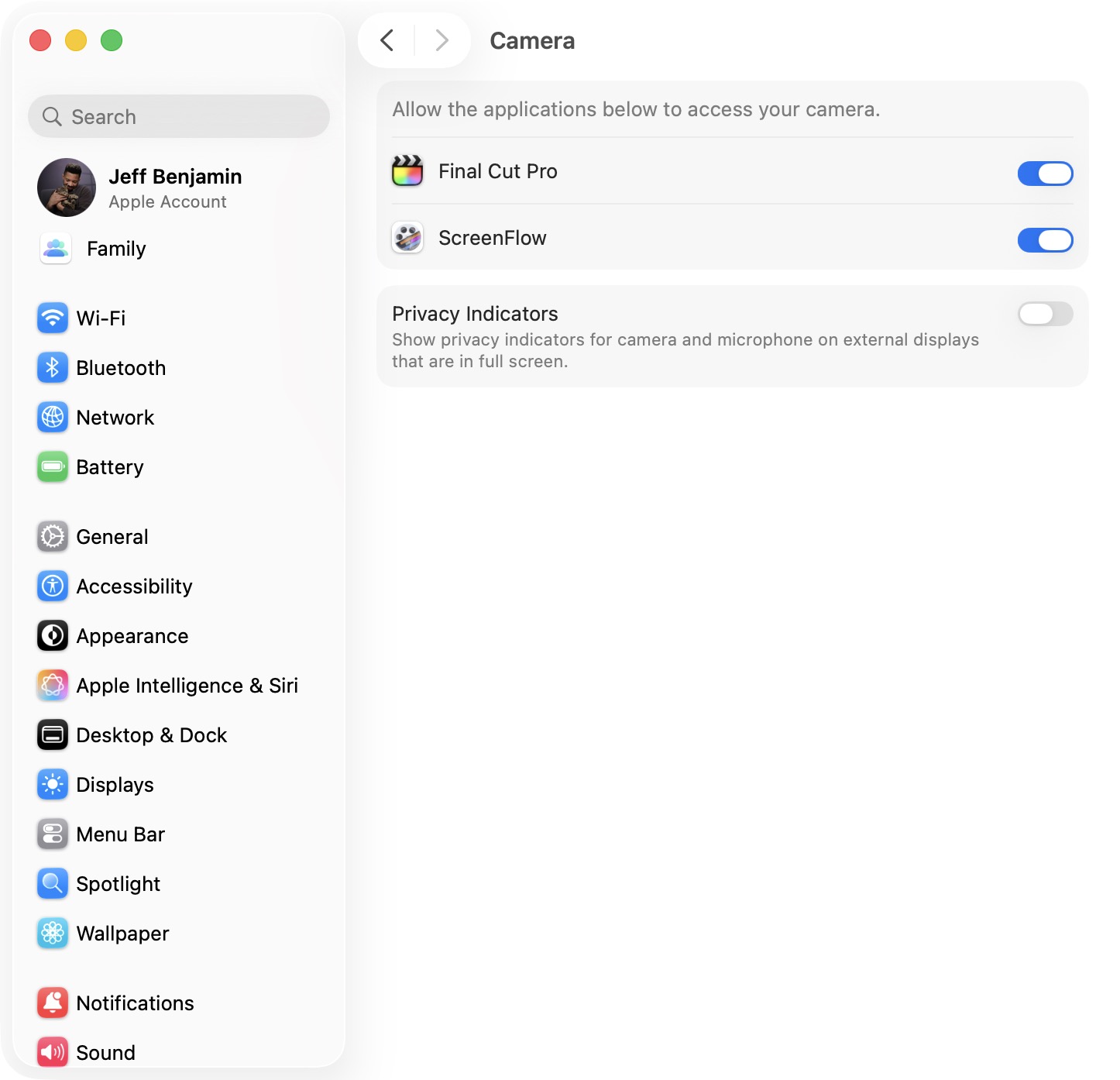
macOS Privacy & Security settings -
Disable the Privacy Indicators switch at the bottom of the page and authenticate with your password or Touch ID.
Note: Changing the setting for Camera also updates the Microphone setting, and vice‑versa.
9to5Mac’s Take
Privacy indicators are essential for monitoring hardware usage, but they can feel invasive during screenshots and screencasts. Apple’s option to disable them on external displays—while keeping them on the main display—offers a practical compromise. The built‑in toggle in Settings means you don’t need to return to macOS Recovery to re‑enable the feature later.
Would you consider disabling privacy indicators on your external Mac display?