
Google just improved the best free feature on your Pixel — here’s how to use it
Source: Android Authority
It’s no secret that one of the best reasons to use a Pixel is the suite of Pixel‑exclusive software features Google’s phones come with. Whether it’s a longstanding feature like Now Playing or a newer addition such as Pixel Screenshots, they’re why Pixels are as good as they are.
However, with so many available, it’s easy to let some of these Pixel goodies slip through the cracks — as I’ve done for years with Google’s free Pixel VPN. Pixel VPN works just like any paid VPN service, except it’s 100 % free. And as of February 2026, Google has made Pixel VPN even better.
If you have a modern Pixel, you may not know you have access to a fully functional VPN at no extra cost. If you’re not already using it, you should, and here’s how.
What Pixel devices can use Pixel VPN?
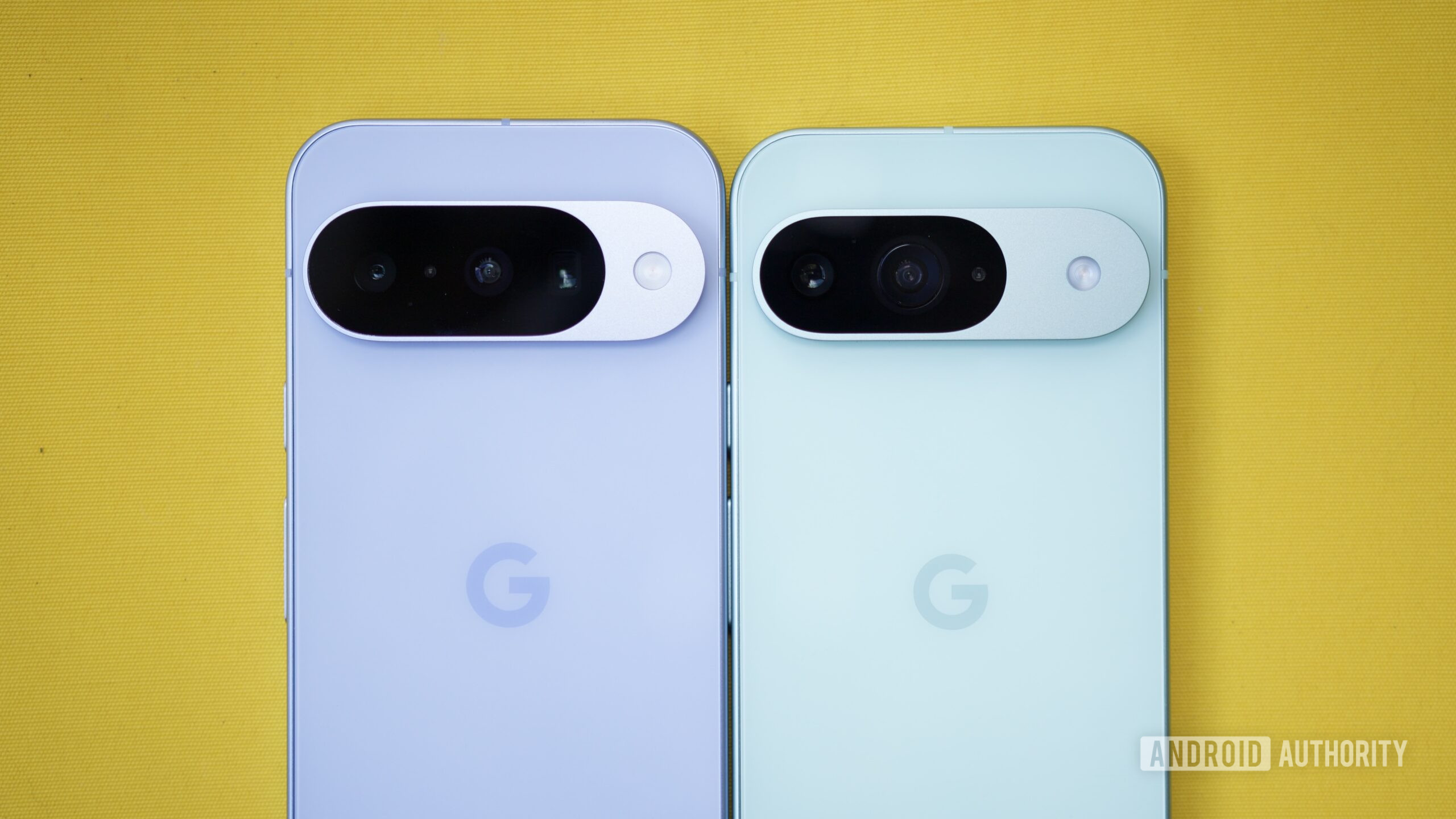
Most modern Pixels support Pixel VPN. The full list of supported devices is:
- Pixel 7
- Pixel 7 Pro
- Pixel 7a
- Pixel Tablet
- Pixel Fold
- Pixel 8
- Pixel 8 Pro
- Pixel 8a
- Pixel 9
- Pixel 9 Pro
- Pixel 9 Pro XL
- Pixel 9 Pro Fold
- Pixel 9a
- Pixel 10
- Pixel 10 Pro
- Pixel 10 Pro XL
- Pixel 10 Pro Fold
- Pixel 10a
The most notable exceptions are the Pixel 6, Pixel 6 Pro, and Pixel 6a. Although these phones still receive software updates (most recently the Android 17 Beta), they do not support Pixel VPN.
Pixel VPN is also region‑restricted. The US, UK, Canada, Japan, and many other locations are supported; see the full list on Google’s support page.
How to turn on and use your Pixel’s VPN
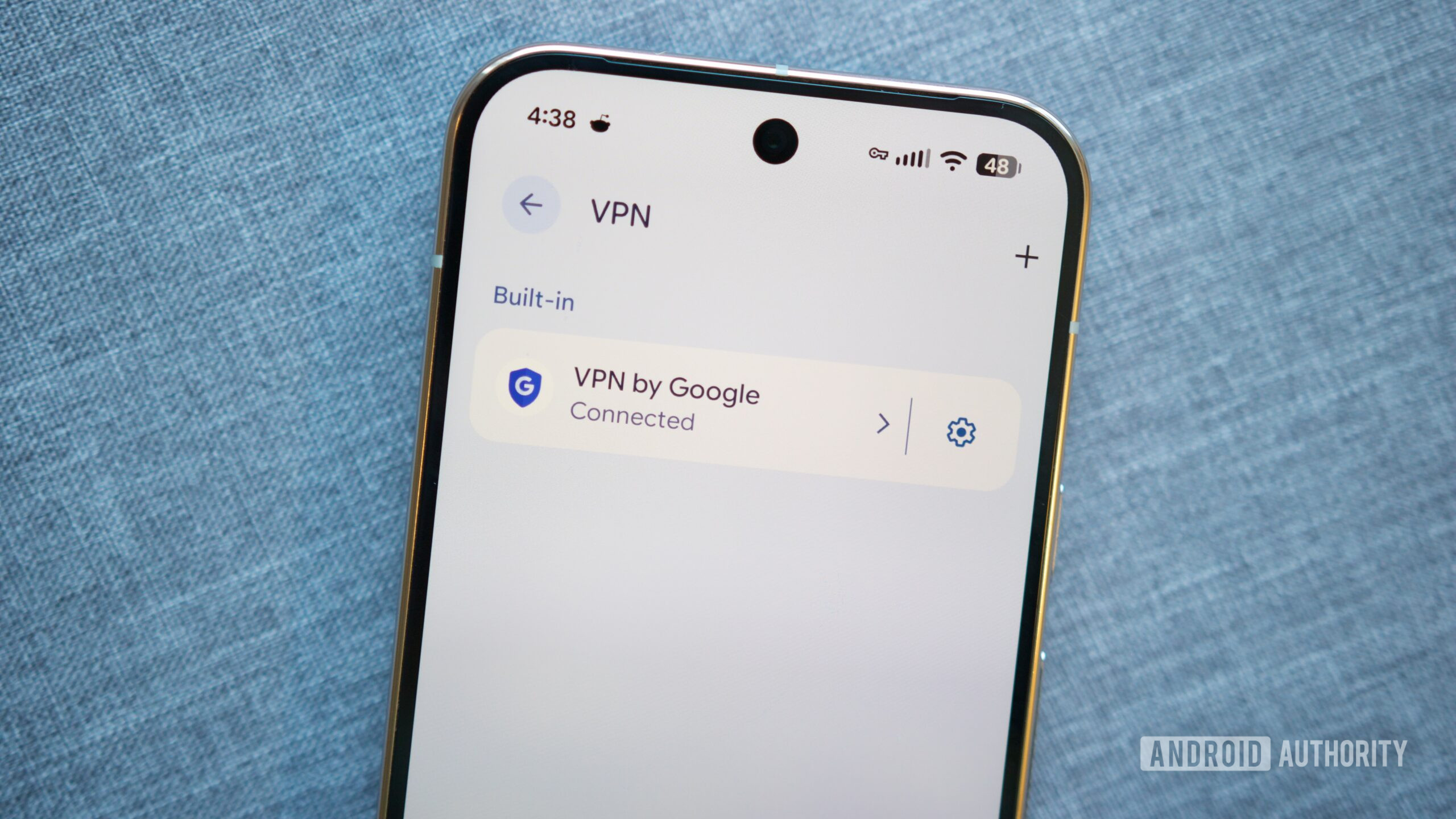
Enabling Pixel VPN is straightforward:
- Open the Settings app on your Pixel.
- Tap Network & internet.
- Tap VPN.
- Tap VPN by Google.
- Scroll down or tap More.
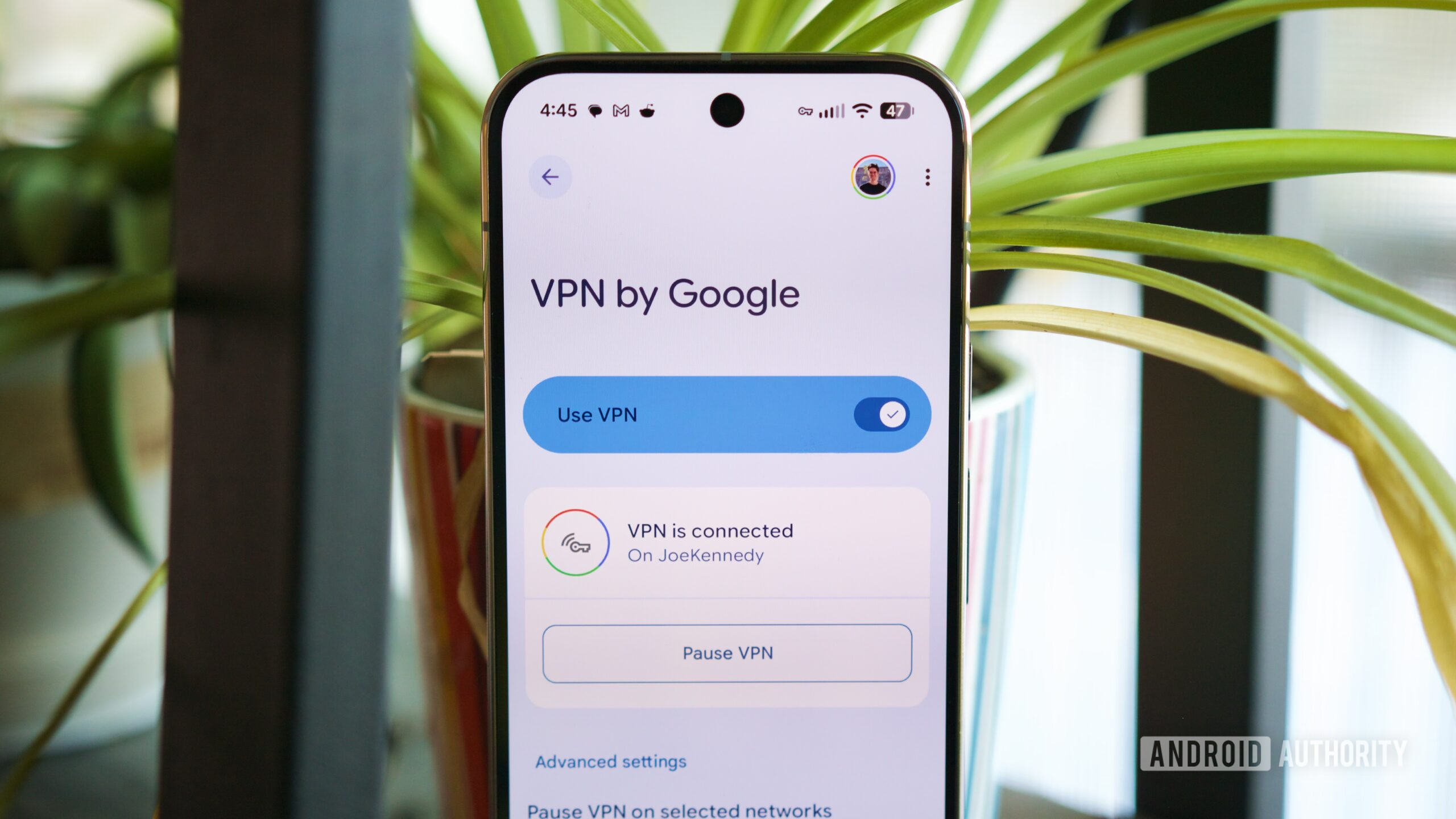
- Tap Use VPN at the bottom of the screen.
Wait a few seconds for the connection to establish. When the status changes from “VPN is connecting” to “VPN is connected,” you’re good to go.
Customisation options
- Mobile networks – By default, Pixel VPN won’t run on a mobile network. To enable it, tap Pause VPN on selected networks, then tap the trash‑can icon next to Mobile network.
- Wi‑Fi networks – You can pause the VPN for specific Wi‑Fi networks. From the same page, tap Get started, grant “Allow all the time” location permission, then select the Wi‑Fi networks you want to exclude.
- App exclusions – On the main Pixel VPN page, tap Exclude selected apps to choose apps that should bypass the VPN.
- Notifications – Tap Notifications to toggle VPN notifications (enabled by default).
Quick Settings tile
Google recently updated the Quick Settings tile for Pixel VPN. It now displays one of four statuses directly on the tile: Connected, Paused, Connecting, or Can’t connect. Make sure the tile is added to your Quick Settings for easy access.