
Build a Screen Capture & Scopes Tool with Python, Tkinter, and MSS
Source: Dev.to
Real‑time Screen Capture GUI with Scopes
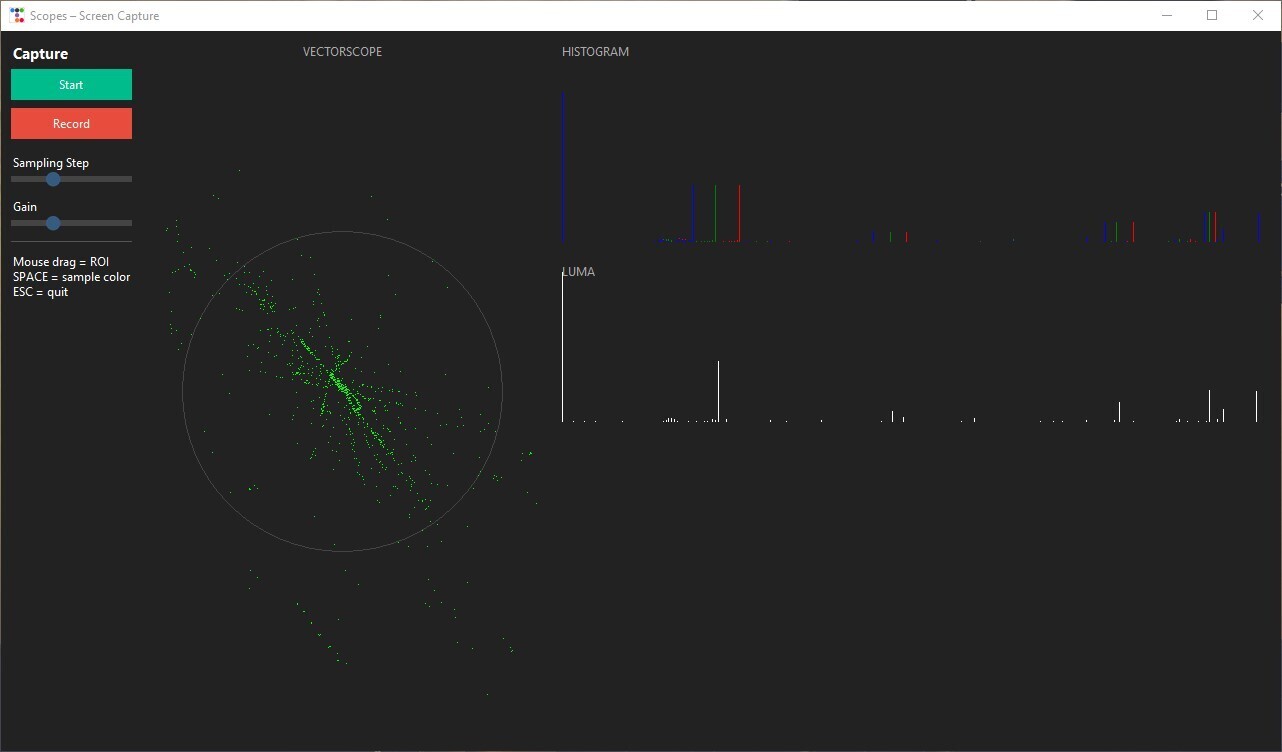
In this tutorial we’ll build a small GUI tool that captures your screen in real‑time and displays video scopes (vectorscope, histogram, and luma). The app also lets you select a region of interest (ROI), sample colors, and record video.
Step 1 – Install Dependencies
pip install tkinter ttkbootstrap numpy mss opencv-python pillow| Library | Purpose |
|---|---|
| tkinter | Built‑in GUI framework |
| ttkbootstrap | Modern, stylish Tkinter widgets |
| numpy | Efficient numerical arrays |
| mss | Fast screen capture |
| opencv‑python | Video recording & image processing |
| pillow | Image handling |
Step 2 – Create the Main Window
import ttkbootstrap as tb

APP_TITLE = "Scopes – Screen Capture"

app = tb.Window(title=APP_TITLE, themename="darkly", size=(1280, 720))
app.grid_columnconfigure(1, weight=1)   # make column 1 expandable
app.grid_rowconfigure(0, weight=1)      # make row 0 expandable
grid_columnconfigure / grid_rowconfigure let the canvas expand when the window is resized.
Step 3 – Layout Frames for Controls and Viewer
# Controls panel (left side)
controls = tb.Frame(app, padding=10)
controls.grid(row=0, column=0, sticky="ns")

# Viewer panel (right side)
viewer = tb.Frame(app)
viewer.grid(row=0, column=1, sticky="nsew")
viewer.grid_columnconfigure(0, weight=1)
viewer.grid_rowconfigure(0, weight=1)

# Canvas for drawing scopes
import tkinter as tk
canvas = tk.Canvas(viewer, bg="black", highlightthickness=0)
canvas.grid(row=0, column=0, sticky="nsew")
The canvas will display the vectorscope, histograms, and luma plot.
Step 4 – Add Start/Stop and Record Buttons
running   = False
recording = False

def toggle_capture():
    global running
    running = not running
    btn_start.config(text="Stop" if running else "Start")

btn_start = tb.Button(
    controls,
    text="Start",
    bootstyle="success",
    command=toggle_capture,
)
btn_start.pack(fill="x", pady=4)

def toggle_record():
    global recording
    recording = not recording
    btn_rec.config(text="Stop REC" if recording else "Record")

btn_rec = tb.Button(
    controls,
    text="Record",
    bootstyle="danger",
    command=toggle_record,
)
btn_rec.pack(fill="x", pady=4)toggle_captureflips the running state.toggle_recordflips the recording state.
Step 5 – Add Sliders for Sampling and Gain
tb.Label(controls, text="Sampling Step").pack(anchor="w")
sample_slider = tb.Scale(controls, from_=1, to=10, orient="horizontal")
sample_slider.set(4)
sample_slider.pack(fill="x")

tb.Label(controls, text="Gain").pack(anchor="w")
gain_slider = tb.Scale(controls, from_=1, to=10, orient="horizontal")
gain_slider.set(4)
gain_slider.pack(fill="x")
The sliders let the user control how many pixels are sampled and how much the vectorscope is amplified.
Step 6 – Convert RGB to YUV
import numpy as np

def rgb_to_yuv(rgb):
    """Convert an RGB image (0‑255) to YUV."""
    r, g, b = rgb[..., 0], rgb[..., 1], rgb[..., 2]
    y = 0.299 * r + 0.587 * g + 0.114 * b
    u = -0.147 * r - 0.289 * g + 0.436 * b
    v = 0.615 * r - 0.515 * g - 0.100 * b
    return y, u, v
Scopes are usually visualised in YUV colour space.
Step 7 – Draw Scopes on the Canvas
def draw_scopes(frame):
    """Render vectorscope, RGB histogram and luma histogram on the canvas."""
    canvas.delete("all")
    h, w, _ = frame.shape
    ch, cw = canvas.winfo_height(), canvas.winfo_width()

    step = int(sample_slider.get())
    gain = gain_slider.get()
    small = frame[::step, ::step] / 255.0          # down‑sample & normalise
    Y, U, V = rgb_to_yuv(small)

    # ---------- VECTORSCOPE ----------
    cx, cy, radius = 200, ch // 2, 160
    canvas.create_text(cx, 20, text="VECTORSCOPE", fill="#aaa")
    canvas.create_oval(cx - radius, cy - radius,
                       cx + radius, cy + radius,
                       outline="#444")
    xs = cx + U.flatten() * radius * gain
    ys = cy - V.flatten() * radius * gain
    for x, y in zip(xs, ys):
        canvas.create_line(x, y, x + 1, y, fill="lime")

    # ---------- RGB HISTOGRAM ----------
    hist_x = 420
    hist_w = cw - hist_x - 20
    hist_h = 150
    hist_y = 60
    canvas.create_text(hist_x, 20, text="HISTOGRAM",
                       fill="#aaa", anchor="w")
    for i, col in enumerate(("red", "green", "blue")):
        hist, _ = np.histogram(frame[..., i], bins=256, range=(0, 255))
        hist = hist / hist.max() if hist.max() > 0 else hist
        for x in range(256):
            y0 = hist_y + hist_h
            y1 = hist_y + hist_h - hist[x] * hist_h
            canvas.create_line(hist_x + x * hist_w / 256, y0,
                               hist_x + x * hist_w / 256, y1,
                               fill=col)

    # ---------- LUMA HISTOGRAM ----------
    canvas.create_text(hist_x,
                       hist_y + hist_h + 30,
                       text="LUMA",
                       fill="#aaa",
                       anchor="w")
    hist, _ = np.histogram((Y * 255).astype(np.uint8),
                           bins=256, range=(0, 255))
    hist = hist / hist.max() if hist.max() > 0 else hist
    for x in range(256):
        y0 = hist_y + hist_h + 180
        y1 = y0 - hist[x] * hist_h
        canvas.create_line(hist_x + x * hist_w / 256, y0,
                           hist_x + x * hist_w / 256, y1,
fill="white")- Vectorscope – shows colour distribution in the UV plane.
- RGB histogram – per‑channel intensity distribution.
- Luma histogram – brightness distribution.
Step 8 – Capture the Screen in a Background Thread
import threading, time, mss, cv2

latest_frame = None
video_writer = None
FPS = 30

def capture_thread():
    """Continuously grab the screen, update `latest_frame`,
    and write to a video file when recording."""
    global latest_frame, video_writer
    with mss.mss() as sct:
        monitor = sct.monitors[1]          # primary monitor
        while True:
            if running:
                # Grab screen, drop the alpha channel
                img = np.array(sct.grab(monitor))[:, :, :3]
                latest_frame = img

                # Write to video if recording
                if recording:
                    h, w = img.shape[:2]
                    if video_writer is None:
                        fourcc = cv2.VideoWriter_fourcc(*"mp4v")
                        video_writer = cv2.VideoWriter(
                            "capture.mp4", fourcc, FPS, (w, h)
                        )
                    video_writer.write(cv2.cvtColor(img, cv2.COLOR_RGB2BGR))
                else:
                    # Stop and release writer when recording ends
                    if video_writer is not None:
                        video_writer.release()
                        video_writer = None
            else:
                # When not running, just sleep a bit
                time.sleep(0.1)

            # Refresh the canvas at the target FPS
            if latest_frame is not None:
                draw_scopes(latest_frame)
                canvas.update_idletasks()
                canvas.update()
            time.sleep(1 / FPS)

# Start the capture thread
thread = threading.Thread(target=capture_thread, daemon=True)
thread.start()
The thread:
- Captures the screen while running is
True. - Stores the most recent frame in
latest_frame. - Writes frames to
capture.mp4when recording isTrue. - Calls
draw_scopes()to update the GUI at the desired frame rate.
Step 9 – Run the Application
if __name__ == "__main__":
    app.mainloop()
Press Start to begin live capture, Record to save a video, and adjust the sliders to change sampling density and vectorscope gain.
Enjoy experimenting with real‑time scopes! 🎥✨
Screen Capture & Scopes Tool – Cleaned Markdown
Step 8: Write Video Frames (optional)
if video_writer is None:
    video_writer = cv2.VideoWriter(
        "recording.mp4",
        cv2.VideoWriter_fourcc(*"mp4v"),
        FPS,
        (w, h)
    )
if video_writer.isOpened():
    video_writer.write(cv2.cvtColor(img, cv2.COLOR_RGB2BGR))

time.sleep(1 / FPS)
Start the capture thread
threading.Thread(target=capture_thread, daemon=True).start()Step 9: Update the UI Loop
Tkinter doesn’t like heavy computation in the main thread, so we update the canvas periodically:
def update_ui():
    if running and latest_frame is not None:
        draw_scopes(latest_frame)
    app.after(33, update_ui)   # ~30 FPS

update_ui()
Step 10: Add ROI and Color Sampling
roi = None
start_pt = None
color_indicators = []

def on_mouse_down(e):
    global start_pt
    start_pt = (e.x_root, e.y_root)

def on_mouse_up(e):
    global roi, start_pt
    if not start_pt:
        return
    x1, y1 = start_pt
    x2, y2 = e.x_root, e.y_root
    roi = (min(x1, x2), min(y1, y2), max(x1, x2), max(y1, y2))
    start_pt = None

canvas.bind("<ButtonPress-1>", on_mouse_down)
canvas.bind("<ButtonRelease-1>", on_mouse_up)

def on_key(e):
    global roi
    if e.keysym == "Escape":
        app.destroy()
    if e.keysym == "space":
        import mss
        x, y = app.winfo_pointerxy()
        with mss.mss() as sct:
            img = sct.grab(sct.monitors[1])
            r, g, b = img.pixel(x, y)
            color_indicators.append((r/255, g/255, b/255))
    if e.keysym == "r":
        roi = None

app.bind("<Key>", on_key)
Controls
| Action | Key / Mouse |
|---|---|
| Define ROI (drag) | Mouse drag |
| Sample color at cursor | Space |
| Quit | Esc |
| Reset ROI | R |
Step 11: Run the Application
app.mainloop()✅ Done! You now have a fully working screen‑capture and scopes tool in Python. You can:
- Start/stop capture
- Record video
- Analyze colors
Adjust the sampling rate and gain to fine‑tune the scopes.
Example Output
 (click the image for a larger view)