
如何将 Power BI 连接到 PostgreSQL 数据库(本地主机和 Aiven Cloud)
Source: Dev.to
Power BI 概述
Power BI 是由 Microsoft 开发的强大商业智能(BI)和数据可视化工具。它使组织能够:
- 分析数据
- 构建交互式仪表板
- 生成帮助决策者了解趋势、模式和业务绩效的报告
在现代组织中,大量的运营和分析数据存储在数据库中。公司不再手动将这些数据导出到电子表格,而是直接将 Power BI 连接到数据库,从而实现报告的自动更新。此连接使分析师能够构建始终反映最新数据的仪表板。
最广泛使用的用于存储分析数据的数据库系统之一是 PostgreSQL。PostgreSQL 是一种开源关系数据库管理系统,以其可靠性、可扩展性和强大的 SQL 支持而闻名。公司使用 PostgreSQL 存储结构化数据,如销售、交易、客户记录和库存信息。当 Power BI 连接到 PostgreSQL 时,分析师可以高效地查询和可视化这些数据。
Source: …
将 Power BI 连接到本地 PostgreSQL 数据库
要开始分析存储在 PostgreSQL 中的数据,首先将 Power BI Desktop 连接到该数据库。
1. 打开 Power BI Desktop
在电脑上打开 Power BI Desktop。Home 功能区提供数据连接工具。
2. 点击 Get Data
在 Home 功能区,点击 Get Data。Power BI 支持多种数据源(Excel、CSV、云服务、数据库等)。如果没有立即看到 PostgreSQL,点击 More 查看完整连接器列表,在搜索框中输入 PostgreSQL,Power BI 会过滤结果。

3. 选择 PostgreSQL Database
从可用连接器中选择 PostgreSQL database。Power BI 将打开一个连接对话框,供你输入数据库详细信息。
在对话框中填写:
| 字段 | 示例 |
|---|---|
| Server | localhost:5432 |
| Database | company(或你的数据库名称) |
| Data connectivity mode | • Import – 将数据加载到 Power BI • DirectQuery – 实时查询数据库 |
然后点击 OK。

4. 提供凭据
Power BI 会要求输入身份验证信息。
- Username: PostgreSQL 用户名
- Password: 数据库密码
- Authentication type: Database
输入凭据后,点击 Connect。
5. 选择要加载的表
Navigator 窗口会出现,显示 PostgreSQL 数据库中的所有表和视图。你可以预览每个表,然后点击 Load 将数据导入 Power BI。

常见的可选表:
customersproductssalesinventory
将 Power BI 连接到云 PostgreSQL 数据库(Aiven)
许多公司将数据库存放在云端。Aiven 提供托管的 PostgreSQL 服务。将 Power BI 连接到云 PostgreSQL 实例的方式与本地连接类似,但需要额外的连接信息。
1. 从 Aiven 获取连接详情

在 Aiven 仪表板中可以找到:
- Host(数据库服务器地址)
- Port(通常为
19534) - Database name(数据库名称)
- Username(用户名)
- Password(密码)
2. 下载并安装 SSL 证书
Aiven 要求对所有 PostgreSQL 连接使用 SSL 加密。您必须先下载 CA 证书并在机器上安装,然后才能连接 Power BI。
下载 CA 证书
- 打开您的 Aiven 服务仪表板。
- 前往 Connection information(连接信息)部分。
- 下载 CA 证书文件(通常名为
ca.pem)。
Windows 需要 .crt 扩展名,请将 ca.pem 重命名为 ca.crt。
在 Windows 中安装证书
- 双击
ca.crt。 - 在证书窗口中点击 Install Certificate(安装证书)。
- 选择 Local Machine(本地机器)。
- 选中 Place all certificates in the following store(将所有证书放入以下存储) → Trusted Root Certification Authorities(受信任的根证书颁发机构)。
- 完成安装。
3. 使用 Power BI 进行连接
- 打开 Power BI Desktop。
- 在 Home(主页)选项卡上点击 Get Data(获取数据)。
- 搜索 PostgreSQL database(PostgreSQL 数据库),选择后点击 Connect(连接)。

- 在连接对话框中,填写从 Aiven 获取的 Host、Port、Database、Username 和 Password。
- 确保 SSL mode(SSL 模式)设置为 Require(或适用于您证书的相应选项)。
- 点击 OK,在 Navigator(导航器)窗口中选择所需的表,然后点击 Load(加载)。
最终提示
- Import 与 DirectQuery: 对于静态或变化缓慢的数据,使用 Import 可获得更快的性能。需要实时数据且 PostgreSQL 服务器能够承受查询负载时,使用 DirectQuery。
- 刷新调度: 在 Power BI 服务中,为 Import 模式配置计划刷新,或依赖 DirectQuery 的实时连接。
- 性能优化: 在 PostgreSQL 中为经常查询的列建立索引,并在 Power BI 中限制检索的列数/行数,以提升性能。
您现在已经可以使用本地和云端托管的 PostgreSQL 数据库,在 Power BI 中构建交互式报表和仪表板。祝您分析愉快!
# Connecting Power BI to an Aiven PostgreSQL Database
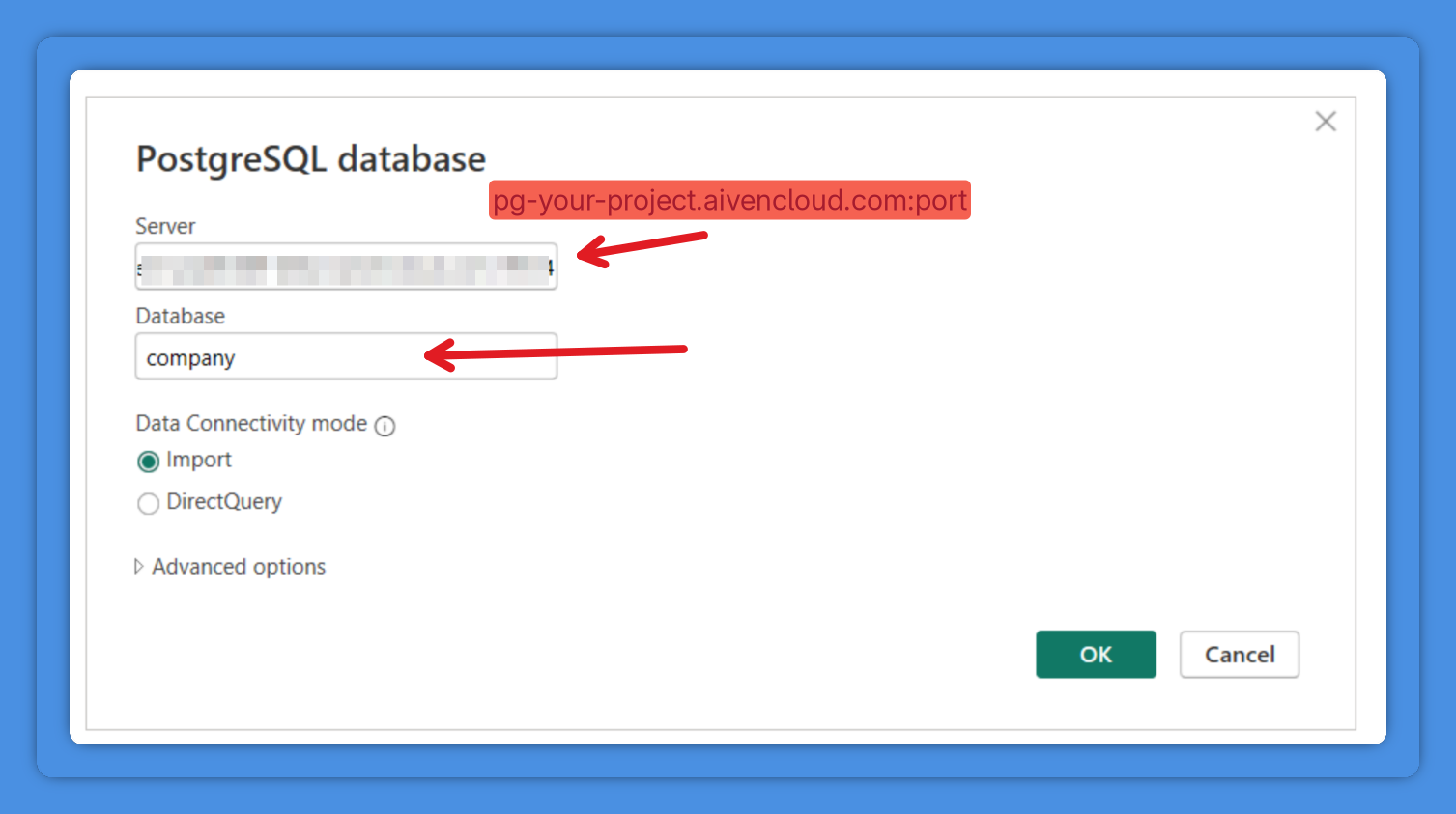
In the **Connection** window, enter the following details from the Aiven dashboard:
- **Server:** `pg_12345-user.aivencloud.com:19534`
- **Database name:** `company`
Click **OK**.
---
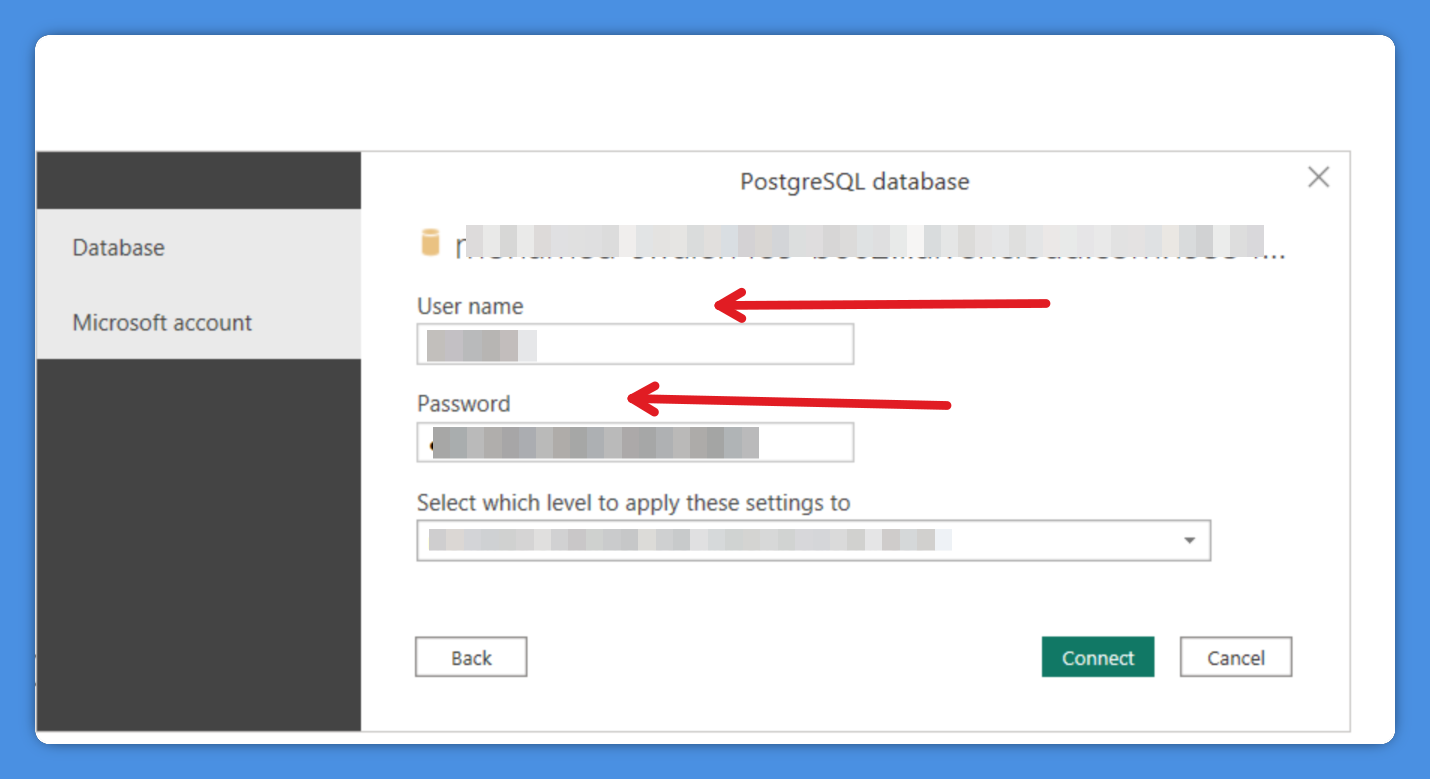
Power BI will then prompt you for authentication.
Enter:
- **Username**
- **Password**
Select **Database authentication**, then click **Connect**.
---
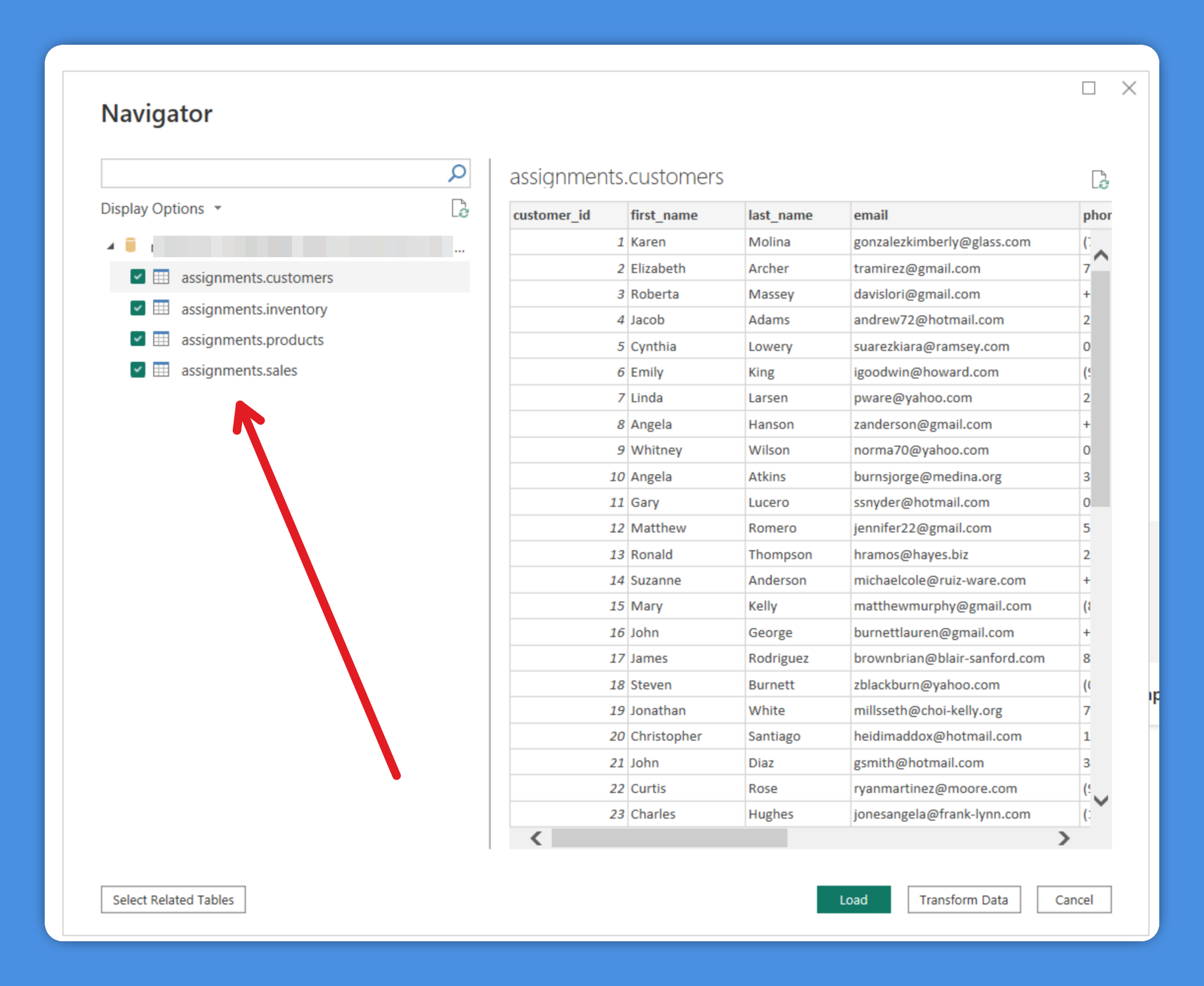
Because the CA certificate was installed earlier, Windows already trusts the Aiven server, allowing Power BI to establish a secure SSL connection automatically.
Once the connection succeeds, the **Navigator** window will appear, showing the available tables in your database—ready for you to select and load.