
Python, Tkinter, MSS를 사용한 화면 캡처 및 스코프 도구 만들기
발행: (2026년 1월 9일 오후 02:46 GMT+9)
8 분 소요
원문: Dev.to
Source: Dev.to
죄송합니다만, 해당 페이지의 전체 텍스트를 직접 가져올 수 없습니다. 번역을 진행하려면 번역하고자 하는 기사 본문을 여기 채팅창에 복사해 주시면, 코드 블록과 URL은 그대로 두고 마크다운 형식과 기술 용어를 유지하면서 한국어로 번역해 드리겠습니다.
실시간 화면 캡처 GUI와 스코프
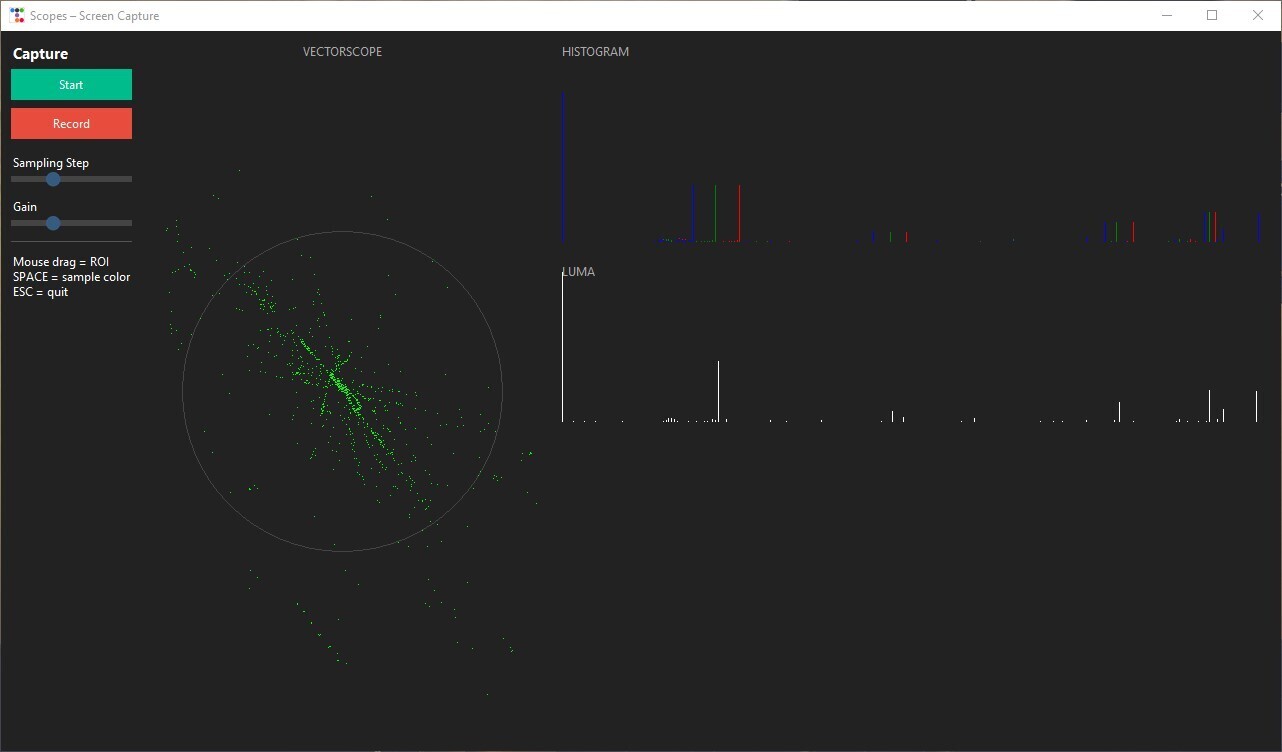
이 튜토리얼에서는 실시간으로 화면을 캡처하고 비디오 스코프(벡터스코프, 히스토그램, 루마)를 표시하는 작은 GUI 도구를 만들겠습니다. 앱은 또한 관심 영역(ROI)을 선택하고, 색상을 샘플링하며, 비디오를 녹화할 수 있게 합니다.
단계 1 – 의존성 설치
pip install tkinter ttkbootstrap numpy mss opencv-python pillow| Library | 용도 |
|---|---|
| tkinter | 내장 GUI 프레임워크 |
| ttkbootstrap | 모던하고 스타일리시한 Tkinter 위젯 |
| numpy | 효율적인 수치 배열 |
| mss | 빠른 화면 캡처 |
| opencv‑python | 비디오 녹화 및 이미지 처리 |
| pillow | 이미지 처리 |
단계 2 – 메인 윈도우 만들기
import ttkbootstrap as tb

APP_TITLE = "Scopes – Screen Capture"

app = tb.Window(title=APP_TITLE, themename="darkly", size=(1280, 720))
app.grid_columnconfigure(1, weight=1)   # make column 1 expandable
app.grid_rowconfigure(0, weight=1) # make row 0 expandablegrid_columnconfigure와 grid_rowconfigure는 창 크기를 조절할 때 캔버스가 확장되도록 합니다.
단계 3 – 컨트롤 및 뷰어 프레임 레이아웃
# Controls panel (left side)
controls = tb.Frame(app, padding=10)
controls.grid(row=0, column=0, sticky="ns")

# Viewer panel (right side)
viewer = tb.Frame(app)
viewer.grid(row=0, column=1, sticky="nsew")
viewer.grid_columnconfigure(0, weight=1)
viewer.grid_rowconfigure(0, weight=1)

# Canvas for drawing scopes
import tkinter as tk
canvas = tk.Canvas(viewer, bg="black", highlightthickness=0)
canvas.grid(row=0, column=0, sticky="nsew")
캔버스는 벡터스코프, 히스토그램 및 루마 플롯을 표시합니다.
단계 4 – 시작/정지 및 녹화 버튼 추가
running   = False
recording = False

def toggle_capture():
    global running
    running = not running
    btn_start.config(text="Stop" if running else "Start")

btn_start = tb.Button(
    controls,
    text="Start",
    bootstyle="success",
    command=toggle_capture,
)
btn_start.pack(fill="x", pady=4)

def toggle_record():
    global recording
    recording = not recording
    btn_rec.config(text="Stop REC" if recording else "Record")

btn_rec = tb.Button(
    controls,
    text="Record",
    bootstyle="danger",
    command=toggle_record,
)
btn_rec.pack(fill="x", pady=4)toggle_capture는 running 상태를 토글합니다.toggle_record는 recording 상태를 토글합니다.
단계 5 – 샘플링 및 게인 슬라이더 추가
tb.Label(controls, text="Sampling Step").pack(anchor="w")
sample_slider = tb.Scale(controls, from_=1, to=10, orient="horizontal")
sample_slider.set(4)
sample_slider.pack(fill="x")

tb.Label(controls, text="Gain").pack(anchor="w")
gain_slider = tb.Scale(controls, from_=1, to=10, orient="horizontal")
gain_slider.set(4)
gain_slider.pack(fill="x")
슬라이더를 사용하면 사용자가 샘플링할 픽셀 수와 벡터스코프의 증폭 정도를 제어할 수 있습니다.
단계 6 – RGB를 YUV로 변환
import numpy as np

def rgb_to_yuv(rgb):
    """Convert an RGB image (0‑255) to YUV."""
    r, g, b = rgb[..., 0], rgb[..., 1], rgb[..., 2]
    y = 0.299 * r + 0.587 * g + 0.114 * b
    u = -0.147 * r - 0.289 * g + 0.436 * b
    v = 0.615 * r - 0.515 * g - 0.100 * b
    return y, u, v
스코프는 일반적으로 YUV 색 공간에서 시각화됩니다.
단계 7 – 캔버스에 스코프 그리기
def draw_scopes(frame):
    """Render vectorscope, RGB histogram and luma histogram on the canvas."""
    canvas.delete("all")
    h, w, _ = frame.shape
    ch, cw = canvas.winfo_height(), canvas.winfo_width()

    step = int(sample_slider.get())
    gain = gain_slider.get()
    small = frame[::step, ::step] / 255.0          # down‑sample & normalise
    Y, U, V = rgb_to_yuv(small)

# ---------- VECTORSCOPE --------- Vectorscope – UV 평면에서 색 분포를 보여줍니다.
- RGB histogram – 채널별 강도 분포.
- Luma histogram – 밝기 분포.
단계 8 – 백그라운드 스레드에서 화면 캡처
import threading, time, mss, cv2

latest_frame = None
video_writer = None
FPS = 30

def capture_thread():
    """Continuously grab the screen, update `latest_frame`,
    and write to a video file when recording."""
    global latest_frame, video_writer
    with mss.mss() as sct:
        monitor = sct.monitors[1]          # primary monitor
        while True:
            if running:
                # Grab screen, drop the alpha channel
                img = np.array(sct.grab(monitor))[:, :, :3]
                latest_frame = img

                # Write to video if recording
                if recording:
                    h, w = img.shape[:2]
                    if video_writer is None:
                        fourcc = cv2.VideoWriter_fourcc(*"mp4v")
                        video_writer = cv2.VideoWriter(
                            "capture.mp4", fourcc, FPS, (w, h)
                        )
                    video_writer.write(cv2.cvtColor(img, cv2.COLOR_RGB2BGR))
                else:
                    # Stop and release writer when recording ends
                    if video_writer is not None:
                        video_writer.release()
                        video_writer = None
            else:
                # When not running, just sleep a bit
                time.sleep(0.1)

            # Refresh the canvas at the target FPS
            if latest_frame is not None:
                draw_scopes(latest_frame)
                canvas.update_idletasks()
                canvas.update()
            time.sleep(1 / FPS)

# Start the capture thread
thread = threading.Thread(target=capture_thread, daemon=True)
thread.start()
스레드:
- running이
True인 동안 화면을 캡처합니다. - 최신 프레임을
latest_frame에 저장합니다. - recording이
True일 때capture.mp4에 프레임을 기록합니다. - 원하는 프레임 속도로 GUI를 업데이트하기 위해
draw_scopes()를 호출합니다.
단계 9 – 애플리케이션 실행
if __name__ == "__main__":
    app.ma
inloop()
Press **Start**를 눌러 실시간 캡처를 시작하고, **Record**를 눌러 비디오를 저장하며, 슬라이더를 조정하여 샘플링 밀도와 벡터스코프 게인을 변경합니다.

**실시간 스코프를 실험해 보세요!** 🎥✨
캡처 스레드 시작
화면 캡처 및 스코프 도구 – 정리된 마크다운
Step 8: 비디오 프레임 쓰기 (선택 사항)
if video_writer is None:
    video_writer = cv2.VideoWriter(
        "recording.mp4",
        cv2.VideoWriter_fourcc(*"mp4v"),
        FPS,
        (w, h)
    )
if video_writer.isOpened():
    video_writer.write(cv2.cvtColor(img, cv2.COLOR_RGB2BGR))

time.sleep(1 / FPS)
Step 9: UI 루프 업데이트
Tkinter는 메인 스레드에서 무거운 연산을 수행하는 것을 좋아하지 않으므로, 캔버스를 주기적으로 업데이트합니다:
def update_ui():
    if running and latest_frame is not None:
        draw_scopes(latest_frame)
    app.after(33, update_ui)   # ~30 FPS

update_ui()
Step 10: ROI 및 색상 샘플링 추가
roi = None
start_pt = None
color_indicators = []

def on_mouse_down(e):
    global start_pt
    start_pt = (e.x_root, e.y_root)

def on_mouse_up(e):
    global roi, start_pt
    if not start_pt:
        return
    x1, y1 = start_pt
    x2, y2 = e.x_root, e.y_root
    roi = (min(x1, x2), min(y1, y2), max(x1, x2), max(y1, y2))
    start_pt = None

canvas.bind("<ButtonPress-1>", on_mouse_down)
canvas.bind("<ButtonRelease-1>", on_mouse_up)

def on_key(e):
    global roi
    if e.keysym == "Escape":
        app.destroy()
    if e.keysym == "space":
        import mss
        x, y = app.winfo_pointerxy()
        with mss.mss() as sct:
            img = sct.grab(sct.monitors[1])
            r, g, b = img.pixel(x, y)
            color_indicators.append((r/255, g/255, b/255))
    if e.keysym == "r":
        roi = None

app.bind("<Key>", on_key)
컨트롤
| 동작 | 키 / 마우스 |
|---|---|
| ROI 정의 (드래그) | 마우스 드래그 |
| 커서 위치 색상 샘플링 | Space |
| 종료 | Esc |
| ROI 초기화 | R |
Step 11: 애플리케이션 실행
app.mainloop()✅ 완료! 이제 Python으로 완전하게 동작하는 화면 캡처 및 스코프 도구를 갖게 되었습니다. 다음을 할 수 있습니다:
- 캡처 시작/중지
- 비디오 녹화
- 색상 분석
샘플링 속도와 게인을 조정하여 스코프를 미세 조정하세요.
예시 출력
 (이미지를 클릭하면 크게 볼 수 있습니다)