
When having a better display backfires: fixing 'blurry' VLC in Hyprland
Source: Dev.to
Background
To understand why a simple video player looks blurry, we need some technical context.
1. HiDPI (High Dots‑Per‑Inch) Displays
- Physical reality: Traditional screens had about 96 PPI. A 50‑pixel button was roughly half an inch wide. Modern screens pack roughly twice as many pixels into the same physical space.
- Logical vs. physical pixels: When Qt draws that same 50‑pixel button on a HiDPI screen, it would be physically tiny (≈ ¼ inch). To look correct, Qt must rasterize a 100‑pixel button instead.
- Scale factor: The system applies a scale factor (e.g., 200 %) so that each logical pixel maps to two physical pixels. This keeps the UI readable and sharp regardless of pixel density.
2. Qt
Qt is the framework VLC uses for its interface. Its primary job is rasterization.
What is rasterization?
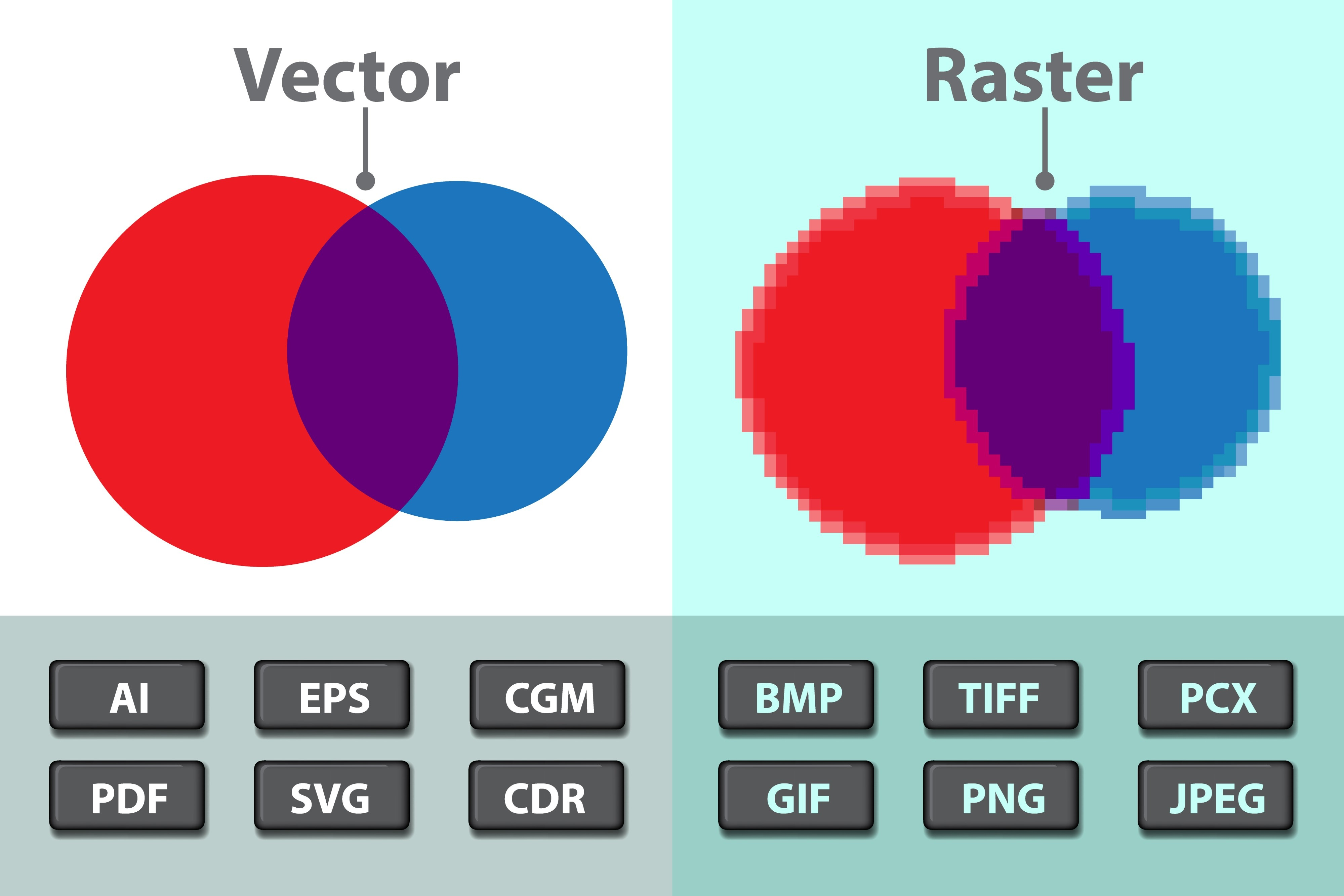
Think of the difference between a blueprint and a photograph.
- Blueprint (vector): The UI is described mathematically, e.g., “draw a perfect circle with a 50‑unit radius.” This description has infinite resolution.
- Photograph (raster): To display the UI, Qt converts the mathematical description into a grid of colored dots (pixels). This process is rasterization.
After rasterizing, Qt stores the result in a graphical buffer—essentially a bitmap image in RAM—and hands it to the display server to be placed on the screen.
3. The Display Server
The display server sits between applications (clients) and the hardware (kernel/GPU). Its job is to take the buffers (images) from all open apps and decide exactly where they appear on the physical screen.
4. The Protocols: X11 vs. Wayland
These are the communication standards that define how an application talks to the display hardware.
X11
- Designed in the 1980s as a network‑transparent protocol.
- Requires three distinct components:
- Client (App): Requests to draw a window.
- X Server (Display Server): A “dumb” middleman that controls the hardware but has no logic about window placement.
- Window Manager: Decides where windows go.
- Because the X11 protocol forbids the display server from making policy decisions (like window placement), every action involves a three‑way conversation (App ↔ Server ↔ WM).
- X11 relies on a global coordinate space—a single unified canvas across all screens. All apps must agree on the scale of that grid. When you have both HiDPI and normal‑DPI monitors, X11 struggles to stretch just part of the canvas.
- DPI awareness is system‑wide (e.g.,
Xft.dpi) and many legacy apps ignore it, making per‑monitor scaling difficult.
Wayland
- Designed to eliminate X11’s inefficiencies.
- The “display server” and the “window manager” are merged into a single piece of software called the compositor (Hyprland in our case).
- Direct control: Clients allocate their own buffers and hand them directly to the compositor.
- Isolation: Each app gets its own isolated surface (a private sheet of paper). The compositor can scale one surface by 2× while leaving another at 1×, providing per‑window flexibility—exactly what modern HiDPI screens require.
- Wayland handles HiDPI seamlessly—the compositor can explicitly tell each surface how to scale, eliminating the need for a global DPI setting.
5. The Bridge: XWayland
X11 was the standard for over 30 years. Thousands of applications (like older games, Steam, and VLC 3.0) were written to speak only X11. Since standard X11 applications cannot communicate via the Wayland protocol, XWayland acts as a translation layer. It is a fully functional X server that runs inside your Wayland session.
- To the app (VLC): XWayland looks like a standard X server.
- To the compositor (Hyprland): XWayland looks like a single application window.
But this creates a problem. XWayland apps inherit X11’s scaling limitations—they can’t receive per‑window scaling instructions from the Wayland compositor. This forces Hyprland to make a compromise:
- Let them render at native 1× resolution (sharp but tiny).
- Scale them up using
xwayland:force_zero_scaling(readable size but blurry).
Hyprland’s xwayland:force_zero_scaling setting (enabled by default) chooses the second option: it tells XWayland apps they’re on a low‑DPI display, then scales up their output. The result is legible text at the cost of blurriness—because the app drew itself at 1× thinking it was on a standard display, and Hyprland stretched those pixels to fit your HiDPI screen.
The Issue and the Fix
VLC 3.0 lacks native Wayland support, so it falls back to XWayland. This creates a scaling problem: VLC 3.0 ignores X11’s DPI hints and renders at native 1× resolution. When Hyprland’s xwayland:force_zero_scaling is disabled (the default), it scales up VLC’s 1× output, resulting in a blurry display.
Step 1 – Disable force scaling in Hyprland
Add the following to your Hyprland config file:
xwayland {
    force_zero_scaling = true
}
Result: VLC renders sharp—but tiny.
Step 2 – Tell Qt to scale at 2×
Bypassing X11’s DPI system entirely, launch VLC with Qt’s scaling factor:
QT_SCALE_FACTOR=2 vlcResult: VLC respects Qt’s environment variable, renders the UI at 2× internally, and because force scaling is disabled, Hyprland doesn’t scale it again—giving you sharp, properly‑sized text.
Closing Thoughts
This journey gave me an opportunity to get to know the Linux GUI ecosystem a bit better. I am still learning the intricacies of the Linux graphics stack (it’s a deep rabbit hole!). If I have oversimplified any architectural details or if you know a cleaner way to handle this in Hyprland, I would love to hear your feedback. Feel free to reach out or correct me!