
This is the only Chrome trick you should know
Published: (February 22, 2026 at 05:30 AM EST)
2 min read
Source: Android Authority
Source: Android Authority

What’s your favorite Chrome trick?
First things first: How to turn on Reading Mode
Reading Mode is still experimental in Chrome, so it may not appear for every user. Below are the steps to enable it on mobile and desktop.
Mobile
- When browsing an article, look for a special icon next to the address bar or find Show Reading mode under the ⋮ overflow menu.
- If the option isn’t visible, enable it manually:
- Go to
chrome://flagsand search for “reader”. - Set Reader Mode triggering to All articles.
- Set Reader Mode improvements to Enabled.
- Tap Relaunch in the bottom‑right corner.
- Go to
- After relaunching, the Reading Mode option should appear in the overflow menu of any article.
Desktop
- Reading Mode is usually available out of the box. Right‑click anywhere on an article page and select Open in Reading mode.
- To make the omnibox chip appear next to the URL bar, go to
chrome://flags, enable Reading Mode Omnibox Chip, and relaunch Chrome.
Reading Mode makes the entire web nicer
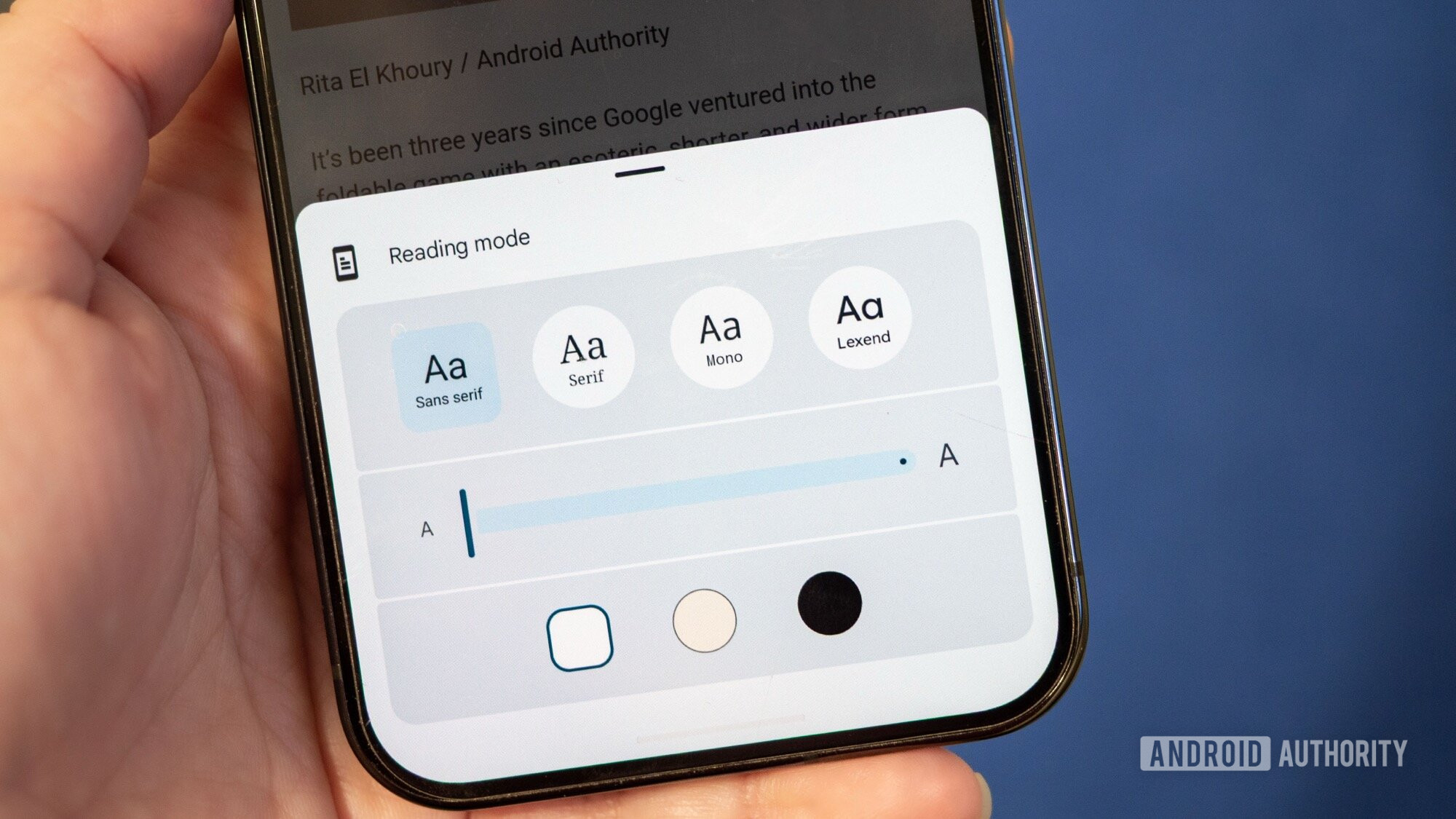
Once enabled, Reading Mode removes extra fluff, leaving a clean series of paragraphs and images (though images can be hit‑or‑miss on desktop). It helps you stay focused, skim to the sections you care about, and revisit parts you want to double‑check.
Customization
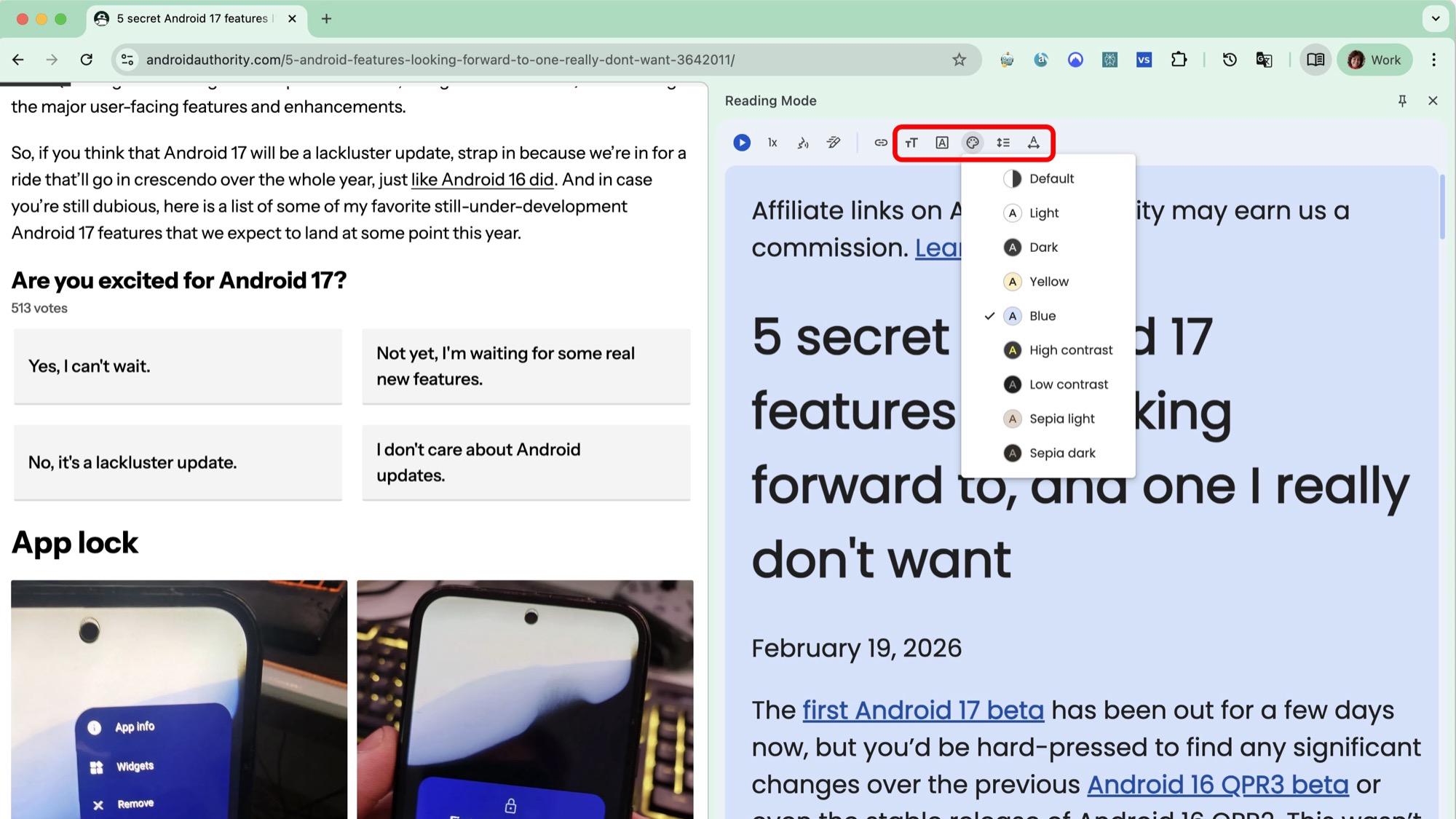
- Fonts & size – Choose a font that suits you and enlarge it for better readability.
- Background colors – Switch between beige, black, light‑blue, high‑contrast, or an auto mode that follows your system theme.
- Line & character spacing – Adjust spacing for a comfortable reading experience (desktop only).
Listening feature
Reading Mode also offers a text‑to‑speech option:
- On phones, open the ⋮ overflow menu and select Listen to this page.
- Choose between an AI‑generated podcast‑style overview or a word‑by‑word read‑aloud, with controllable speed.
From now on, you can enjoy articles in a cleaner layout without extra extensions. This has become my go‑to Chrome tool, and I expect to use it even more in the coming years.