
Signal adds security warnings for social engineering, phishing attacks
Source: Bleeping Computer
Signal has introduced new in‑app confirmations and warning messages as additional safeguards against phishing and social engineering attempts that could lead to various forms of fraud. The goal is to add enough friction for users to evaluate the safety of external requests.
Background
Recent attacks have targeted high‑profile users with bogus “Signal Support” alerts, as highlighted by:
- The FBI
- The Dutch government
- The German authorities
All incidents were attributed to Russian state‑sponsored hackers who abused the Linked Device feature to gain access to the target’s account, chats, and contacts. The attack typically convinces the victim to scan a QR code or share a one‑time verification code, allowing threat actors to link their device to the target’s account and obtain full access.
“To help protect Signal users from phishing and social engineering attacks, we’ve introduced additional confirmations and educational messaging in the app to help people better detect fraudulent profiles, especially message requests from scammers posing as Signal,” the vendor explained in a status update.
New Phishing and Social Engineering Protections
- Name not verified – displayed under contacts that initiate direct messages.
- No groups in common – highlights the lack of any shared groups with the recipient.
- Confirmation prompts – when a new request arrives, Signal asks users to confirm acceptance and reminds them that the app will never request registration codes, PINs, or recovery keys.
- Enhanced safety tips – richer entries with additional information.
- Support impersonation warnings – reminders that users should never respond to chats claiming to be from Signal Support.
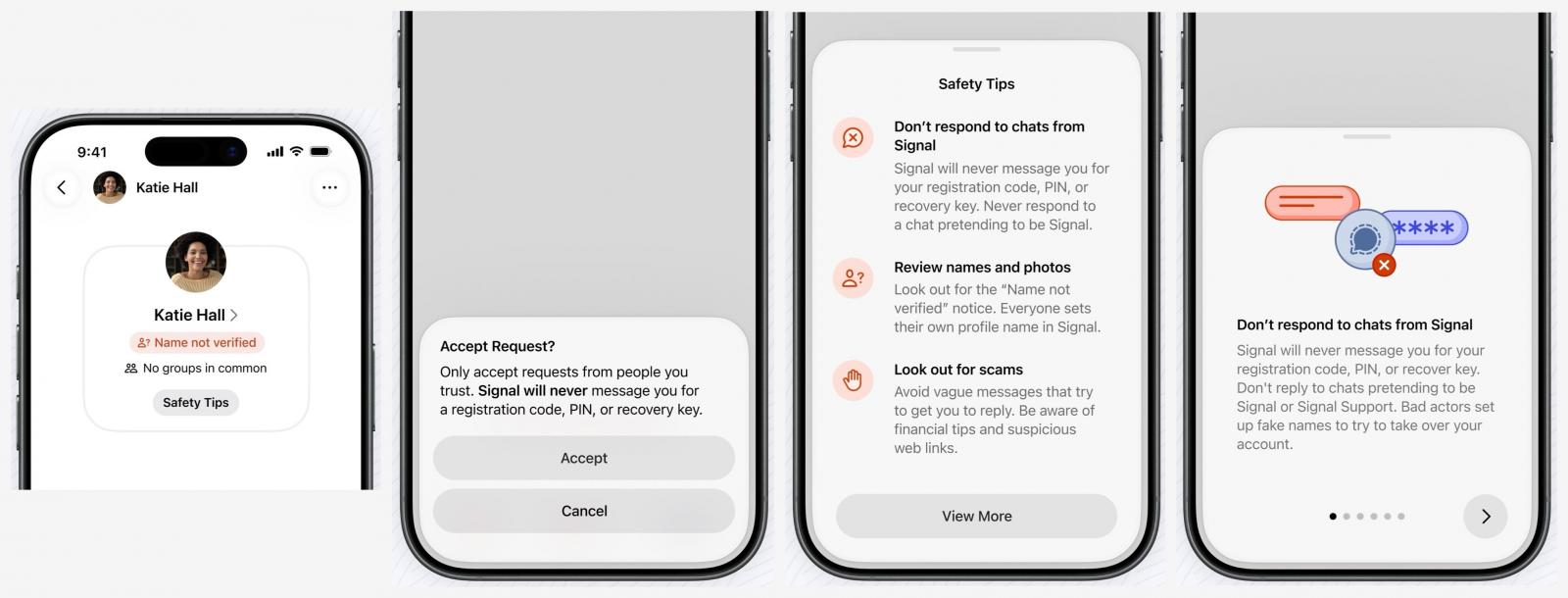
Signal’s new phishing and social engineering protections
Source: Signal
User Recommendations
- Stay alert for suspicious messages from unknown contacts, especially requests to scan QR codes or share verification codes.
- Regularly check Settings → Linked Devices for rogue devices and remove any you don’t recognize.
- Verify the identity of contacts, paying attention to the “Name not verified” and “No groups in common” indicators.