
Kickstart 2026: Deploy Your First Open-Source App on PikaPods
Source: Dev.to
What Is PikaPods?
PikaPods is a managed hosting platform specifically designed for open‑source web applications. Think of it as the middle ground between wrestling with your own VPS and surrendering your data to SaaS providers.
Why developers are choosing PikaPods
- 60+ open‑source apps ready to deploy with a single click
- Pricing from $1.20 / month — less than your monthly coffee splurge
- Zero server management — they handle updates, configs, and backups
- Full data ownership — export everything, anytime, no vendor lock‑in
- Revenue sharing with open‑source authors — your hosting fees support the devs who built the apps
The platform is built by Peakford, the same team behind BorgBase (the Borg backup hosting service), so they know a thing or two about reliable infrastructure.
What We’re Building Today
For this tutorial, we’ll deploy Uptime Kuma—a self‑hosted monitoring tool that’s become a favorite in the dev community. It’s perfect for:
- Monitoring your side projects and APIs
- Getting notified when your services go down
- Showing off a slick status page to users
The workflow applies to any app in the PikaPods catalog (e.g., Immich for photos, Actual Budget for finances, Listmonk for newsletters, and n8n for automation).
Step‑by‑Step: Deploying Uptime Kuma on PikaPods
Step 1: Create Your Account
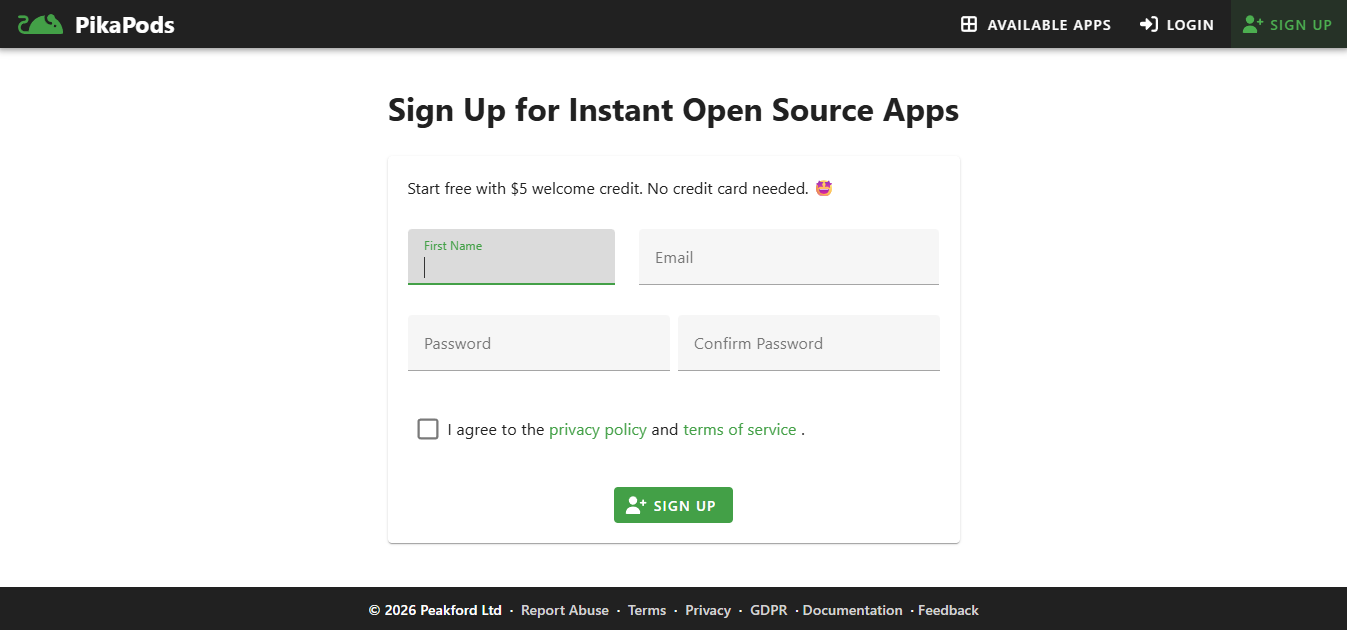
- Go to and click Sign Up in the top‑right corner.
- Fill in your name, email, and create a password. No credit card required.
🎁 Bonus: Every new account gets $5 in free credit—enough to run a lightweight app for several months.
Step 2: Browse the App Catalog
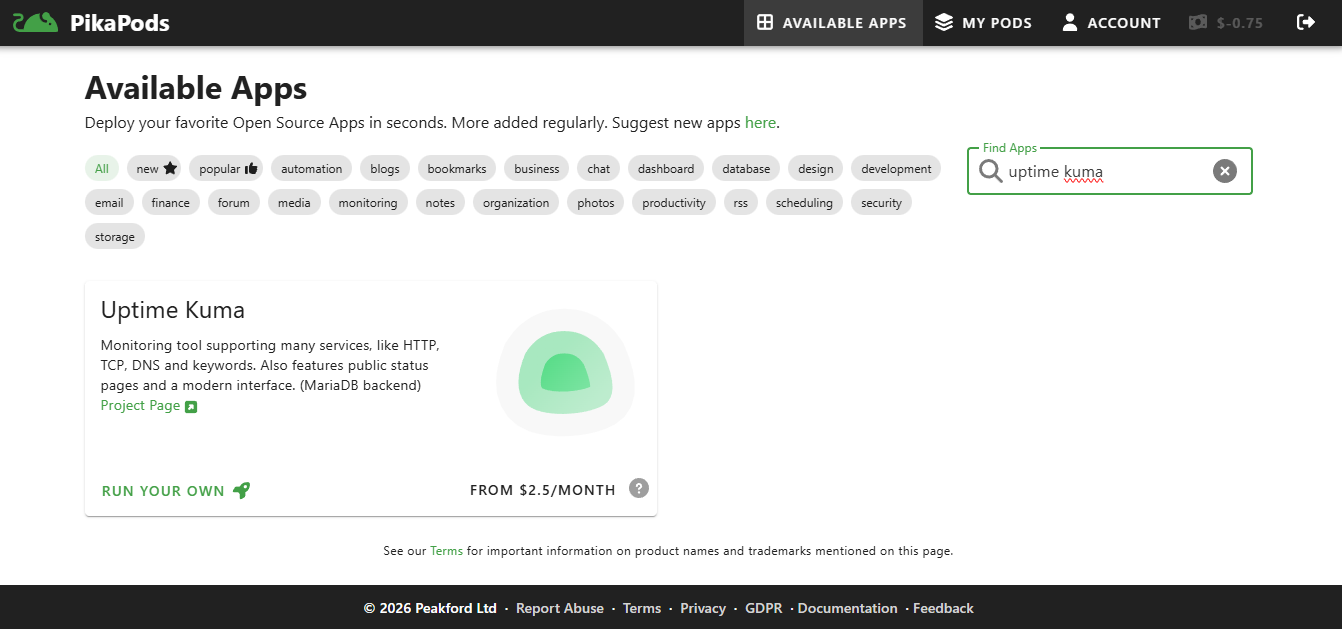
- After logging in, click Available Apps in the navigation menu.
- You’ll see a grid of 60+ open‑source applications organized by category. Use the search bar to find what you need.
- Search for “Uptime Kuma” and click on it.
Step 3: Configure Your Pod
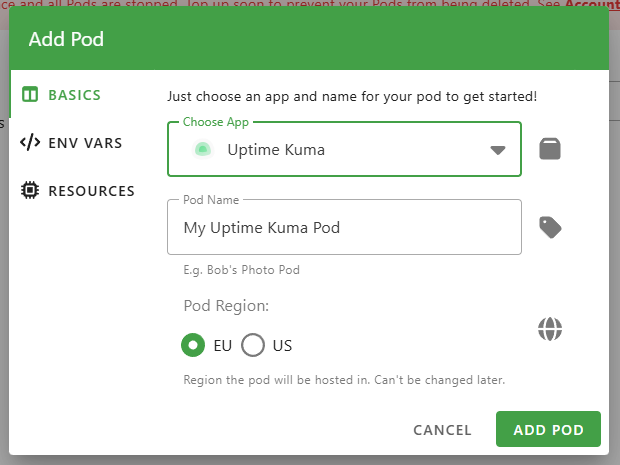
- Click Run Your Own on the Uptime Kuma page.
- Fill out the configuration screen:
| Setting | Details |
|---|---|
| Pod Name | Give it a memorable nickname (e.g., my-monitoring) |
| Region | Choose the closest data centre: 🇪🇺 EU (default) or 🇺🇸 US |
| Environment Variables | Optional – Uptime Kuma works fine with defaults |
| Resources | CPU: 0.1 cores (minimum) Memory: 256 MB (minimum) Storage: 0 GB (configs use ~100 MB) |
| Estimated Cost | ≈ $1.40 / month for minimal resources |
Step 4: Deploy!
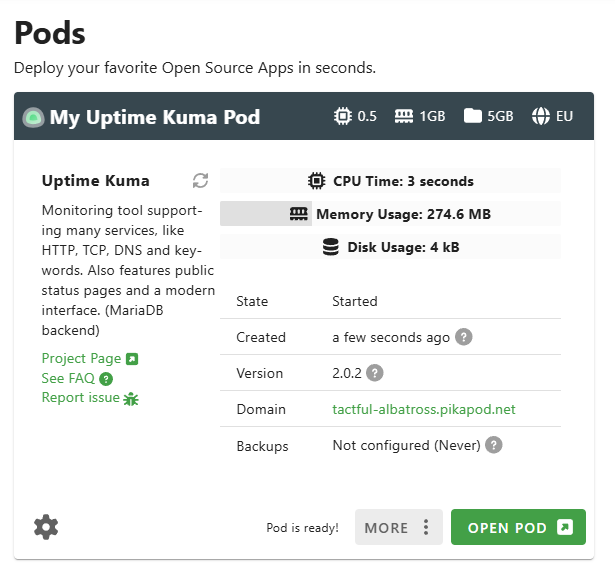
Click the green Add Pod button. PikaPods will spin up your container (typically 30–60 seconds). The status will change from Starting to Running.
Step 5: Launch Your App
- Click Open Pod (or the domain link in your dashboard).
- For Uptime Kuma, you’ll see the initial setup screen. Create your admin account (username + password) – this is separate from your PikaPods login.
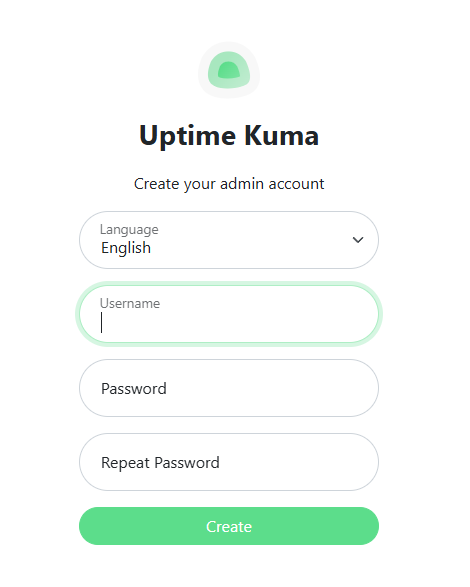
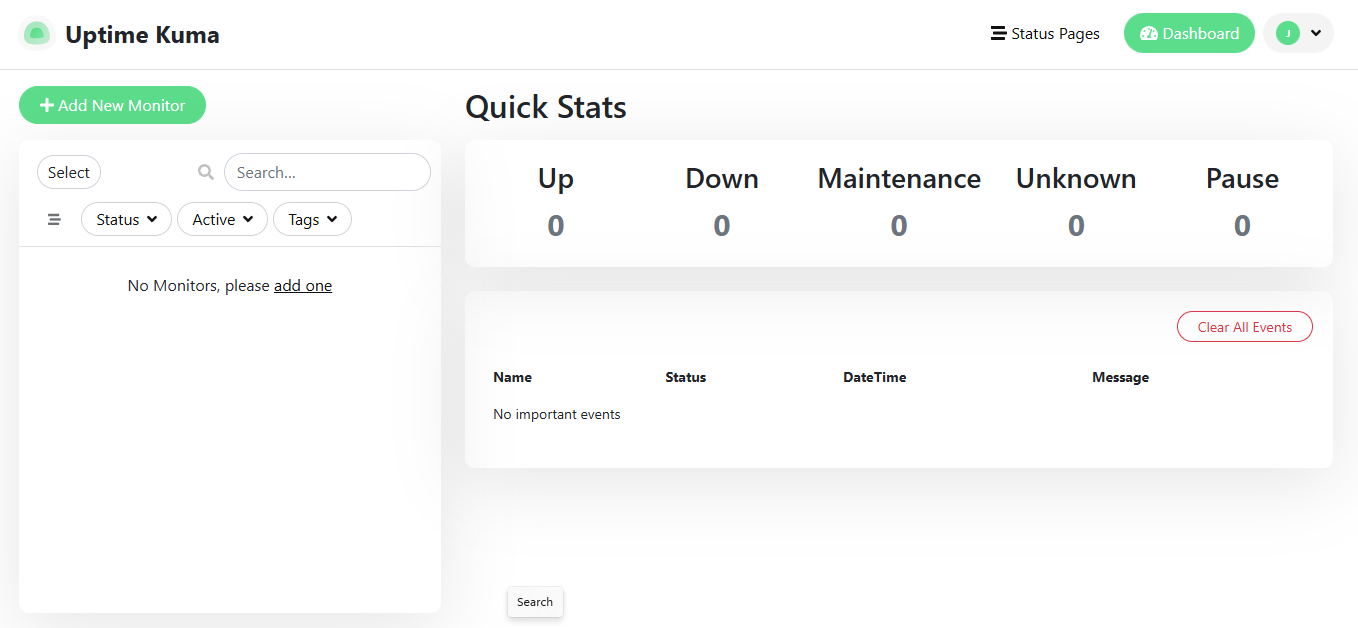
That’s it—you now have a production‑ready monitoring tool running in the cloud.
Customizing Your Deployment
Once your pod is running, click the settings (⚙️) icon next to it in your dashboard for more options:
- Environment variables – add or modify configuration values.
- Resource scaling – increase CPU, memory, or storage as your usage grows.
- Domain & SSL – attach a custom domain and enable automatic HTTPS.
- Backups – configure scheduled snapshots of your data.
- Logs & metrics – view real‑time logs and performance charts.
Tip: Most open‑source apps in the catalog expose a README link that details additional configuration options specific to that app.
🎉 You’re all set!
Enjoy hassle‑free hosting, full data ownership, and the peace of mind that comes with a managed platform. Happy self‑hosting in 2026!
Our Own Domain
- Want
status.yoursite.cominstead ofrandom-words.pikapods.net? - Add your domain in the Custom Domain field.
- Point your DNS (CNAME or A record) to the provided target.
- PikaPods automatically provisions an SSL certificate via Let’s Encrypt.
Tips for First‑Time Users
- Start small, scale when needed. The minimum resources work fine for personal projects. Upgrade only when you notice performance issues.
- Check the app‑specific docs. PikaPods maintains documentation for many apps at . You’ll find setup tips, common issues, and configuration guides.
- Use that $5 credit wisely. Test a few different apps before committing. At $1‑2 / month each, you can experiment with 2‑3 apps for a couple of months risk‑free.
- Set up backups. While PikaPods does daily backups, you can also configure S3‑compatible external backups for critical data. Better safe than sorry.
- Look for the 💚. Apps marked with a green heart share revenue with the original developers. Choosing these directly supports the open‑source projects you love.
- Don’t forget about updates. PikaPods tests and applies updates weekly. You can choose to apply them manually if you prefer to wait and see how updates behave in the wild first.
Why This Beats Traditional Self‑Hosting?

The trade‑off? You don’t get SSH access to a full server. But if you just want to run apps without becoming a sysadmin, that’s a feature, not a bug.
Popular Apps to Try Next
Once you’ve got your first pod running, explore these developer favorites:
- n8n / Activepieces – Workflow automation like Zapier, but self‑hosted
- Listmonk – High‑performance newsletter and mailing‑list manager
- BookStack – Wiki and documentation platform for your projects
- Immich – Google Photos alternative with AI features
- Actual Budget – Privacy‑focused personal‑finance tracker
- Code‑Server – VS Code in your browser, anywhere
- Mattermost – Team‑chat alternative to Slack
- Wallabag – Save articles to read later (Pocket alternative)
Your Turn: Share Your First Pod
There’s something satisfying about spinning up your own instance of software instead of signing up for yet another SaaS. You own the data. You control the setup. And you’re supporting open‑source developers in the process.
Challenge:
- Deploy your first app on PikaPods this week.
- Share what you built in the comments below or on social media.
- Tag it with #MyFirstPod so we can see what the community is hosting.
Whether it’s a monitoring dashboard, a personal wiki, or a self‑hosted photo backup—we want to hear about it!
Ready to Deploy?
- → Sign up at (free $5 credit, no card required)
- → Browse the app catalog
- → Deploy the pods
Happy hosting, and welcome to 2026 🚀