
Is Samsung’s ecosystem worth it in 2026? Here’s my advice after going all-in
Source: Android Authority
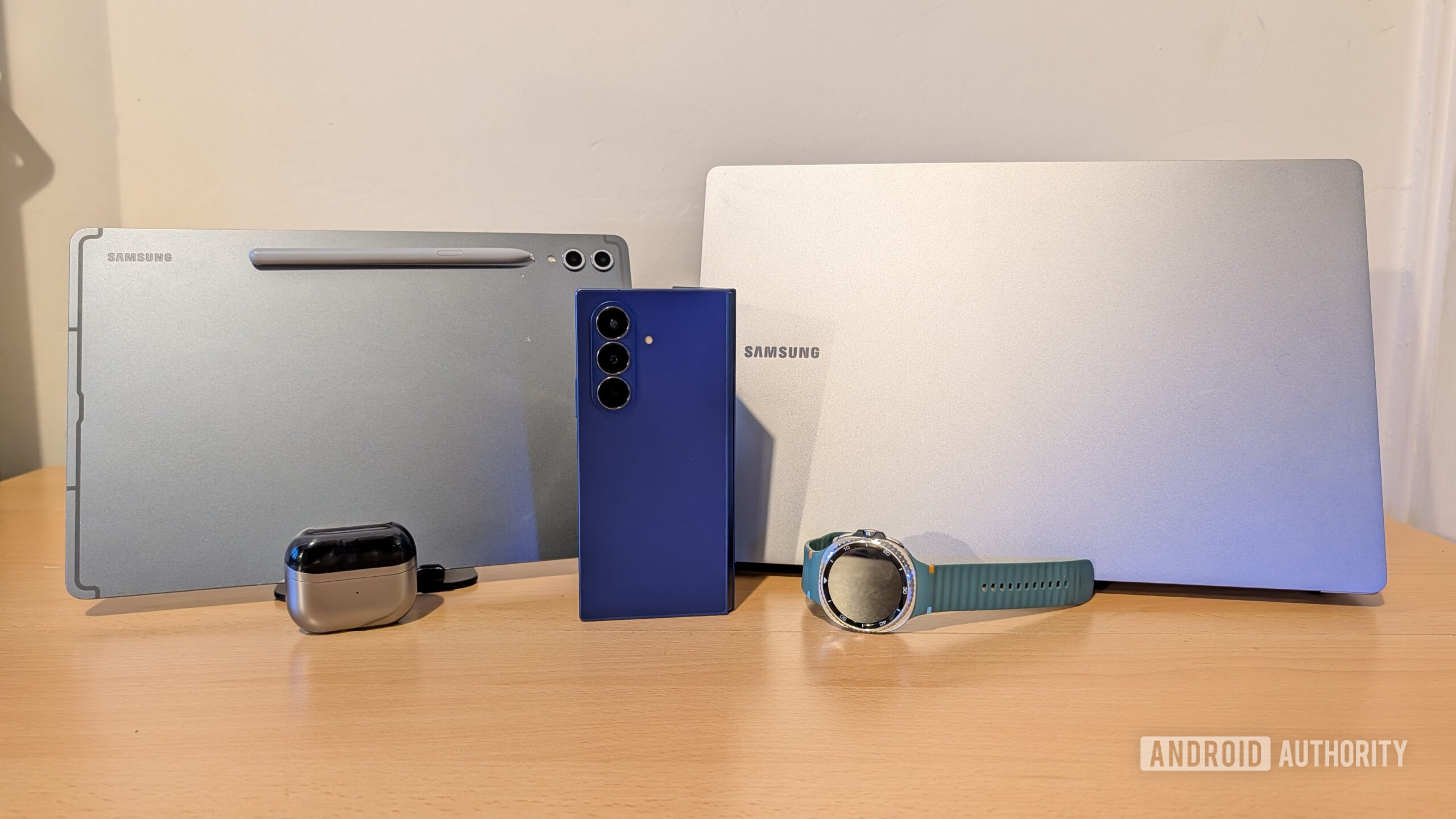
Zac Kew‑Denniss / Android Authority
Ecosystems matter more than ever. Companies sell products and services that are meant to work best when used together. An ecosystem like that should be beneficial to us—not just the companies that make them—because having hardware and software that work together seamlessly can save a lot of time and frustration every day.
Samsung makes every sort of smart device you can think of, but what benefits do you actually get from pairing multiple Samsung products together, and is it even worth it?
How many Samsung devices do you use?
- 15 votes
Galaxy Watch
Image: Samsung Galaxy Watch 8 Classic
Photo credit: Joe Maring / Android Authority
I’ve been using Samsung’s wearables since the Tizen days, and they’ve only gotten stronger since the switch to Wear OS in 2021. A Galaxy Watch works with any Android device, but a few features are exclusive to Samsung phones.
Samsung‑only features I miss on a Pixel
- Alarm syncing – In October 2025, Google removed support for non‑Pixel smartwatches from its Clock app, so you can no longer create, view, or silence alarms from the wrist. This limitation is a major reason I prefer pairing my Galaxy Watch 8 Classic with a Samsung phone.
- Health‑related functions – Without a Samsung phone you lose access to:
- Blood‑pressure monitoring
- ECG readings
- Sleep‑apnea detection
These health metrics can be more important than you realize. In my case, the watch’s blood‑oxygen sensor flagged a drop that led to a diagnosis of severe obstructive sleep apnea (breathing pauses up to 20 times per hour).
Galaxy tablets
Image: Samsung Galaxy Tab S10 Ultra
Photo credit: Ryan Whitwam / Android Authority
I use a Galaxy Tab S10 Plus, and it only gets better when paired with other Samsung devices.
Seamless call integration
- When a call comes in on your Samsung phone, it pops up on the tablet.
- You can answer the call and talk using the tablet’s mic and speakers.
- If you’re already on a call, the tablet shows the call duration and contact name, letting you switch between phone and tablet at will.
Clipboard sync across devices
- Whether you use Samsung’s keyboard or Gboard, the clipboard syncs automatically between nearby Samsung devices signed into the same account.
- With two‑factor authentication enabled, copying a one‑time code on the phone and pasting it on the tablet saves a lot of time.

Photo credit: Zac Kew‑Denniss / Android Authority
“Use phone as toolbar” in Samsung Notes
- When a Samsung phone is logged into the same account, a button appears in Samsung Notes that moves all brush, tool, and colour controls to the phone’s screen.
- This keeps the tablet display uncluttered, making drawing or annotating easier.
- It would be great to see this feature in Samsung’s dedicated drawing app PENUP, but it’s already very useful in Notes.
Photo sync & Expert RAW
- Photos automatically sync to the tablet, eliminating manual transfers.
- In Expert RAW (a favourite on Samsung phones), enable “Auto share to PC or tablet” in the settings. This connects the app to a Samsung computer or tablet, sending every captured image via Quick Share.
- I use Adobe Lightroom on the Tab S10 Plus with the large screen and S Pen; automatic photo sync speeds up my workflow dramatically.
All images are used with permission from Android Authority.
Galaxy Buds
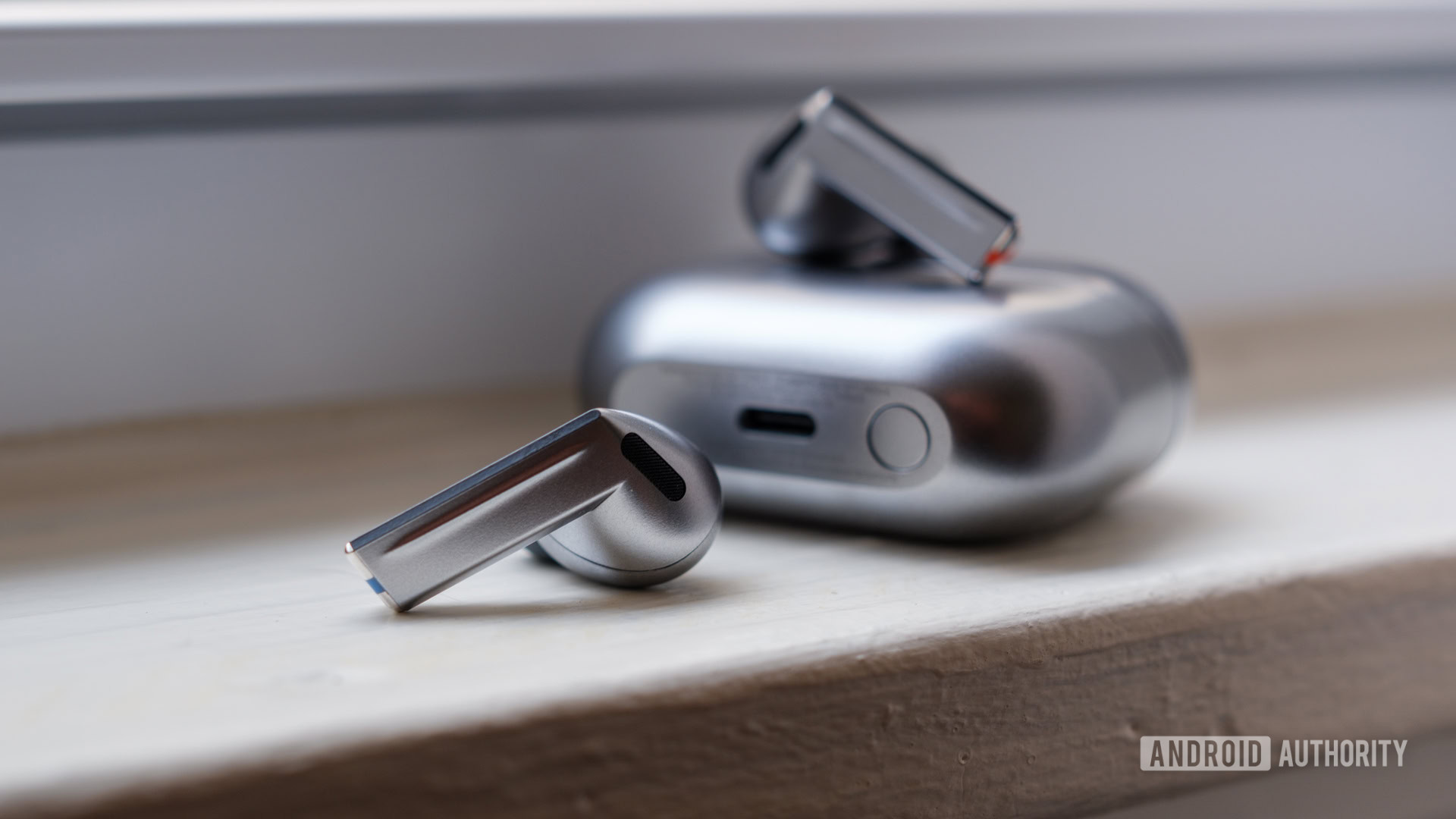
Ryan Haines / Android Authority
The Galaxy Buds 3 Pro are my favorite earbuds, no matter which phone they’re paired with. They truly shine when used inside Samsung’s ecosystem.
Why they sound better with Samsung
- Samsung’s proprietary Samsung Seamless Codec (SSC) delivers higher‑fidelity audio.
- The difference is most noticeable when streaming high‑quality music.
- Buds still sound good on non‑Samsung devices, but SSC gives a clear edge.
Smart device switching
- When you start playback on a Samsung tablet or PC, the Buds automatically pause the phone and switch connections.
- This feature works only with devices that have the Galaxy Wearable app installed on a Samsung product.
Galaxy Book
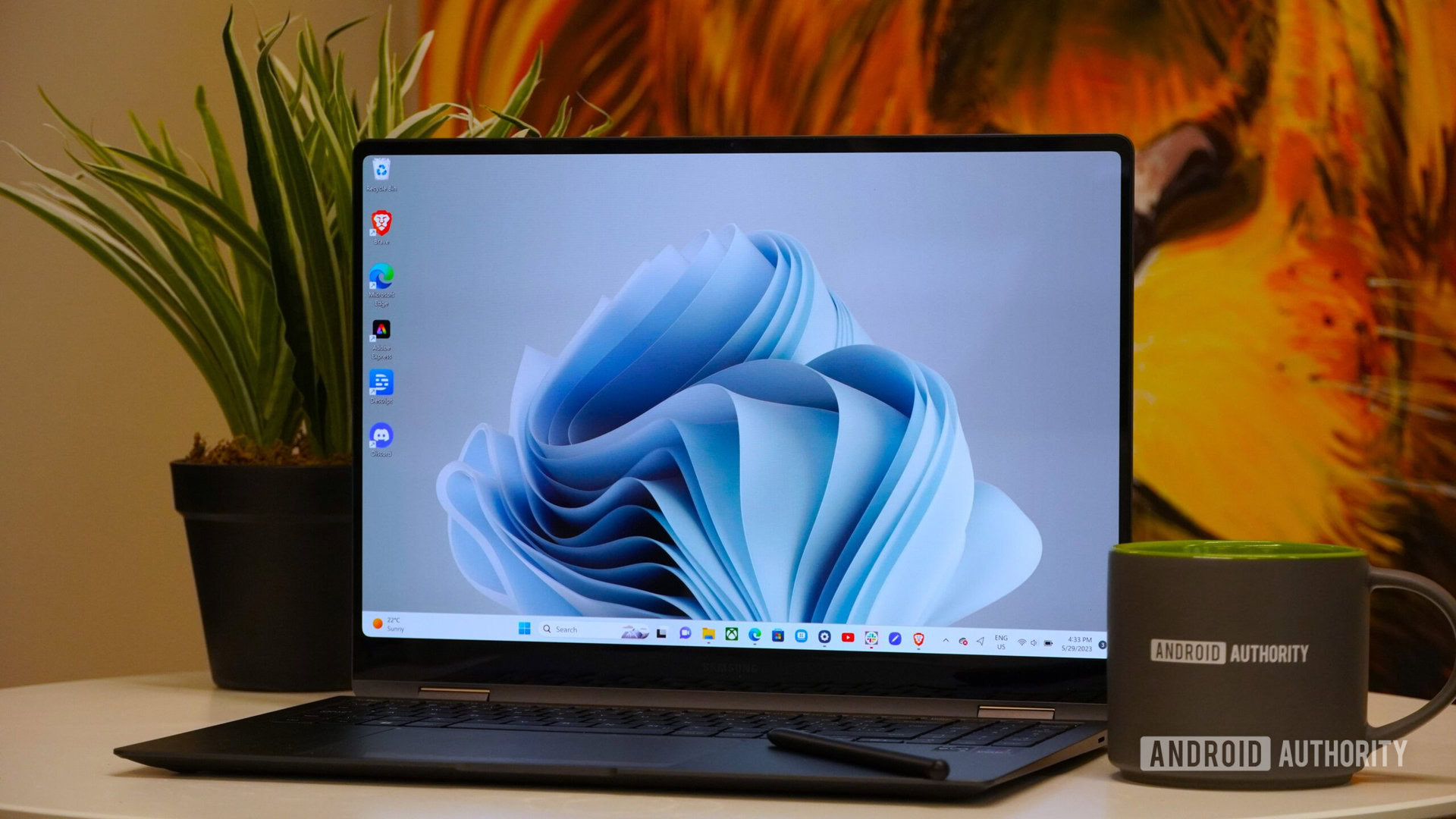
Adam Birney / Android Authority
Switching to a Galaxy Book 4 Edge has been a game‑changer for my workflow. Windows is great, but Samsung’s added software makes the experience even smoother.
Samsung Multi Control (Apple Sidecar alternative)
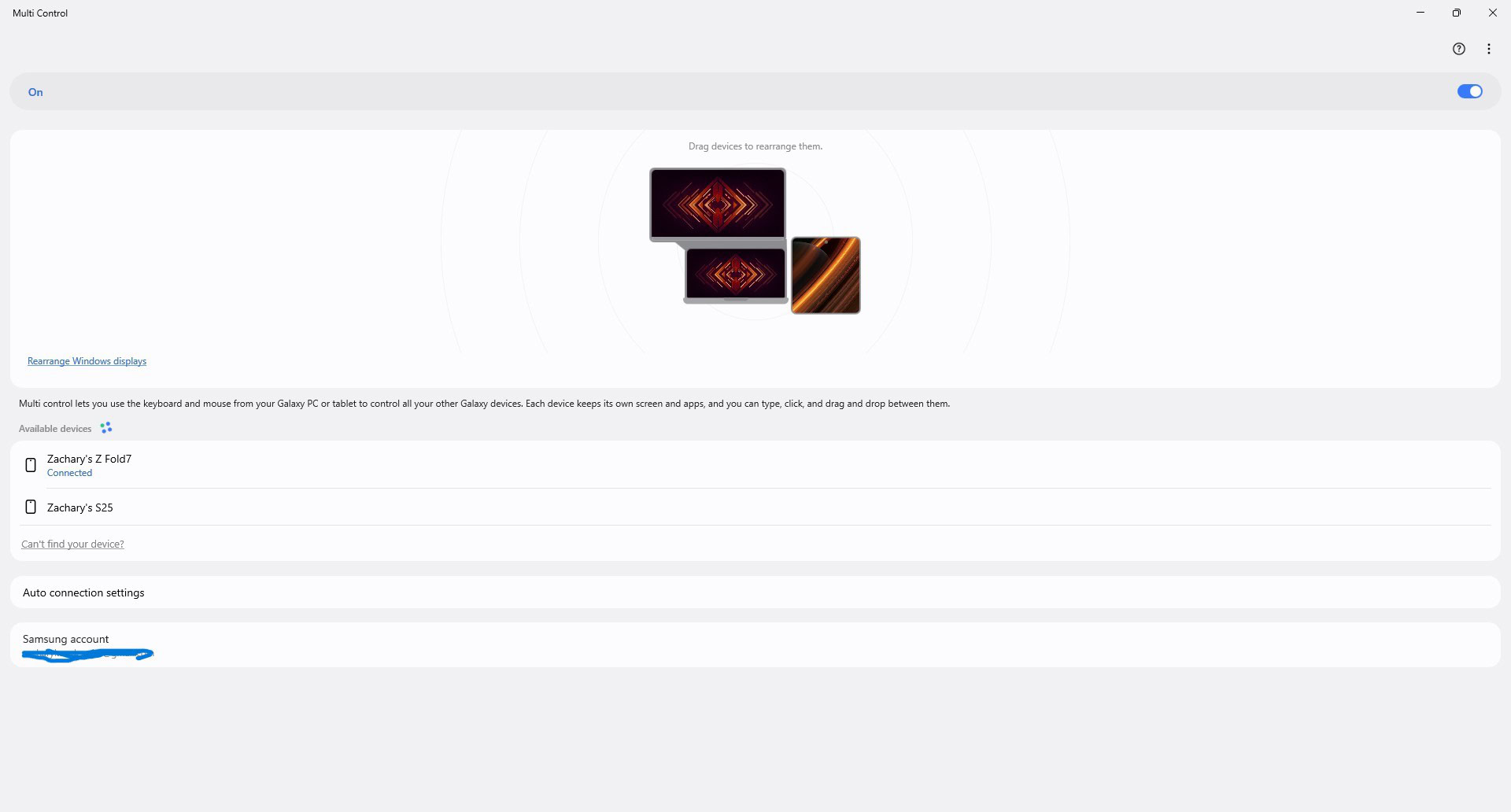
Zac Kew‑Denniss / Android Authority
- Connect a Samsung phone or tablet and control it with your laptop’s mouse and keyboard.
- The app detects the device’s orientation, so the Galaxy Book knows where the phone is relative to any external monitor.
- Works especially well with the Fold 7, where the UI adapts to the active screen.
Note: Multi Control is not a wireless display. It lets you navigate the phone’s UI from the laptop, making it perfect for quick replies or drag‑and‑drop file transfers.
File‑sharing tools
| Feature | What it does | Best use case |
|---|---|---|
| Multi Control | Drag‑and‑drop files while the phone is in a stand. | When you’re actively using the phone with a keyboard/mouse. |
| Storage Share | Exposes the phone’s storage in Windows File Explorer. | Move files without touching the phone. |
| Quick Share | Sends files to the laptop over the network. | Transfer photos or documents while you’re away from your desk. |
Using Galaxy Buds with Windows
- The Galaxy Buds app (and several other Samsung apps) are available in the Microsoft Store.
- On most PCs I’ve tried, the Buds suffer from latency, connection drops, and the tendency to “steal” the connection from my phone.
Why the Galaxy Book 4 Edge is different
- It supports Samsung Seamless Codec (SSC), reducing latency and improving audio quality.
- No lip‑sync issues on YouTube, and gaming (e.g., Sims 4, Stardew Valley) feels smooth.
Controlling the Buds
Instead of the Galaxy Buds app, I use the Nearby Devices shortcut on the taskbar. It mirrors the “Nearby Devices” button in One UI’s Quick Settings and serves as a hub for all connected Samsung devices.
Samsung Apps on Windows
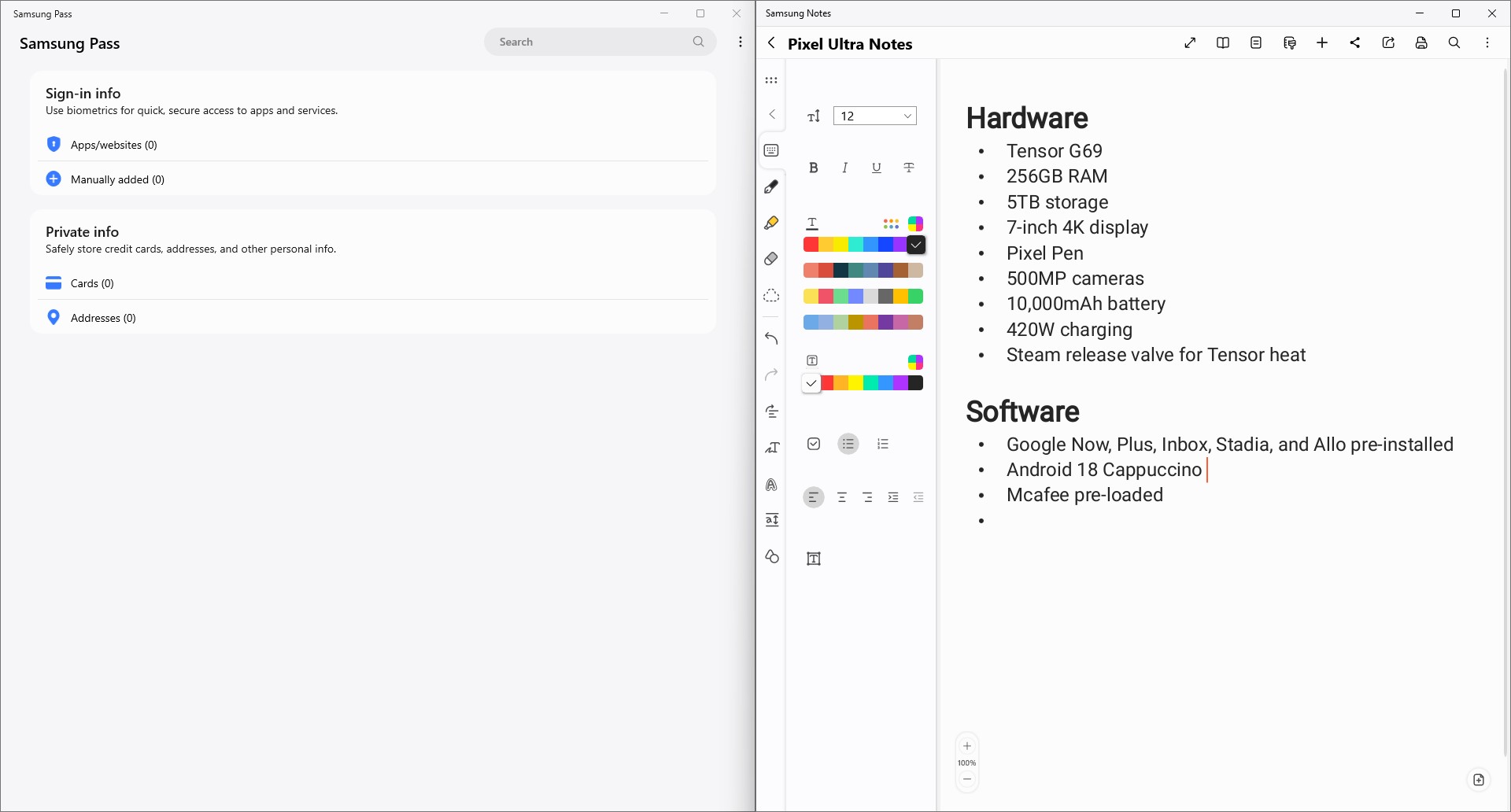
Zac Kew‑Denniss / Android Authority
| App | Why it’s useful |
|---|---|
| Samsung Pass | Secure password manager that syncs across Samsung devices. (I don’t use it much because I switch to many non‑Samsung devices for work.) |
| Samsung Notes | Can be installed on any Windows PC, but pre‑installed on Galaxy Books. Great for reading PDFs, taking notes, and syncing everything via your Samsung account. |
TL;DR
- Galaxy Buds 3 Pro sound best with Samsung’s SSC and benefit from smart device switching.
- Galaxy Book 4 Edge + Multi Control, Storage Share, and Quick Share create a seamless cross‑device workflow.
- On a Galaxy Book, the Buds work flawlessly thanks to SSC, and Samsung’s Windows apps (Notes, Pass, etc.) round out the ecosystem.
Is it all worth it?
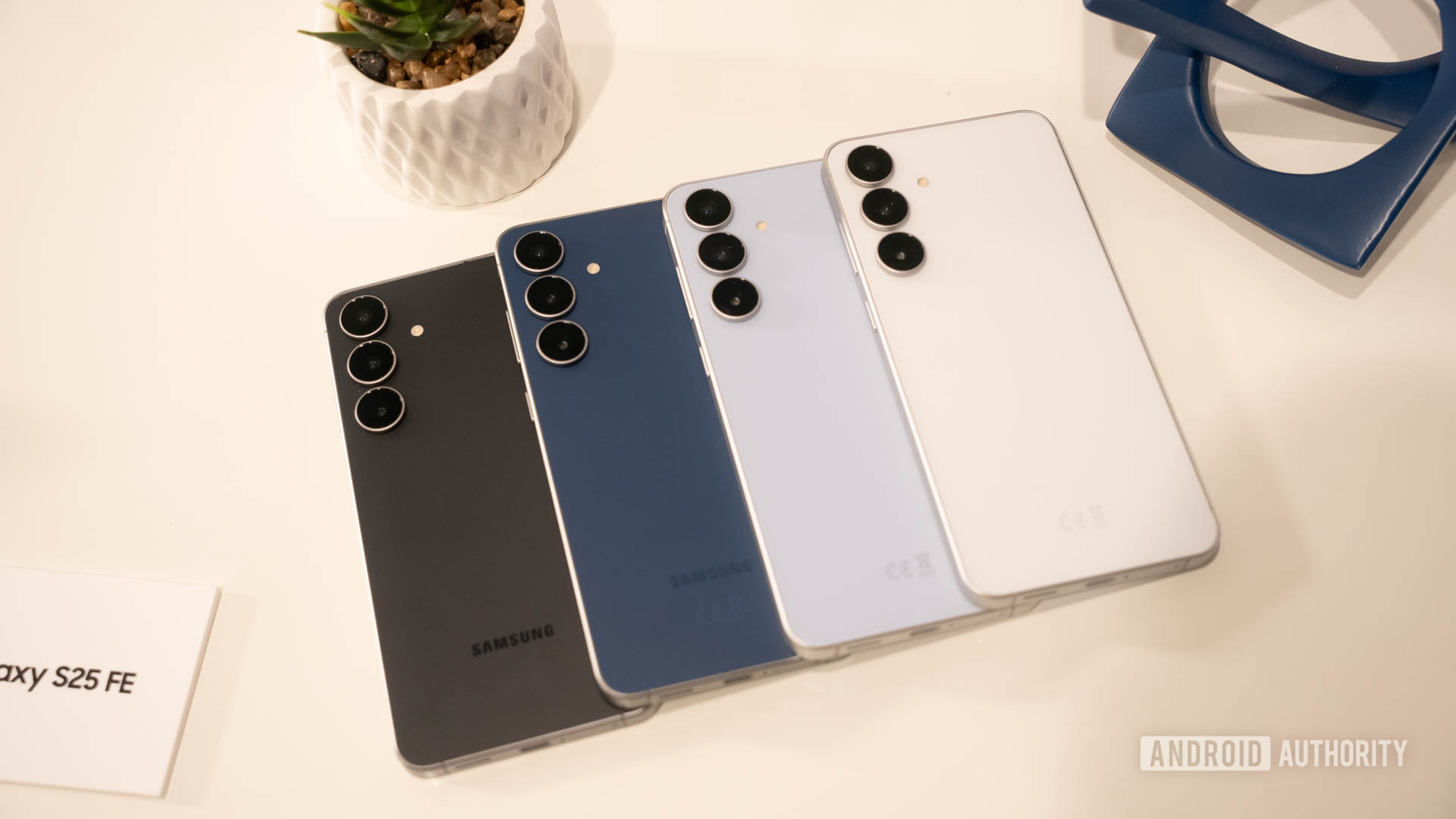
Photo credit: C. Scott Brown / Android Authority
I think so. All of the Samsung products I own work best together, and the features they offer are ones I use every day—for work and play.
Using the Galaxy Book 4 Edge has streamlined many of the tedious tasks I face, such as transferring files. Of course, some of these features will matter more to me than to someone else, so your mileage may vary. But if you already have a Samsung phone and another one of the products I’ve mentioned, then Samsung should be at the top of your list when shopping in any of the other product categories.
Follow
Thank you for being part of our community. Please read our Comment Policy before posting.