
Introduction to Git Bash and GitHub for Beginners
Source: Dev.to
What is Git?
Git is a free, open‑source version control system that tracks changes in your code (or any files) over time. It lets developers:
- Work on projects of any size
- Revert to previous versions if needed
- Experiment safely with branches
- Collaborate without overwriting each other’s work
What is Git Bash?
Bash is the default command‑line shell on Linux and macOS.
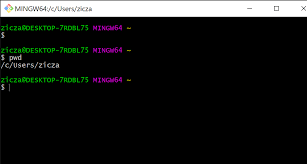
Git Bash is a lightweight Windows application that provides a Bash‑like, Unix‑style terminal environment, including all Git commands. It lets Windows users run Git and many Unix commands seamlessly in a familiar shell.
Git Bash is installed locally on your computer.
What is GitHub?
GitHub is a cloud‑based hosting platform built on top of Git. It lets you:
- Store Git repositories online
- Share code with others
- Collaborate in teams
- Review changes via pull requests
- Discover open‑source projects
Installing Git Bash (Windows)
- Go to the official Git website.
- Download the Windows installer (it includes Git Bash).
- Run the downloaded
.exefile and follow the setup wizard.- Accept the defaults for most options (they work well for beginners).
- Choose your preferred text editor (e.g., Notepad++, VS Code).
- Keep line‑ending conversion enabled for cross‑platform compatibility.
- Complete the installation.
Verify Installation
Open Git Bash (search for “Git Bash” in the Start menu) and run:
git --versionYou should see something like git version 2.xx.x.windows.x.
Initial Git Configuration
Set your name and email (these appear in your commits):
git config --global user.name "Your Full Name"
git config --global user.email "your.email@example.com"
Use the same email you have on your GitHub account.
Linking Git Bash to Your GitHub Account (Using SSH)
SSH keys provide secure, password‑less authentication for pushing/pulling code.
-
Generate a new SSH key (in Git Bash)
ssh-keygen -t ed25519 -C "your.email@example.com"- Press Enter to accept the default file location (
~/.ssh/id_ed25519). - Optionally set a passphrase (recommended for extra security).
- Press Enter to accept the default file location (
-
Start the SSH agent and add your key:
eval "$(ssh-agent -s)" ssh-add ~/.ssh/id_ed25519 -
Copy your public key to the clipboard:
cat ~/.ssh/id_ed25519.pub(Select and copy the output that starts with
ssh-ed25519 ….) -
Add the key to GitHub
- Log in to GitHub → click your profile picture → Settings → SSH and GPG keys → New SSH key.
- Give it a title (e.g., “My Windows PC”).
- Paste the key and click Add SSH key.
-
Test the connection
ssh -T git@github.comYou should see:
Hi <username>! You've successfully authenticated…
Pulling and Pushing Code
git pull
Fetches changes from the remote repository (e.g., GitHub) and merges them into your current branch.
git pull origin main(git pull = git fetch + git merge)
Tip: Always pull before you start work to avoid conflicts.
git push
Uploads your local commits to the remote repository.
git push origin mainorigin– default name for your GitHub remote.main– default branch name (some older repos usemaster).
If it’s your first push to a new repo, set the upstream branch:
git push -u origin main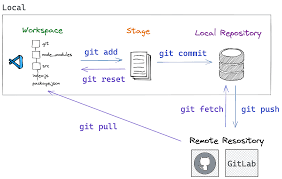
Tracking Changes – The Core Workflow
git status
Shows what’s changed, staged, or untracked.
git statusgit add
Stages changes (prepares them for commit).
- Stage a single file:
git add filename.txt - Stage everything:
git add .orgit add -A
git commit
Saves staged changes permanently with a message.
git commit -m "Add new feature: user login page"Good commit messages are short, descriptive, and written in the present tense (e.g., “Fix bug in login form”).
Typical workflow
git status          # Check what’s changed
# …edit files…
git add .           # Stage everything
git commit -m "Your message here"
git pull origin main   # Get latest changes first!
git push origin main   # Send your work to GitHub
What Is Version Control and Why It Matters
Version control records every change to files over time so you can recall specific versions later.
Key benefits
- Full history of who changed what and why.
- Branching & merging – work on features or bug fixes in isolation, then combine safely.
- Easy rollback if something breaks.
- Collaboration – multiple people can work on the same project without chaos.
- Backup – your code lives safely on GitHub.
Master these basics, and you’ll be ready to create repositories, clone projects, create branches, and contribute to open source!
Happy coding!
Feel free to practice by creating a simple repo on GitHub and pushing a “Hello World” file.