
Import Your AI Memory into ContextForge: Claude Code, ChatGPT, and Knowledge Graph
Source: Dev.to
You’ve been building knowledge with your AI assistant for months — project decisions, API patterns, debugging notes. But that knowledge is scattered across MEMORY.md files, ChatGPT exports, and Knowledge Graph JSONL dumps.
Today, ContextForge lets you import all of it in seconds.
The Problem: Scattered AI Memory
If you use AI coding assistants, your knowledge ends up in different places:
- Claude Code saves memory in
~/.claude/projects/*/memory/MEMORY.md - MCP Knowledge Graph server stores entities in
memory.jsonl - ChatGPT lets you export conversations as
conversations.json - Random Markdown files with notes you copied manually
None of these tools talk to each other. Switch from one to another, and you start from zero.
One Import, All Your Knowledge
ContextForge now supports importing from all major AI memory formats:
| Format | File Type | What Gets Imported |
|---|---|---|
| Claude Code | .md | Each ## section becomes a knowledge item |
| MCP Knowledge Graph | .jsonl | Entities become searchable knowledge items |
| ChatGPT | .json | Assistant responses extracted automatically |
| Plain Markdown | .md | Sections split by headings |
| ContextForge JSON | .json | Full backup/restore between spaces |
How It Works
From the Dashboard (No Code Required)
- Open any Space in your dashboard.
- Click the “Import” button next to “Add Item”.
- Select your format or just upload a file (auto‑detected).
- Preview the items that will be imported.
- Click “Import N Items” — done.
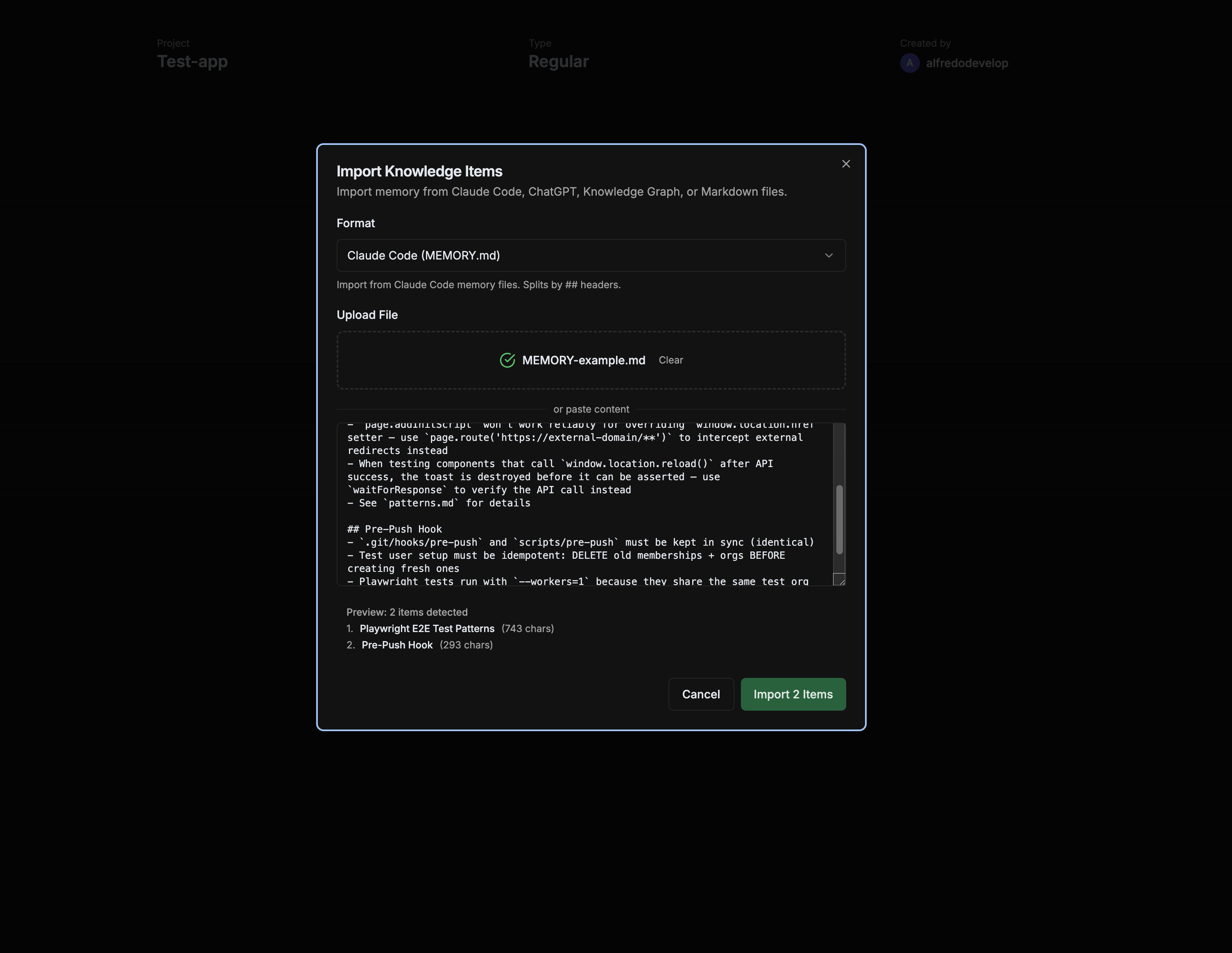
Duplicates are automatically detected and skipped using SHA‑256 hashing. You won’t get repeated items.
From Claude or Cursor (Via MCP)
You can also import directly from your AI assistant:
“Import my MEMORY.md file into the backend‑docs space”
Or use the MCP tool directly:
memory_import({
  "format": "claude_memory",
  "data": "## Auth Flow\n- JWT tokens expire in 1 hour\n..."
})
Supported Formats in Detail
Claude Code (MEMORY.md)
Claude Code stores persistent memory in Markdown files at ~/.claude/projects/*/memory/MEMORY.md. Each ## heading becomes a separate knowledge item.
# My Project Memory

## Database Patterns
- Always use connection pooling
- Migrations must be idempotent
- Use RLS for row‑level security

## Auth Flow
- JWT tokens expire in 1 hour
- Refresh tokens last 30 days
This file imports as 2 items: “Database Patterns” and “Auth Flow”.
MCP Knowledge Graph (.jsonl)
The official @modelcontextprotocol/server-memory package stores entities in a JSONL file. Each entity becomes a knowledge item with its observations as content.
{"type":"entity","name":"ContextForge","entityType":"project","observations":["A SaaS for persistent AI memory","Built with Supabase"]}
{"type":"entity","name":"Auth System","entityType":"component","observations":["Uses JWT with 1h expiry","Refresh tokens in httpOnly cookies"]}
{"type":"relation","from":"ContextForge","to":"Auth System","relationType":"contains"}
Entities are imported as knowledge items. Relations are preserved for future knowledge‑graph features.
ChatGPT Export (conversations.json)
Go to ChatGPT Settings > Data Controls > Export Data. You’ll receive a zip file containing conversations.json.
ContextForge extracts assistant responses from each conversation. Only meaningful content is imported — empty or system messages are skipped.
Export Anytime
Your data is yours. Export from any space in JSON, Markdown, or CSV:
memory_export({
  "format": "json",
  "space_id": "your-space-id"
})
Or just ask your AI assistant: “Export my backend‑docs space as Markdown.”
Get Started
- Sign up at contextforge.dev (free tier available)
- Install the CLI:
npm install -g contextforge-mcp - Open any space and click Import
- Upload your
MEMORY.md,memory.jsonl, orconversations.json
Stop losing knowledge when you switch tools. Bring everything into one place.
Have questions about importing? Check the full docs at contextforge.dev/docs/import-export or reach out through the dashboard.