
I limit my browser extensions, but these are my 4 essentials
Source: Android Authority
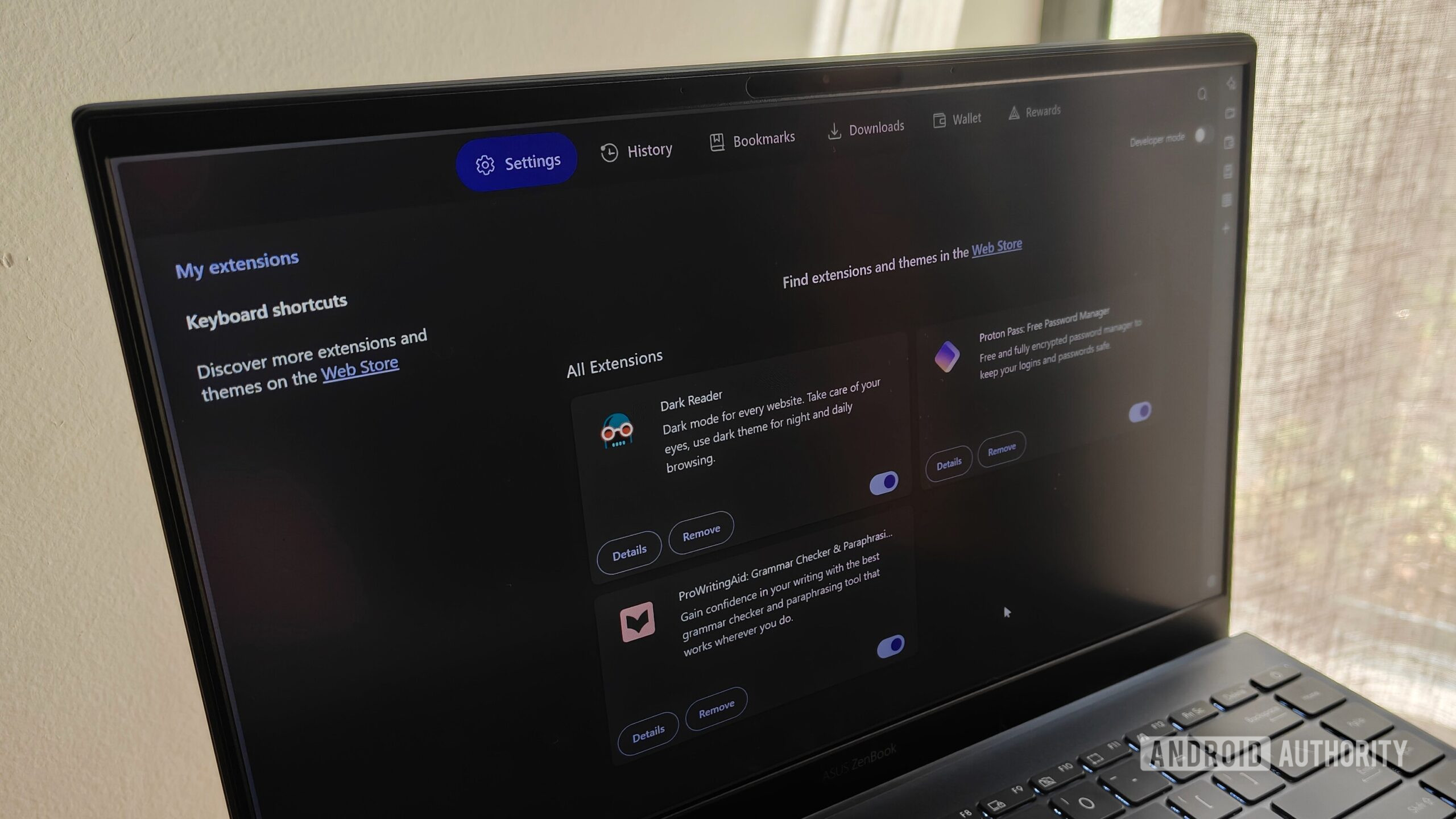
*Image: The browser extensions page in Brave on a laptop – Megan Ellis / Android Authority*
When I finally decided to **ditch Chrome** as my main browser, I also took the opportunity to limit my [browser extensions](https://www.androidauthority.com/best-chrome-extensions-3341953/)—relying on native browser features wherever possible. I made this decision to improve privacy and performance, only enabling the services that I trusted and deemed essential.
Over the past few months, these browser extensions have become my most important tools thanks to their privacy‑focused approaches and enhanced functionality.
## What is your most essential browser extension?
**42 votes**1. Proton Pass
[Image: Proton Pass generate‑password option]
Image credit: Megan Ellis / Android Authority
I put off switching to a standalone password manager for a long time, mostly because I was worried about it disrupting my workflow. However, when I finally switched to Proton Pass, I realized the process was not nearly as daunting as I had expected.
Why the Proton Pass browser extension matters
- Autofill across browsers – The extension lets me autofill fields in both Firefox and Brave without opening a new tab.
- Quick search – I can search through existing accounts and passwords directly from the extension’s pop‑up.
- In‑extension editing – If I need to change a password, I can edit the credentials and generate a new, strong password right there.
- Cross‑device sync – Because the extension is linked to my Proton account, it works seamlessly on different browsers and devices.
Real‑world benefit
I often have to use certain streaming services in Firefox instead of Brave due to compatibility issues. With the Proton Pass extension, logging into those accounts is simple and consistent, no matter which browser I’m on.
2. Raindrop.io
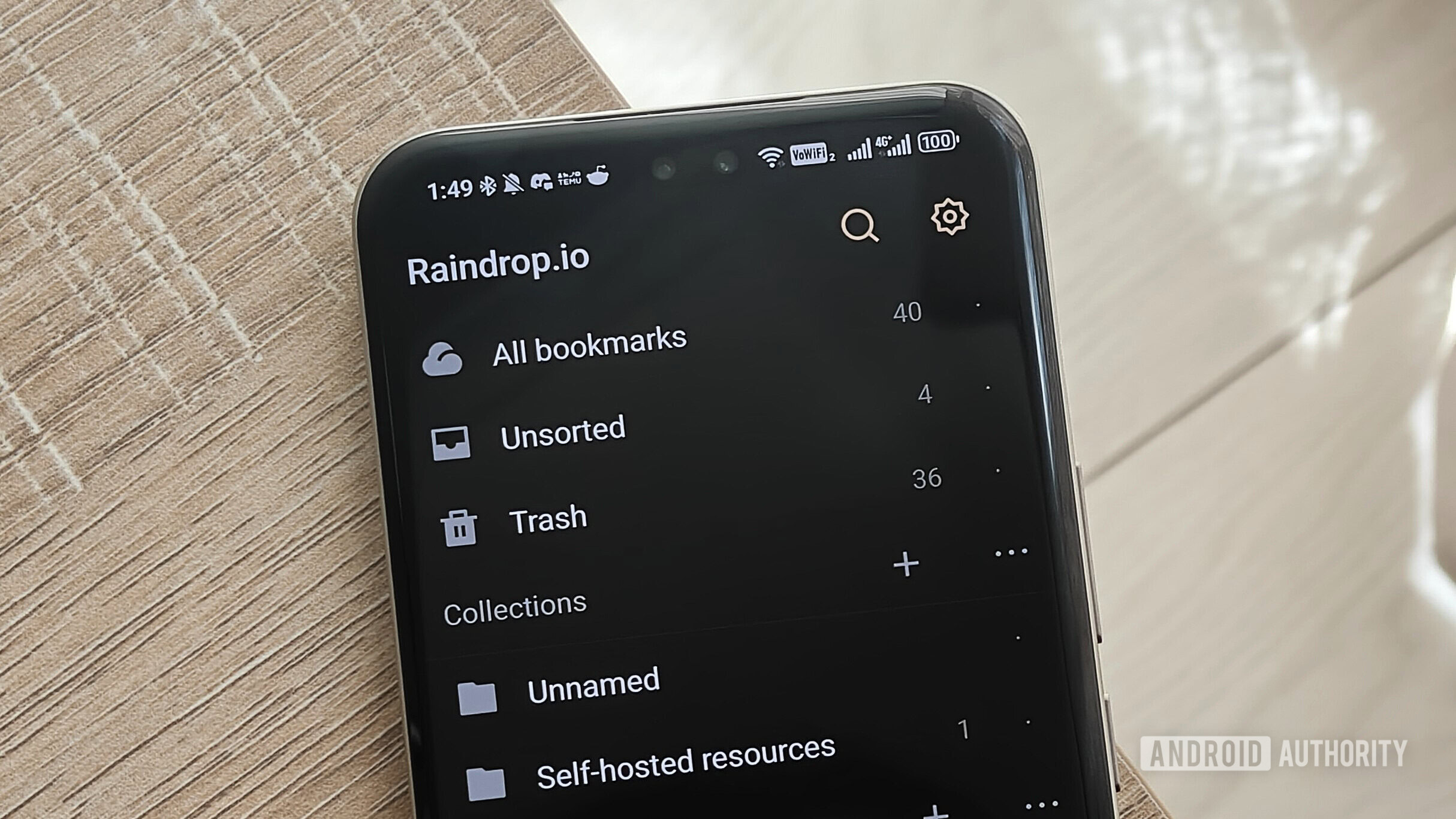
Photo credit: Megan Ellis / Android Authority
I started using Raindrop.io in 2025 as an easy way to store bookmarks. While Brave includes built‑in bookmarks, I prefer Raindrop’s visual approach because it makes it simpler to sort through saved links.
- I set up a Favorites folder in Raindrop as my start page, which is incredibly convenient.
- The browser extension lets me save links without leaving the current tab.
Raindrop.io is my go‑to bookmark manager, so I use the extension on my main PC to quickly add links to my account. Because everything syncs to the cloud, I can access those saved links on other devices—my laptop, phone, or any future browser—without needing to export or import anything. Just log in, and all my bookmarks are there.
3. Dark Reader
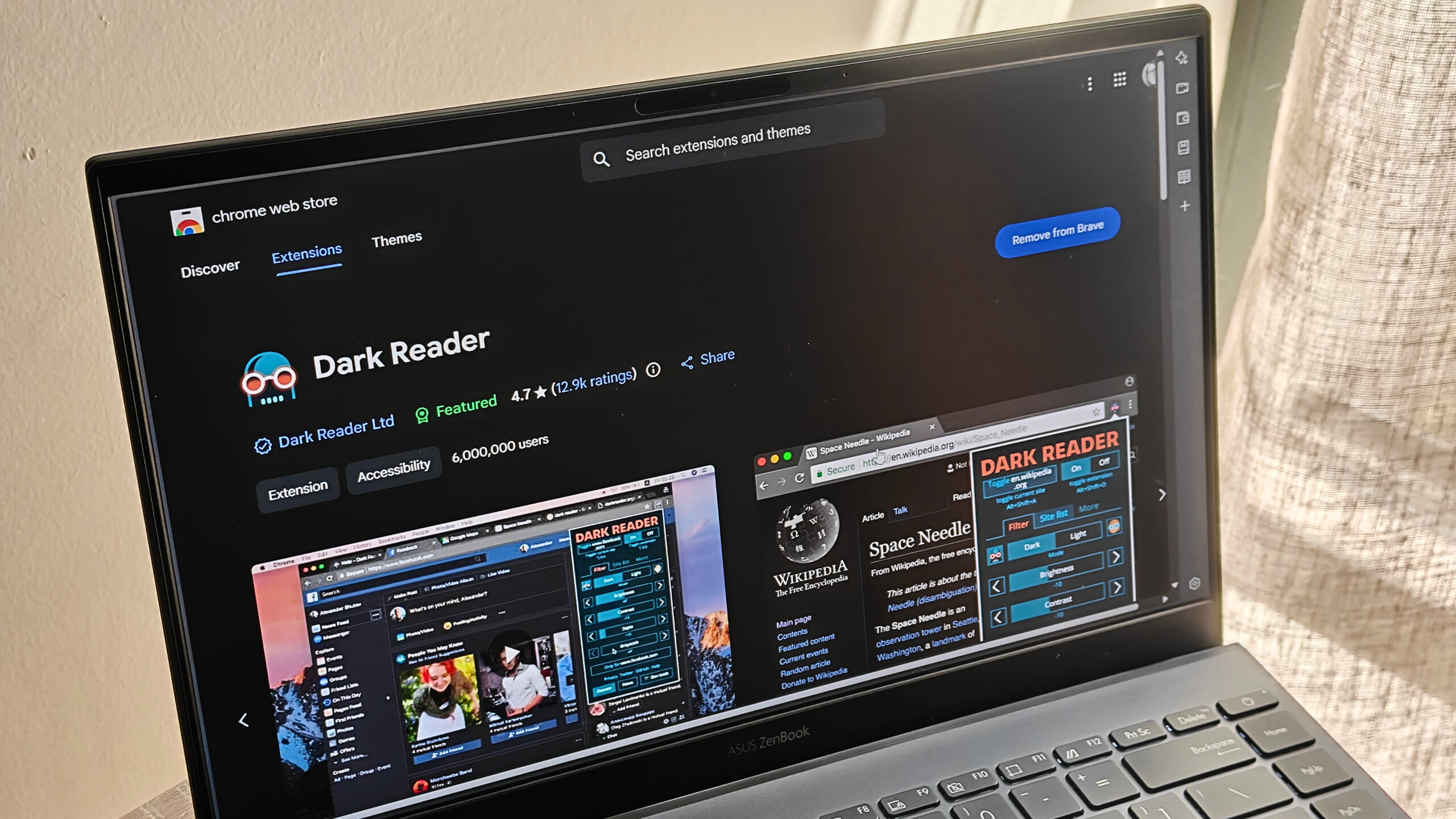
Image credit: Megan Ellis / Android Authority
Dark Reader quickly became one of my favorite extensions after I started suffering from chronic migraines a few years ago. I later began using Chrome flags to force dark mode on sites that didn’t support it, but I added Dark Reader back to my toolkit recently.
While the flags work for most sites, I ran into a problem with Google Sheets while preparing my taxes—the spreadsheet body stayed white instead of turning black. After about an hour of staring at the bright background, I felt the familiar nausea that can trigger a migraine. Even though I took a break as soon as I noticed the symptoms, the migraine was already set in motion.
Why I still use Dark Reader
- Fallback for problematic sites – When Chrome’s forced‑dark mode doesn’t apply correctly (e.g., Google Sheets), Dark Reader steps in.
- Eye‑strain reduction – Even for users without migraine issues, the extension can make long browsing sessions more comfortable.
- Customizable settings – You can fine‑tune contrast, brightness, and filter modes per site, giving you more control than the generic flag.
My current workflow
- Primary method: Chrome flags to force dark mode globally.
- Secondary method: Dark Reader for sites where the flags fail or produce visual glitches.
I still rely mainly on the flags, but keeping Dark Reader in rotation ensures I have a reliable backup for those stubborn pages. If you’re looking to reduce eye strain—migraine or not—Dark Reader is definitely worth a try.
4. ProWritingAid
I stopped using spellcheckers some time ago for a few reasons. The rise of generative AI meant that I didn’t really trust companies with my documents anymore, and I also grew tired of constant prompts to upgrade. As a result, I mostly relied on the spellcheckers built into various CMS tools and my browser.
However, my dim screen and dark mode came with a drawback: the few typos these tools spotted weren’t very noticeable. I would reread an article multiple times, only for multiple typos to make it through to my final submission.
This happens most often when I’m working in the evenings, long after my ADHD medication has worn off. I briefly tried a completely offline spellchecker, but the tool wasn’t very good at spotting errors. Furthermore, when I hovered over a suggestion, clicking on it didn’t actually fix the typo.
Why ProWritingAid works for me
- Clearer highlighting – Errors are underlined in a brighter red than my browser’s spellchecker, making them easier to spot on a dark screen.
- Privacy‑focused – The service requires an account but explicitly states that it does not use your text to train AI models.
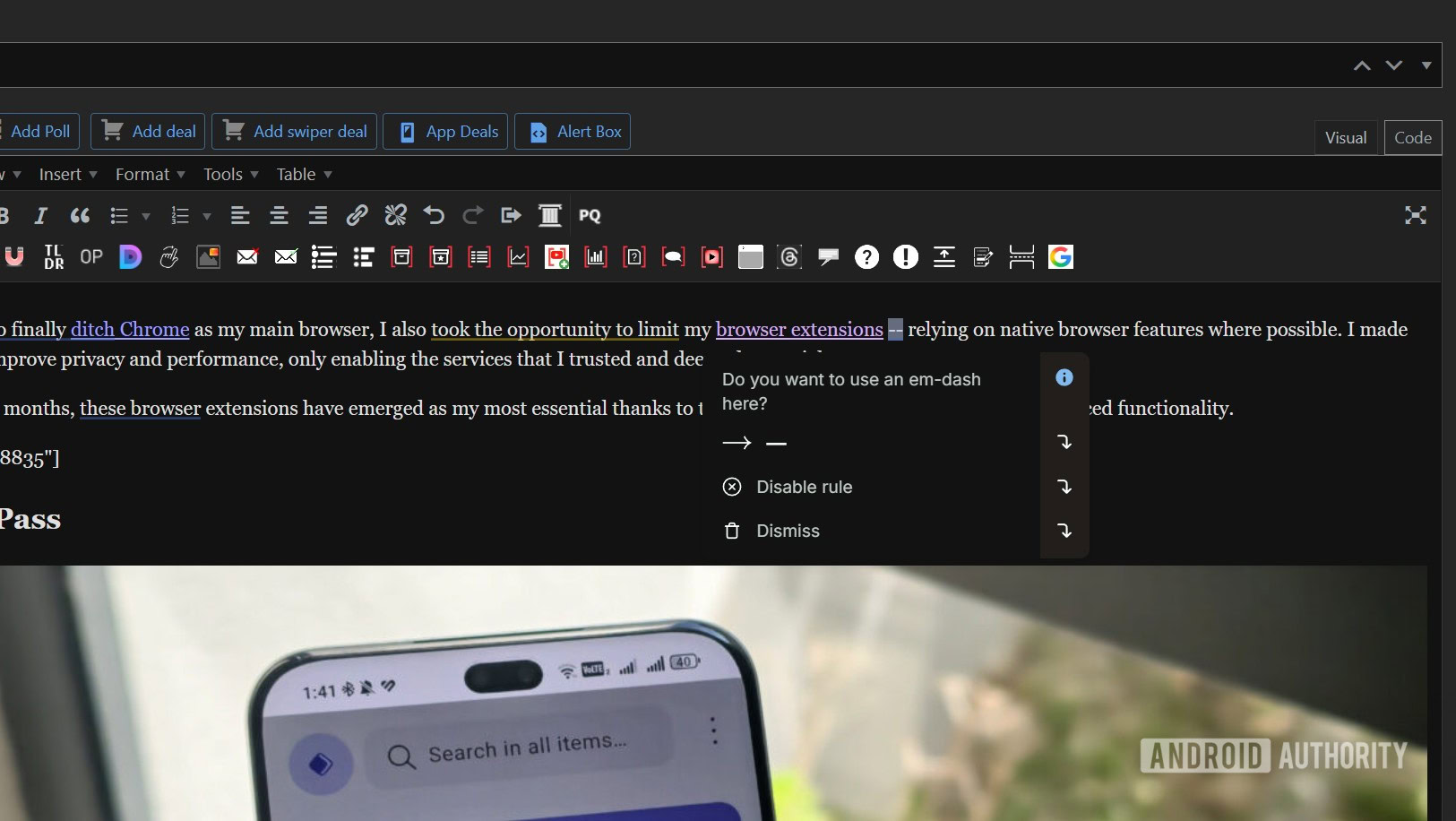
- Convenient formatting tools – A single click can turn double dashes into proper em dashes.
Minor annoyances
- The “premium suggestions” pop‑ups can be distracting, and I wish there were an easy way to turn them off.
Overall, despite the occasional premium prompt, ProWritingAid is the tool I prefer over other spellcheckers I’ve tried, and it reliably catches the errors that slip past my browser’s built‑in checker.
Honorable mention: uBlock Origin
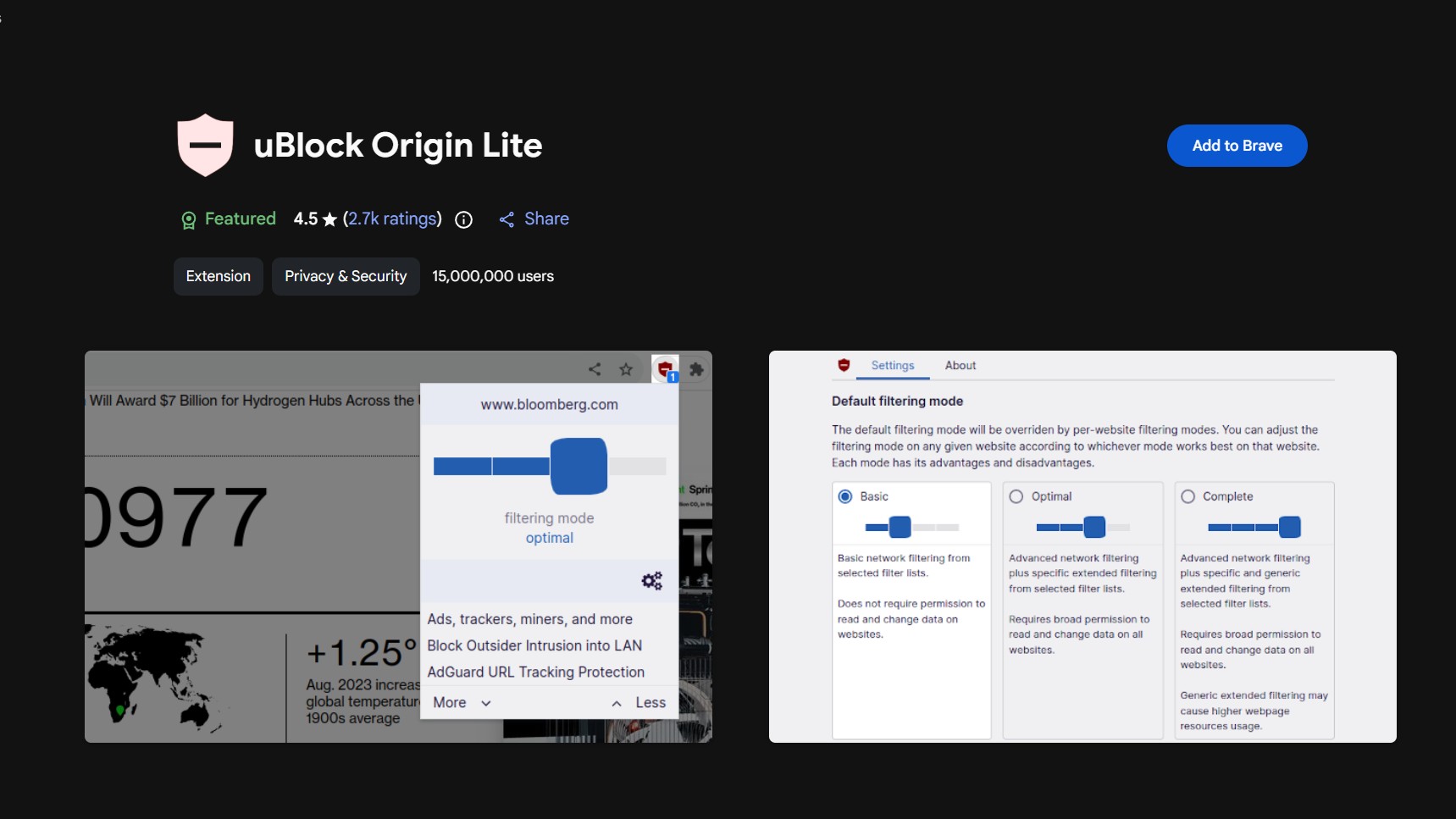
Since moving to Brave, I no longer need to use an ad‑blocking extension because I have one built into my browser. But if you’re still using Chrome, or your browser’s built‑in blocking isn’t sufficient, I recommend uBlock Origin.
While Chrome’s move to Manifest V3 hampered certain abilities for ad blockers, uBlock Origin Lite still gets rid of the most pesky ads, including intrusive pop‑ups. If you use Firefox, you can still get the full‑powered version of uBlock Origin.
It performs well, and when I’ve used it, I haven’t run into as many issues across sites compared to other tools. For a long time, it’s what made the internet bearable for me.
I’m still open to exploring useful websites and productivity tools, but I always aim to limit my extensions to the most essential services. One benefit of extensions, though, is that I can bring these services with me if I ever decide to switch browsers again.
Thank you for being part of our community. Please read our Comment Policy before posting.