
How to remove Gemini Nano from Chrome (and free up 4GB of storage)
Source: Android Authority
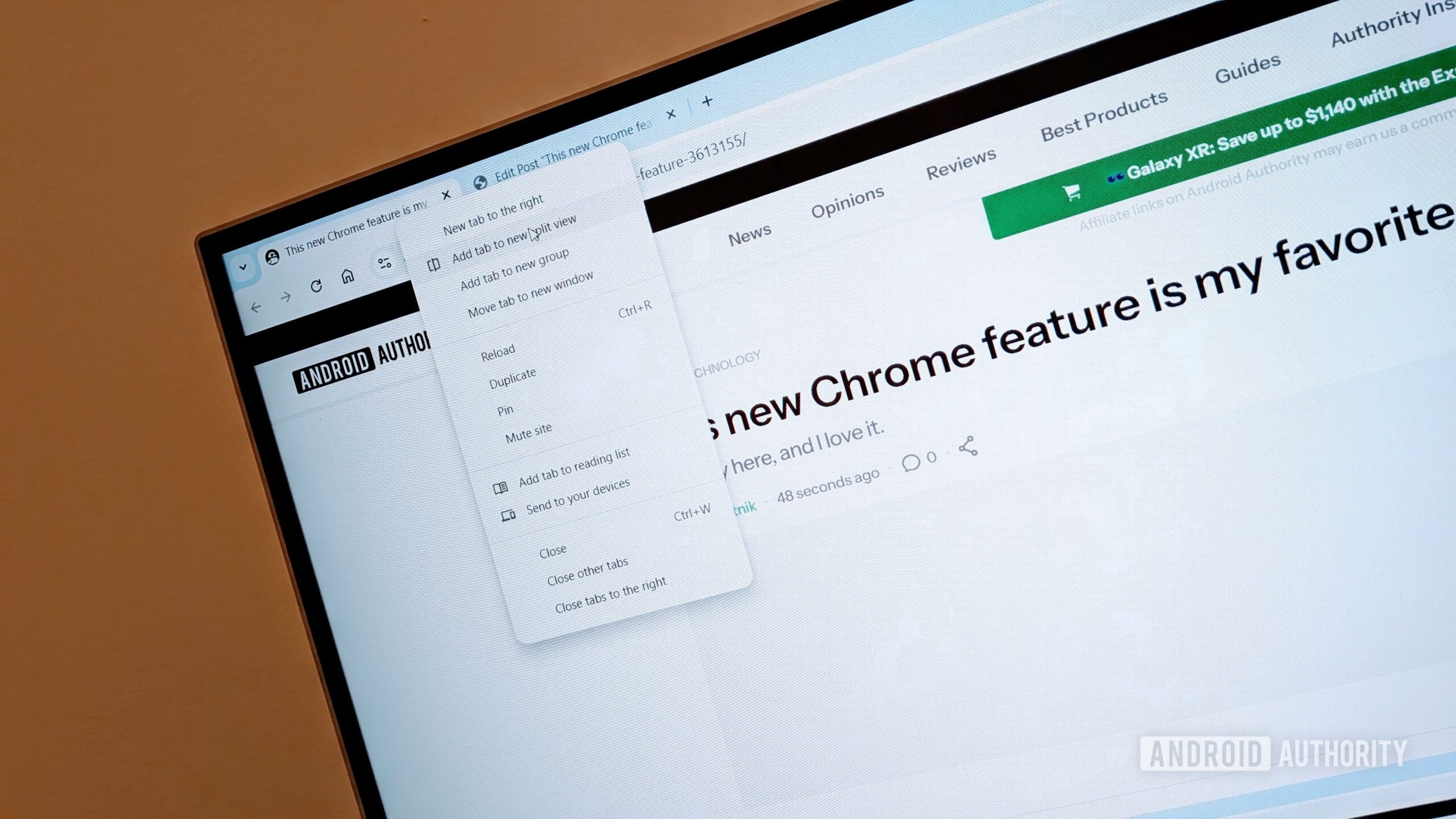
Google Chrome’s “weights.bin” file has been gathering a lot of attention, particularly for its forced, inexplicable, and inescapable nature. This file is responsible for on‑device Gemini Nano features and is actually good for your privacy, but users have been looking for ways to opt out of these features, delete the file, and stop it from being redownloaded.
Google makes it easy to disable this file and its associated features, but the setting isn’t available to all users. If you’re wondering how you can get rid of Chrome’s “weights.bin” file, here are the steps you need to follow!
How to disable Chrome’s on‑device AI features: The easy way
Google began rolling out the ability for users to turn off and remove the model directly in Chrome settings in February. Once disabled, the Gemini Nano model will no longer download or update, so you won’t have a large “weights.bin” file hogging space on your computer — with the caveat that features that rely on the deleted models will no longer work.
- Open Chrome on your computer.
- Navigate to Settings > System.
- Disable On‑device AI.
This toggle disables the feature and automatically deletes the weights.bin file that Chrome downloads, as Reddit user Laicure shows.
Note: The toggle is not available to many users.
How to disable Chrome’s on‑device AI features: The alternate way
If the toggle is missing, you can stop Chrome from fetching the model via flags and then delete the files manually.
Step 1: Disable the Chrome flags
-
Open Chrome and go to
chrome://flags. -
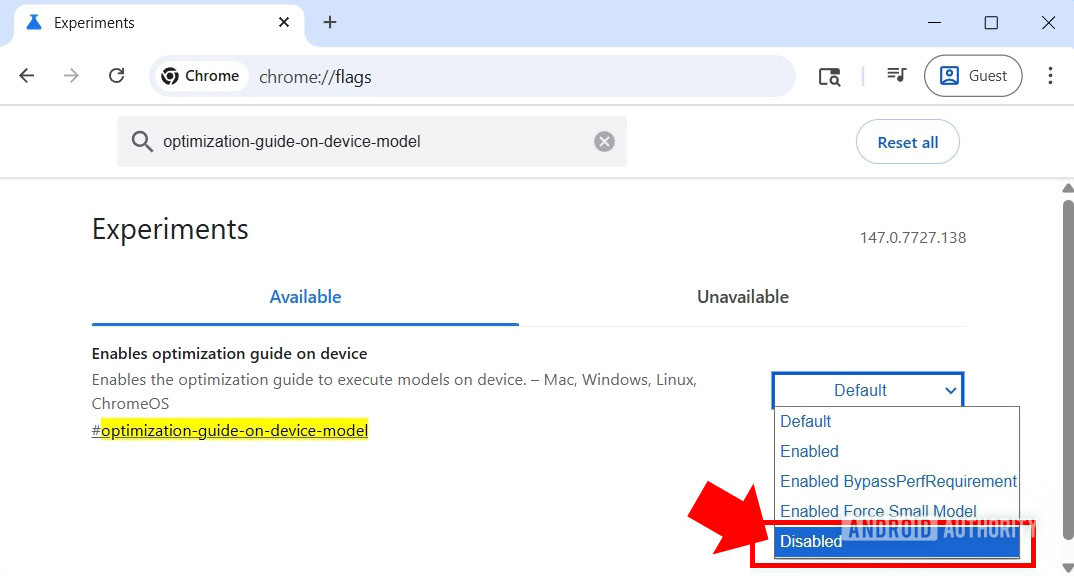
In the search bar, type optimization-guide-on-device-model.
-
When the #optimization-guide-on-device-model flag appears, set it to Disabled.
-
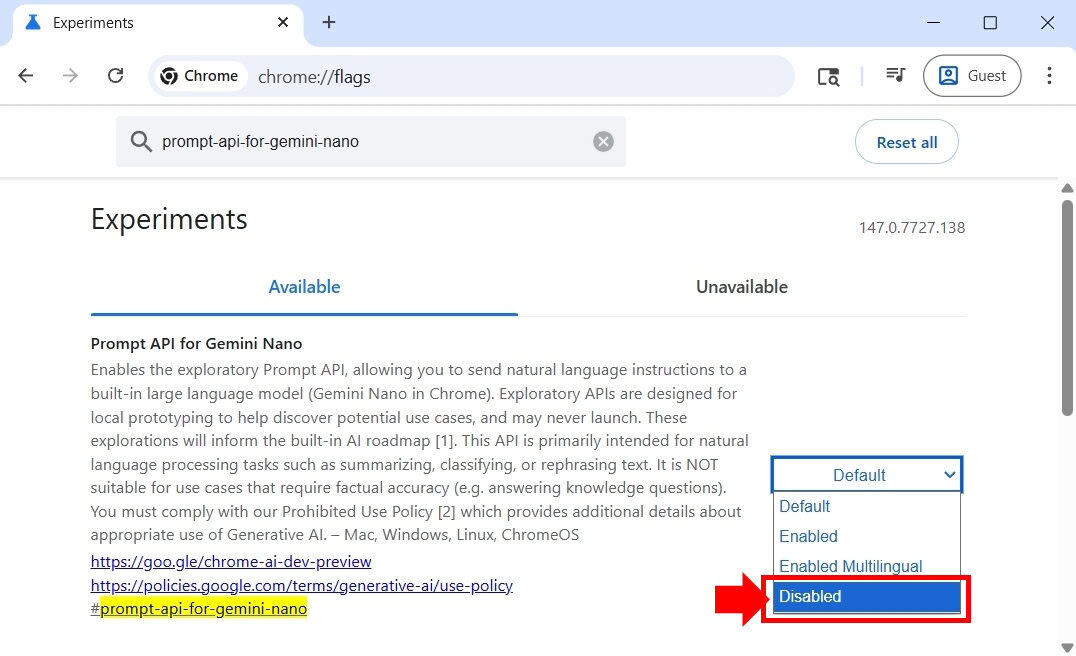
Search for #prompt-api-for-gemini-nano and set it to Disabled as well.
-
Click Relaunch to restart Chrome.
Step 2: Delete the folder
Make sure Chrome is fully closed before proceeding.
On Windows
-
Press Win + R, paste
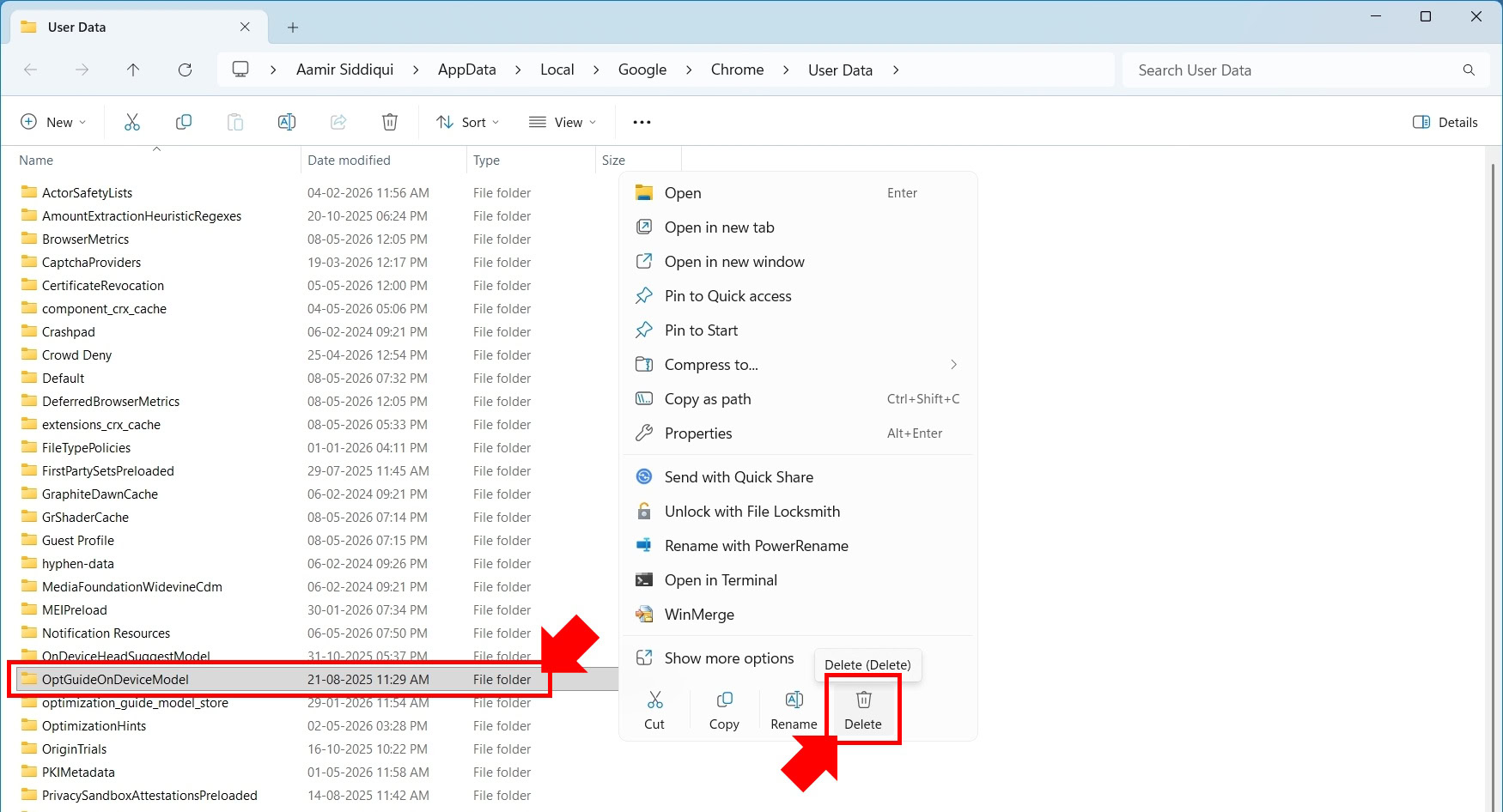
%LOCALAPPDATA%\Google\Chrome\User Data\, and press Enter.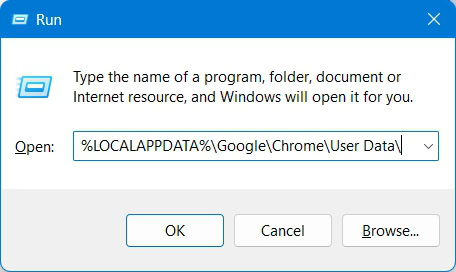
-
Open your profile folder (e.g.,
Default). -
Locate the OptGuideOnDeviceModel folder and delete it.
On macOS
-
Press Cmd + Shift + G, paste
~/Library/Application Support/Google/Chrome/, and press Enter.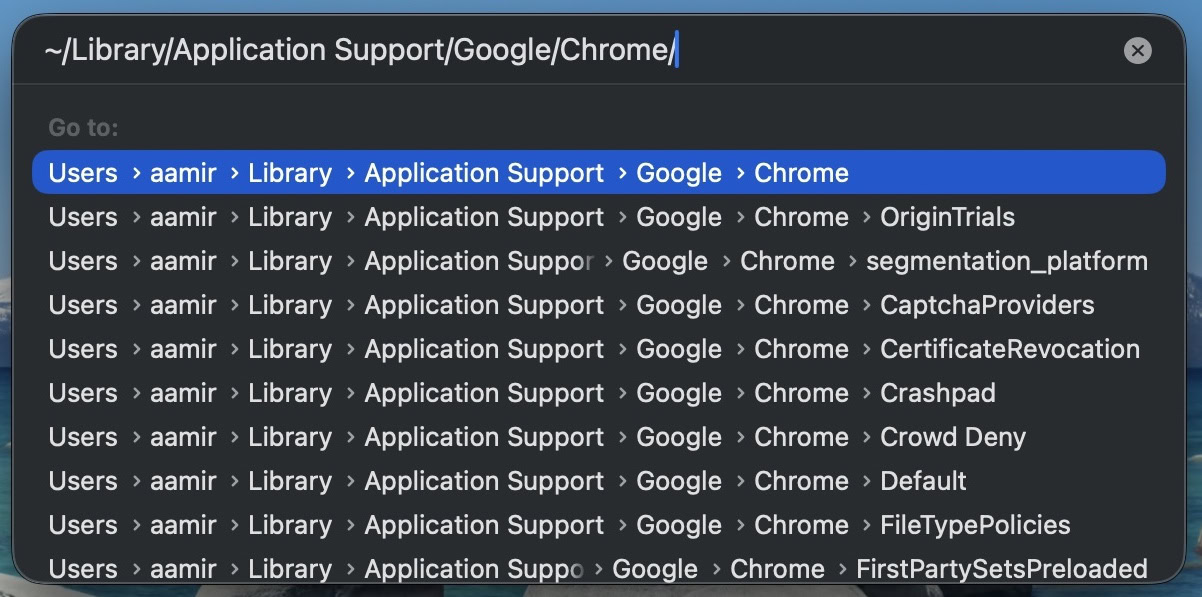
-
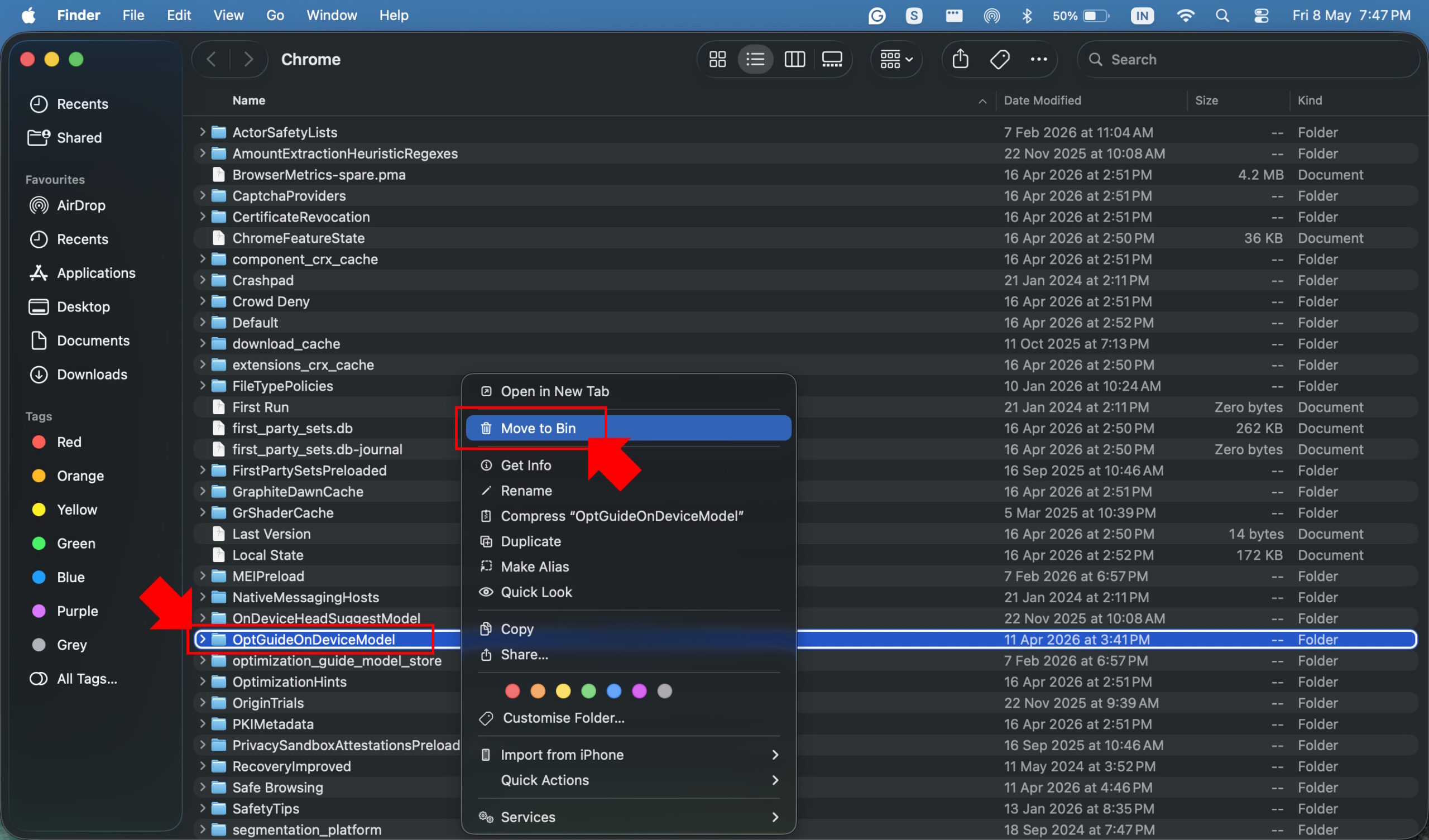
Find the OptGuideOnDeviceModel folder and move it to the Trash.
-
Empty the Trash.
Warning: Future Chrome updates may reset these flags and redownload the AI model. You can repeat the steps or wait for the official toggle to become available.