
How to Manage Your Discord Desktop Notifications: A Complete Guide
Source: Discord Engineering

How to Discord

Clyde
June 18, 2026
You joined a server. Then another. Then like… seven more, because your friend kept saying “oh you HAVE to be in this one.” Now your computer sounds like a slot machine in full meltdown mode and you can’t tell if that bloop was an actual friend or the 14th meme channel popping off again.
Good news: Discord gives you a ridiculous amount of control over what pings you, when, and how loudly. Server-level, channel-level, sound-level… you name it, there’s a toggle for it.
Quick note before we get into it: when we say “desktop notifications,” we’re talking about the system pop-ups that appear on Windows, macOS, or Linux. By the end of this, you’ll be able to silence the chaos or, if you went a little too far on the mute button, get those bloops back.
**First off: What things does Discord notify me for?
**
Discord can ping you for a whole bunch of stuff, and a lot of them may share the same “ba-DOOP” sound. If you made it to this blog post, you uhhh prooobably already learned that the hard way…
If you’re still trying to figure out what those noises mean, the iconic Discord “bloop” can mean you’ve been notified for any of the following:
- Regular messages in a channel
- @mentions of your name
- @everyone and @here mentions
- @Role mentions you’re part of
- Direct replies to your messages
Not every notification uses the same sound, though! There are also unique noises for:
- Regular messages in a channel that you are currently viewing, if enabled.
- Receiving a voice or video call in a DM
- Someone launching an Activity
- Your friend spamming duck quacks and airhorns over and over with the Soundboard.
Each of these can be toggled individually, so if you only care about getting pinged when someone @‘s you in your friends server but not for every random message, you can absolutely set that up.
How Do I Customize Notifications for a Specific Server or Channel?
As you join the tenth server for the same game you’ve been playing on and off all your life (hello Dota, my old friend…), you’ll start to be notified for all sorts of things that may not directly pertain to you, especially if the smaller friend server was created with “All Notifications” on by default.
You can tune your Discord server pings to your liking in two ways: you can adjust settings for the whole server, or just how a particular channel within that server notifies you.
Server-level: Right-click any server icon (or use the dropdown at the top of the server) and head to “Notification Settings.”
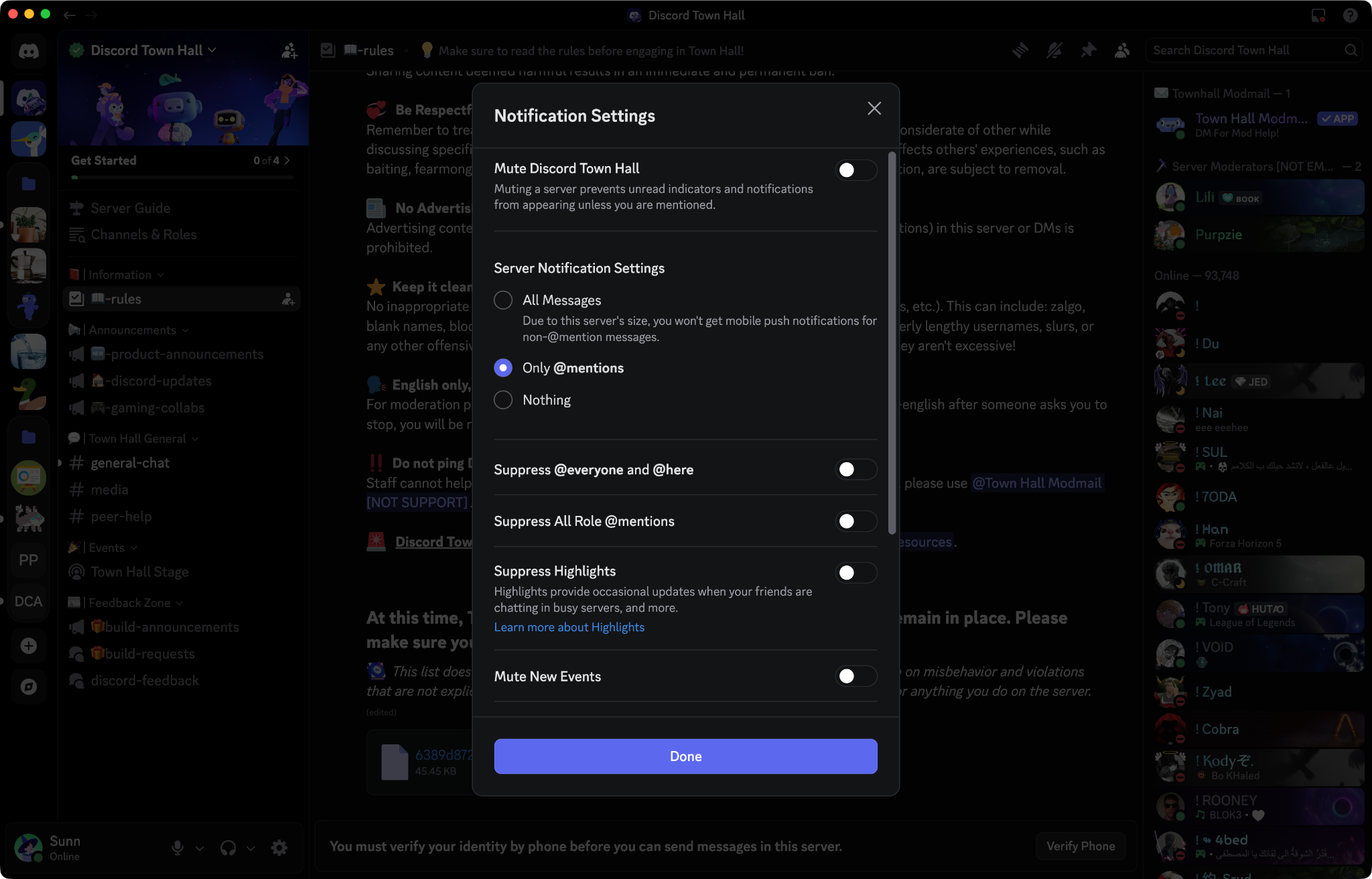
From here you’ve got options for:
- Receiving pings for All Messages, Only @mentions, or Nothing
- Toggles to suppress @everyone, @here, role @mentions, and New Event notifications
- Mute the server entirely.
You can fine-tune things even further by** **right-clicking any channel (or hover over it and use the bell icon) and pick Notification Settings. You’ll see the same All Messages / Only @mentions / Nothing options, plus a “Use Server Default” choice.
You can also scroll down to the bottom of the Server Notifications menu and see a list of every channel that you may have set unique ping settings for.
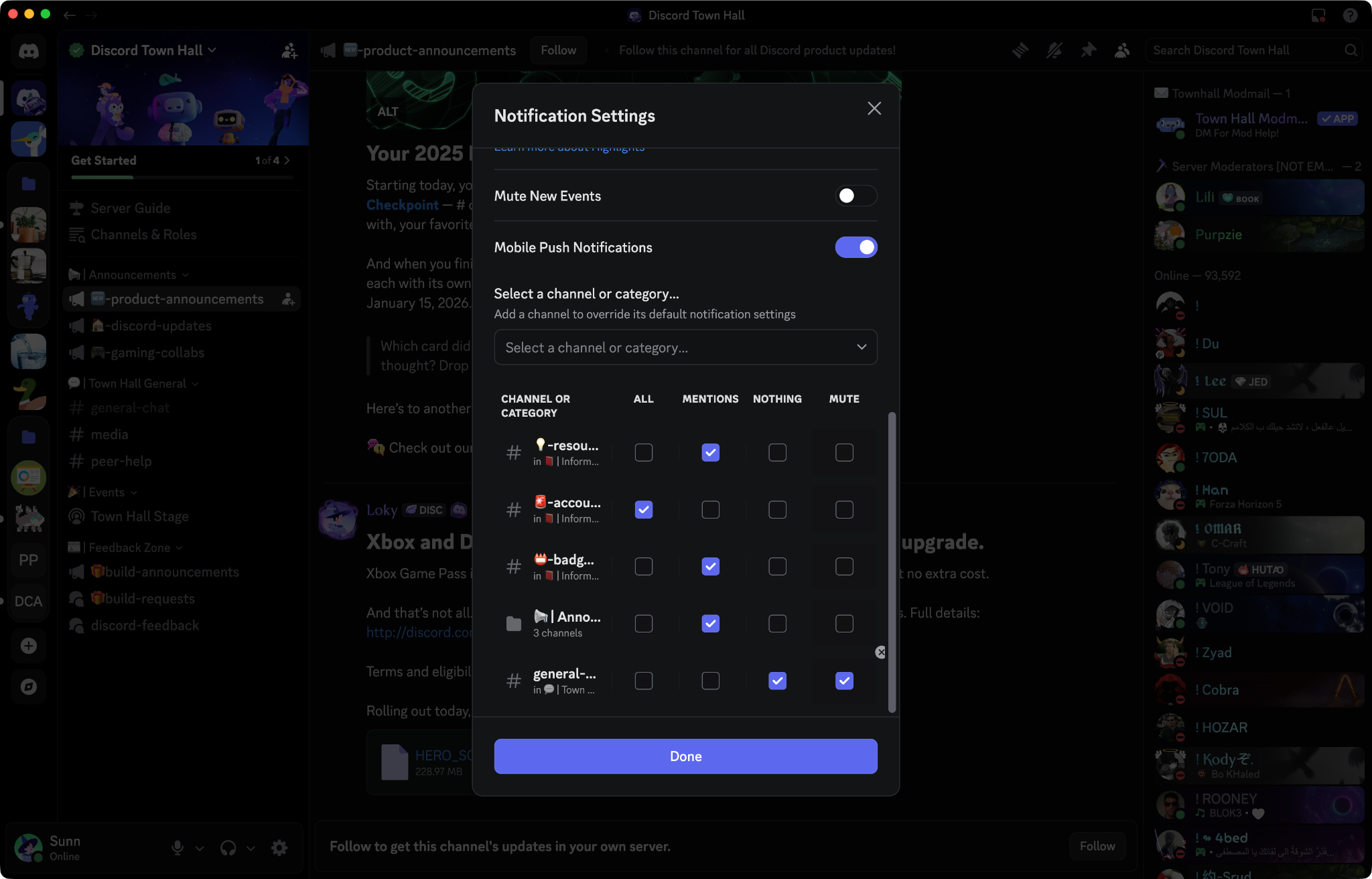
This is the move for keeping a server unmuted but while still silencing a particular text channel like the off-topic chat, the memes channel, or that one announcements channel that’s been firing off all week.
**Entire categories can also be muted. **If you mute a category, it even greys out every channel inside it and keeps the category closed by default. Nice and hidden! Well, kinda hidden.
How Do I Use Do Not Disturb (DND) on Discord?
DND on Discord is the “leave me alone, I’m locked in” status. It silences ALL notifications across Discord so you can focus on your current task, game you’re playing, or latest episode of your favorite Jojo story arc.
Click your avatar in the bottom-left, hover over your status menu (which likely currently says “🟢 Online”) , and pick Do Not Disturb.
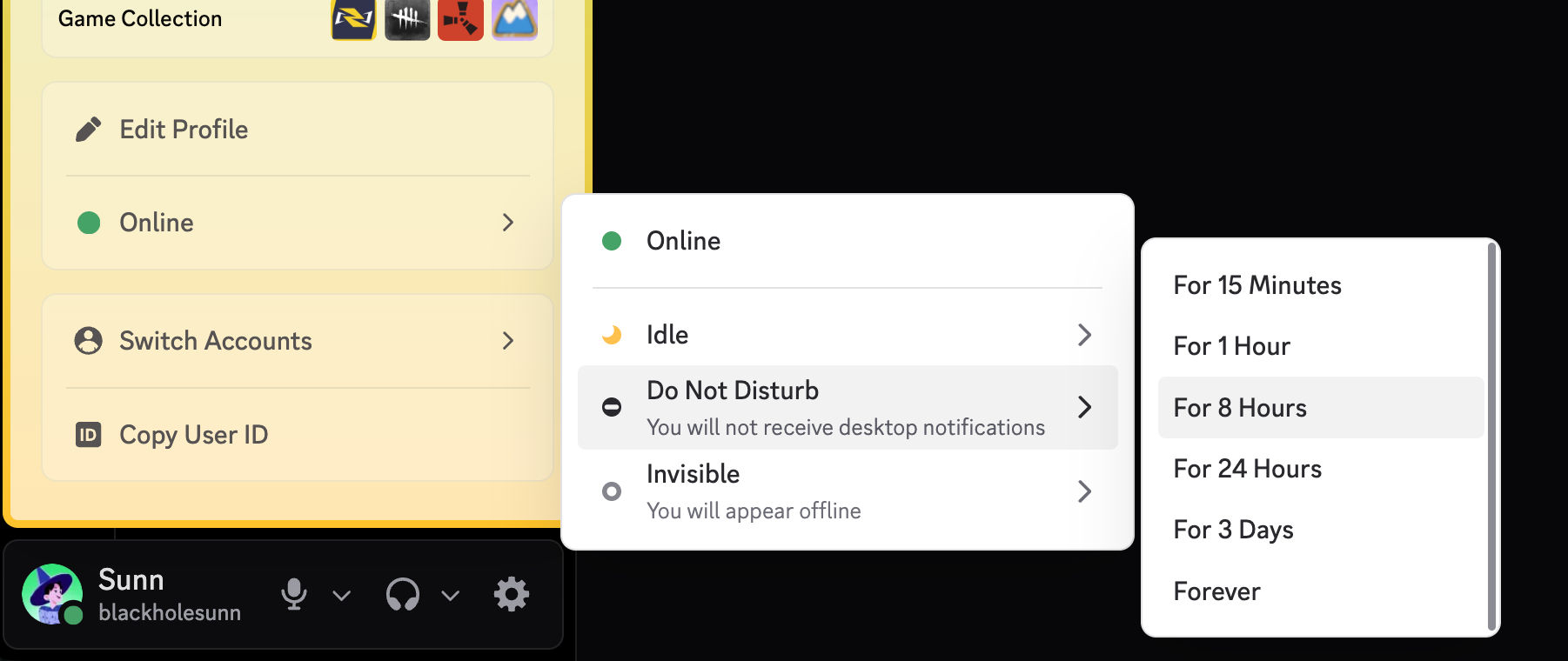
You don’t have to leave it on forever, either! DND has built-in duration options, so you can flip it on for a set amount of time and it’ll automatically switch you back to Online when time’s up.
While we’re here, a quick word on the other statuses:
- Online means business as usual, and you’re probably down to hang whenever.
- Idle and Invisible affects how you appear to others, not your notifications.
- Do Not Disturb is the only status that actually silences your sounds.
DND on Discord follows you across desktop and mobile. So when you flip it on your desktop, the notifications inside the mobile app get silenced, too. (But again, just the sounds. You’ll still get mobile push notifications.)
Can I Turn Off Certain Discord Sounds?
Head to User Settings > Notifications > Sounds and you’ll find toggles for nearly every sound the app might yell at you with, including:
- Message
- Mention
- Deafen
- Mute
- Call rings
- Users joining or leaving voice
- …and over 20 more of them! Yes, that’s a lot of unique sounds.
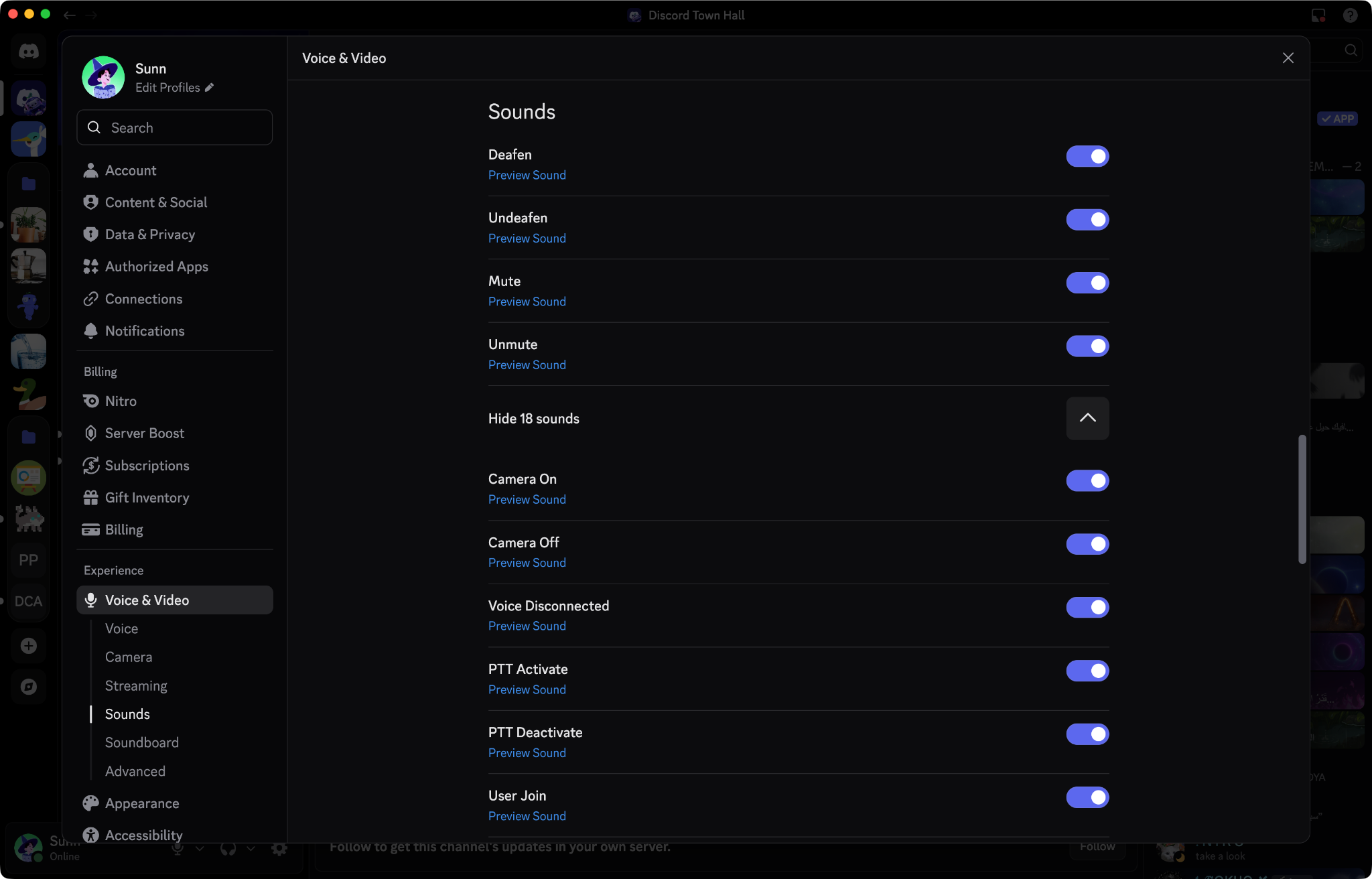
A tip: some sounds are tied to specific events, like calls or voice activity, and you might wanna keep those ON even if you mute message sounds. Missing a “bloop” is no big deal, missing an incoming call is.
***Quick note: ****a LOT of folks that are searching for “discord sounds” might find their way here looking for Soundboard settings (honk honk!). ****If you came here trying to figure out how the Discord Soundboard works, *we have a separate blog post on Soundboard, so head over there if that’s what you had your eyes on.
How Do Make Sure Discord Desktop Notifications On or Off?
The metaphorical big red button, if you just want it all on or off. (It’s not actually red, sadly.)
Head to User Settings > Notifications > Enable Desktop Notifications. It’s likely already on, so you should see your pings while you’re doing other stuff on your PC by default. If you turn it off, you’ll only see notifications inside Discord itself.
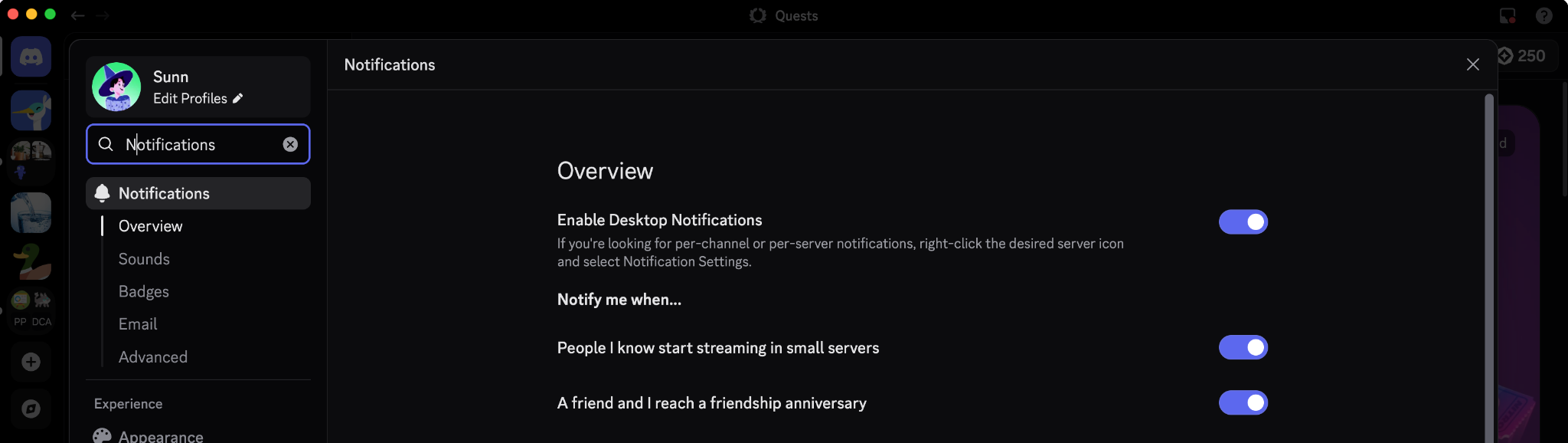
Real talk though: Turning off Discord notifications using this only disables the desktop pop-ups. Sounds happening from inside Discord will still play.
If you had “Enable Desktop Notifications” and your Discord notifications still aren’t working, most modern operating systems have a way to temporarily hide all notifications for every app. Windows has Focus Assist, macOS has Focus modes, and both can hide your notification pop-ups without you realizing.
**Help! My Discord Notifications Aren’t Working! **

Expecting to hear some sounds but NOTHING is coming out of your conch shell?
Relax. Close your eyes. Enter zen mode. Enjoy the five seconds with no notifications going off, then double-check this list to see how you can make your notifications work again:
- Is the server or channel muted?
- Is your status set to Do Not Disturb?
- Are either Windows Focus Assist or macOS Focus mode enabled?
- Are you running the latest version of Discord?
- Did you happen to turn ALL the notifications off entirely?
If you’ve gone through all that and things are still wonky, our Help Center has a deeper troubleshooting article that’ll walk you through the trickier stuff.
Now Go Forth and Ping Responsibly
You’ve got your notifs all wrangled up, your future self won’t be jumping in fear every time someone @mentions you in #general.
Wanna keep customizing? Check out our other blogs that help make Discord perfect for you:
- Making Discord on Desktop Look Just Right: Display Settings to Ease the Eyes
- How to Customize Your Discord Profile
- How to Share What You’re Playing, Listening to, or Watching as Your Status on Discord
- How to Use Discord’s In-Game Overlay to Talk While Playing on PC
Got thoughts on how notifications on desktop could be even better? Drop us a line on X, TikTok, or Instagram, or head to the Discord Feedback Forums to tell us what you think would help everyone.
Clyde
Your personal guide to all things Discord, Clyde is here to support you throughout your experience in the app. Got questions? Pressed the wrong button? Clyde’s got your back.
related articles
.
Search