
How to Automate AWS Incident Investigation with Tines and AI
Published: (February 10, 2026 at 10:01 AM EST)
8 min read
Source: Bleeping Computer
Source: Bleeping Computer

# Investigating AWS Issues with a Tines CLI Workflow
Cloud infrastructure is messy. When an alert fires—*“EC2 instance unresponsive”* or *“High CPU utilization”*—the initial triage often feels like an archaeological dig. Analysts must:
1. Leave their ticketing system.
2. Authenticate into the AWS console (cue the MFA prompts).
3. Hunt for the specific resource ID.
4. Remember the correct CLI syntax to retrieve the ground‑truth data.
This context‑switching tax is heavy. It:
- Extends **Mean Time to Resolution (MTTR)**.
- Burns out analysts who spend more time gathering data than fixing problems.
## What the Tines Workflow Does
The pre‑built Tines workflow **“Investigate AWS issues with CLI data using agents”** eliminates the manual data‑gathering step by bringing the CLI directly into the case.
Key benefits:
- **Single pane of glass** – No need to jump between ticketing tools, the AWS console, and a terminal.
- **Automated data collection** – The workflow runs the required AWS CLI commands and attaches the results to the incident.
- **Reduced MTTR** – Faster access to actionable data means quicker remediation.
- **Lower analyst fatigue** – Less context switching and fewer MFA prompts.
## How It Works (High‑Level)
1. **Trigger** – An alert (e.g., from CloudWatch, PagerDuty, or a custom webhook) starts the Tines story.
2. **Agent Execution** – A Tines agent runs the necessary AWS CLI commands (e.g., `aws ec2 describe-instances`, `aws cloudwatch get-metric-statistics`).
3. **Data Enrichment** – The CLI output is parsed and attached to the incident as structured data or a downloadable file.
4. **Notification** – The analyst receives a single, enriched ticket with all relevant information ready for triage.
## Quick Start Checklist
- [ ] Install the **Tines CLI Agent** on a machine with AWS credentials and MFA handling.
- [ ] Configure the agent’s IAM role/policy to allow the required `ec2`, `cloudwatch`, and other service actions.
- [ ] Import the **“Investigate AWS issues with CLI data using agents”** story from the Tines marketplace.
- [ ] Map your alert source (PagerDuty, SNS, etc.) to the story’s trigger.
- [ ] Test the workflow with a sample alert and verify that the CLI output appears in the incident.
---
By integrating the AWS CLI directly into the incident response workflow, Tines turns a tedious, multi‑step investigation into a streamlined, automated process—saving time, reducing MTTR, and keeping analysts focused on solving problems rather than hunting for data.
## The Problem: The “Context Gap” in Incident Response
In many organizations there is a disconnect between **where work is tracked** (Jira, ServiceNow) and **where the data lives** (AWS, Azure, internal logs).
A “simple” investigation often involves:
- **Access friction** – logging into multiple consoles and assuming roles.
- **Syntax struggles** – wasting cycles figuring out the correct CLI syntax and flags instead of simply retrieving the answer.
- **Security risks** – giving analysts broad read‑access to production environments just to check a status.
Manual processes like these are the enemy of scale. As noted in a recent [Tines case study](https://www.tines.com/case-studies/crowdfunding-tech-company/?utm_source=BleepingComputer&utm_medium=paid_media&utm_content=article-1002), a major crowdfunding platform reduced unpatched vulnerabilities by **83 % in just 90 days** after moving from manual spreadsheets to orchestration.
**The lesson:** *Focus on security work rather than the mundane tasks behind it.*
## The Hidden Cost of Running IT Infrastructure by Hand
[Read the guide →](https://www.tines.com/access/guide/the-future-of-it-infrastructure/?utm_source=BleepingComputer&utm_medium=paid_media&utm_content=article-1002)
### What you’ll learn
- How modern IT Ops teams use **orchestration** to manage capacity, improve reliability, and scale infrastructure without burnout.
- Practical steps to replace manual workflows with **predictable, automated operations** using the tools you already have.
### Get the guide
[Download the practical guide now](https://www.tines.com/access/guide/the-future-of-it-infrastructure/?utm_source=BleepingComputer&utm_medium=paid_media&utm_content=article-1002)
## Automated CLI Execution via Agents
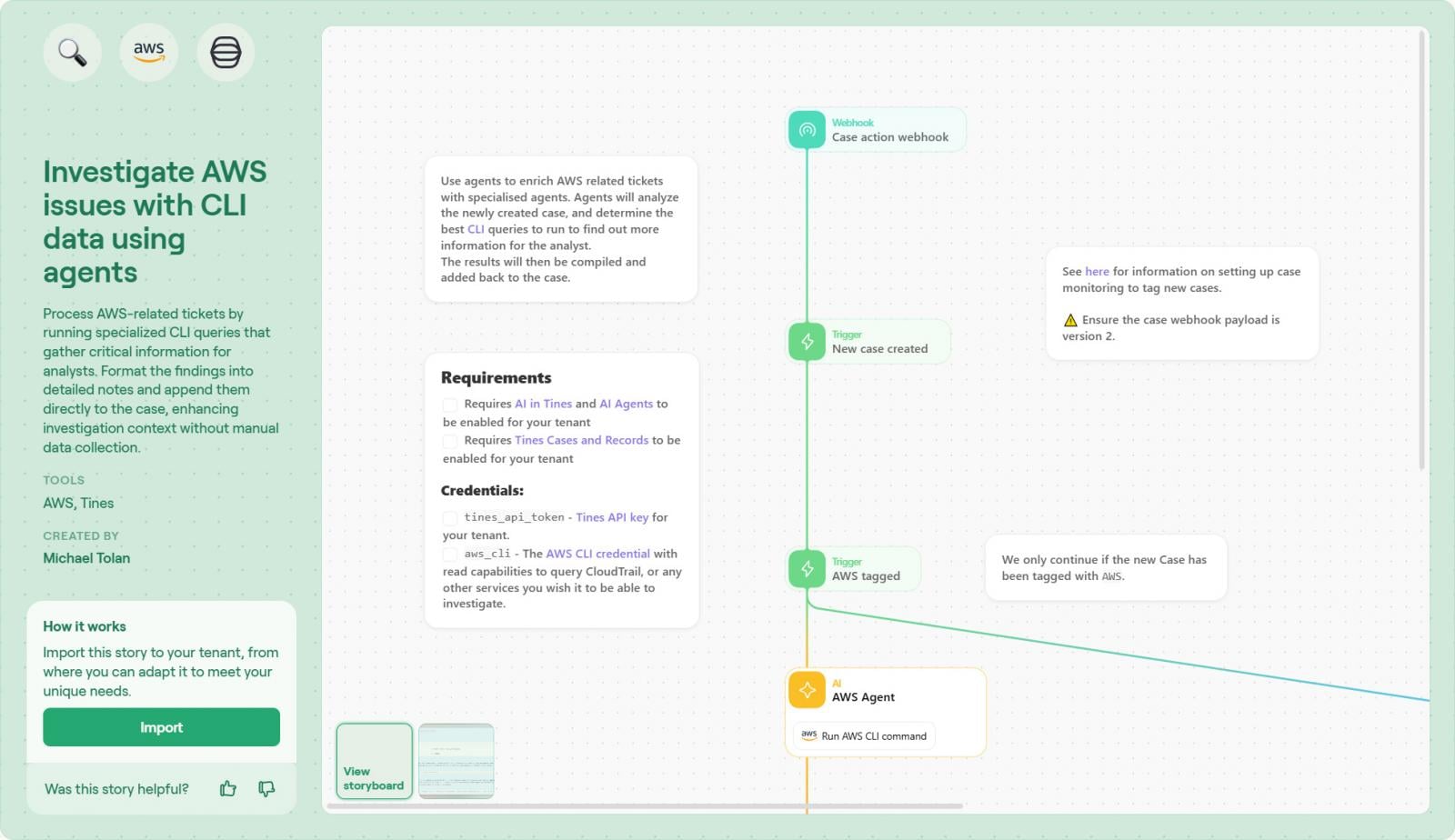
The **Investigate AWS Issues with CLI Data** workflow bridges the gap between a ticket and your cloud environment. It uses **Tines agents**—secure, lightweight runners that execute AWS CLI commands with protected credentials—so the analyst never has to leave the ticketing system.
> *“Instead of the analyst going to the CLI, the CLI comes to the analyst.”*
### How the Workflow Operates
| Step | Description |
|------|-------------|
| **1️⃣ Trigger** | The workflow starts when a new case or ticket is created for an AWS resource. Triggers can be automatic (e.g., a CloudWatch alarm) or manual (analyst‑detected anomaly). |
| **2️⃣ Agent Intermediary** | Tines does **not** require over‑privileged, direct access to your cloud. A Tines agent runs with **read‑only** AWS permissions, keeping credentials local and secure. |
| **3️⃣ Dynamic Command Generation** | Instead of static scripts, the agent **builds the exact CLI command on the fly** based on ticket context. Whether you need to inspect an S3 bucket policy or query an EC2 security group, the agent creates the correct syntax and runs it. |
| **4️⃣ AI Formatting & Enrichment** | Raw CLI output (often dense JSON) is transformed into a clean, readable summary or table. This can be done with Tines’ built‑in transformation steps or an optional AI step for richer context. |
| **5️⃣ Case Update** | The formatted findings are appended directly to the Tines case (or your ITSM tool). The analyst opens the ticket and instantly sees the relevant state—security groups, public IPs, policy details—without logging into the console. |
### Benefits
- **Security‑first**: Credentials never leave the agent’s controlled environment.
- **Flexibility**: Commands are generated dynamically, handling any AWS resource type.
- **Speed**: Results appear in the ticket within seconds, reducing mean‑time‑to‑investigate (MTTI).
- **Readability**: AI‑enhanced formatting turns raw JSON into actionable insights.
---
**Next Steps**
1. Deploy a Tines agent with the minimal read‑only IAM role required for your use cases.
2. Configure the trigger (CloudWatch alarm, webhook, or manual ticket creation).
3. Enable the AI transformation step if you want enriched, human‑friendly summaries.
4. Test the end‑to‑end flow on a non‑production ticket to verify command generation and case updates.
You’re now ready to let the CLI work **for** you, not the other way around. 🚀
## The Benefits
Implementing this workflow drives efficiency across the entire incident lifecycle:
- **Zero‑touch context** – Analysts start their investigation with the data already in front of them. There is no “gathering phase,” only a “solving phase.”
- **Secure access** – You don’t need to grant every junior analyst read access to the AWS console. The Tines agent handles the privilege, acting as a secure proxy for specific, approved commands.
- **Standardized documentation** – Every investigation has the exact same data snapshot attached, creating a perfect audit trail. Tines [Cases](https://www.tines.com/platform/cases/?utm_source=BleepingComputer&utm_medium=paid_media&utm_content=article-1002) captures this automatically.
- **Collaborative resolution** – By pulling data into Tines Cases, teams can comment, tag, and collaborate in real‑time on the “new or unknown,” preventing the siloed communication that occurs when data is stuck in a terminal window.
## How to Build It
This workflow is available as a template to jump‑start your intelligent‑workflow journey.
### Step 1 – Import the Story
1. Visit the **Tines Library** and search for **[Investigate AWS issues with CLI data using agents](https://www.tines.com/library/stories/1321356/)**.
2. Click **Import** to add the story to your tenant.
---
### Step 2 – Connect Your AWS Credential
Add a secure AWS credential (e.g., an IAM role or access key) directly in the Tines tenant. This lets the agent interact with your environment without any extra infrastructure or external runners.
---
### Step 3 – Modify Recommended Commands
The template ships with a set of example CLI commands. Feel free to edit this list to:
- Emphasise the commands your team uses most often.
- Add or remove commands that better match your ticket types.
These changes steer the agent’s behavior without limiting its ability to run other commands when needed.
---
### Step 4 – Review the Case Format
The workflow automatically sends findings to **Tines Cases**, so no manual connection is required. Still, you should:
- Verify the case layout fits your analysts’ needs.
- Re‑order fields or adjust the AI‑generated summary to surface the most critical data at a glance.
---
### Step 5 – Test and Refine
1. Run the workflow with a dummy ticket.
2. Confirm the agent executes the command(s) correctly.
3. Check that the output is displayed as expected in the case view.
Iterate on the command list, case layout, or credential settings until the workflow behaves exactly as you need.
## Conclusion
The difference between a stressed SOC and an efficient one often comes down to **mundane tasks**. When analysts must manually fetch data for every alert, they drown in noise.
By orchestrating these routine checks with **Tines** and Tines agents, you flip the script: your team receives the context it needs instantly, allowing them to focus on high‑value decision‑making that actually protects the organization.
As the crowdfunding‑tech company discovered, intelligent workflows don’t just save time—they fundamentally improve the security posture when implemented properly.
---
*For a deeper look at how **Tines Cases** can centralize your investigation data, check out the product spotlight: [Tines Cases | Product Spotlight](https://www.tines.com/webinars/tines-cases-product-spotlight/?utm_source=BleepingComputer&utm_medium=paid_media&utm_content=article-1002). The video demonstrates how the Cases interface consolidates data, making it the perfect destination for the automated AWS insights generated by this workflow.*
*Sponsored and written by [Tines](https://www.tines.com/?utm_source=BleepingComputer&utm_medium=paid_media&utm_content=article-1002).*