
Hosting a Godot Server on Oracle Cloud
Source: Dev.to
Introduction
When working on multiplayer projects, hosting a server is a key part of being able to share it with others.
In this article we cover how to host a Godot (4.5.1) server on an Oracle Cloud instance, covering:
- The Godot project
- Dockerising a Godot server
- Hosting a Godot server on an Oracle instance
- Setting up HTTPS with NGINX and Let’s Encrypt
- Hosting your client on itch.io
Requirements
- Godot 4.5.1 –
- Docker and a Docker Hub account –
- Oracle Cloud account – (choose the region closest to you)
- itch.io account –
- A registered domain (required only for HTTPS; e.g., GoDaddy – )
The Godot Project {#the-godot-project}
The project uses Godot 4.5.1 in compatibility mode and Godot’s high‑level multiplayer (WebSocketServer) so the client can run in a web browser. Players can join a 2D space, move around, and see their connection IDs above their avatars.
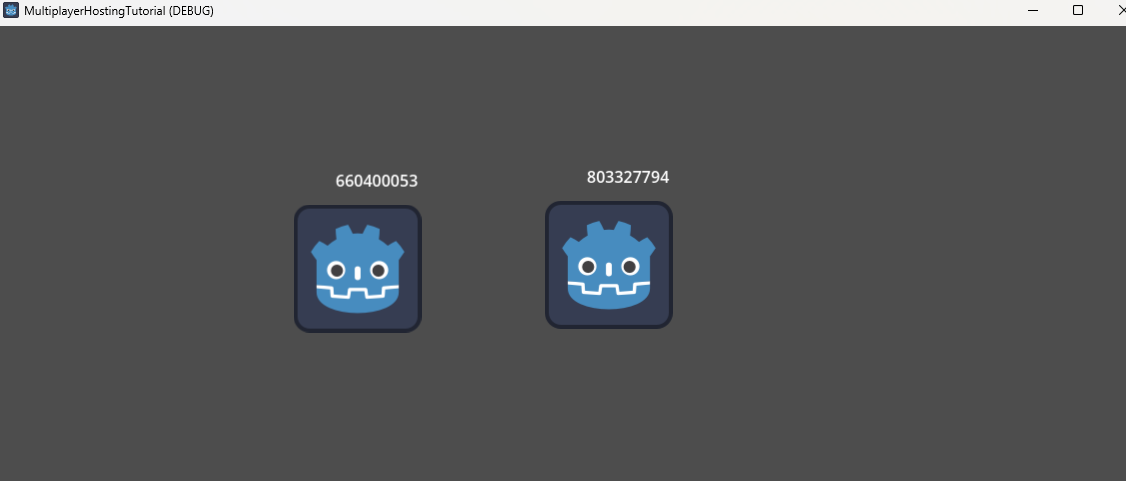
Source code:
Dockerising a Godot server {#dockerising-a-godot-server}
Dockerfile – Build stage
# Build stage – download Godot and export the project
FROM ubuntu:focal AS build

# Install dependencies
RUN apt-get update && apt-get install -y --no-install-recommends \
    ca-certificates \
    unzip \
    wget

ENV GODOT_VERSION="4.5.1"

# Download Godot and export templates
RUN wget https://github.com/godotengine/godot/releases/download/${GODOT_VERSION}-stable/Godot_v${GODOT_VERSION}-stable_linux.x86_64.zip \
    && wget https://github.com/godotengine/godot/releases/download/${GODOT_VERSION}-stable/Godot_v${GODOT_VERSION}-stable_export_templates.tpz

# Install Godot
RUN mkdir -p ~/.cache ~/.config/godot ~/.local/share/godot/export_templates/${GODOT_VERSION}.stable \
    && unzip Godot_v${GODOT_VERSION}-stable_linux*.zip \
    && mv Godot_v${GODOT_VERSION}-stable_linux*64 /usr/local/bin/godot \
    && unzip Godot_v${GODOT_VERSION}-stable_export_templates.tpz \
    && mv templates/* ~/.local/share/godot/export_templates/${GODOT_VERSION}.stable \
    && rm Godot_v${GODOT_VERSION}-stable_export_templates.tpz Godot_v${GODOT_VERSION}-stable_linux*.zip
Export the Linux server build
# Create a workspace for the export
RUN mkdir /godotbuildspace
WORKDIR /godotbuildspace

# Copy the project files
COPY . .

ARG EXECUTABLE_NAME
ENV EXPORT_NAME="LinuxServer"
ENV EXECUTABLE_NAME=$EXECUTABLE_NAME
ENV EXPORT_MODE="debug"   # use "release" for production

# Export the project (headless)
RUN godot --export-${EXPORT_MODE} ${EXPORT_NAME} ${EXECUTABLE_NAME} --headless
Note:
EXECUTABLE_NAME– name of the final binary.EXPORT_NAME– the name of the Linux export preset defined inexport_presets.cfg.EXPORT_MODE–debug(showsprint()output) orrelease.
In the Godot editor, create a Linux export preset (Project → Export → Add… → Linux) and enable Embed PCK and Export Mode → Export as dedicated server.
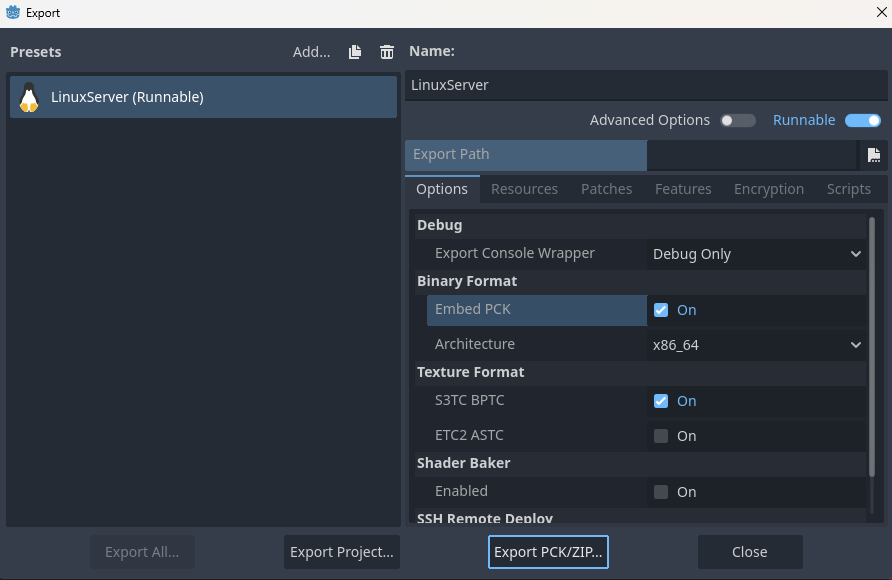
Dockerfile – Runtime stage
# Runtime stage – run the exported server binary
FROM ubuntu:focal

ARG EXECUTABLE_NAME
ENV EXECUTABLE_NAME=$EXECUTABLE_NAME

COPY --from=build /godotbuildspace/ ./

EXPOSE 6069/tcp
EXPOSE 6069/udp

CMD ["sh", "-c", "./${EXECUTABLE_NAME} --headless -s"]- Port 6069 is used for both TCP and UDP (see the client code for the exact port).
--headlessruns Godot without a graphical interface.-stells the project to start as a server (see the source for details).
Build and push the image
# Build locally
docker build -t multiplayer-hosting-tutorial-server .

# Run locally (optional)
docker run -d -p 6069:6069 -p 6069:6069/udp multiplayer-hosting-tutorial-server

# Push to Docker Hub for deployment
docker build -t /multiplayer-hosting-tutorial-server .
docker push /multiplayer-hosting-tutorial-server
Hosting a Godot server on an Oracle instance {#hosting-a-godot-server-on-an-oracle-instance}
Create the Oracle instance
- Open the Instances section in Oracle Cloud.
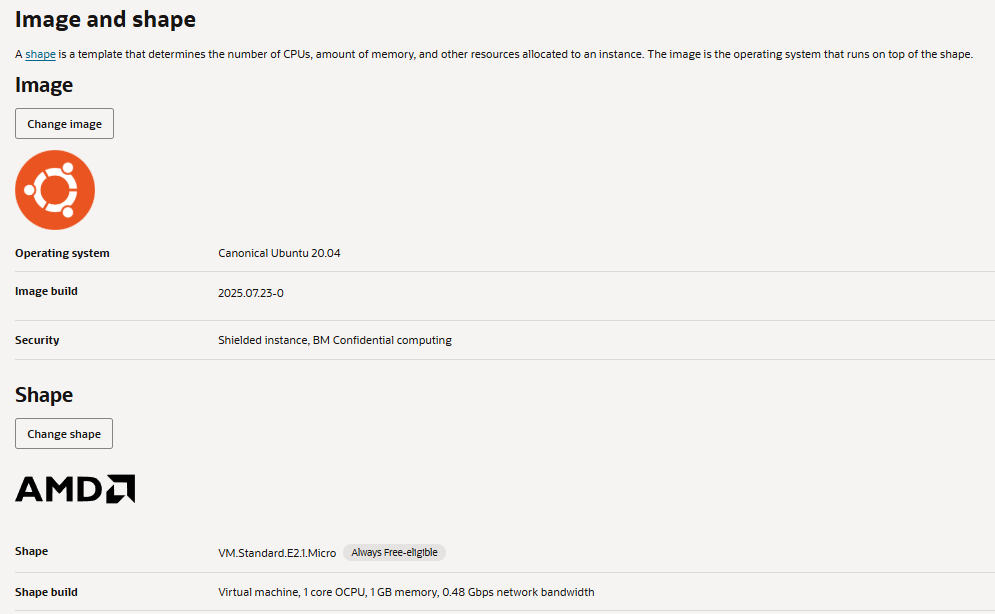
- Create a new instance using:
- Image: Canonical Ubuntu 20.04
- Shape: VM.Standard.E2.1.Micro (free tier)
Set up the instance
# SSH into the instance (replace <IP> with your instance's IP)
ssh ubuntu@<IP>

# Update packages
sudo apt-get update && sudo apt-get upgrade -y

# Install Docker
sudo apt-get install -y docker.io
sudo systemctl enable --now docker

# (Optional) Add your user to the docker group
sudo usermod -aG docker $USER
newgrp docker
Pull and run the Docker image
docker pull /multiplayer-hosting-tutorial-server
docker run -d -p 6069:6069 -p 6069:6069/udp /multiplayer-hosting-tutorial-server
Verify that the container is running:
docker psYou should see a container exposing ports 6069/tcp and 6069/udp.
(Optional) Set up a systemd service
Create /etc/systemd/system/godot-server.service:
[Unit]
Description=Godot Multiplayer Server
After=network.target docker.service
Requires=docker.service

[Service]
Restart=always
ExecStart=/usr/bin/docker run --rm -p 6069:6069 -p 6069:6069/udp /multiplayer-hosting-tutorial-server
ExecStop=/usr/bin/docker stop $(/usr/bin/docker ps -q --filter "ancestor=/multiplayer-hosting-tutorial-server")

[Install]
WantedBy=multi-user.target
Enable and start the service:
sudo systemctl daemon-reload
sudo systemctl enable --now godot-server
The server will now start automatically after a reboot.