
Have a Samsung phone and PC? You need the new Galaxy Connect Windows app
Source: Android Authority
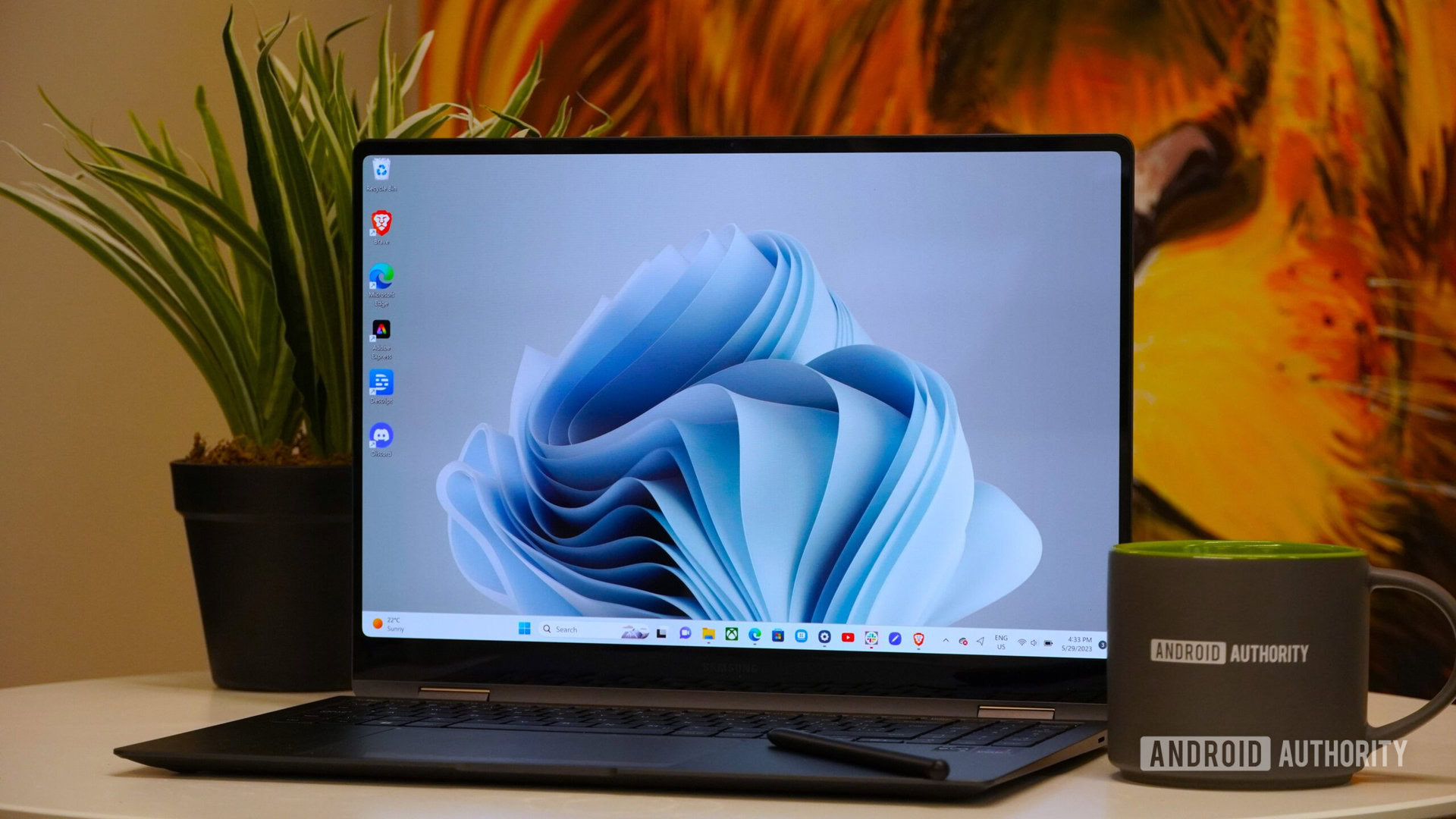
Earlier this year, I completed my Samsung ecosystem with a Galaxy Book 4 Edge — and one of the things I loved most about the experience was the features Samsung had added on top of Windows 11. Specifically, all of the deep integrations it offered with my Samsung phone.
Having tested this new version of Galaxy Connect myself, I couldn’t be happier with it.
Are you going to download Galaxy Connect?
Galaxy Connect’s two best features
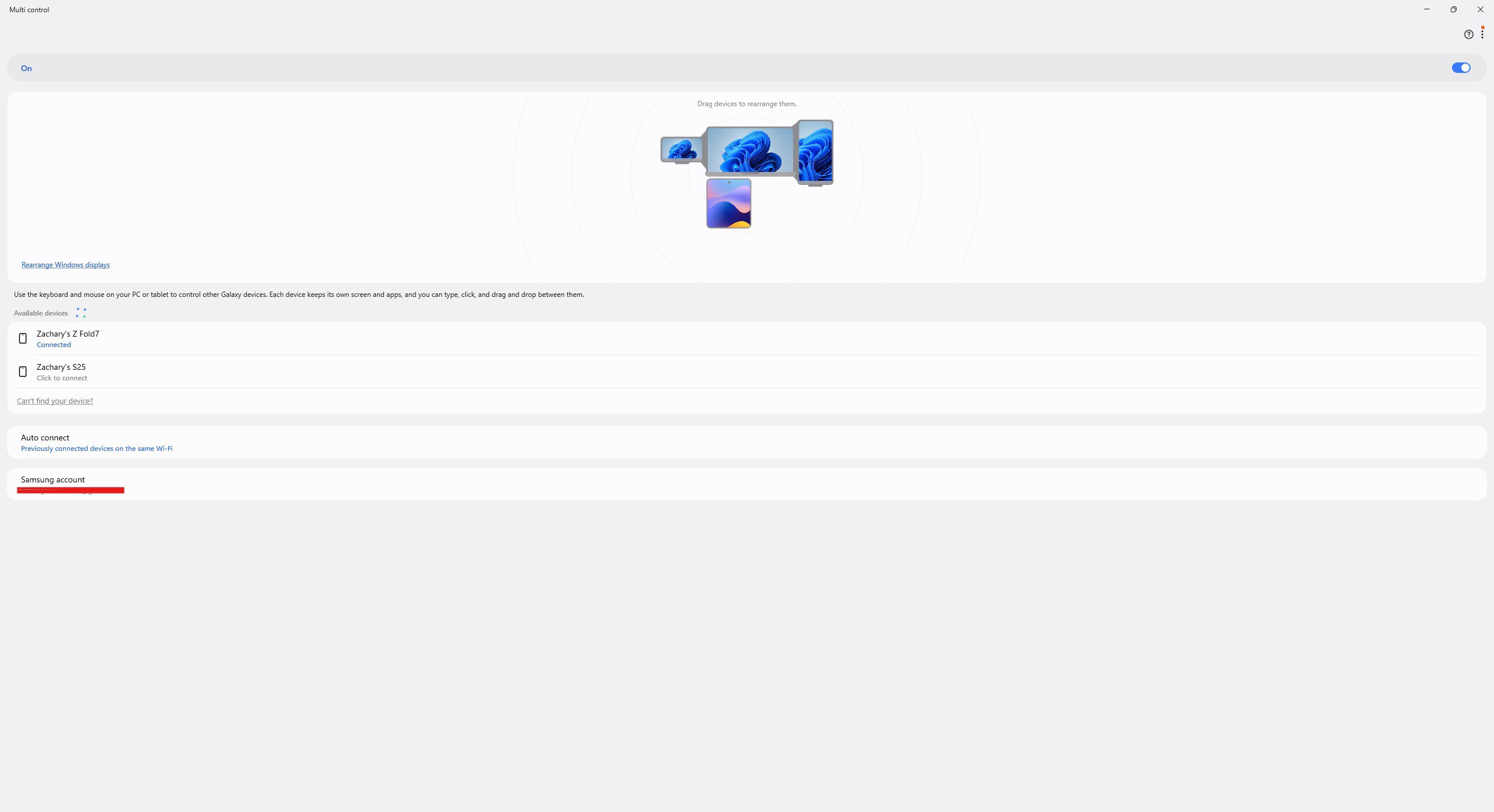
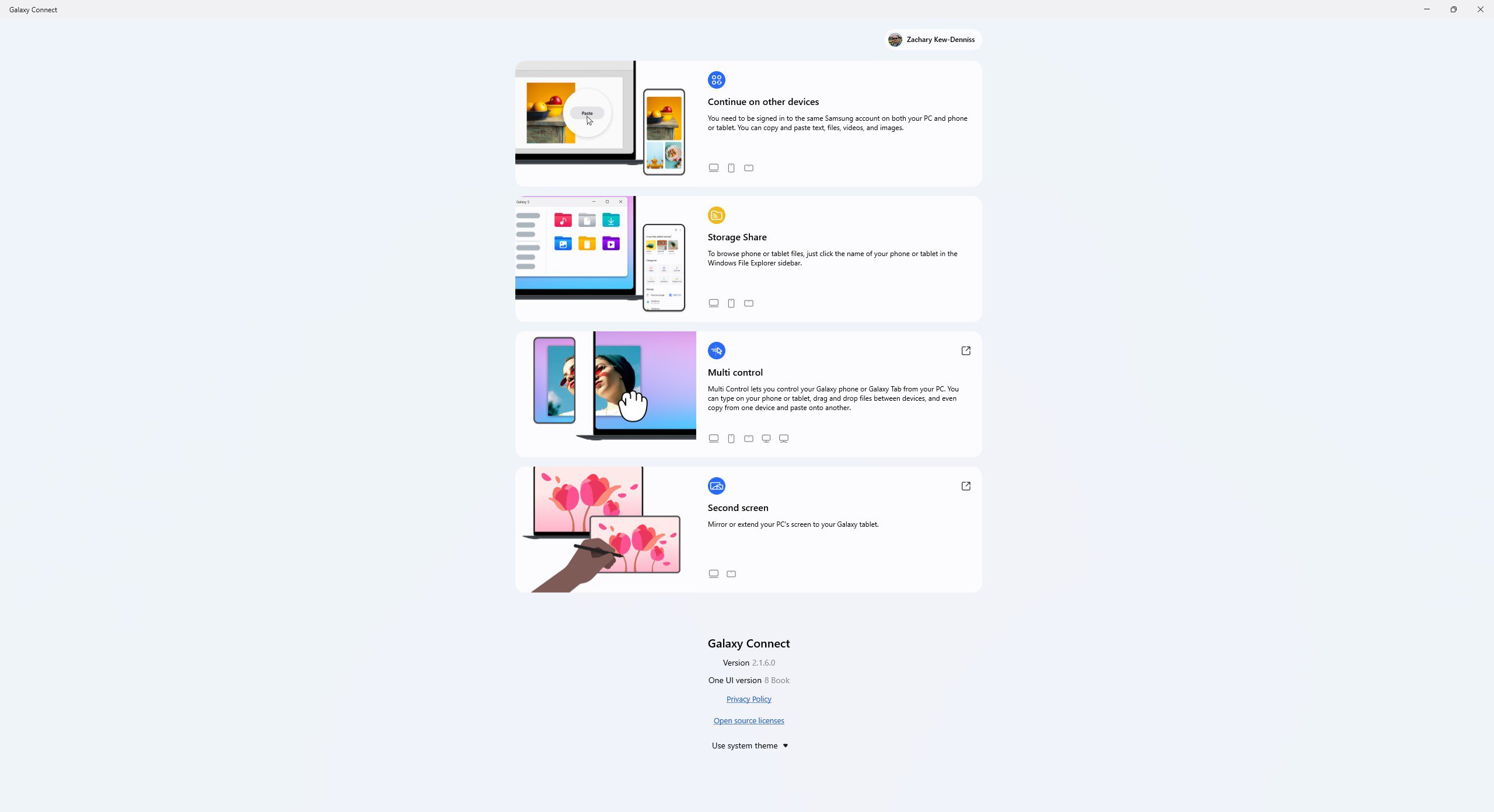
Once you’ve downloaded Galaxy Connect onto your PC, you’ll see four features contained within: Continue on other devices, Storage Share, Multi Control, and Second Screen. The first two are included with the initial Galaxy Connect download, whereas Multi Control and Second Screen require additional downloads to use.
Of the features Galaxy Connect brings to Windows, Multi Control and Second Screen are by far my favorites. Multi Control is similar to Apple’s Universal Control. You can connect to your Samsung phone or tablet and position it as you would a secondary monitor. Instead of mirroring Windows to the device, your phone continues to run Android. When you move your mouse from your main display, it appears on the phone’s screen, letting you control it with your mouse and keyboard as if they were connected directly to the phone.
I use this mainly for two daily tasks:
- Listening to music while working. I keep my earbuds paired with my Fold 7, run YouTube Music and Telegram in split‑screen, and control playback without cluttering my PC monitors.
- Using mobile‑first apps. I prefer the Android version of Google Keep over the web version, and now I can make notes quickly with my mouse and keyboard while the app runs on the phone.
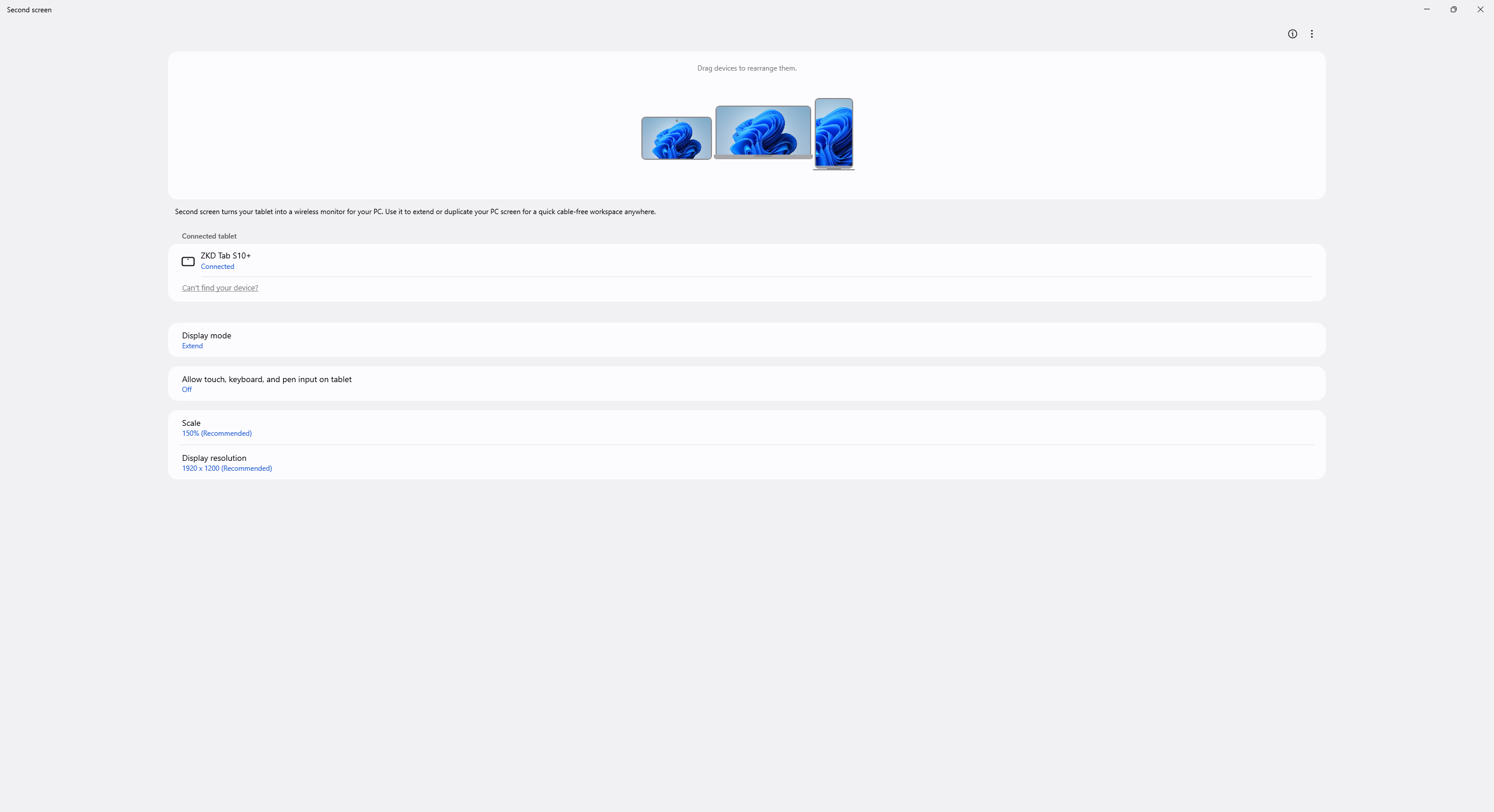
Second Screen lets you use a Galaxy tablet as a wireless display for your Windows computer. This isn’t technically new (you’ve been able to do it via the Windows + K menu for years), but the Second Screen app fixes one of the biggest annoyances: lag. When you connect to your tablet via this app, a prompt appears on the computer: “Disconnect tablet Wi‑Fi to reduce latency.” Clicking it disconnects the tablet from Wi‑Fi and connects it directly to the PC, eliminating latency. I can now use my Galaxy Tab S10 Plus as a secondary monitor and use the S Pen with my PC without frustrating delays.
Share files and sync your clipboard
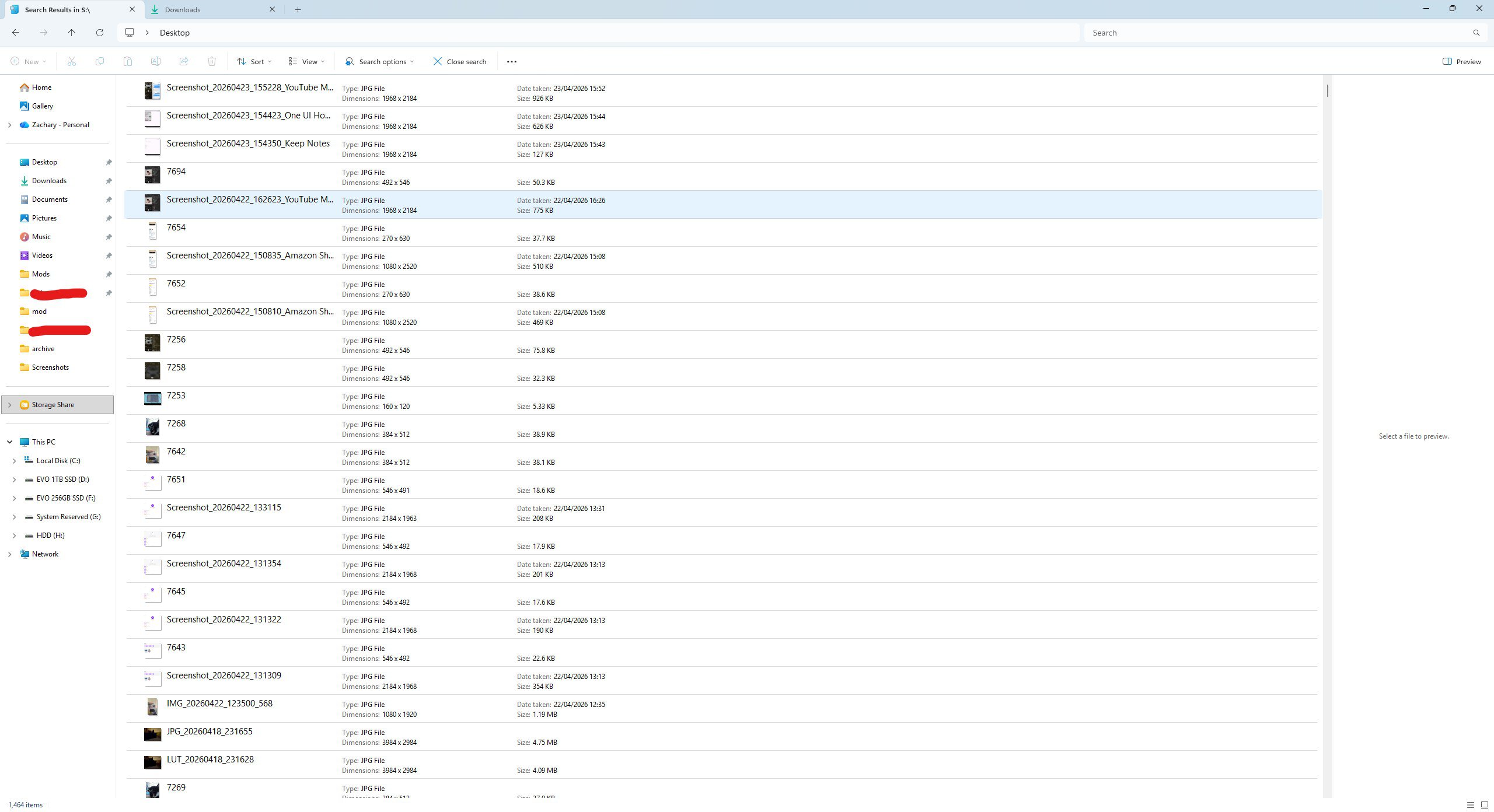
Storage Share lets you access all the files on your Samsung phone or tablet from File Explorer on your PC. Drag and drop files into a folder on your PC, or drop them directly into the app you need. I dragged screenshots from my Fold 7 straight into our site’s media library.
Continue on other devices syncs your clipboard. This is handy for two‑factor authentication: copy a code on your phone and paste it on your PC without manually typing it. If you use Samsung Internet, you can also sync tabs across devices (though I prefer Chrome).
Things aren’t perfect. ARM‑based PCs are left out, which is odd since my Galaxy Book 4 Edge is ARM‑based and has all these features built in. Some users with non‑Intel network adapters report that Galaxy Connect doesn’t work at all.
Aside from those limitations, this is one of my favorite things Samsung has done in a long time. Multi Control and Second Screen have made working from my desktop better than ever, especially now that I can use the same workflows as I have on my Galaxy Book.