
Google Pixel phones adding ‘Transit mode’: How to set up
Source: 9to5Google
Overview
As part of the March 2026 Feature Drop, Pixel phones are receiving two commute‑related features:
-
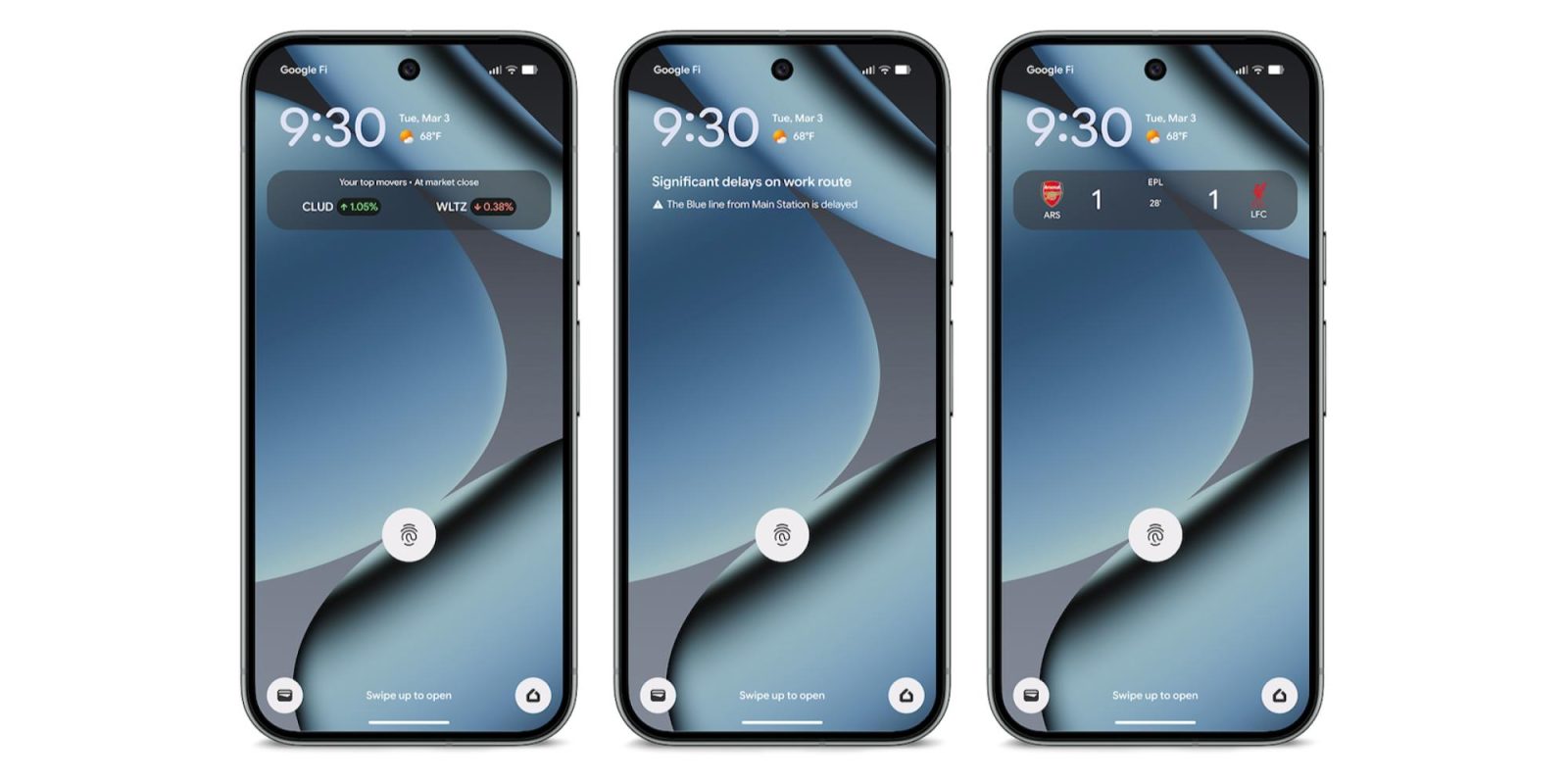
At a Glance – real‑time updates about commute conditions appear on the lock and home screens (e.g., “Significant delays on work route” with details such as “The Blue line from Main Station is delayed”). This extends the existing “Commute” feature that shows traffic info and travel time.
-
Transit mode – a personalized mode that automatically adjusts settings while you’re on the train. It is part of the Modes feature (alongside Do Not Disturb and Driving).
Transit mode options
When Transit mode is active you can configure:
- Volume settings – choose Sound on, Vibrate only, or Silent.
- Connectivity – toggle Use Bluetooth while commuting on or off.
- Notifications – enable Allow all notifications or restrict them by:
- People – choose who can send you notifications.
- Apps – select which apps may notify you.
- Alarms & other interruptions – decide which alarms and interruptions are allowed.
A support document notes that Google Maps needs time to learn your commute patterns, and it may take 2–3 weeks for commute info to appear after the initial setup. At a Glance leverages your Maps Timeline (Location history) for this learning.
Setting up Transit mode and At a Glance commute alerts
- Open Settings → Modes → Transit → App Settings → Set up commute notifications.
- Follow the prompts to:
- Set up home and work locations.
- Confirm location settings.
- Build your commute profile.
Note: As of the time of writing, Transit is not yet visible in the Modes list, but the steps above illustrate the intended setup flow.
Availability
- Supported on Pixel 7 and newer devices (Pixel Tablet excluded).
- Real‑time transit info on At a Glance is available globally except Europe and the UK.
- Language restrictions may apply.
- Requires a Google account and Google Maps.