
Google has a secret camera widget; here’s how to get it on your phone
Source: Android Authority
How to get Google’s Snapshot widget
Rita El Khoury / Android Authority
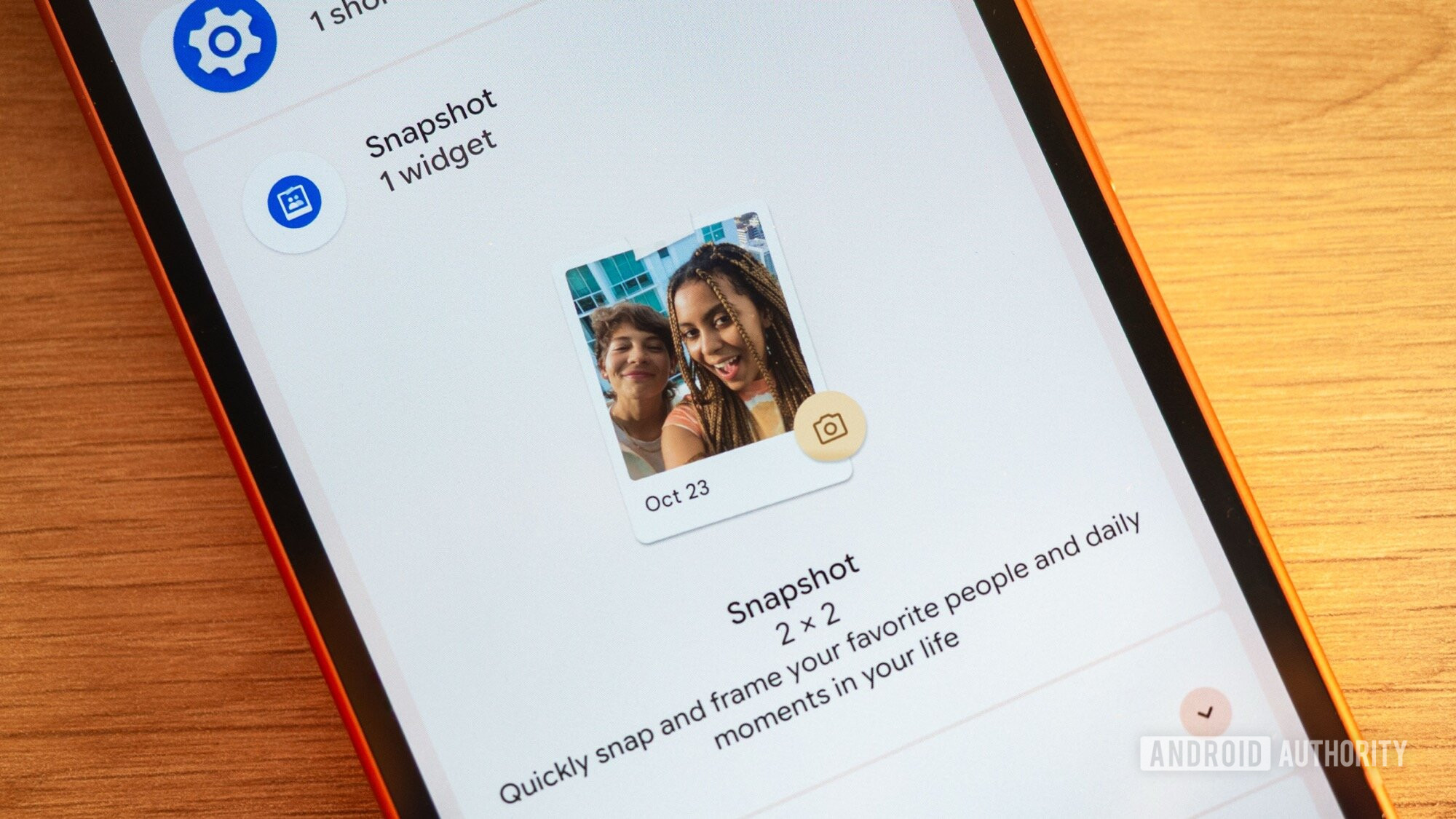
As far as I can tell, the Snapshot widget is only pre‑installed on the Pixel 8a and 9a. There, you’ll find it under the full widget menu under Snapshot.
Any other device will have to sideload it first. The package name is com.google.android.apps.pixel.familyspace. You can grab the file I extracted from my Pixel 9a from this Google Drive link. (It should soon be available on APK Mirror, too.) Download it to your phone and install it. You might see a prompt asking for permission to install unknown apps—grant it, and you can revoke the permission later.
When it’s installed, go to your home screen and add a new widget. You’ll find the new widget either under Snapshot (Pixels) or Family Space (other phones). Add it to your home screen and resize it as desired.
I’ve tested this on a Pixel 10 Pro XL, Samsung Galaxy S24 Ultra, Nothing Phone 2, and a OnePlus 13R. It worked on all of them, and it should work with other Android skins and brands as well.
What Google’s Snapshot camera widget does
Rita El Khoury / Android Authority
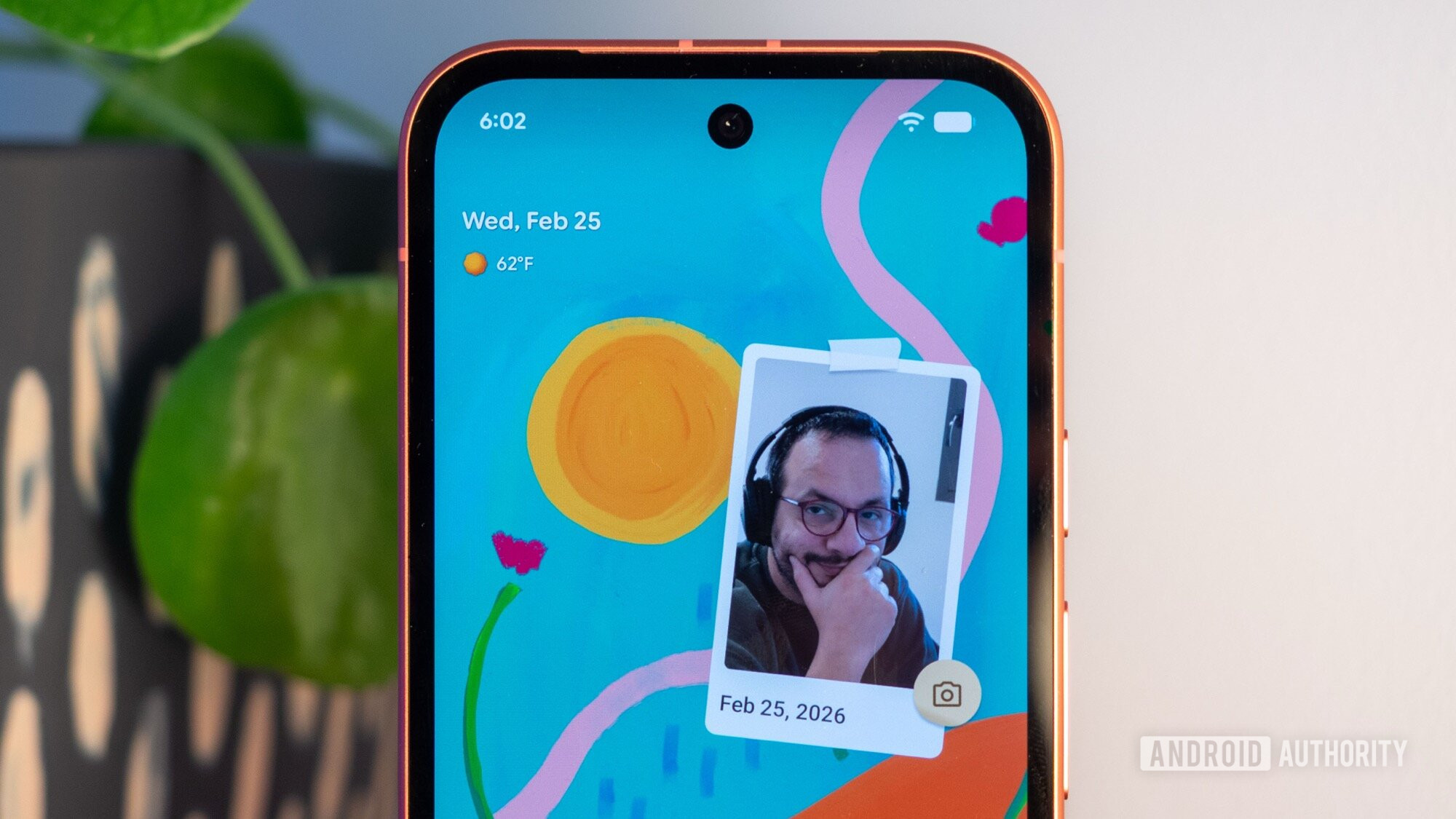
The Snapshot widget is extremely simple and bare‑bones. It initially appears as a placeholder photo on your home screen. Tap the camera icon to open the default camera app, take a picture, approve it, and the photo will appear inside the widget.
The photo is saved like any normal picture on your device. Tapping the widget opens the picture for editing, but edits do not affect how the photo is displayed in the widget. You can’t pin a previously‑taken photo; you must take a new photo each time.
Think of the Snapshot widget as an instant‑camera addition to your phone: it captures a photo and pins it to your home screen in the same way you might print a picture and stick it to a fridge or bulletin board.