
Git Made Simple
Source: Dev.to


It is normal for developers to save different versions of their work, track changes, make updates, and collaborate; this is the work of Git.
What is Git?
Git is a version control system that lets you:
- Track changes
- Go to earlier code versions
- Collaborate
- Save code online on GitHub
Steps
Step 1: Installing Git Bash
- Go to the Git Bash download page.
- Select your operating system (Windows, macOS, or Linux).

- Install Git Bash.
- Open Git Bash – you’ll see a terminal that looks like this:
username@computer MINGW64 ~Step 2: Create (or Log Into) a GitHub Account
- Go to GitHub.
- Create an account or log in if you already have one.
Step 3: Connect Git Bash to GitHub
Set up your name
git config --global user.name "Your Name"Set up your email
git config --global user.email "youremail@example.com"Note: Make sure the email matches the one on your GitHub account.
Check your configuration
git config --listStep 4: Create a New Project or Repository
Create a folder
mkdir my-first-git-projectNavigate to the folder
cd my-first-git-project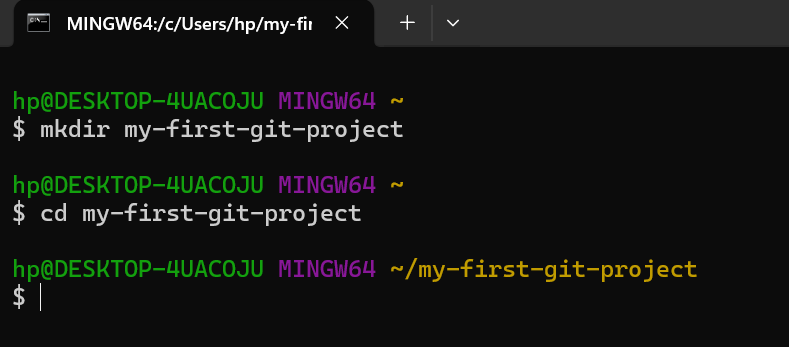
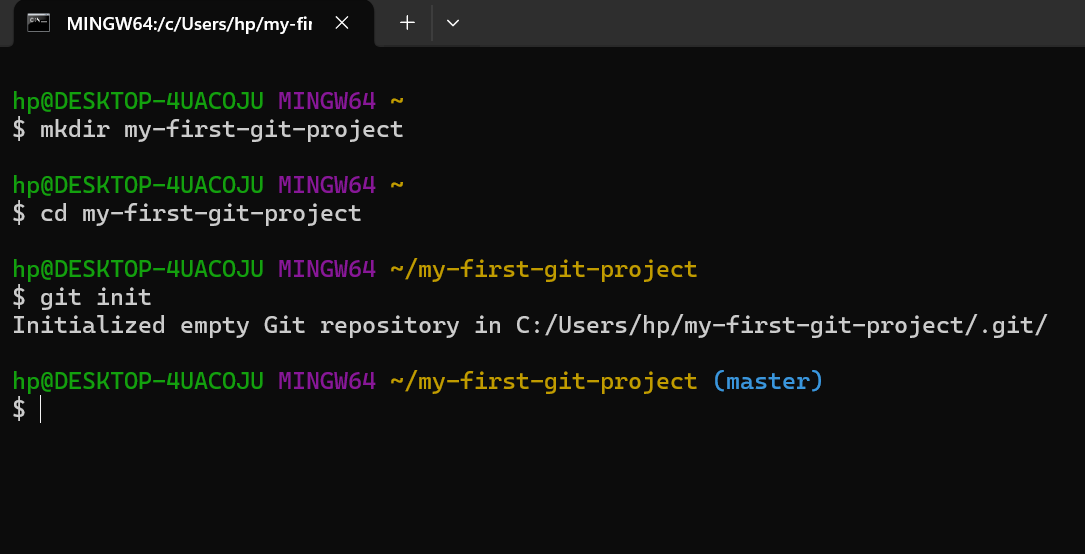
Initialize Git
git initNow Git is watching this project.
Step 5: Track Changes with Git
Create a file
touch index.htmlOpen the folder directly from Git Bash
code .The command opens VS Code; the dot (.) means “the current folder”.
Step 6: Create the First Code in VS Code
Open index.html and add the following HTML:
<!DOCTYPE html>
<html>
  <head>
    <title>My First Git Project</title>
  </head>
  <body>
    <h2>Hello World!</h2>
  </body>
</html>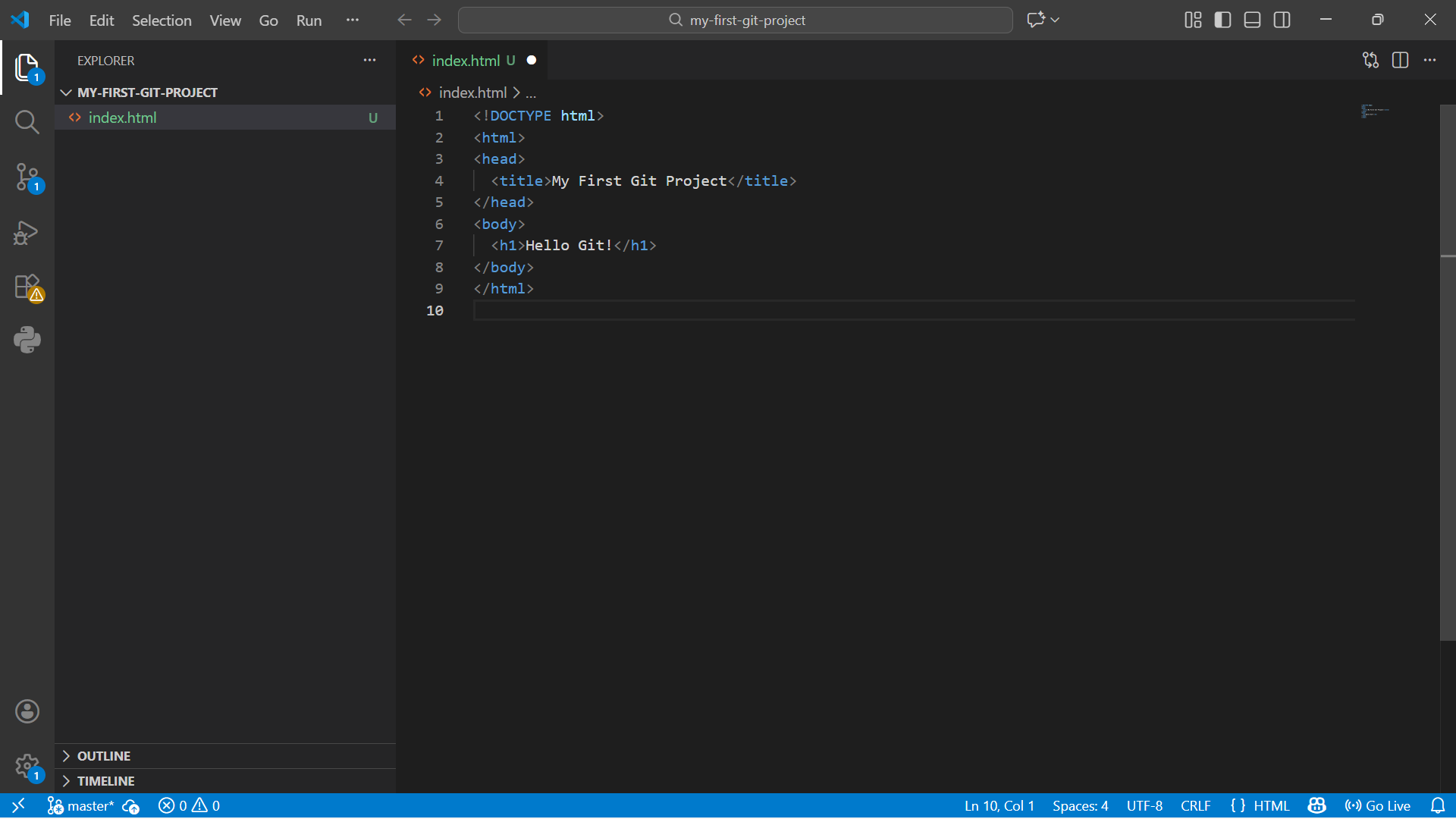
Step 7: Check Git Status in Git Bash
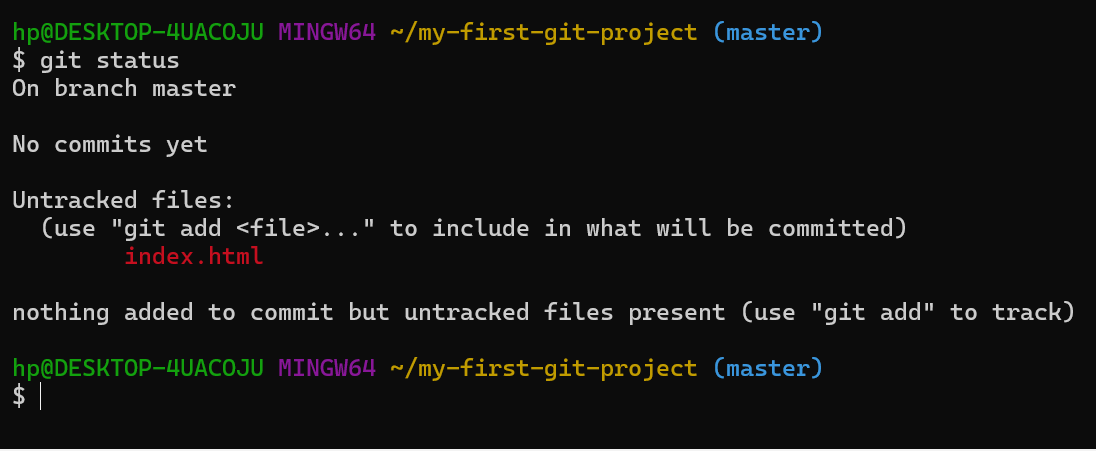
Return to Git Bash and run:
git statusGit will show index.html as untracked, meaning Git sees the file but isn’t tracking it yet.
Step 8: Add the File to Git Tracking
Track index.html:
git add index.htmlOr add everything:
git add .Step 9: Commit Your Changes
git commit -m "Initial HTML file commit"The -m flag adds a commit message.
Step 10: Create a Repository on GitHub (Online)
Now that your project exists locally, create an online repository on GitHub.
- Make sure you’re logged in to GitHub.
- Click the + icon in the top‑right corner and select New repository.
- Enter a Repository name (use the same name as your folder, e.g.,
my-first-git-project). - Choose Public (or Private, if you prefer).
- Scroll down and click Create repository.
GitHub will now display a set of commands to push your local repository to the remote one.

From here you can follow the displayed instructions (e.g., git remote add origin …, git push -u origin master) to push your local commits to GitHub.
Step 11: Connect Your Local Project to GitHub
Return to Git Bash and run:
git remote add origin https://github.com/YOUR-USERNAME/my-first-git-project.gitReplace YOUR-USERNAME with your actual GitHub username.
Step 12: Rename the Default Branch
git branch -M mainStep 13: Push Your Code to GitHub
git push -u origin mainNote
git push– send your code onlineorigin– the GitHub repositorymain– the branch name-u– remembers this destination for future pushes

Step 14: Verify on GitHub
Go back to your GitHub repository page and refresh. You should now see the index.html file and the commit message.
Step 15: Pull Code from GitHub
To download the latest code back to your local machine, run:
git pull origin main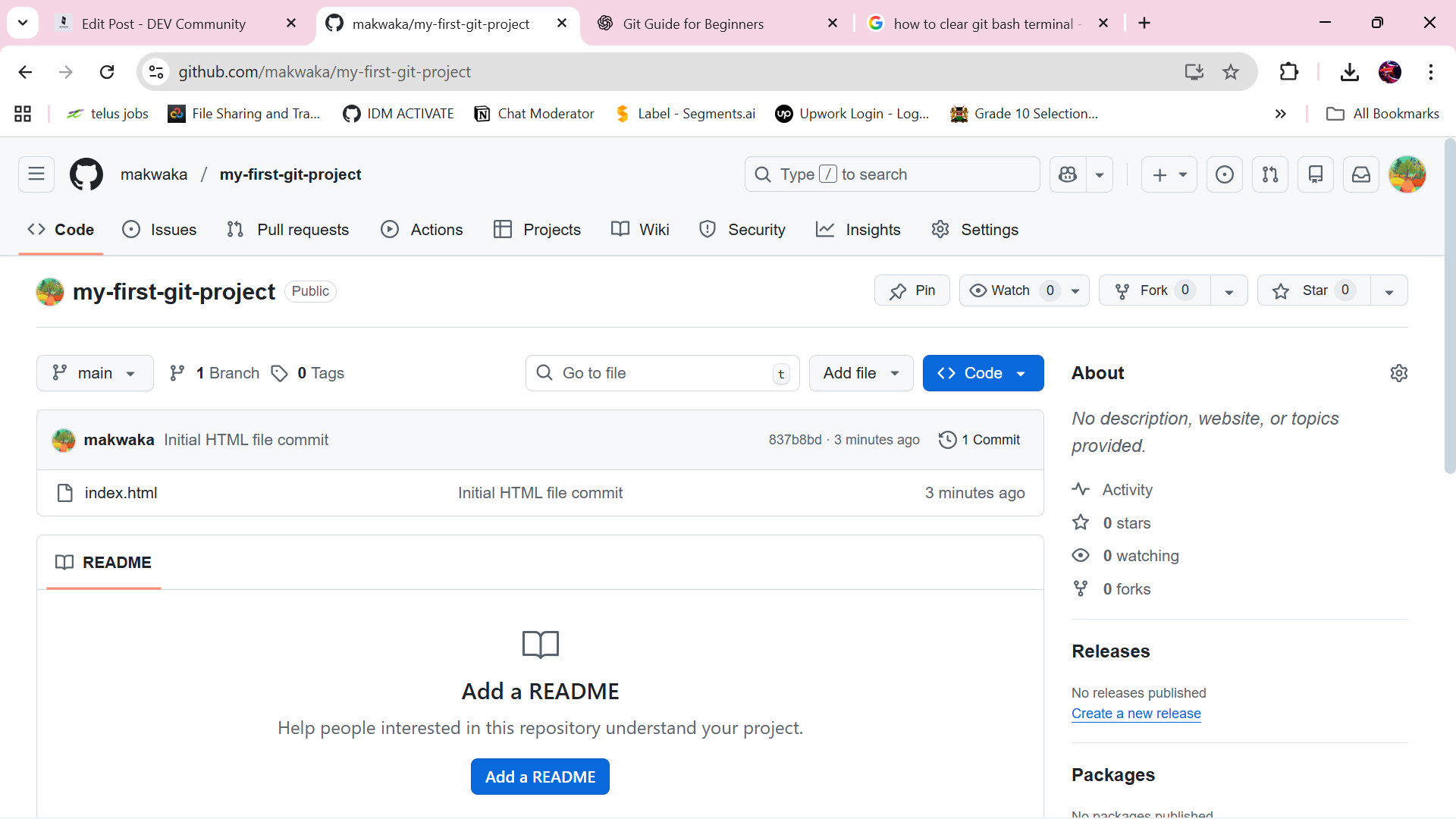
Summarized Git Workflow
