
Create a Knowledge Base in Amazon Bedrock (Step-by-Step Console Guide)
Source: Dev.to
Prerequisites
Before you start, confirm you have:
- An AWS account with permissions for Amazon Bedrock, Amazon S3, and the vector store you’ll use (commonly OpenSearch Serverless or Aurora PostgreSQL/pgvector, depending on your setup).
- Your source documents prepared (PDF, text, HTML, doc exports, etc.).
- A target AWS Region where Bedrock Knowledge Bases is available.
- A document storage location (typically an S3 bucket).
Step 1 — Open Amazon Bedrock and Navigate to Knowledge Bases
- Sign in to the AWS Console.
- Search for Amazon Bedrock.
- In the Bedrock left‑navigation pane, locate Knowledge bases (under the appropriate section such as Builder tools).
- Click Knowledge bases.

Step 2 — Start Creating a Knowledge Base
From the Knowledge Bases page, click Create knowledge base.
This launches a guided, wizard‑style workflow.
Step 3 — Choose the Knowledge Base Setup Type
In the wizard you’ll typically see options such as:
- Knowledge base with vector store (recommended for RAG)
- Other options depending on your account/region features
Select the Knowledge base with vector store option.

Note: Knowledge Bases store embeddings in a vector index so Bedrock can retrieve relevant text chunks at query time.
Embeddings are numerical representations of data (text, images, audio, etc.) that capture meaning and context in a mathematical form. In one line: embeddings turn human knowledge into math that AI can search, compare, and reason over.
Step 4 — Define Knowledge Base Details
Provide the following:
- Knowledge Base Name (e.g.,
utility-ops-kb) - Description (optional but recommended)
- Organizational tags (optional)
I used the name
knowledge-base-dipayan, but best practice is to align the name with domain and environment, e.g.,us-outage-kb-dev.

Step 5 — Configure Data Source (Amazon S3)
- Choose Amazon S3 as the data source.
- Select the S3 bucket and prefix/folder where your documents are stored.
- Confirm document formats and inclusion rules (if prompted).

I used the
bedrock-dipayanS3 bucket to upload Jeff Bezos’ 2022 shareholder letter.
Best practice: Keep a dedicated prefix for the KB, e.g.,s3://my-company-kb/energy-utility/outage-procedures/.


IAM Permissions
Bedrock needs permission to:
- Read documents from the S3 bucket.
- Write embeddings to the selected vector store.
- Perform sync operations.
In the wizard you can either:
- Let Bedrock create a new IAM role, or
- Choose an existing IAM role.
Best practice: Use the principle of least privilege. If you select an existing role, ensure it includes at least:
s3:GetObject(for your bucket/prefix)- The required permissions for your chosen vector store.
Step 6 — (Optional) Choose a Parsing Strategy
The original guide included an image for “S3 Data Source and Parsing Strategy”. The image URL was truncated, so please insert the appropriate screenshot here.
Step 7 — Review and Create
- Review all settings on the final summary page.
- Click Create knowledge base.
Bedrock will now:
- Crawl the S3 bucket,
- Extract text from supported document types,
- Generate embeddings,
- Populate the vector store.
Once the status changes to Active, you can start querying the knowledge base via the Bedrock API or the console.
Quick Recap
| Step | Action |
|---|---|
| 1 | Open Bedrock → Knowledge bases |
| 2 | Click Create knowledge base |
| 3 | Choose Knowledge base with vector store |
| 4 | Set name, description, tags |
| 5 | Configure S3 data source and IAM role |
| 6 | (Optional) Select parsing strategy |
| 7 | Review & create |
You now have a fully functional Amazon Bedrock Knowledge Base ready for Retrieval‑Augmented Generation (RAG) workloads. Happy building!
Step 5 – Configure Data Source
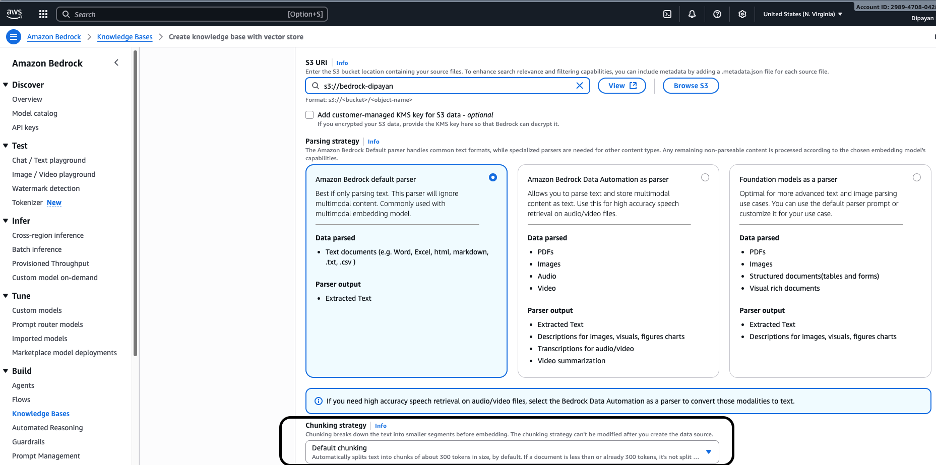
Under S3 URI, provide the Amazon S3 bucket location that contains your source documents.
Example
s3://bedrock-dipayan/You can click Browse S3 to select the bucket or View to inspect its contents.
Optionally, you may provide a customer‑managed KMS key if the S3 data is encrypted with a CMK.
Parsing
Parsing determines how Bedrock extracts content from your source files before embedding. Based on the screenshot, three parser options are available:
Option 1 – Amazon Bedrock Default Parser (selected)
Recommended for most text‑based knowledge bases.
- Best for: Text‑heavy documents (PDFs, Word, Excel, HTML, Markdown, CSV, TXT)
- Parser output: Extracted plain text
- Works well with Amazon Titan Embeddings or other text‑embedding models.
Typical use cases: Enterprise documentation, SOPs, reports, policies, letters, manuals.
Option 2 – Amazon Bedrock Data Automation Parser
Designed for multimodal content.
- Best for: PDFs with complex layouts, images, audio, and video files
- Parser output:
- Extracted text
- Image descriptions and captions
- Audio/video transcripts and summaries
Use this when your knowledge base includes non‑text content that must be converted into searchable text.
Option 3 – Foundation Models as Parser
Uses foundation models to parse rich or complex documents.
- Best for: Tables, forms, structured documents, visual‑rich PDFs
- Parser output:
- Extracted text
- Descriptions of figures, visuals, and tables
Provides advanced parsing but may increase cost and processing time.
Configure Chunking Strategy
Chunking controls how documents are split into smaller segments before embeddings are generated.
- Default chunking (selected)
- Splits text into chunks of ~500 tokens
- Applies overlap where necessary to preserve context
- Skips chunking if a document is already smaller than the chunk size
Why chunking matters
- Smaller chunks improve retrieval precision.
- Overlapping chunks preserve semantic continuity.
- Proper chunking reduces hallucinations and improves grounding.
Best practice: Use the default chunking unless you have a strong reason to customize (e.g., very long legal documents or highly structured data).
Step 6 — Select Embedding Model
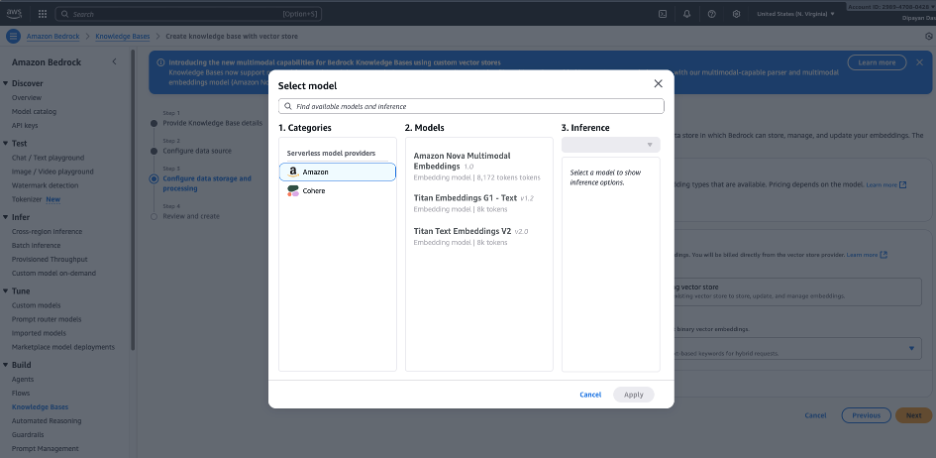
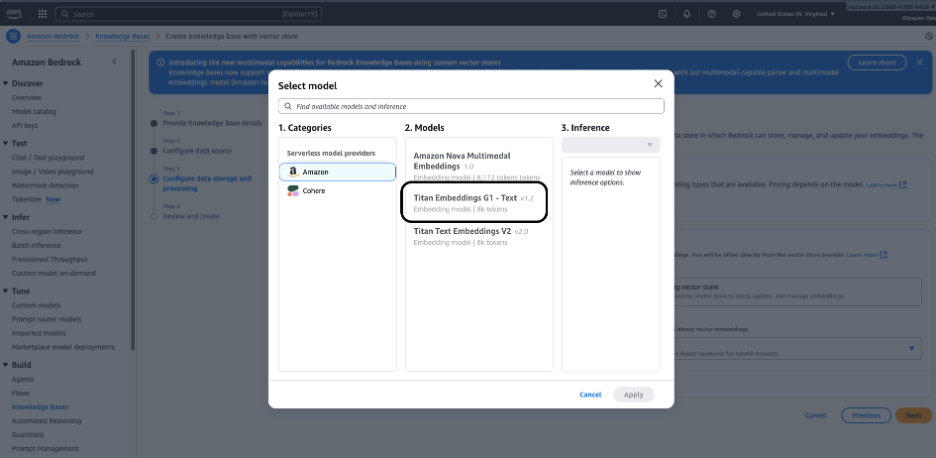
Select the embeddings model used to convert your documents into vectors (embeddings). Common choices include:
- Amazon Titan Embeddings (typical default)
- Other provider embedding models (based on what your account has enabled)
Step 7 – Configure Embeddings Model and Vector Store
-
Configure data storage and processing – select an Embeddings model. Click Select model and choose an embeddings model (e.g., Amazon Titan Embeddings) to transform your documents into vector representations.
-
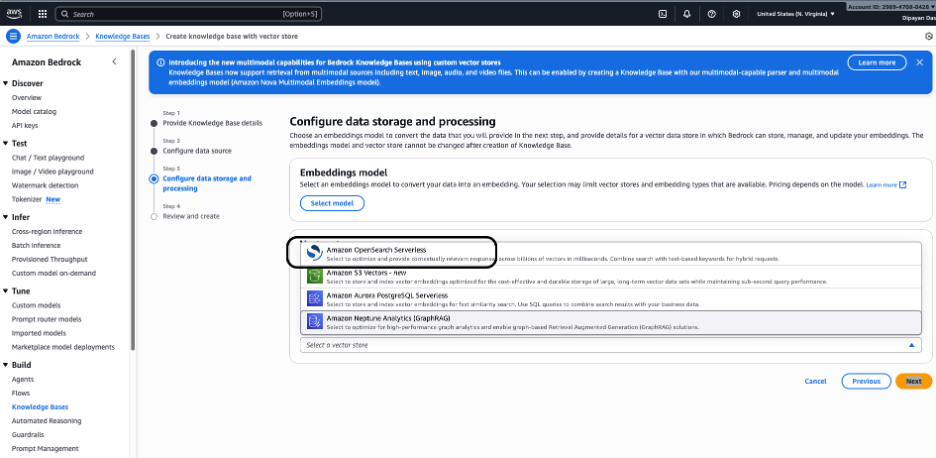
Choose a Vector Store where Bedrock will store and manage the embeddings. Available options:
- Amazon OpenSearch Serverless (recommended for most use cases) – fully managed, scalable vector search optimized for semantic and hybrid search.
- Amazon Aurora PostgreSQL Serverless (pgvector) – suitable if you already use relational databases and want SQL‑based vector queries.
- Amazon Neptune Analytics (GraphRAG) – used for graph‑based retrieval and advanced relationship‑driven RAG scenarios.
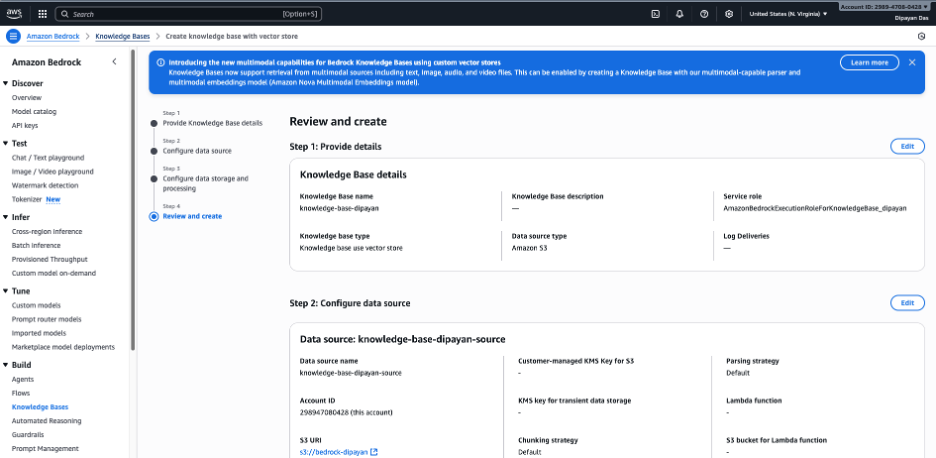
Select Amazon OpenSearch Serverless (as shown in the screenshot) for a fully managed vector database optimized for high‑performance semantic search. Bedrock will automatically create and manage the required vector index.
Step 8 — Review and Create
-
Review the full configuration summary:
- Knowledge base name
- Data source path
- Embedding model
- Vector store configuration
- IAM role
-
Click Create knowledge base.
At this point, the Knowledge Base object is created, but it still needs to ingest/sync documents.

Knowledge Base is ready, but you can see the “Test Knowledge Base” option is grayed out because the document needs to sync before testing the KB.
Step 9 — Sync (Ingest) Your Documents
- Open your Knowledge Base.
- Start a Sync (sometimes labeled Sync data source).
- Monitor the sync status until it shows Completed/Ready.
What sync does:
It chunks the documents, generates embeddings, and stores them in the vector index.

Step 10 — Test Created Knowledge Base
The Test Knowledge Base option in Amazon Bedrock lets you interactively validate that your Knowledge Base (KB) works as expected before integrating it into an application or agent. It functions as a built‑in RAG testing console.
This view lets you:
- Ask natural‑language questions.
- Control retrieval and generation behavior.
- Inspect source chunks used for answers.
- Verify grounding and relevance.
- Tune configuration settings in real time.
