
Chrome’s new Gemini feature is awesome, but not enough to get me to switch back
Source: Android Authority
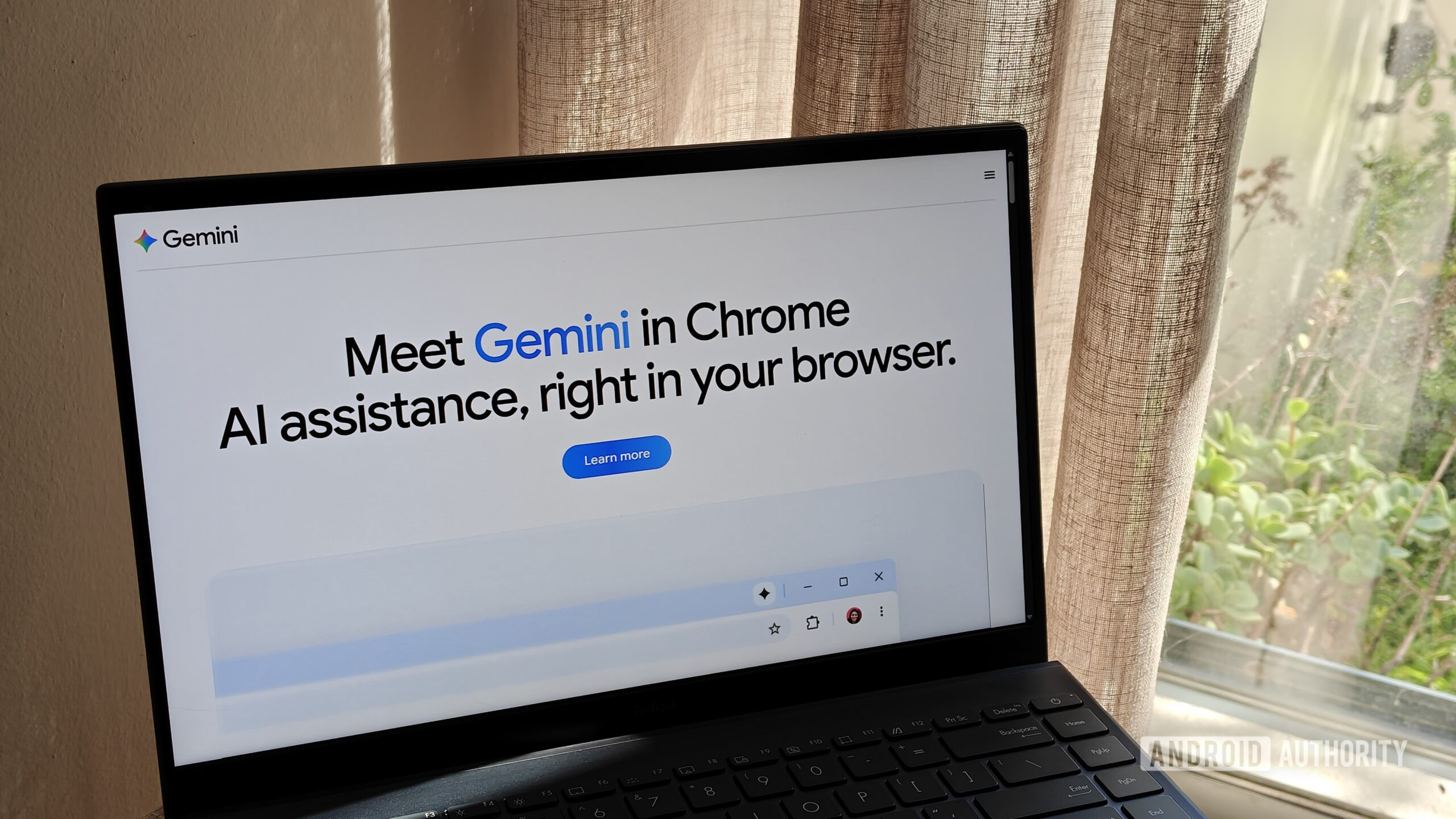
Image credit: Megan Ellis / Android Authority
Usually, when Google announces its latest AI‑powered feature in Chrome, I don’t feel like I’m missing out on much. But that changed when the company announced Skills in Chrome.
The feature, which lets you set shortcuts for specific prompts, is handy in a number of ways. And while I did feel envy for the first time in a long time, it wasn’t enough to tempt me back to the browser.
Would you like to see AI prompt shortcuts in more browsers?
- 0 votes (no responses yet)
Feel free to share your thoughts in the comments below!
Chrome Now Lets You Save Prompts as Skills
If you use Chrome on desktop in a supported region, you can access Google’s Gemini chatbot directly in the browser via an icon and a dedicated sidebar1. Gemini can:
- Answer questions about the current tab (or multiple tabs)
- Adjust the model you’re using
- Accept file attachments
What Are Skills?
Skills let you save a specific prompt and reuse it instantly.
- Type a forward slash (
/) in the Gemini chat. - Choose the saved shortcut from the list.
This turns a repetitive prompt into a one‑click action.
Example Use Cases
| Category | Possible Skill | How It Helps |
|---|---|---|
| Cooking | “Substitute ingredients with vegetarian alternatives” | Quickly get plant‑based swaps or simpler versions of recipes. |
| Research | “Summarize this page” | Get a concise overview without leaving the tab. |
| Shopping | “Generate spec comparison for product X vs. Y” | Easily see side‑by‑side feature differences. |
| Health & Fitness | “Calculate protein macros for this recipe” | Instant nutritional breakdown. |
| Document Handling | “Extract text from images / scan documents” | Pull text from PDFs, screenshots, or scanned pages. |
| Exploration | “Find related topics and sites based on this article” | Discover further reading material. |
Google’s announcement lists several ready‑to‑use Skills, including the ones above, and you can create custom ones for any repetitive task.
Quick Start
- Open Gemini via the Chrome sidebar.
- Click Save as Skill after typing a prompt you use often.
- Give the Skill a clear name (e.g.,
/veg‑substitute). - In future chats, type
/and select your Skill to run it instantly.
References
While It’s Handy, It’s Not Enough to Tempt Me Back to Chrome
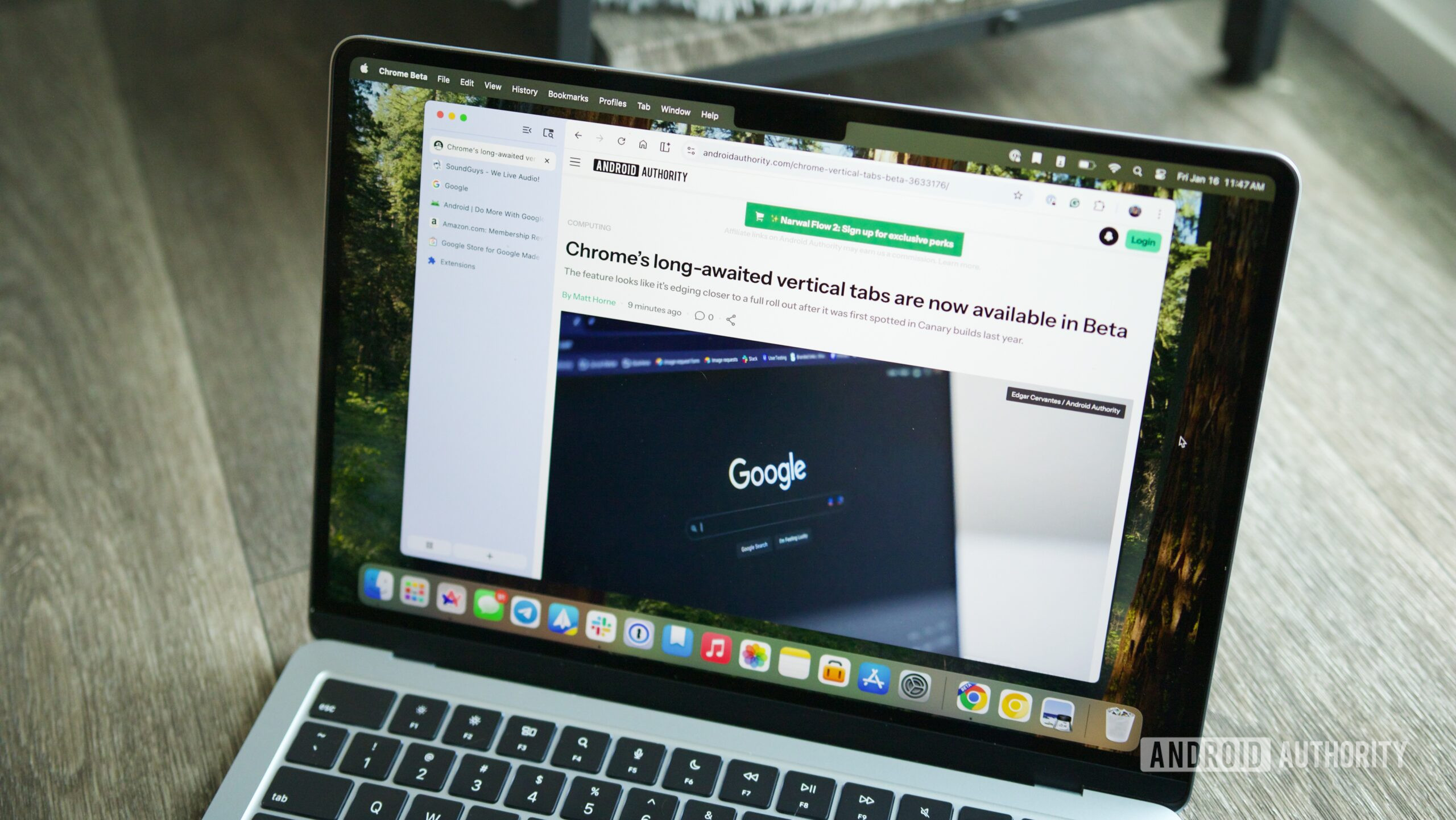
Joe Maring / Android Authority
Last year, I ditched Chrome in favor of Brave – and I haven’t really looked back since. The Skills in Chrome announcement is the first time I’ve felt any sort of envy since switching, even though I tend to feel lukewarm about AI browser features in general.
Why I’m Not Jumping Back to Chrome
- Privacy concerns – Chrome forces you to sign in to a Google Account to enable syncing, which opens you up to more data collection (browsing history, incognito‑mode tracking, etc.).
- Gemini integration – I’m uneasy about how much access Gemini gets to my information; chats and uploaded documents are used for training data, and opting out means losing core features like chat history.
- Extension support – Brave lets me keep the extensions I want without Google undermining ad‑blockers or other tools for its own business interests.
What I Like About Brave
- Built‑in privacy – More privacy settings are enabled by default, and there’s no need to wade through countless menus to prevent fingerprinting.
- Leo AI – Brave’s AI assistant preserves privacy by not using chats for training and not requiring an account.
- Model choice – I can pick from a variety of non‑Google models (e.g., Claude Haiku) and avoid AI tracking across tasks.
Leo AI even has a Skills feature (since Dec 2025) that mirrors Chrome’s shortcuts, letting me save simple prompts without leaving the browser.
The Trade‑off
- Chrome’s Skills are convenient, but they lock you deeper into Google’s ecosystem.
- Brave’s Skills work well for simpler tasks, though power users may miss the more “agentic” capabilities of Gemini.
For my workflow—mostly brainstorming and research—the privacy gain outweighs the slight loss in convenience.
What I’d Do If I Switched Again
I’d choose another privacy‑focused browser that gives me control over AI tools.
- Firefox is my secondary browser; its AI features are entirely opt‑in.
- Any future switch would prioritize choice and privacy over a single‑ecosystem convenience.
Follow
Thank you for being part of our community. Please read our Comment Policy before posting.
Footnotes
-
Availability may vary by region and Chrome version. ↩