
🛡️ AWS Config Drift Detection Lab - Beginner-Friendly Guide
Source: Dev.to
📌 Project Sequence
- 👉 Part 1: AWS IAM Hardening — strengthening identity boundaries and improving authentication hygiene
- 👉 Part 2: Cloud Security Posture Management (CSPM) using Security Hub + AWS Config
- 👉 Part 3: CASB‑like monitoring with GuardDuty + CloudTrail, focusing on anomalies, delegated admin, and safe threat simulation
- 👉 Part 4: (this project) — Drift Detection with AWS Config, using managed Config rules, scoped evaluations, EventBridge routing, SNS notifications, and optional auto‑remediation to detect when cloud resources deviate from approved security baselines
🔐 Why This Progression Matters
Modern cloud‑security teams protect workloads in layers:
Identity first → Posture second → Threat detection → Drift governance
After establishing IAM hygiene (Project 1), posture baselines (Project 2), and threat‑intel/anomaly detection (Project 3), the next natural step is detecting when cloud resources drift away from their intended configuration.
Why drift detection is critical
- Many breaches originate from accidental misconfigurations
- Public S3 buckets remain a top cloud‑security incident
- Compliance frameworks require continuous configuration monitoring
- Security teams rely on automated alerts, not manual checks
This project simulates a realistic workflow used by cloud‑security analysts, compliance engineers, and platform‑security teams by combining:
- AWS Config managed rules
- Scoped evaluations (tags, resource types)
- EventBridge event‑pattern filtering
- SNS notification routing
- Optional SSM auto‑remediation actions
- Cost‑safe cleanup practices
You’ll intentionally make an S3 bucket public, watch AWS detect the drift, trigger an automated alert, and optionally repair the issue automatically… a true end‑to‑end cloud‑security workflow.
A hands‑on walkthrough using AWS Config, EventBridge, and SNS to detect when an S3 bucket becomes public (a classic example of security drift). This guide is friendly for absolute beginners and includes troubleshooting from a real‑world lab run.
📘 Table of Contents
- Introduction
- What Is Drift Detection?
- Architecture Overview
- Prerequisites & Cost Notes
- Step 1 — Create a Config Logs Bucket
- Step 2 — Enable AWS Config (S3‑Only Setup)
- Step 3 — Create the Drift‑Test S3 Bucket
- Step 4 — Add the AWS Config Rule
- Step 5 — Create SNS Topic for Alerts
- Step 6 — Create EventBridge Rule
- Step 7 — Introduce Drift
- Step 8 — Verify Detection & Alerts
- Troubleshooting & Gotchas
- Cleanup
- Final Thoughts
🔰 Introduction
Cloud environments change fast—sometimes too fast, and not always intentionally.
This lab shows you how to detect unwanted changes (drift) using:
- AWS Config → Detects drift
- Amazon EventBridge → Routes drift events
- Amazon SNS → Sends email alerts
You’ll break an S3 bucket on purpose and watch AWS alert you. You’ll also see real‑world troubleshooting issues I hit along the way and how to fix them.
🌪️ What Is Drift Detection?
Security drift happens when a resource moves away from your intended configuration.
Example
| Desired state | Actual state | Result |
|---|---|---|
| S3 bucket private | Bucket made public | Drift detected! 🔔 |
This lab focuses on detecting when an S3 bucket becomes publicly accessible.
🏗️ Architecture Overview
High‑level flow
- Create a private S3 bucket.
- AWS Config evaluates it using a managed rule.
- Introduce drift (make the bucket public).
- Config marks the resource NON_COMPLIANT.
- EventBridge catches the change.
- SNS sends you an email alert.
🛠️ Prerequisites & Cost Notes
You Need
-
An AWS account
-
Basic IAM permissions:
AWSConfigFullAccess
S3FullAccess
EventBridgeFullAccess
SNSFullAccess
Cost Notes
-
AWS Config is not fully free‑tier.
-
To keep costs low:
- Use one region only.
- Track only S3 resources.
- Deploy a single rule.
-
Delete everything at the end (see the Cleanup section).
🪣 Step 1 — Create a Config Logs Bucket
-
Open S3 → Create bucket.
-
Name it something like:
config-logs-lab--123 -
Enable Block Public Access.
-
Leave default encryption on.
-
Click Create bucket.
📝 Step 2 — Enable AWS Config (S3‑Only)
-
Open AWS Config → Set up.
-
Choose Record specific resource types.
-
Select:
AWS::S3::Bucket- (Optional but recommended)
AWS::S3::AccountPublicAccessBlock
-
Set the delivery S3 bucket to the one you created in Step 1.
-
Skip SNS notifications for now (we’ll create our own later).
🪣 Step 3 — Create the Drift‑Test S3 Bucket
-
Name example:
drift-demo-bucket--123 -
Create the bucket with Block Public Access = ON.
-
Add a tag to scope the Config rule later:
Key:   Project
Value: ConfigDriftLab
🧩 Step 4 — Add the AWS Config Rule
-
In the AWS Config console, go to Rules → Add rule.
-
Choose the managed rule
s3-bucket-public-read-prohibited(or a similar rule that checks bucket ACLs). -
Set Scope of changes to Resources with specific tags and enter:
Key: Project Value: ConfigDriftLab -
Save the rule. AWS Config will now evaluate any bucket with that tag.
📢 Step 5 — Create SNS Topic for Alerts
-
Open Amazon SNS → Topics → Create topic.
-
Choose Standard and name it, e.g.,
config-drift-alerts. -
After creation, click Create subscription:
- Protocol: Email
- Endpoint: your email address
-
Confirm the subscription from the email you receive.
🔔 Step 6 — Create EventBridge Rule
-
Open Amazon EventBridge → Rules → Create rule.
-
Name the rule, e.g.,
ConfigDriftToSNS. -
Define the event pattern to capture Config compliance‑change events for the specific rule:
{ "source": ["aws.config"], "detail-type": ["Config Rules Compliance Change"], "detail": { "configRuleName": ["s3-bucket-public-read-prohibited"], "newEvaluationResult": { "complianceType": ["NON_COMPLIANT"] } } } -
Set the target to the SNS topic created in Step 5.
-
Save the rule.
🚀 Step 7 — Introduce Drift
- Navigate to the drift‑test bucket created in Step 3.
- Disable Block Public Access (or add a public read ACL).
- Verify the bucket is now publicly readable (e.g., via the bucket URL).
AWS Config will evaluate the bucket, mark it NON_COMPLIANT, EventBridge will fire, and SNS will send you an email.
✅ Step 8 — Verify Detection & Alerts
- Check AWS Config → Compliance tab for the rule; the bucket should show NON_COMPLIANT.
- Check EventBridge → Metrics to see the rule triggered.
- Check your email for the SNS alert.
If you enabled optional SSM remediation, you could also have the bucket automatically re‑locked.
🐞 Troubleshooting & Gotchas
| Symptom | Likely Cause | Fix |
|---|---|---|
| No email received | SNS subscription not confirmed | Confirm the subscription link in your inbox |
| Rule never becomes NON_COMPLIANT | Bucket tag missing or rule scoped incorrectly | Verify the Project: ConfigDriftLab tag is present |
| EventBridge rule not firing | Event pattern typo | Validate JSON syntax and rule name |
| Config not evaluating bucket | Config recorder not set for S3 resources | Re‑run Step 2 and ensure AWS::S3::Bucket is selected |
| High cost warning | Config recording all resources | Restrict recorder to S3 only (as shown) |
🧹 Cleanup
- Delete the public bucket (or re‑apply Block Public Access).
- Delete the Config logs bucket.
- Remove the AWS Config rule.
- Delete the EventBridge rule.
- Delete the SNS topic and its subscription.
- (Optional) Disable the AWS Config recorder if you no longer need it.
Cleaning up ensures you won’t incur ongoing charges.
🏁 Final Thoughts
Drift detection bridges the gap between static compliance and dynamic security. By automating the detection of unintended changes, you reduce manual audit effort, speed up incident response, and stay aligned with compliance frameworks.
Feel free to extend this lab:
- Add SSM Automation for auto‑remediation.
- Scope additional resources (e.g., IAM roles, RDS instances).
- Integrate with AWS Security Hub for centralized findings.
Happy hunting! 🚀
Rule
Search for the managed rule:
- ✅
s3-bucket-level-public-access-prohibited– This is the new bucket‑level drift rule that detects whether bucket policies or ACLs make the bucket public.
Scope → Resources with specific tags
- Key:
Project - Value:
ConfigDriftLab


📣 Step 5 — Create SNS Topic for Alerts
- Go to SNS → Topics → Create Topic.
- Name:
drift-alerts-test-topic - Click Create.
Add a subscription
- Protocol: Email
- Endpoint: your email address
Confirm the subscription from the email you receive.

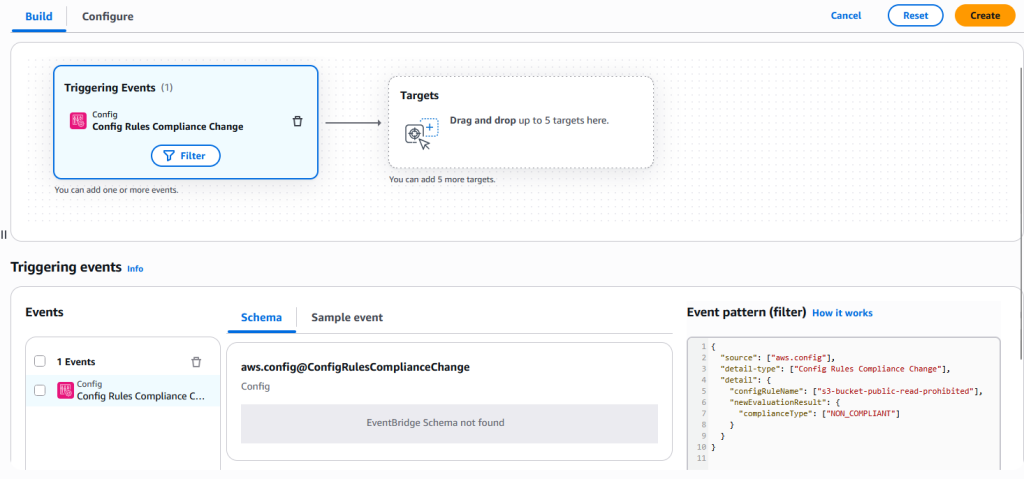
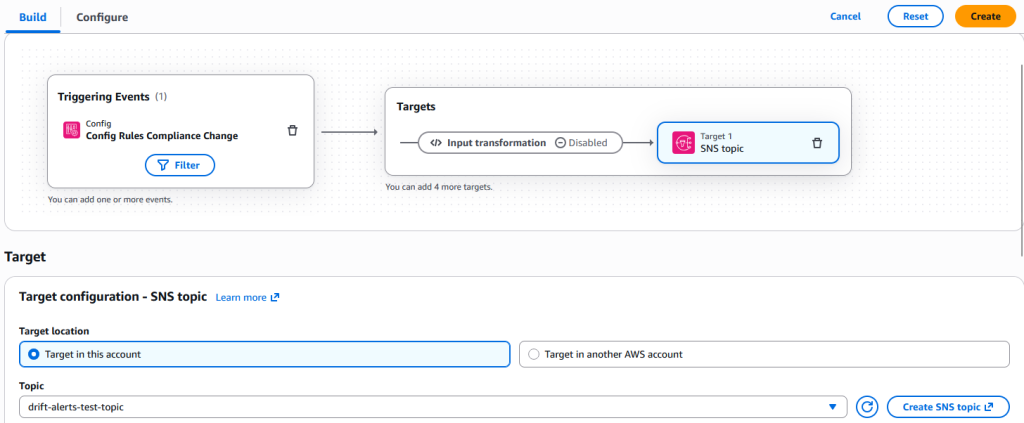
🔔 Step 6 — Create EventBridge Rule
This rule listens for AWS Config compliance changes.
Event pattern
{
  "source": ["aws.config"],
  "detail-type": ["Config Rules Compliance Change"],
  "detail": {
    "configRuleName": ["s3-bucket-level-public-access-prohibited"],
    "newEvaluationResult": {
      "complianceType": ["NON_COMPLIANT"]
    }
  }
}- Target: the SNS topic you just created.
- If needed, re‑add the target so EventBridge automatically updates the SNS policy.
💥 Step 7 — Introduce Drift (Make the Bucket Public)
- Disable Block Public Access on the bucket.
- Add a public bucket policy (replace “ with your own letters):
{
  "Version": "2012-10-17",
  "Statement": [
    {
      "Sid": "PublicRead",
      "Effect": "Allow",
      "Principal": "*",
      "Action": "s3:GetObject",
      "Resource": "arn:aws:s3:::drift-demo-bucket--123/*"
    }
  ]
}
AWS Config will soon detect this change.

📨 Step 8 — Verify Drift Detection & Alerts
You should see:
- AWS Config → Rule Status:
NON_COMPLIANT 🔴 - EventBridge → Monitoring: Invocations > 0 (or more, once triggered)
- SNS Email: Check your inbox and spam folder (real story from this lab 😅)
🧰 Troubleshooting & Gotchas (Real Lab Issues)
🧵 Narrative: What Actually Broke & How I Fixed It
-
SNS never delivered the alert
The default SNS policy does not allow EventBridge to publish.
Fix: Add the following statement to the SNS access policy:{ "Sid": "Allow_EventBridge_Publish", "Effect": "Allow", "Principal": { "Service": "events.amazonaws.com" }, "Action": "SNS:Publish", "Resource": "arn:aws:sns:us-east-1::drift-alerts-test-topic", "Condition": { "ArnEquals": { "aws:SourceArn": "arn:aws:events:us-east-1::rule/aws-config-drift-to-sns" } } } -
The first alert went to spam
SNS emails come fromno-reply@sns.amazonaws.com. Mark the message as Not Spam so future alerts land in the inbox. -
Config rule name mismatch
AWS renamed the S3 Config rule. The correct name is:✔
s3-bucket-level-public-access-prohibited
📋 Clean Troubleshooting Checklist
| Problem | Fix |
|---|---|
| No email alert | Confirm the SNS subscription is Confirmed |
| EventBridge not firing | Check the Monitoring tab for Matches |
| Invalid pattern | Test temporarily with { "source": ["aws.config"] } |
| SNS access denied | Add the EventBridge → SNS publish policy (see above) |
| Alert went to spam | Mark the email as Not Spam |
| No event emitted | Ensure compliance changed from COMPLIANT → NON_COMPLIANT |
🧹 Cleanup (Avoid Costs)
- Delete the drift‑test bucket or re‑apply Block Public Access.
- Delete the Config logs bucket.
- Remove the AWS Config rule (
s3-bucket-level-public-access-prohibited). - Delete the EventBridge rule (
ConfigDriftToSNS). - Delete the SNS topic and its subscription.
- Disable the AWS Config recorder if no longer needed.