
🛡️ AWS 109: The Ultimate Safety Net - Enabling EC2 Termination Protection
Source: Dev.to


🚫 No Turning Back: Safeguarding Your EC2 from Accidental Deletion
Hey Cloud Guardians! 👋
Welcome to Day 9 of the #100DaysOfCloud Challenge: Enable Termination Protection! Yesterday we learned how to prevent a server from being stopped. Today we’re tackling something even more critical: preventing a server from being permanently deleted. Following the roadmap from KodeKloud Engineer, we are securing a vital piece of the Nautilus infrastructure.

Our mission: Enable Termination Protection for the instance named xfusion-ec2 in the us-east-1 region.
1. Introduction: What is Termination Protection? 💡
In AWS, “Termination” means the virtual machine is deleted forever and its root volume is usually wiped clean. There is no “Undo” button for this!
The Safety Lock: Termination Protection adds a confirmation layer. When enabled, the “Terminate” option in the console is greyed‑out or results in an error message.
Why it Matters: For database servers, production APIs, or legacy systems like xfusion-ec2, an accidental termination could mean hours of recovery from backups. This setting ensures that someone must explicitly disable the protection before the instance can be destroyed.
Operational Excellence: In a professional DevOps environment, all critical infrastructure should have this enabled by default to prevent “fat‑finger” errors during maintenance.
Let’s make sure our server stays put! 🛡️
2. Step‑by‑Step Guide: Protecting the xfusion-ec2 Instance
We will use the AWS Management Console to modify the instance attributes while it’s running.
Step 2.1 – Locate Your Instance
-
Log in to the AWS Console and navigate to the EC2 Dashboard.
-
Ensure your region is set to US East (N. Virginia)
us-east-1.

-
Click “Instances (running)”.

-
Find and select the instance named
xfusion-ec2.
Step 2.2 – Modify Termination Protection
-
With the instance selected, click the “Actions” button at the top.
-
Navigate to “Instance settings” → “Change termination protection”.

-
In the configuration screen, check the box “Enable”.
-
Click “Save”.

Step 2.3 – Verify the Protection
While the instance is still selected, try to click “Instance state” → “Terminate instance”.
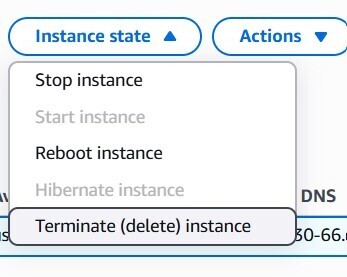
The Terminate button should either be disabled or you will receive an error message such as:
“The instance i‑xxxxxxxx may not be terminated. Modify its ‘disableApiTermination’ instance attribute and try again.”

Success! Your server is now immune to accidental deletion. 🎉
🎉 Verification (Summary)
- Return to the Instances list.
- The “Terminate” button for
xfusion-ec2should now be disabled (greyed out). - To terminate the instance in the future, repeat the steps above and un‑check the “Enable” box.
3. Wrap‑Up
Enabling Termination Protection is a simple yet powerful safeguard that prevents accidental loss of critical workloads. Incorporate this step into your standard operating procedures, and you’ll reduce the risk of costly downtime caused by human error.
3️⃣ Key Takeaways 📝
- Permanent Safety: Termination protection is the best defense against catastrophic accidental data loss.
- Granular Control: You can enable it at launch or at any point during the instance’s lifecycle.
- API Protection: The setting also blocks termination requests coming from the AWS CLI or SDKs, not just the Console.
4️⃣ Common Mistakes to Avoid 🚫
- Stop vs. Terminate: Termination Protection does not prevent a user from stopping the instance. Use Stop Protection for that.
- Auto Scaling Groups (ASG): If the instance belongs to an ASG, termination protection may stop the ASG from scaling down or replacing unhealthy instances.
- Root Volume Deletion: Even with protection, if you eventually terminate the instance, the attached EBS root volume is usually deleted. Always verify the “Delete on Termination” setting for your EBS volumes.
5️⃣ Conclusion + Call to Action 🌟
By enabling termination protection, you’ve added a professional‑grade safety guardrail to the xfusion‑ec2 instance. These small configuration steps are what separate a “test lab” from a production‑ready cloud environment!
Are you keeping pace with the 100 Days of Cloud Challenge?
💬 Let’s connect on LinkedIn:
Hritik Raj – let’s discuss cloud security and operational guardrails!
⭐ Support my journey on GitHub:
GitHub – 100 Days of Cloud