
Apple Wallet adds time-saving iOS 26 credit card feature, here’s how to use it
Source: 9to5Mac

Apple’s Wallet app received a variety of great features in iOS 26, but one of the favorites is a convenient new way to manage and access credit cards. Here’s how to use it.
iOS 26 expands systemwide AutoFill to support credit cards
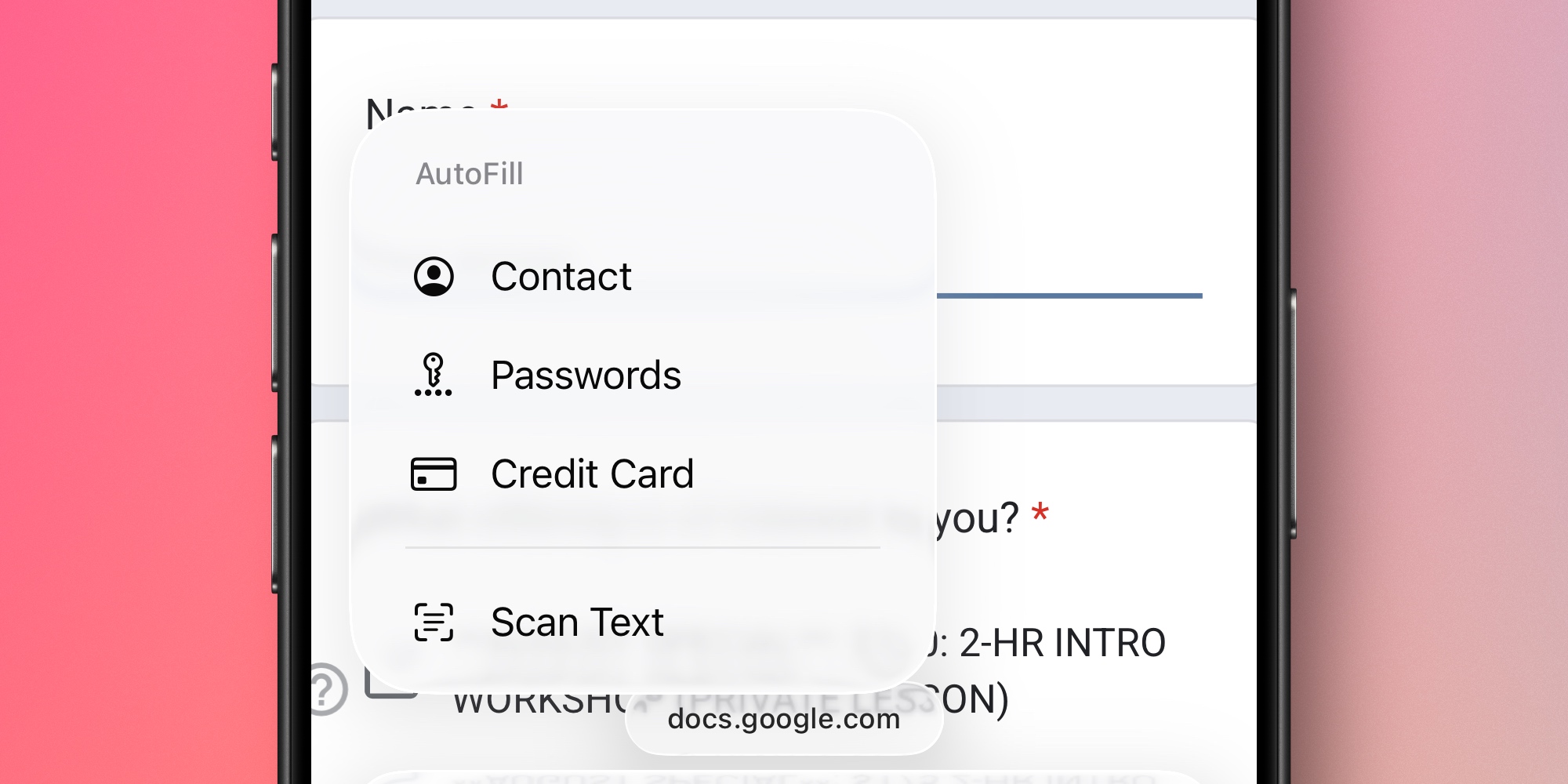
iOS 26 expands the systemwide AutoFill feature to include credit cards. This makes it easier to avoid manually typing card details.
When you need to enter credit‑card information:
- Tap anywhere in a text field to invoke the copy/paste menu.
- Choose the AutoFill option.
- Tap Credit Card.
- Find and tap the card you want.
This works in any app or website, automatically filling in the card number and other details.
Setting up AutoFill for credit cards
AutoFill support for credit cards is a carryover of a longtime Safari feature, now available systemwide. The new home for managing these cards is the Apple Wallet app.
Adding new AutoFill cards to the Wallet app
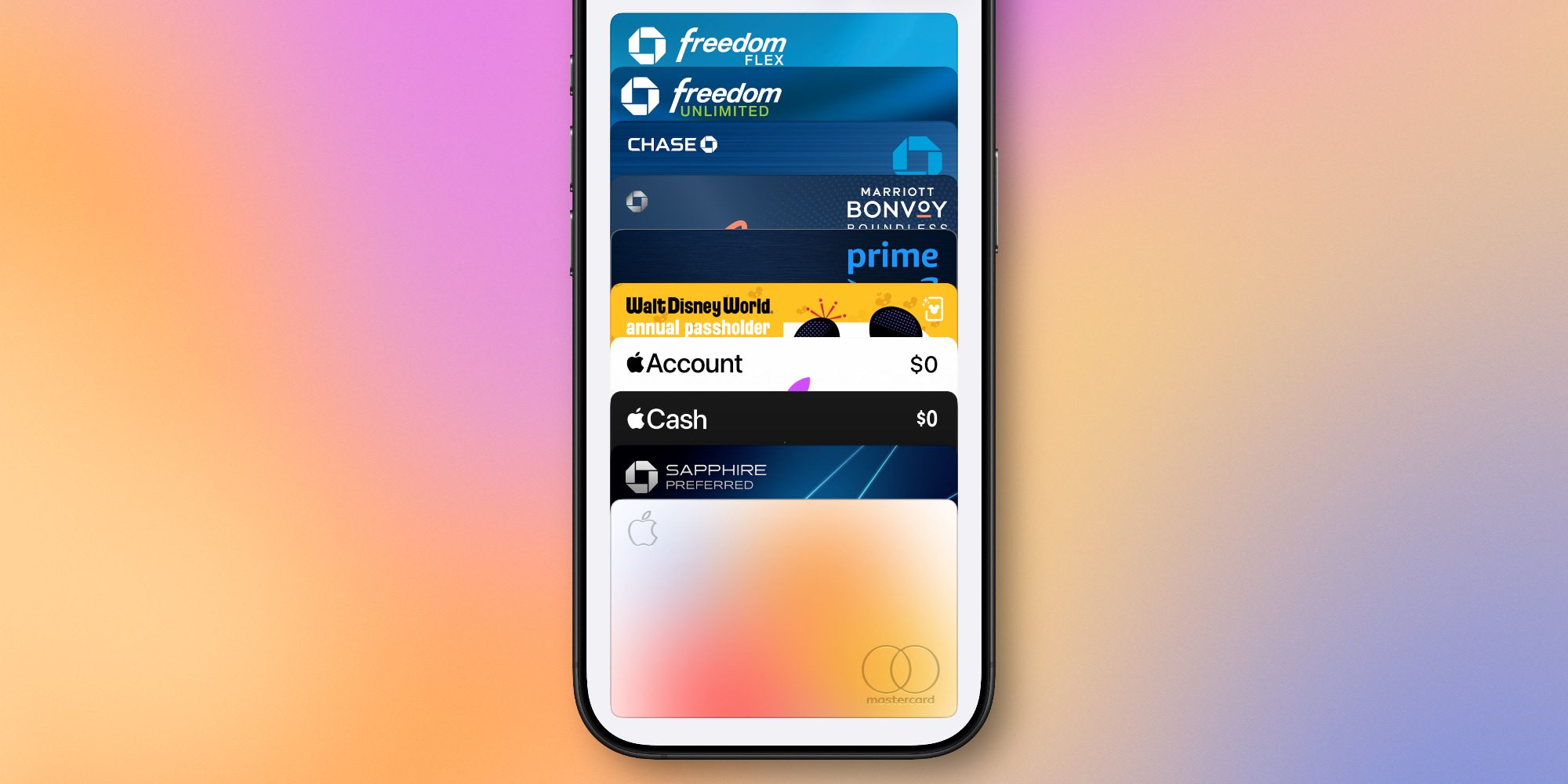
- Open the Wallet app in iOS 26.
- Tap the three‑dot menu in the top‑right corner and select AutoFill.
- Authenticate with Face ID or Touch ID.
- You’ll see all saved AutoFill cards (imported from Safari or Apple Pay).
To add a new card:
- Tap Add Card.
- Use the camera to import card details, or enter them manually.
Once added, the cards appear in the Wallet app’s AutoFill menu and can be accessed systemwide, eliminating the need to type card details manually.