
使用 PowerShell 自动化终端设置:安装 Starship Prompt
Source: Dev.to
请提供您希望翻译的正文内容,我将为您翻译成简体中文并保持原有的格式、Markdown 语法以及技术术语不变。
介绍
PowerShell 脚本(.ps1 文件)是 Windows 用户强大的自动化工具。在本文中,我分享一个实用脚本,用于安装和配置 Starship,这是一款极简、极速且可自定义的任何 shell 的提示符。
什么是 .ps1 文件?
.ps1 文件是 PowerShell 脚本——一个包含一系列按顺序执行的 PowerShell 命令的文本文件。可以把它看作是功能更强的批处理文件。
- 扩展名:
.ps1代表 PowerShell 版本 1(虽然它适用于所有版本) - 执行方式:在 PowerShell 中使用
.\script.ps1运行 - 安全性:Windows 默认阻止脚本——需要设置执行策略。
什么是 Starship?
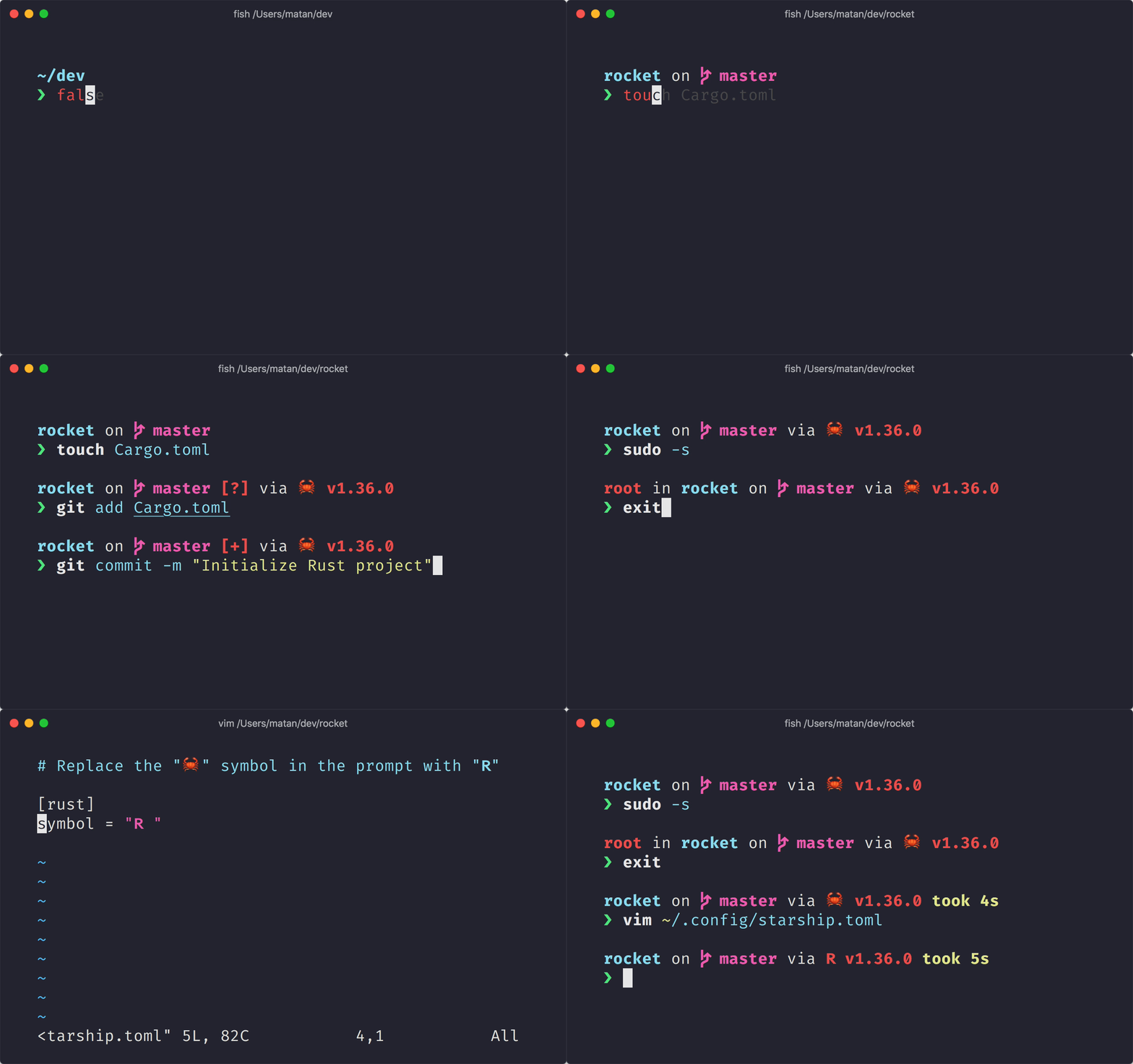
Starship 是用 Rust 编写的跨 Shell 提示工具,具备以下特点:
- 支持 PowerShell、Bash、Zsh、Fish 等多种 Shell
- 显示 git 状态、语言版本和系统信息
- 速度极快且高度可定制
- 使用 Nerd Fonts 显示精美图标
安装脚本
以下是用于安装和配置 Starship 的完整 PowerShell 脚本:
# Install Starship Prompt
# Run this script in PowerShell: .\install-starship.ps1

Write-Host "Installing Starship..." -ForegroundColor Cyan

# Install Starship via winget
winget install --id Starship.Starship --accept-source-agreements --accept-package-agreements

# Set execution policy to allow scripts
Write-Host "Setting execution policy..." -ForegroundColor Cyan
Set-ExecutionPolicy -ExecutionPolicy RemoteSigned -Scope CurrentUser -Force

# Create PowerShell profile if it does not exist
if (!(Test-Path -Path $PROFILE)) {
    New-Item -Path $PROFILE -ItemType File -Force | Out-Null
    Write-Host "Created PowerShell profile at $PROFILE" -ForegroundColor Green
}

# Add Starship init to profile if not already present
$profileContent = Get-Content -Path $PROFILE -Raw -ErrorAction SilentlyContinue
if ($profileContent -notmatch "starship init powershell") {
    Add-Content -Path $PROFILE -Value "`nInvoke-Expression (&starship init powershell)"
    Write-Host "Added Starship to PowerShell profile" -ForegroundColor Green
} else {
    Write-Host "Starship already configured in profile" -ForegroundColor Yellow
}

Write-Host "`nInstallation complete!" -ForegroundColor Green
Write-Host "Restart PowerShell to see Starship in action." -ForegroundColor Cyan
脚本拆解
1. 使用 Winget 安装
winget install --id Starship.Starship --accept-source-agreements --accept-package-agreementswinget 是 Windows 包管理器——在 Windows 10/11 上官方的软件安装方式。--accept-source-agreements 与 --accept-package-agreements 标志会自动接受提示,以便实现自动化。
2. 执行策略
Set-ExecutionPolicy -ExecutionPolicy RemoteSigned -Scope CurrentUser -ForceWindows 默认阻止 PowerShell 脚本。RemoteSigned 允许本地脚本运行,同时要求下载的脚本必须签名。CurrentUser 范围意味着不需要管理员权限。
3. PowerShell 配置文件
if (!(Test-Path -Path $PROFILE)) {
    New-Item -Path $PROFILE -ItemType File -Force | Out-Null
}
$PROFILE 是指向你的 PowerShell 配置文件的自动变量(在每次 PowerShell 启动时运行)。此代码块会在文件不存在时创建它。
4. 幂等配置
if ($profileContent -notmatch "starship init powershell") {
    Add-Content -Path $PROFILE -Value "`nInvoke-Expression (&starship init powershell)"
}
脚本在添加初始化行之前会检查 Starship 是否已经配置,从而实现 幂等——可以安全地多次运行。
使用方法
-
将脚本保存为
install-starship.ps1。 -
打开 PowerShell 并导航到脚本所在位置。
-
运行脚本:
.\install-starship.ps1 -
重启 PowerShell 以查看 Starship 的效果。
Bonus: 安装 Nerd Font
为了获得最佳体验,请安装 Nerd Font:
winget install JetBrains.JetBrainsMono.NerdFont然后在 Windows Terminal 设置中将其设为终端字体。
结论
PowerShell 脚本非常适合自动化重复任务。此 Starship 安装脚本演示了关键概念:
- 使用
winget进行软件安装 - 管理执行策略
- 使用 PowerShell 配置文件
- 编写幂等脚本
欢迎使用并修改此脚本以适配您自己的终端设置!
编码愉快!