
Gemini CLI에서 Session Management를 정확히 중단한 지점부터 이어서 진행
Source: Google Developers Blog
DEC. 10, 2025
편집자 주: 이 새로운 기능은 Gemini CLI 커뮤니티의 뛰어난 오픈‑소스 기여자 Christopher Beeson 덕분에 가능해졌습니다. 9개 이상의 정교하게 작성된 풀 리퀘스트에 걸친 그의 세심한 작업이 이 기능을 실현하는 데 핵심적인 역할을 했습니다.
Gemini CLI를 사용할 때는 컨텍스트가 모든 것입니다. 복잡한 코드베이스를 리팩터링하든, 까다로운 오류를 디버깅하든, 대화 기록에는 귀중한 추론, 도구 출력, 그리고 결정이 포함되어 있습니다.
이전에는 터미널을 닫으면 그 컨텍스트를 잃게 되었습니다. 다시 시작하려면 모델에게 문제를 다시 설명해야 했습니다. 이제는 더 이상 그렇지 않습니다—Gemini CLI가 이제 세션을 자동으로 저장하고 세션 기록을 검색하여 중단한 지점부터 바로 이어서 작업할 수 있게 되었습니다!
자동 저장: 안심
Gemini CLI와 상호작용할 때마다 세션이 이제 자동으로 백그라운드에 저장됩니다. 채팅을 저장하거나 내보내는 것을 기억할 필요가 없으며, 새로운 세션 관리 시스템이 이를 대신 처리합니다.
우리는 작업의 전체 상태를 캡처합니다. 여기에는 다음이 포함됩니다:
- 프롬프트와 모델의 응답.
- 모든 도구 실행(입력 및 출력).
- 토큰 사용 통계.
- 어시스턴트 생각 및 추론 요약.
특히, 이러한 세션은 프로젝트별입니다. 다른 프로젝트 디렉터리로 전환하면 Gemini CLI가 자동으로 해당 프로젝트의 세션 기록으로 컨텍스트를 전환하여, Gemini CLI가 언제나 여러분과 같은 페이지에 있도록 합니다.
세션 재개
우리는 명령줄 플래그든 인터랙티브 UI든 이전 워크플로우로 다시 뛰어들기 쉽게 만들었습니다.
대화형 세션 브라우저
Gemini CLI에서 /resume을 입력하면 새로운 세션 브라우저가 열립니다.
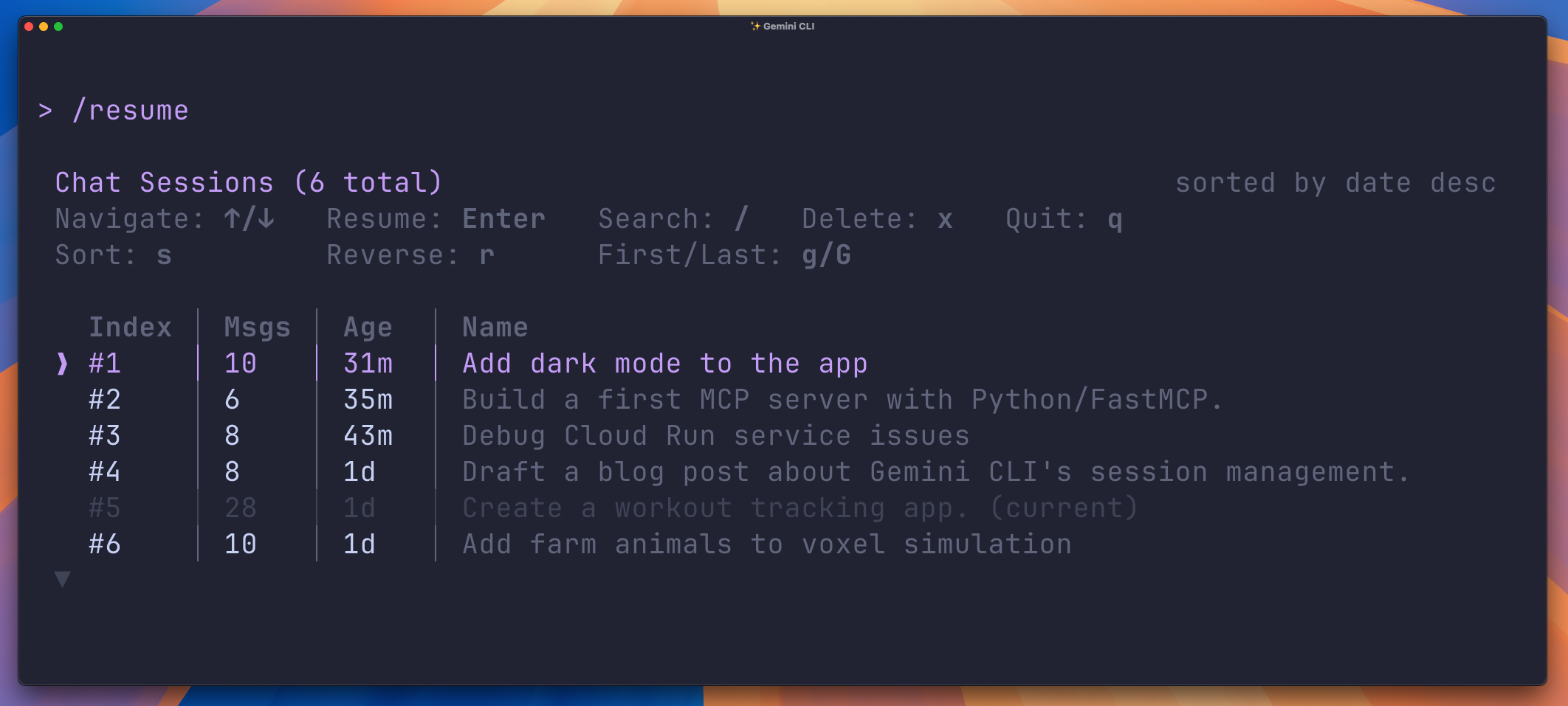
이 인터랙티브 인터페이스를 통해 다음을 할 수 있습니다:
- 탐색: 과거 세션을 시간 순으로 정렬한 목록을 스크롤합니다.
- 미리보기: 메시지 수와 한 줄 요약 등 세부 정보를 확인하여 올바른 채팅을 찾습니다.
- 검색:
/를 눌러 세션 ID 또는 내용 키워드로 필터링합니다. - 선택: Enter 키를 눌러 해당 대화의 전체 컨텍스트를 즉시 복원합니다.
명령줄 기능
플래그를 선호하는 사용자를 위해 Gemini CLI를 시작할 때 바로 세션을 재개할 수 있습니다.
- 가장 최근 세션 재개:
gemini --resume은 가장 최근 세션을 즉시 로드합니다. - 특정 세션 재개:
gemini --resume 5(인덱스로) 또는gemini --resume <session-id>(세션 ID로) 사용합니다.
현재 프로젝트에 사용할 수 있는 모든 세션을 나열할 수도 있습니다:
gemini --list-sessions출력 예시
Available sessions for this project (3):

  1. Fix bug in auth (2 days ago) [a1b2c3d4]
  2. Refactor database schema (5 hours ago) [e5f67890]
  3. Update documentation (Just now) [abcd1234]
히스토리 관리
큰 힘에는 큰 책임이 따릅니다… 혹은 이 경우, 많은 히스토리 파일이 따라오죠! 우리는 환경을 깔끔하게 유지할 수 있도록 도구를 추가했습니다.
히스토리가 무한히 늘어나는 것을 방지하려면 settings.json 설정 파일에서 자동 정리 정책을 활성화하세요:
{
  "general": {
    "sessionRetention": {
      "enabled": true,
      "maxAge": "30d",   // Keep sessions for 30 days
      "maxCount": 50     // Keep the 50 most recent sessions
    }
  }
}
Gemini CLI 사용량 추적
상세한 메시지, 생각, 도구 호출 및 토큰 사용 정보가 자동으로 기록되어 Gemini CLI 사용량을 분석할 수 있습니다. Splitrail과 같은 커뮤니티에서 개발한 도구를 사용하거나 직접 개발할 수 있습니다.
오늘 시작하세요
Gemini CLI에서 세션 관리가 제공되며 **v0.20.0+**부터 기본적으로 활성화됩니다.
새로운 기능을 활용하려면 최신 버전으로 업데이트하세요:
npm install -g @google/gemini-cli@latest자세한 내용은 세션 관리에 대한 공식 문서를 참조하세요.
최신 뉴스와 공지를 놓치지 않으려면 X의 Gemini CLI를 팔로우하세요.