
PowerShell로 터미널 설정 자동화: Starship Prompt 설치
Source: Dev.to
터미널 설정 자동화하기 (PowerShell) – Starship 프롬프트 설치
소개
PowerShell을 사용해 새로운 개발 환경을 빠르게 구성하고 싶으신가요?
이 글에서는 Starship이라는 멋진 프롬프트를 설치하고, 이를 자동화 스크립트에 포함시키는 방법을 단계별로 설명합니다.
스크립트를 한 번 실행하면, 필요한 도구들을 다운로드하고, 환경 변수를 설정하며, PowerShell 프로필에 Starship을 연결해 줍니다.
사전 준비
- Windows 10/11 (PowerShell 5.1 이상)
- 관리자 권한으로 PowerShell 실행
- 인터넷 연결 (GitHub에서 Starship 바이너리를 다운로드합니다)
1. PowerShell 프로필 확인 및 생성
PowerShell은 시작할 때 Microsoft.PowerShell_profile.ps1 파일을 실행합니다.
먼저 현재 프로필 경로를 확인하고, 파일이 없으면 생성합니다.
# 현재 프로필 경로 확인
$profile

# 프로필 파일이 존재하지 않으면 생성
if (!(Test-Path -Path $profile)) {
    New-Item -ItemType File -Path $profile -Force
}
2. Starship 바이너리 다운로드
아래 스크립트는 최신 Starship 릴리스를 자동으로 찾아 다운로드하고, $HOME\.local\bin 폴더에 저장합니다.
# 다운로드 폴더 설정
$installDir = "$HOME\.local\bin"
if (!(Test-Path -Path $installDir)) {
    New-Item -ItemType Directory -Path $installDir -Force
}

# GitHub API를 이용해 최신 릴리스 URL 가져오기
$releaseInfo = Invoke-RestMethod -Uri "https://api.github.com/repos/starship/starship/releases/latest"
$asset = $releaseInfo.assets | Where-Object { $_.name -like "*windows*amd64*.zip" } | Select-Object -First 1

# 다운로드 및 압축 해제
$zipPath = "$env:TEMP\starship.zip"
Invoke-WebRequest -Uri $asset.browser_download_url -OutFile $zipPath
Expand-Archive -Path $zipPath -DestinationPath $installDir -Force

# 실행 파일에 실행 권한 부여 (필요 시)
Set-ItemProperty -Path "$installDir\starship.exe" -Name IsReadOnly -Value $false
3. PATH 환경 변수에 추가
$installDir을 시스템 PATH에 추가하면, 어디서든 starship 명령을 사용할 수 있습니다.
# 현재 세션에만 적용
$env:Path += ";$installDir"

# 영구적으로 PATH에 추가 (사용자 레벨)
[Environment]::SetEnvironmentVariable(
    "Path",
    [Environment]::GetEnvironmentVariable("Path", "User") + ";$installDir",
    "User"
)
4. PowerShell 프로필에 Starship 초기화 코드 삽입
프로필 파일에 아래 코드를 추가하면, PowerShell이 시작될 때마다 Starship 프롬프트가 자동으로 로드됩니다.
# 기존 프로필 내용에 아래 블록을 추가
if (Get-Command starship -ErrorAction SilentlyContinue) {
    Invoke-Expression (&starship init powershell)
}
5. 전체 자동화 스크립트
위 단계들을 하나의 스크립트 파일(setup-starship.ps1)에 모아두면, 새 머신에서 단 한 번 실행만으로 설정이 완료됩니다.
# setup-starship.ps1
# -------------------------------------------------
# 1. 프로필 확인 및 생성
$profilePath = $profile
if (!(Test-Path -Path $profilePath)) {
    New-Item -ItemType File -Path $profilePath -Force
}

# 2. Starship 다운로드 및 설치
$installDir = "$HOME\.local\bin"
if (!(Test-Path -Path $installDir)) {
    New-Item -ItemType Directory -Path $installDir -Force
}
$releaseInfo = Invoke-RestMethod -Uri "https://api.github.com/repos/starship/starship/releases/latest"
$asset = $releaseInfo.assets | Where-Object { $_.name -like "*windows*amd64*.zip" } | Select-Object -First 1
$zipPath = "$env:TEMP\starship.zip"
Invoke-WebRequest -Uri $asset.browser_download_url -OutFile $zipPath
Expand-Archive -Path $zipPath -DestinationPath $installDir -Force

# 3. PATH에 추가
$env:Path += ";$installDir"
[Environment]::SetEnvironmentVariable(
    "Path",
    [Environment]::GetEnvironmentVariable("Path", "User") + ";$installDir",
    "User"
)

# 4. 프로필에 초기화 코드 삽입
$initBlock = @"
if (Get-Command starship -ErrorAction SilentlyContinue) {
    Invoke-Expression (&starship init powershell)
}
"@
if (-not (Select-String -Path $profilePath -Pattern "starship init powershell" -Quiet)) {
    Add-Content -Path $profilePath -Value $initBlock
}

Write-Host "Starship 설치 및 설정이 완료되었습니다. 새 PowerShell 창을 열어 확인하세요."
# -------------------------------------------------
6. 실행 방법
- PowerShell을 관리자 권한으로 실행합니다.
- 스크립트를 저장한 디렉터리로 이동한 뒤, 다음 명령을 입력합니다.
Set-ExecutionPolicy -Scope Process -ExecutionPolicy Bypass
.\setup-starship.ps1
스크립트가 끝난 후 새 PowerShell 창을 열면, Starship 프롬프트가 적용된 것을 확인할 수 있습니다.
마무리
- Starship은 다양한 셸과 테마를 지원하므로, 필요에 따라
starship.toml파일을 편집해 개인화할 수 있습니다. - 자동화 스크립트를 Git 저장소에 보관하면, 팀원 모두가 동일한 터미널 환경을 손쉽게 재현할 수 있습니다.
Tip:
starship명령어에--print-config옵션을 사용하면 현재 설정을 빠르게 확인할 수 있습니다.
이제 PowerShell과 Starship을 활용해 깔끔하고 일관된 터미널 환경을 손쉽게 구축할 수 있습니다. 즐거운 코딩 되세요!
소개
PowerShell 스크립트(.ps1 파일)는 Windows 사용자를 위한 강력한 자동화 도구입니다. 이 기사에서는 최소한의, 번개처럼 빠르고, 사용자 정의 가능한 프롬프트인 Starship을 설치하고 구성하는 실용적인 스크립트를 공유합니다.
.ps1 파일이란?
.ps1 파일은 PowerShell 스크립트로, 일련의 PowerShell 명령을 순차적으로 실행하는 텍스트 파일입니다. 배치 파일을 강화한 형태라고 생각하면 됩니다.
- 확장자:
.ps1은 PowerShell 버전 1을 의미하지만(모든 버전에서 작동합니다) - 실행: PowerShell에서
.\script.ps1로 실행 - 보안: Windows는 기본적으로 스크립트를 차단합니다—실행 정책을 설정해야 합니다.
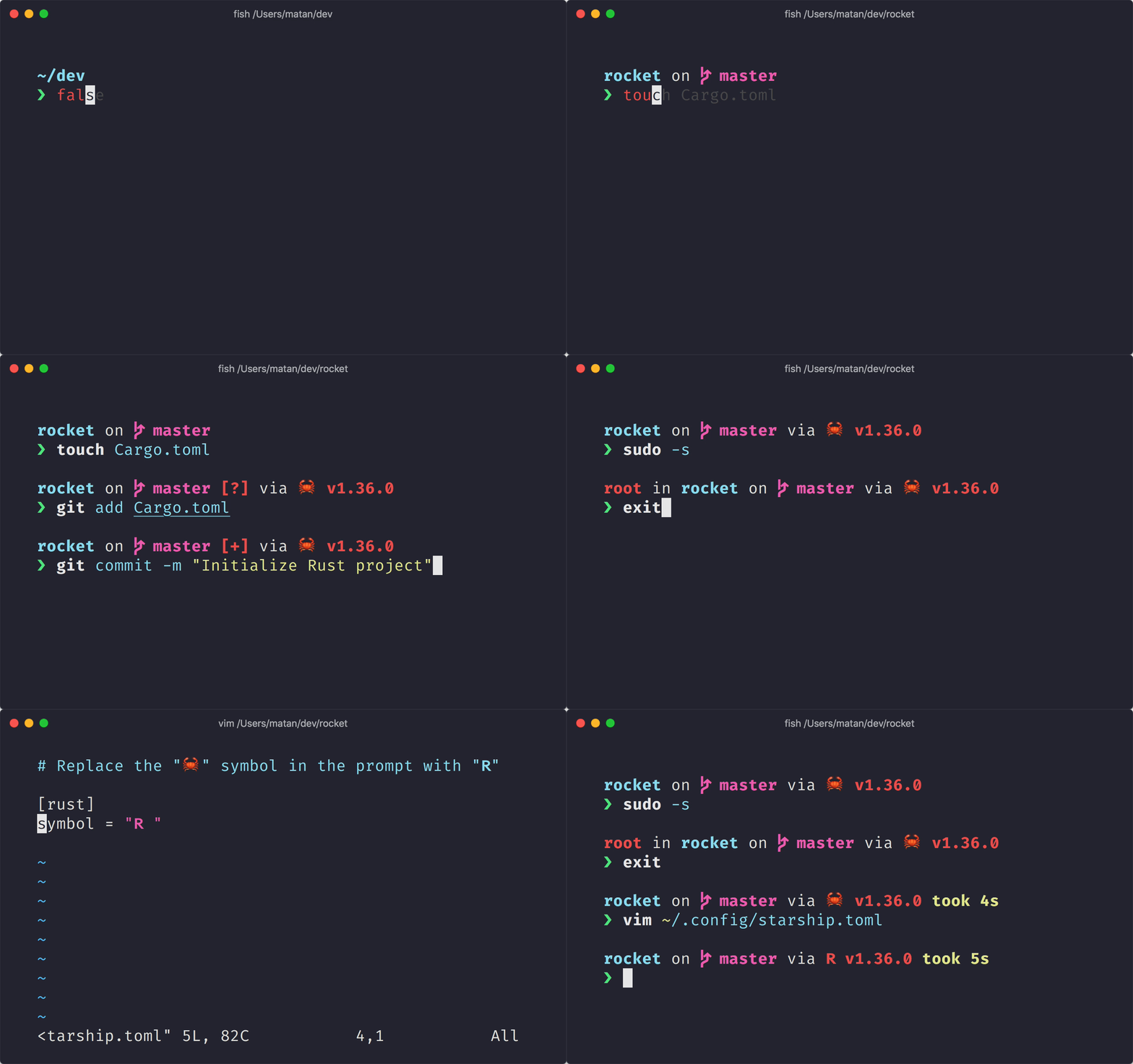
Starship이란?
- PowerShell, Bash, Zsh, Fish 등 다양한 쉘에서 작동합니다
- git 상태, 언어 버전 및 시스템 정보를 표시합니다
- 놀라울 정도로 빠르고 높은 수준으로 커스터마이징할 수 있습니다
- 아름다운 아이콘을 위해 Nerd Fonts를 사용합니다
설치 스크립트
Here is a complete PowerShell script to install and configure Starship:
# Install Starship Prompt
# Run this script in PowerShell: .\install-starship.ps1

Write-Host "Installing Starship..." -ForegroundColor Cyan

# Install Starship via winget
winget install --id Starship.Starship --accept-source-agreements --accept-package-agreements

# Set execution policy to allow scripts
Write-Host "Setting execution policy..." -ForegroundColor Cyan
Set-ExecutionPolicy -ExecutionPolicy RemoteSigned -Scope CurrentUser -Force

# Create PowerShell profile if it does not exist
if (!(Test-Path -Path $PROFILE)) {
    New-Item -Path $PROFILE -ItemType File -Force | Out-Null
    Write-Host "Created PowerShell profile at $PROFILE" -ForegroundColor Green
}

# Add Starship init to profile if not already present
$profileContent = Get-Content -Path $PROFILE -Raw -ErrorAction SilentlyContinue
if ($profileContent -notmatch "starship init powershell") {
    Add-Content -Path $PROFILE -Value "`nInvoke-Expression (&starship init powershell)"
    Write-Host "Added Starship to PowerShell profile" -ForegroundColor Green
} else {
    Write-Host "Starship already configured in profile" -ForegroundColor Yellow
}

Write-Host "`nInstallation complete!" -ForegroundColor Green
Write-Host "Restart PowerShell to see Starship in action." -ForegroundColor Cyan
Source: …
스크립트 분석
1. Winget으로 설치
winget install --id Starship.Starship --accept-source-agreements --accept-package-agreementswinget은 Windows 패키지 관리자이며, Windows 10/11에서 소프트웨어를 설치하는 공식 방법입니다. 플래그는 자동화 시 프롬프트를 자동으로 수락하도록 합니다.
2. 실행 정책
Set-ExecutionPolicy -ExecutionPolicy RemoteSigned -Scope CurrentUser -ForceWindows는 기본적으로 PowerShell 스크립트를 차단합니다. RemoteSigned는 로컬 스크립트는 허용하고, 다운로드된 스크립트는 서명을 요구합니다. CurrentUser 범위이므로 관리자 권한이 필요하지 않습니다.
3. PowerShell 프로필
if (!(Test-Path -Path $PROFILE)) {
    New-Item -Path $PROFILE -ItemType File -Force | Out-Null
}$PROFILE은 자동 변수로, PowerShell 프로필 스크립트를 가리킵니다(모든 PowerShell 시작 시 실행). 이 블록은 파일이 없을 경우 파일을 생성합니다.
4. 멱등성 구성
if ($profileContent -notmatch "starship init powershell") {
    Add-Content -Path $PROFILE -Value "`nInvoke-Expression (&starship init powershell)"
}
스크립트는 Starship이 이미 구성되어 있는지 확인한 뒤 초기화 라인을 추가하므로, 스크립트가 멱등성을 갖습니다—여러 번 실행해도 안전합니다.
사용 방법
-
스크립트를
install-starship.ps1로 저장합니다. -
PowerShell을 열고 스크립트가 있는 위치로 이동합니다.
-
스크립트를 실행합니다:
.\install-starship.ps1 -
PowerShell을 재시작하여 Starship이 작동하는 것을 확인합니다.
보너스: Nerd Font 설치
최상의 경험을 위해 Nerd Font를 설치하세요:
winget install JetBrains.JetBrainsMono.NerdFont그런 다음 Windows Terminal 설정에서 터미널 글꼴로 지정하세요.
결론
PowerShell 스크립트는 반복 작업을 자동화하는 데 뛰어납니다. 이 Starship 설치 스크립트는 핵심 개념을 보여줍니다:
winget을 사용한 소프트웨어 설치- 실행 정책 관리
- PowerShell 프로필 작업
- 멱등 스크립트 작성
자신의 터미널 설정에 맞게 이 스크립트를 자유롭게 사용하고 수정하세요!
행복한 코딩 되세요!