
Your iPhone just got a brand new colorful wallpaper, here’s how to customize it
Source: 9to5Mac

New Pride Luminance wallpaper
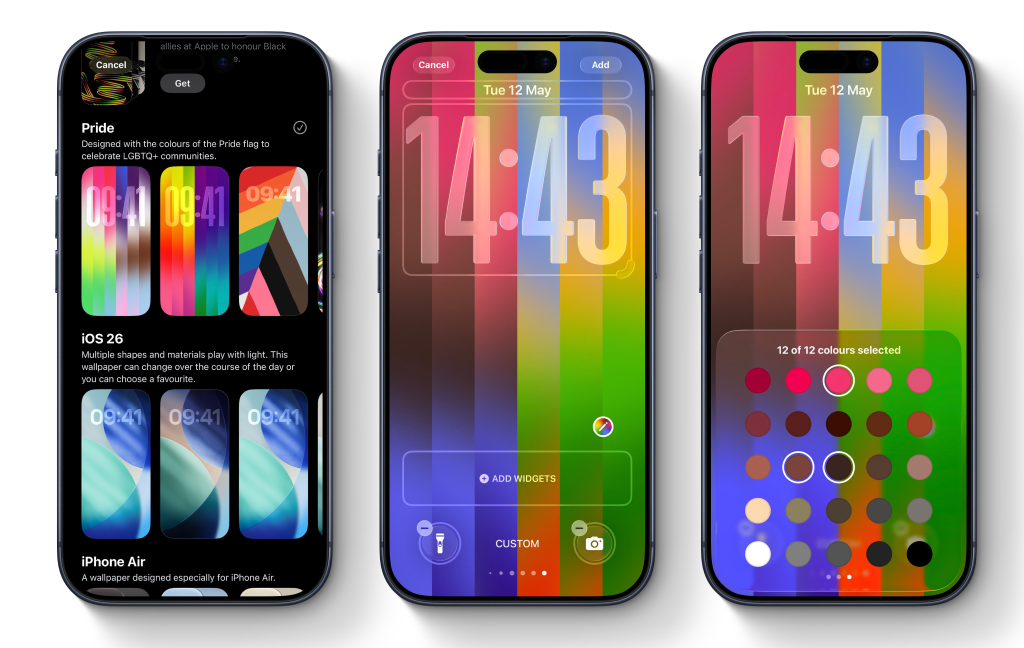
With the iOS 26.5 update, Apple added a new Pride Luminance wallpaper to iPhone. The wallpaper features strips of colors that transition as you swipe up from the lock screen to the home screen. By default it uses a vibrant palette that celebrates the LGBTQ+ community, but it’s fully customizable so you can pick your own colors for the lock screen.
Installing the Pride Luminance wallpaper
-
Update to iOS 26.5 – go to Settings → Software Update and install the free update if you haven’t already.
-
Open the Wallpapers gallery – long‑press on the lock screen.
-
Tap the + button to add a new wallpaper and scroll down to the Pride section. If it isn’t installed yet, press Get to download it.
-
Tap the Pride Luminance wallpaper (the first stripy option) to open the editor.
-
Swipe left‑to‑right to preview the built‑in styles (about ten presets).
-
To create your own palette, swipe to the Custom option and tap the pencil icon to open the color picker. You can select up to 12 colors in any combination.
-
Adjust widgets and the time display if desired – tap the time panel to change the font or color (the default is the iOS 26 large glassy font).
-
When finished, press Add in the top‑right corner to save the new wallpaper. You can create additional lock screens and switch between them later.
And a matching watch face too …
- Install the watchOS 26.5 update.
- Open the Watch Face Gallery and select the Pride Luminance face.
- Choose a preset theme or tap Custom (the first option) to open the color picker.
- Pick up to 12 colors for the watch face, mirroring the iPhone wallpaper.
Now your iPhone and Apple Watch share a coordinated, personalized Pride Luminance look.