
Working with Codex
Source: OpenAI Blog
Overview
When you open Codex, you’ll see a few core elements: a sidebar menu, projects, settings, and a chat window. You don’t need to understand everything right away, but the basics are covered below.
Sidebar
The sidebar is where you navigate between threads, projects, and tools. Most of your work will begin by creating a new thread. In Codex, a “thread” functions like a “chat” in ChatGPT—you can have a standalone thread or one nested within a project.
Creating a New Thread
- Select New thread to begin.
- Choose an existing project to associate it with, create a new project, or leave it as a standalone conversation.
Search
Use Search to find previous tasks and projects.
Plugins
Plugins help Codex perform more specific work. See the detailed guide in the Plugins & skills article. Plugins are useful when you want Codex to follow a repeatable process or connect to another tool.
Projects
Projects organize your work and group tasks together. In Codex, a project is linked to a folder on your computer where you conduct that set of tasks. When working locally, Codex will only modify files within that folder.
- Create a new project when you need to work with a different group of files.
- Project folders don’t need to contain files initially; they can simply be the designated location for any new files you create.
Settings
Settings let you control permissions, personalization, and whether Codex can keep working while your computer sleeps. Important beginner settings are discussed in the Settings section.
Note: Codex may stop running if your computer goes to sleep. If you plan to run a long task, adjust this in Settings.
Working with Threads
A thread in Codex works like a conversation in ChatGPT. You can communicate in plain language—no perfect prompt or technical instructions are required. Tell Codex what you want, which files to use, and what “done” looks like.
The key difference is that Codex can take action while it works. Depending on your task and permissions, it may:
- Inspect files
- Create new files
- Edit documents
- Organize information
- Build something for you
Steering (Adjusting Instructions)
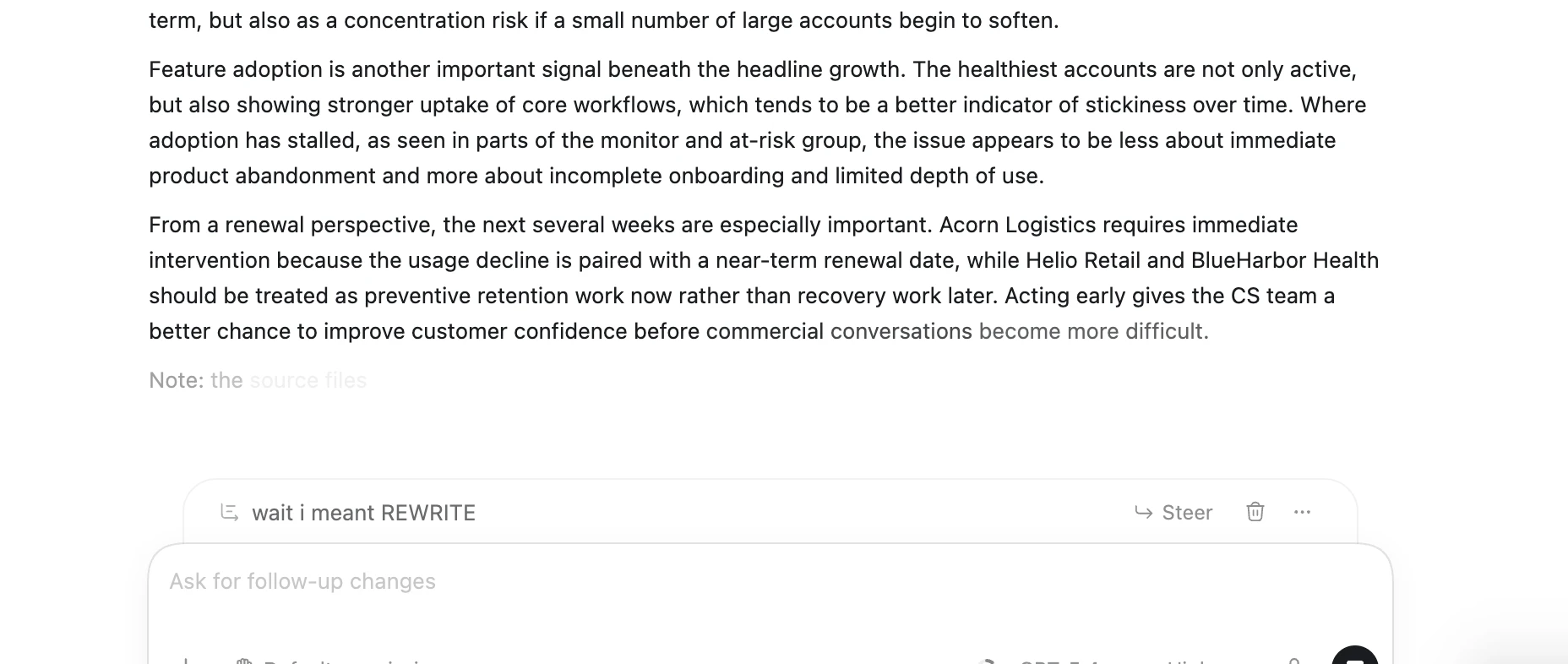
If you forget to mention something, you don’t need to stop Codex and start over. Type the new instruction and select Steer to course‑correct while it is working.
Example:
You asked Codex to remove a paragraph from an analysis, but you actually meant to rewrite that paragraph. While it’s working, type the corrected instruction, select Steer, and Codex will adjust its work accordingly.
Running Multiple Tasks
You can run multiple Codex tasks simultaneously. For example, one thread could clean up a spreadsheet while another drafts a project tracker. Starting new tasks won’t interrupt tasks that are already running.