
Turn Any REST API into an MCP Server with Azure API Management
Source: Dev.to
Overview
Unlock the power of your existing APIs — make them AI‑agent friendly, discoverable, and usable by intelligent applications with just a few clicks.
Modern applications aren’t just about serving data to front‑end clients or back‑end services anymore. With the rise of AI agents and powerful LLM‑driven tools, the expectations for how systems should expose and consume APIs are shifting fast. APIs that once served developers now need to serve AI agents. And that’s where the Model Context Protocol (MCP) comes in.
In this post you’ll learn why MCP matters, how Azure API Management (APIM) can act as an AI‑Gateway, and how you can turn any REST API into an MCP server in minutes—without writing any back‑end logic.
If you found this useful, I share deeper dives and additional articles on Substack and LinkedIn. Feel free to follow me there for more content.
What Is Azure API Management?
Azure API Management (APIM) is a fully managed service from Microsoft that sits in front of your APIs and acts as a gateway between clients and back‑end services.
At its core, APIM lets you:
- Publish existing APIs without changing back‑end code
- Secure APIs with authentication, authorization, and rate limits
- Transform requests and responses (headers, paths, payloads)
- Monitor usage, performance, and failures
Traditionally, APIM is used to expose APIs to developers in a controlled, scalable way. The same gateway capabilities also make it ideal for AI‑driven use cases. With APIM you can shape how APIs are discovered, described, and invoked—without touching the underlying service.
That’s exactly why APIM works so well as an AI Gateway: it already understands APIs at the contract level and can enforce policies consistently at the edge.
What Is an MCP Server?
MCP (Model Context Protocol) is a protocol designed to make tools and APIs natively usable by AI agents. Instead of treating APIs as opaque HTTP endpoints, MCP defines a structured way to expose:
- What capabilities are available
- What inputs each operation expects
- What outputs it returns
- How an AI agent should call it safely and correctly
An MCP server is simply a service that exposes these capabilities in an MCP‑compatible way. Think of it as USB for AI tools.

Just as USB provides a standard interface that lets any compatible device plug into any computer without custom drivers, MCP provides a standard way for AI agents to discover, understand, and use tools, databases, APIs, etc. Once an API is available via MCP, AI agents can:
- Discover it
- Reason about it
- Invoke it as a tool—without custom glue code or hard‑coded prompts
Key idea: MCP turns APIs into first‑class tools for AI agents.
By combining MCP with Azure API Management, you can wrap existing REST APIs and instantly make them AI‑ready—without rewriting services, adding new back‑ends, or maintaining custom adapters.
From Zero to MCP in Azure API Management
Prerequisites
- An Azure subscription
- Permission to create an API Management instance
- A public REST API (I used SWAPI because it’s free)
Step 1 – Create a New Azure API Management Instance
- In the Azure Portal, go to Create a resource → search for API Management.
- Fill in the basics:
- Resource group: create a new one (e.g.,
rg-mcp-demo) - Region: pick the closest location
- Name: must be globally unique (this becomes part of your gateway hostname)
- Organization name / Admin email: required fields
- Resource group: create a new one (e.g.,
- Choose a pricing tier that fits your demo: for experiments, pick a developer‑friendly option (but not Consumption).
- Click Create and wait for the APIM instance to be provisioned.
Note: MCP server export is currently not available when using the Consumption pricing tier in Azure API Management.

Step 2 – Create a New HTTP API in APIM (using SWAPI)
- In your APIM instance, navigate to APIs → + Add API.
- Choose HTTP.
- Set the following:
- Display name:
SWAPI - Web service URL: (the base URL of SWAPI)
- API URL suffix (optional):
swapi(this becomes/swapi/...on your gateway)
- Display name:
- Click Create.

Step 3 – Add the GET Operations You Want to Expose
Inside the newly created SWAPI API in APIM:
-
Click + Add operation.
-
Create one operation per resource (GET):
GET /peopleGET /planets- (Add any other endpoints you need, e.g.,
/films,/species, etc.)
-
For each operation, configure:
- Display name (e.g., “Get People”)
- URL template (e.g.,
/people) - Method:
GET - Response: optionally add a sample response to aid discovery
-
Save the operations.
Step 4 – Enable MCP Export
- In the APIM portal, go to APIs → select your SWAPI API → Settings.
- Turn on Export to Model Context Protocol (or similar toggle).
- Choose the MCP version you want to expose (e.g.,
v1). - Save the settings. APIM will now generate an MCP‑compatible description for the API.
Step 5 – Test the MCP Endpoint
You can retrieve the MCP definition via:
GET https://<your-apim-instance>.azure-api.net/mcp/v1/swagger.jsonVerify the JSON contains the operations you added.
Step 6 – Connect to ChatGPT (or another LLM)
-
In the OpenAI Playground (or your preferred LLM UI), add a custom tool using the MCP definition URL from the previous step.
-
Give the tool a name (e.g.,
SWAPI) and optionally a short description. -
Run a prompt such as:
“Find the name of the planet where Luke Skywalker was born.”
The LLM will:
- Discover the
GET /planetsoperation via the MCP schema. - Reason about the required parameters.
- Call the APIM gateway (
https://<your-apim-instance>.azure-api.net/swapi/planets/1/). - Return the result to the chat.
You should see the correct planet name (e.g., “Tatooine”) appear in the response, confirming end‑to‑end functionality.
Recap
- MCP provides a standard, AI‑friendly contract for APIs.
- Azure API Management can expose any existing REST API as an MCP server with just a few clicks.
- No back‑end code changes are required—APIM handles publishing, security, transformation, and MCP export.
- Once exposed, AI agents (ChatGPT, Claude, Gemini, etc.) can discover and invoke your API as a native tool.
Give it a try with your own APIs, and you’ll instantly make them usable by the next generation of AI‑driven applications. 🚀
API Management – MCP Enablement Walk‑through
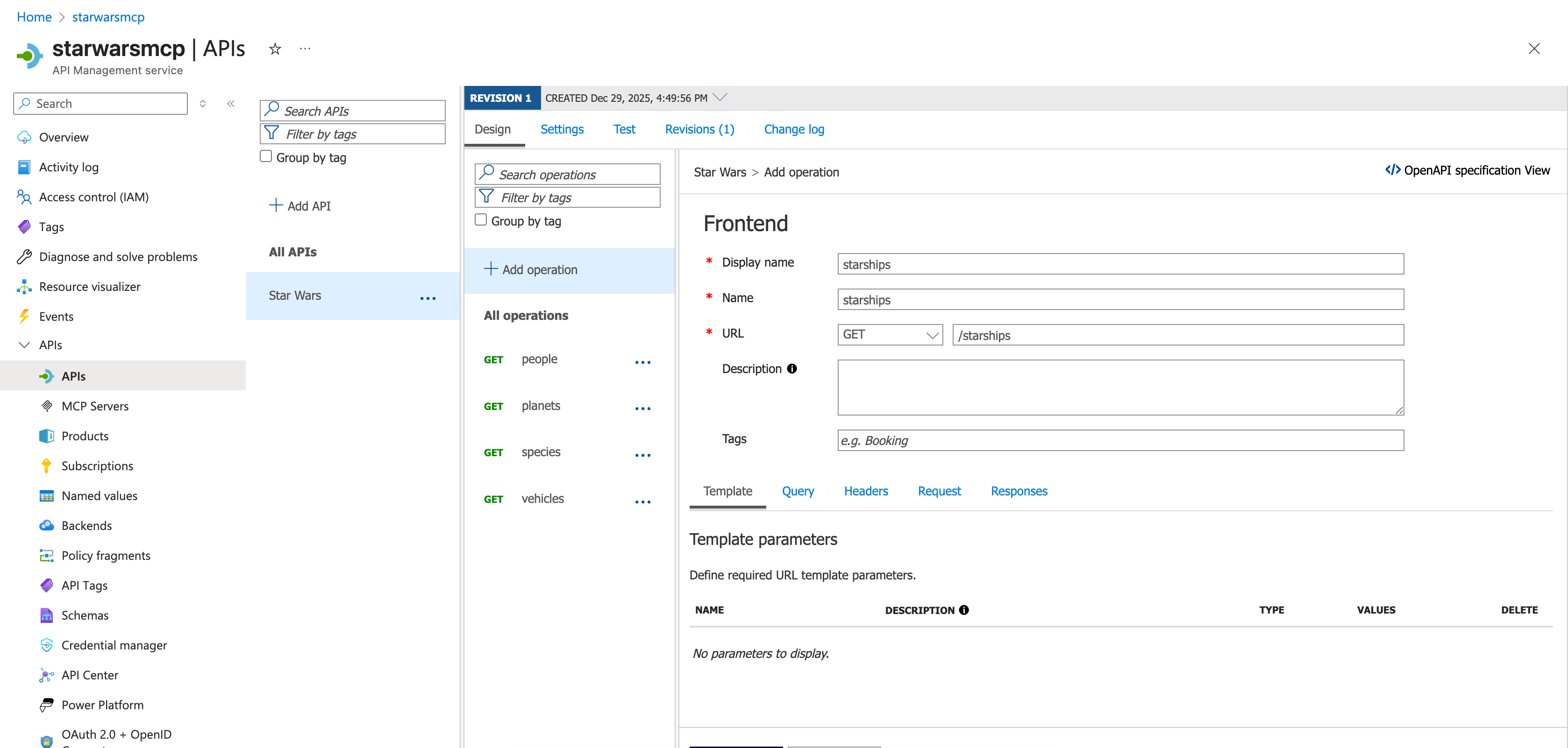
Step 3 – Add Operations to the API
GET /speciesGET /vehiclesGET /starships
Tip: After adding the operations, click Save.
Step 4 – Test the API from APIM
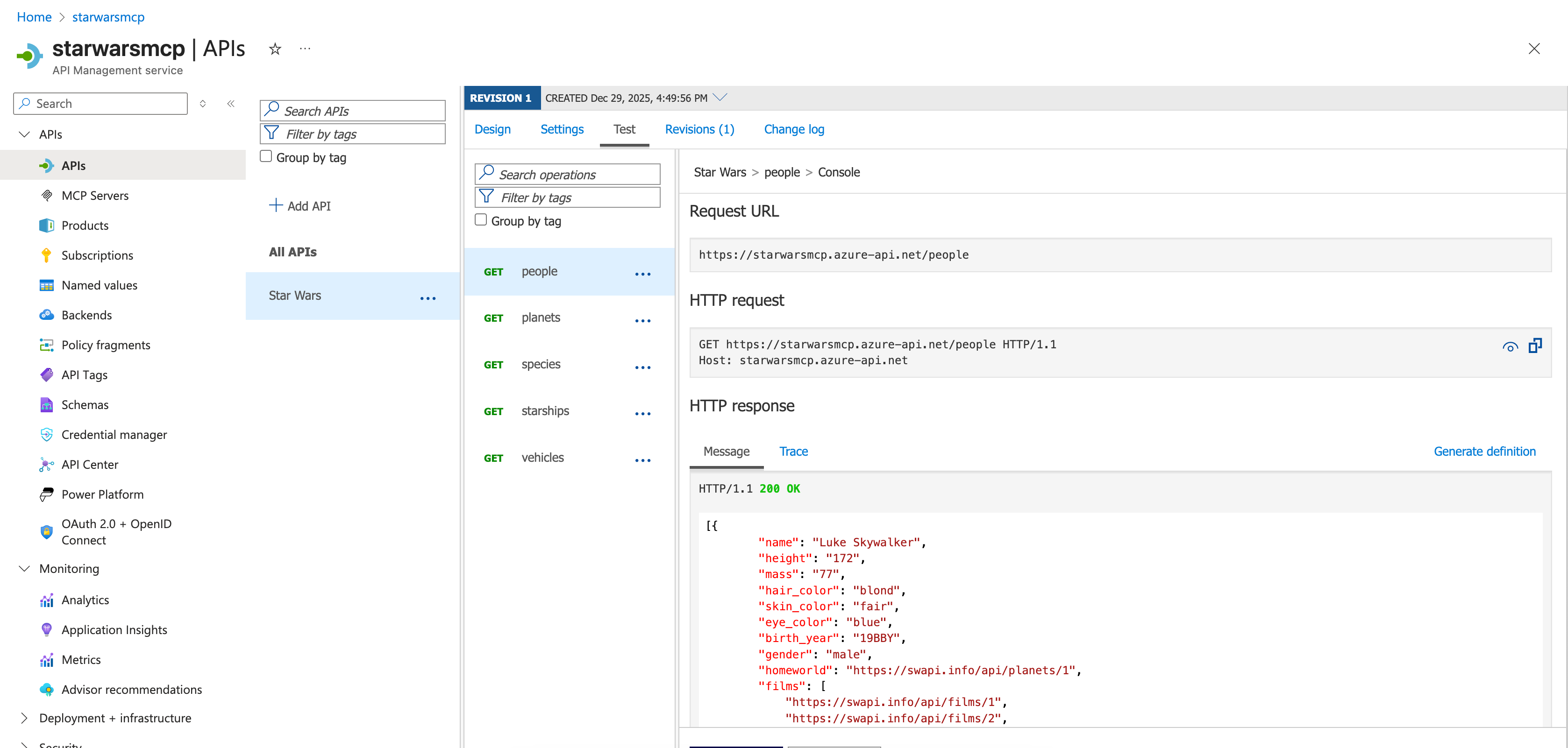
- In the operation (e.g.,
GET /people), open the Test tab. - Click Send.
- Verify that you receive a valid JSON response.
Step 5 – Create an MCP Server from the Existing API (APIM → MCP)
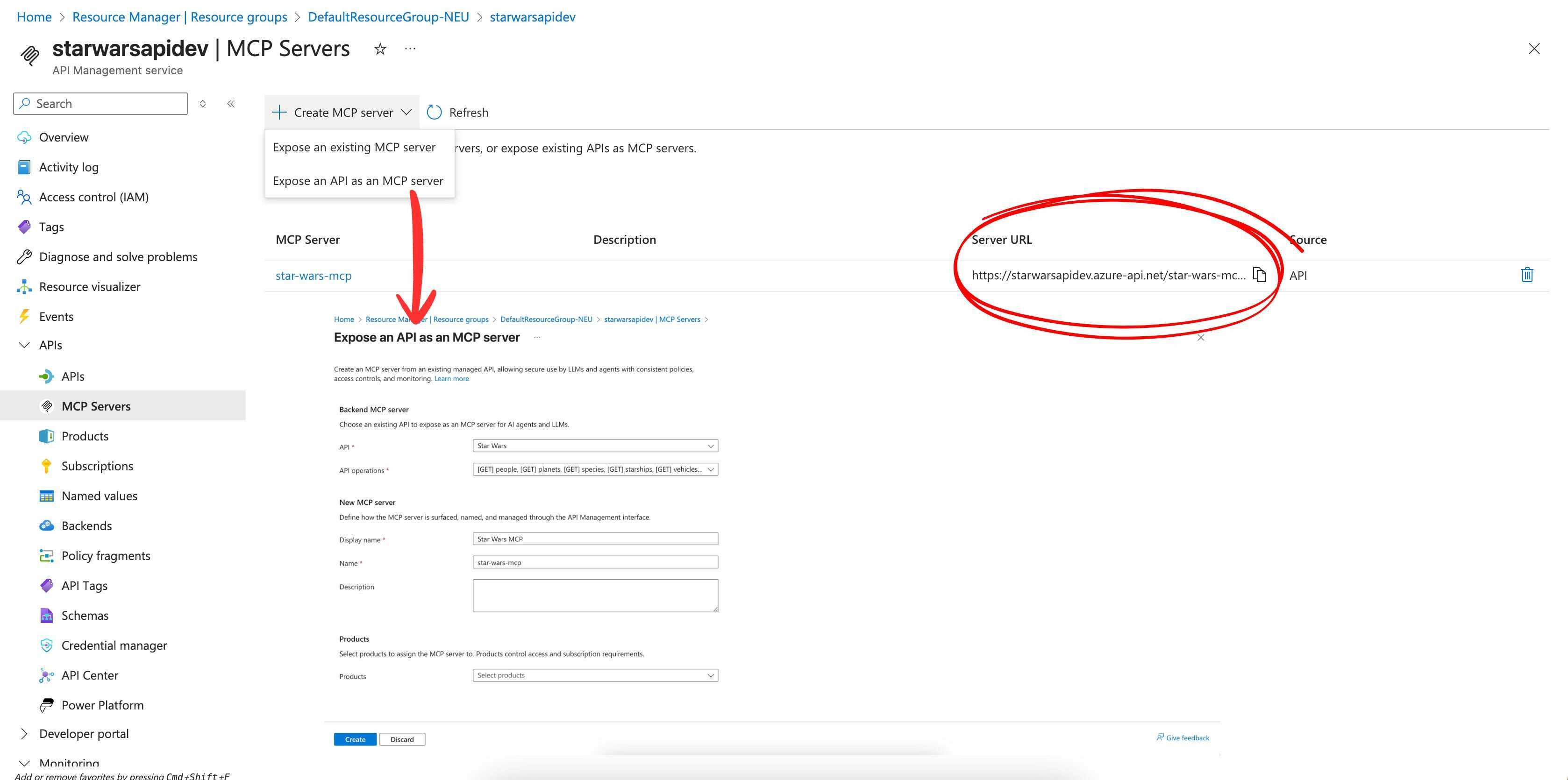
- In your APIM instance menu, go to APIs → MCP servers.
- Click + Create MCP server.
- Choose Expose an API as an MCP server.
- Select:
- The API you created (
SWAPI). - The operations you want to expose as tools (select all the GET operations you added).
- The API you created (
- Click Create.
APIM will generate an MCP endpoint that describes your tools and supports agent‑style invocation.
Step 6 – Use the MCP Server in an AI Host
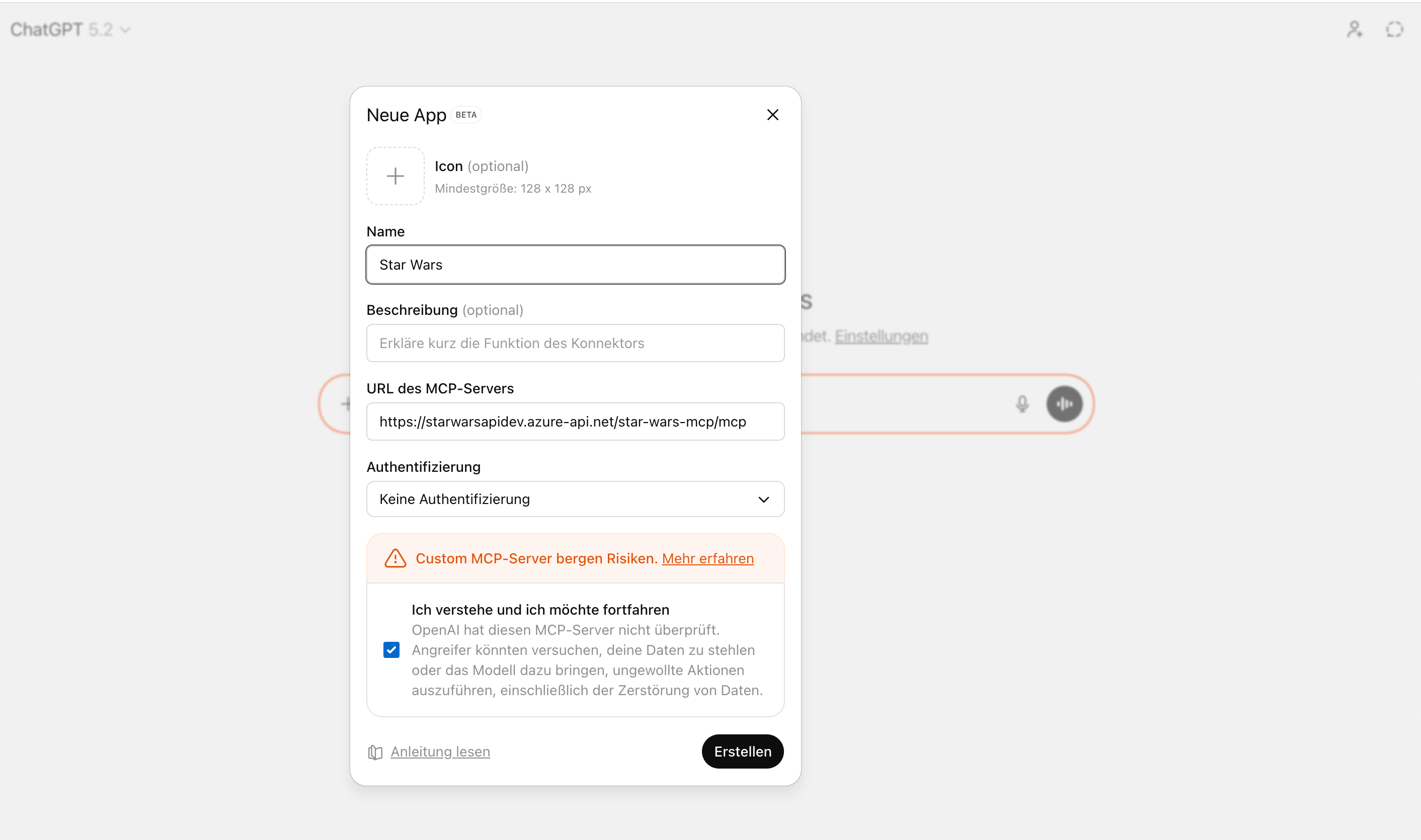
Your API is now MCP‑enabled and can be consumed by:
- ChatGPT
- Visual Studio Code
- Any MCP‑compatible host or agent
The host connects to the MCP server URL, discovers the available tools, and can immediately start calling your API—no custom prompts, glue code, or backend changes required.
Where This Pattern Really Shines
Turning a REST API into an MCP server isn’t just a convenience; it changes how APIs participate in modern, AI‑driven systems.
- Agents discover tools dynamically rather than relying on hard‑coded endpoints.
- Reasoning about capabilities replaces static client‑side logic.
- Chaining calls becomes natural without bespoke orchestration.
APIM already handles versioning, security, throttling, and observability. MCP simply exposes those capabilities in a language AI agents understand.
Ideal Scenarios
- Enterprise APIs that can’t be easily modified but need AI access.
- Legacy systems where adding agent logic directly would be risky or slow.
- Platform teams seeking a single, governed way to expose tools to AI across the organization.
Instead of each team building custom “AI adapters,” you centralize the responsibility at the gateway—where it belongs.
Important Things to Keep in Mind
- Pricing tier matters – MCP export isn’t supported on the Consumption tier; choose an appropriate plan.
- Tool design still matters – MCP won’t fix poorly designed APIs. Clear operation names, sensible inputs, and predictable outputs are essential.
- Security is amplified – AI agents can call tools more frequently and creatively than humans. Rate limits, authentication, and scopes are mandatory.
- Observability becomes critical – MCP makes it easier to call APIs; APIM makes it easier to see who called what and why. Leverage that data.
Bottom line: Treat MCP exposure as a product decision, not just a technical switch. You’re defining how intelligent systems interact with your business logic.