
Take control of your job with GitLens Launchpad
Source: Dev.to
Managing Pull Requests Efficiently in VS Code
As a developer you need to stay in control of your projects every day—whether it’s a company repository, an open‑source project you maintain, or a simple pet project.
Gaining that control often depends on the platform you’re using. While there are many options (e.g., Atlassian and GitLab), today I’ll focus on using GitHub as the platform of choice and show you how to manage your PRs without leaving VS Code.
The Problem: Switching Between VS Code and the Browser
For me, checking the status of my PRs is essential daily work. On average I spend one‑to‑two hours a day tracking failing CI checks, keeping my PRs in sync with the main branch, and reviewing other PRs.
I used to rely on the GitHub website’s Pull Requests page:

The page shows all of my PRs (including those where teammates request a review), the number of comments, CI status, etc. It’s great for a quick overview across many repositories.
But I had to keep switching between VS Code and the browser. Research shows that a context switch can cost ~23 seconds of productive time. Those seconds add up quickly in a fast‑paced developer environment.
First Attempt: GitHub Pull Requests Extension
The GitHub Pull Requests extension was my first try:
GitHub Pull Requests extension (VS Code Marketplace)
It lets you:
- View open PRs for the current repository.
- See your own PRs and teammates’ PRs.
- Open a PR directly from VS Code, check its status, and start a review without leaving the editor.

In the left panel you can control PRs and Issues. Clicking a PR opens its home page; hovering reveals an arrow icon that switches to Review mode, where you can add comments or suggestions.
Limitation: The extension works only for the repository that is currently opened in VS Code. I couldn’t see whether other projects were blocked by my work, waiting for my review, or otherwise needing attention.
The Final Solution: GitLens + Launchpad
While browsing, I discovered a feature of GitKraken called Launchpad. Launchpad provides a big‑picture view of all issues and PRs where you are the creator or a follower, across every repository you have access to.
GitKraken offers several ways to work with Git:
- Desktop app – Download here
- Web UI – gitkraken.dev
- VS Code extension – GitLens
- CLI – GitKraken CLI
GitLens includes a Launchpad panel that aggregates data from multiple platforms (GitHub, Bitbucket, GitLab). It shows every PR and issue you’re involved with, regardless of which repository you have open.
Spoiler: I use it with GitHub, but it works equally well with Bitbucket and GitLab.

(If the image above does not load, replace the URL with the correct one from the original article.)
With GitLens + Launchpad I can:
- See all my open PRs across every repo in a single pane.
- Spot blockers, pending reviews, and CI failures without leaving VS Code.
- Jump directly to a PR’s GitHub page or start a review from the editor.
Takeaway
- Avoid context‑switching by bringing the information you need into VS Code.
- The built‑in GitHub Pull Requests extension is great for the current repo, but it’s limited in scope.
- GitLens Launchpad (or GitKraken’s Launchpad) gives you a holistic view across all repositories and platforms, dramatically improving developer productivity.
Give it a try—your future self will thank you for the saved seconds (and minutes) each day!
GitLens Launchpad Panel
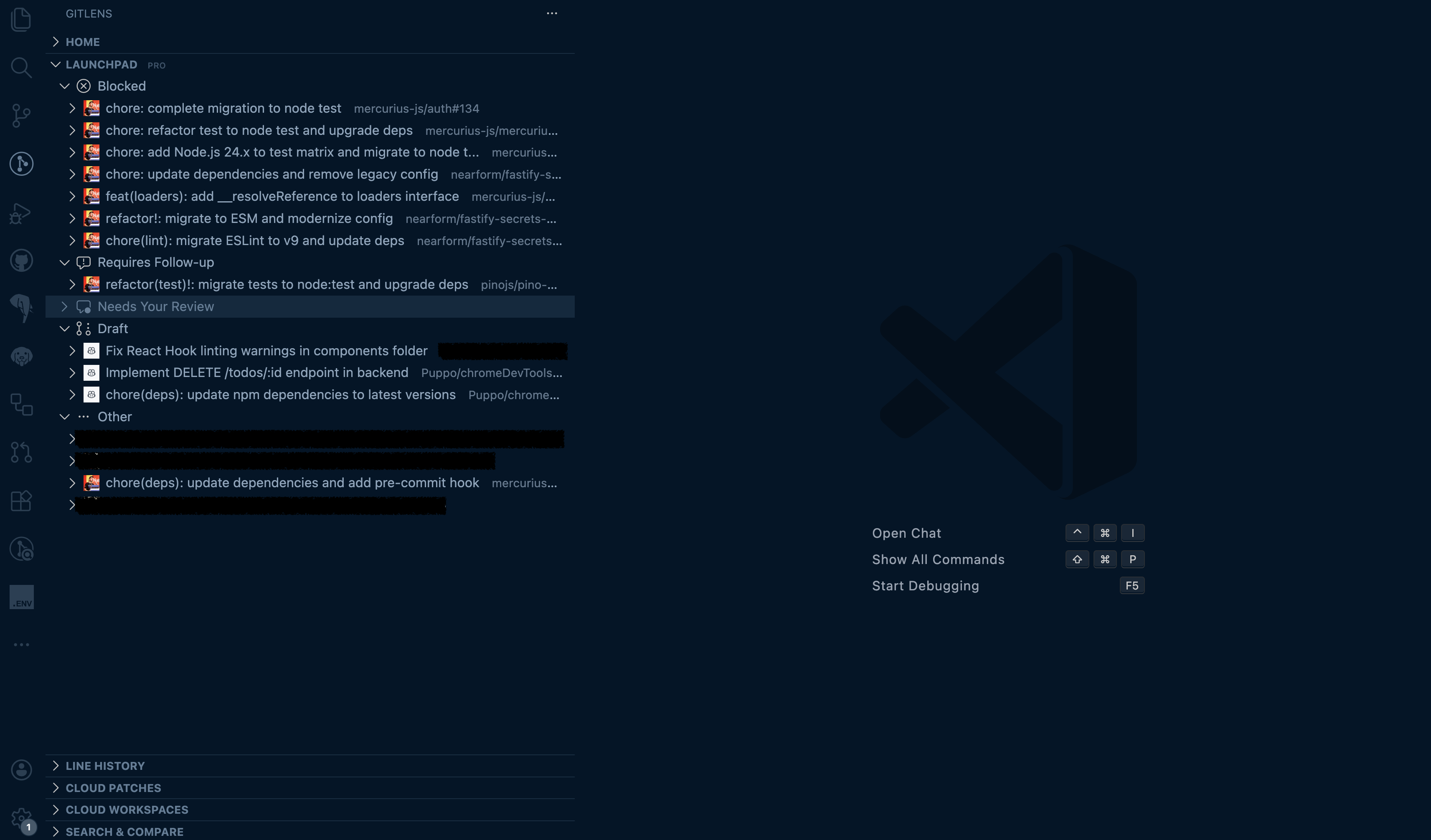
In this panel, there are different groups where you can find your PRs that meet that status. If you click a PR, a pop‑up appears that lets you get more info or jump into the repository if you have already set it up on your machine.
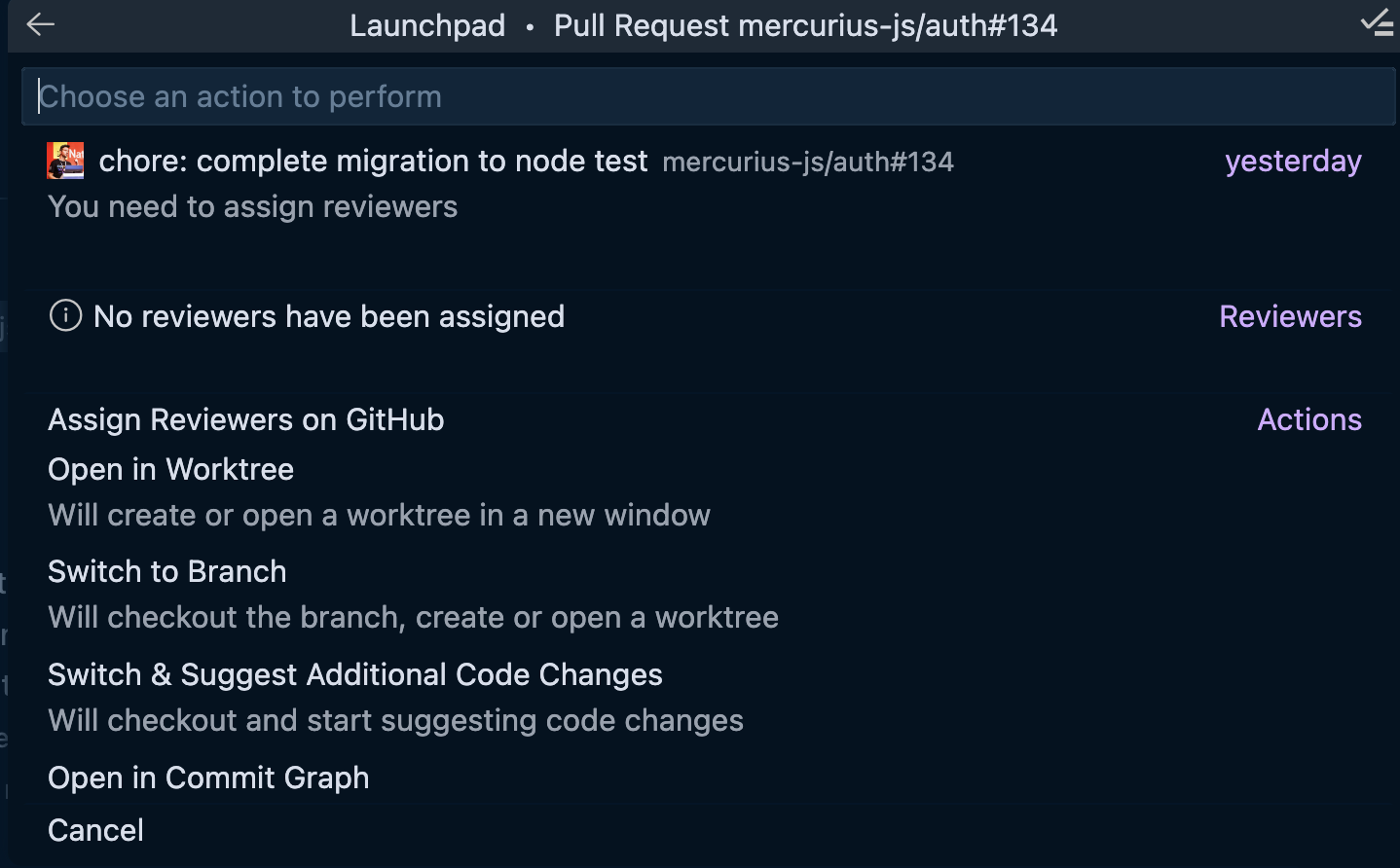
As you can see, just using these two extensions I reduced the number of switches between my lovely VS Code and the GitHub website. In my editor I already have control over all my repositories, and with the correct panel I can do most of my work directly in the editor.
Before closing, I’d like to give you another extension that reduces the need to switch between the editor and the GitHub website: the GitHub Actions extension. This extension lets you check the status of actions directly in the editor, without jumping to GitHub to search for them.
Conclusion
It’s time to wrap up this article.
- Initial workflow – I used to check my current work across projects on GitHub, but switching between the editor and the browser quickly became a pain point.
- GitHub Pull Requests extension – I moved to the GitHub Pull Requests extension, which enables me to open, review, and check PRs and issues in the currently open repository.
- GitLens Launchpad – Finally, I talked about the GitLens Launchpad. Through a panel in the editor it provides a big‑picture view of all the PRs across the repositories I’m working on, helping me reduce switching between the editor and GitHub during my daily work.
Note: The GitLens Launchpad is a PRO feature that requires a valid GitKraken license. To purchase one, check this link.
That’s it for this article. I hope this feature can also improve your daily developer experience, and I’ll see you in the next articles.
Bye bye 👋