Setting up AWS Bedrock with Claude
Source: Dev.to
The AI Landscape in 2025
As 2025 draws to a close, the AI race shows no signs of slowing down. New foundational models are being released by OpenAI, Anthropic, Google, and others, and strategic partnerships are announced daily across the stack.
What the hyperscalers are doing
| Hyperscaler | AI Offering | Infrastructure Highlights |
|---|---|---|
| Gemini (own model) | TPU chips, massive training clusters | |
| Microsoft | Deep ties to OpenAI; new agreements to broaden its AI portfolio | Azure AI services, custom chips |
| Amazon (AWS) | Historically lagged (Anthropic deal 2023, Trainium chips) | Leading cloud platform, now catching up with Bedrock |
Note: Anthropic recently announced a new partnership with Microsoft [link] and OpenAI is in talks with Amazon [link]. Exclusive‑access models are becoming a thing of the past, putting AWS in a strong position to deliver the latest AI capabilities to its customers.
Why use AWS Bedrock for Anthropic models?
- Enterprise‑grade compliance, security, and billing – leveraging existing AWS accounts simplifies governance.
- Faster onboarding – large enterprises often face a lengthy relationship‑building process with Anthropic directly.
- Unified cloud experience – keep compute, storage, and AI services under one roof.
For personal projects, a direct Anthropic Pro/Max plan is usually cheaper and simpler.
Setting Up AWS Bedrock for Anthropic
- Open the Bedrock console.
- Previously you had to enable models under Configure and learn → Model access.
- Now foundational models are auto‑enabled on first use.
- Go to Chat / Text playground and select an Anthropic model (e.g., Claude Sonnet 4.5).
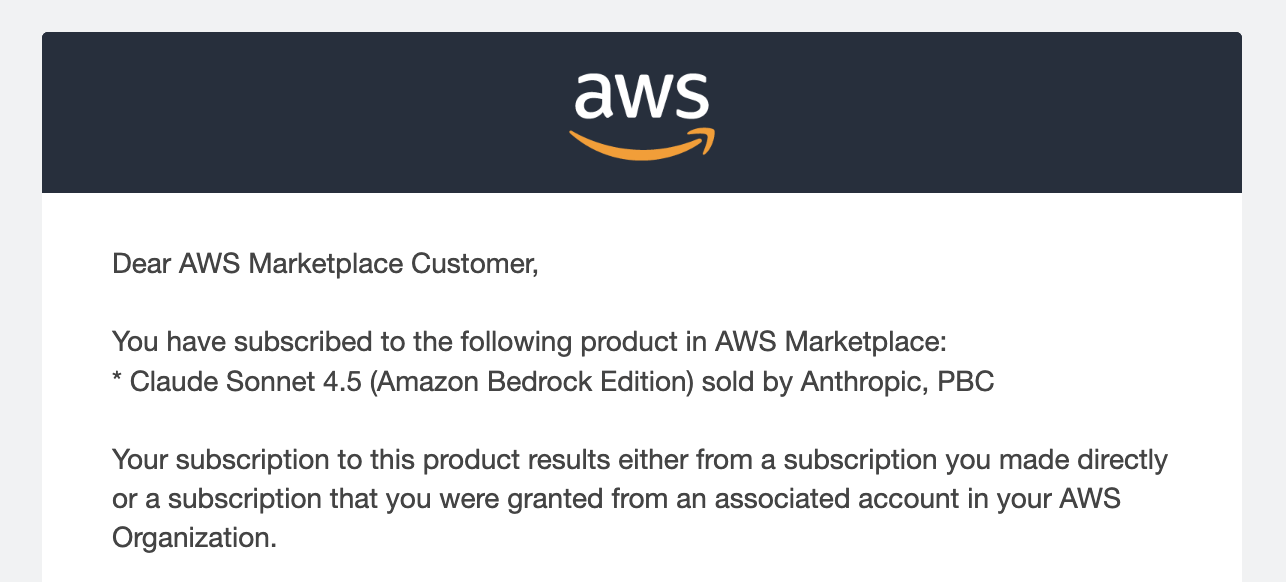
First‑time use: Anthropic requires a use‑case form. Fill it out; you’ll receive an email confirming your AWS Marketplace subscription. Subsequent model selections are enabled automatically.
Screenshot
Configuring AWS Credentials for Claude Code
Claude Code uses the default AWS SDK credentials, so any method that provides those credentials works.
Option A – AWS CLI configuration
aws configureOption B – Environment variables (access key)
export AWS_ACCESS_KEY_ID=your-access-key-id
export AWS_SECRET_ACCESS_KEY=your-secret-access-key
export AWS_SESSION_TOKEN=your-session-token   # optional, for temporary credentials
Option C – Environment variables (SSO profile)
aws sso login --profile=
export AWS_PROFILE=your-profile-name
Option D – Bedrock API keys
- In the Bedrock console, select API keys.
- Generate a short‑term or long‑term key with the desired expiration.
Tell Claude Code to use Bedrock
export CLAUDE_CODE_USE_BEDROCK=1
export AWS_REGION=us-east-1
Optional environment variables
# Specific Anthropic model IDs
export ANTHROPIC_MODEL='global.anthropic.claude-sonnet-4-5-20250929-v1:0'
export ANTHROPIC_SMALL_FAST_MODEL='us.anthropic.claude-haiku-4-5-20251001-v1:0'

# Or use an application inference profile ARN
export ANTHROPIC_MODEL='arn:aws:bedrock:us-east-2:your-account-id:application-inference-profile/your-model-id'

# Disable prompt caching (if needed)
export DISABLE_PROMPT_CACHING=1
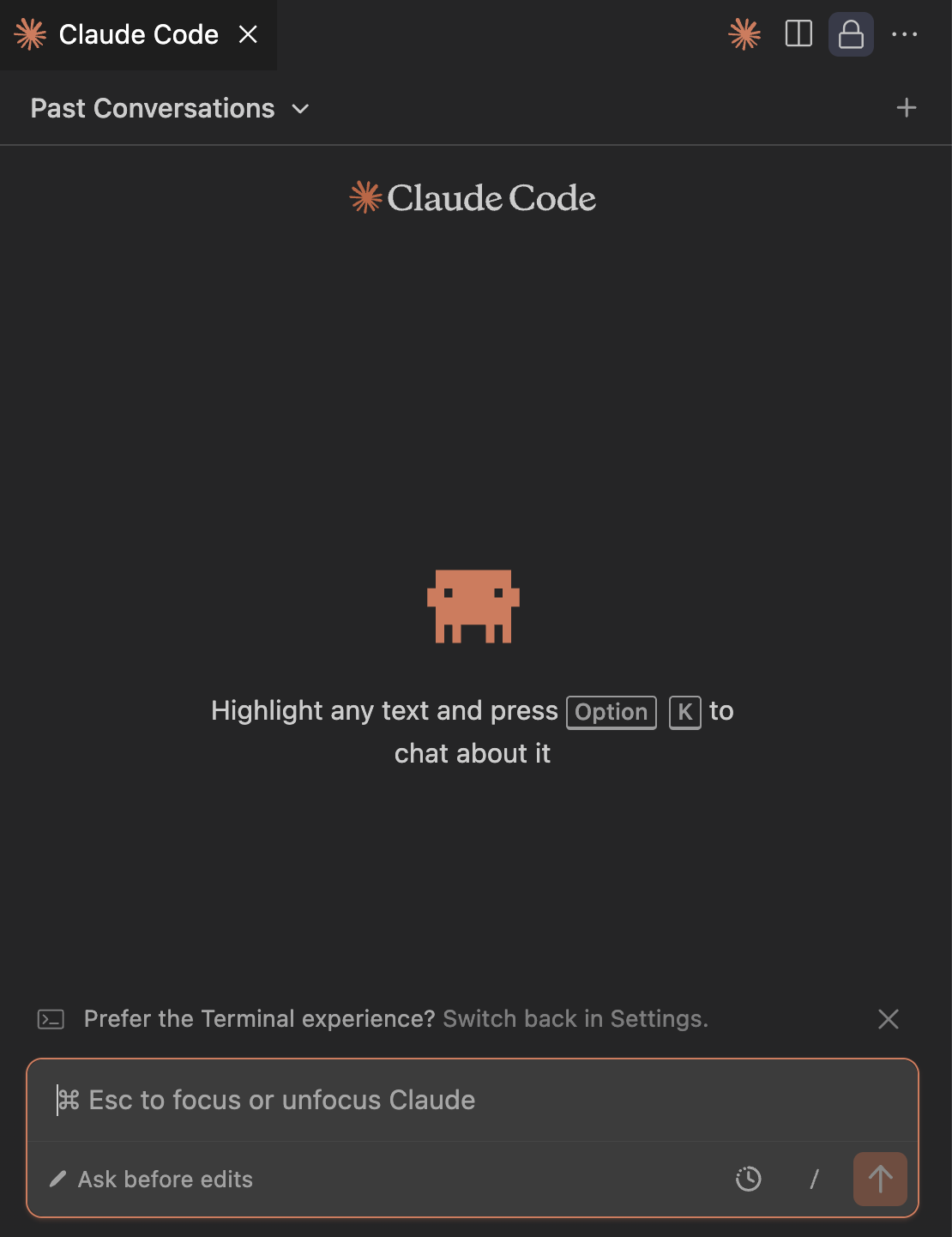
Setting Up the VS Code Claude Code Extension
- Open VS Code.
- Press Ctrl + Shift + P (or Cmd + Shift + P on macOS) → Preferences: Open User Settings (JSON).
- Add (or edit) the
claudeCode.environmentVariablesarray to include the variables you set above. Example:
{
  "claudeCode.environmentVariables": [
    {
      "name": "AWS_PROFILE",
      "value": "your-profile-name"
    },
    {
      "name": "CLAUDE_CODE_USE_BEDROCK",
      "value": "1"
    },
    {
      "name": "AWS_REGION",
      "value": "us-east-1"
    },
    {
      "name": "ANTHROPIC_MODEL",
      "value": "global.anthropic.claude-sonnet-4-5-20250929-v1:0"
    }
  ]
}- Save the file and restart VS Code (or reload the window).
Now the Claude Code extension will route requests through AWS Bedrock, letting you use Anthropic models without a direct Anthropic subscription.
TL;DR
- Bedrock now auto‑enables Anthropic models.
- Authenticate via AWS CLI, environment variables, SSO, or Bedrock API keys.
- Set
CLAUDE_CODE_USE_BEDROCK=1and the appropriate AWS region/model variables. - Add those variables to the VS Code
claudeCode.environmentVariablesJSON setting.
You’re ready to develop with Claude Code on top of AWS Bedrock! 🚀
[
  {
    "name": "AWS_REGION",
    "value": "us-east-1"
  },
  {
    "name": "CLAUDE_CODE_USE_BEDROCK",
    "value": "1"
  }
]
You can add other environment variables or use your preferred authentication method (including the API keys) there. Once configured, reload VS Code and relaunch the Claude Code extension.
Now you’re ready to use Claude Code without being prompted a login: