
One Prompt, One App: Hands-On with Google Antigravity
Source: Dev.to
Google Antigravity has been making a lot of noise lately. As Google’s own “agent‑first” IDE, it’s already being called a Cursor killer in some circles.
Unlike traditional AI coding tools, Antigravity isn’t just “ChatGPT inside VS Code.” It’s more like a control tower for AI agents: you describe what you want, and multiple agents can plan, write code, run commands, and even use a browser to test your app end‑to‑end.
In this post we’ll:
- Walk through setup and initial configuration
- Explain the key “agent‑first” concepts
- Show a real example: from one sentence to a running web app
- Discuss how to integrate Antigravity into a broader local AI dev stack (Gemini CLI, Node.js 20, local LLMs, etc.)
From “Code Monkey” to “AI Project Manager”
Most AI coding assistants today follow this pattern:
- You write some code.
- You pause, send a prompt.
- Wait for the AI to suggest code.
- Copy/paste, tweak, repeat.
Antigravity flips that model. AI agents become proactive actors with their own plans. You, the developer, act more like an architect or tech lead:
- Define the goal.
- Set guardrails.
- Review plans and artifacts.
You’re still coding, but a lot more of your time goes into orchestrating, not micromanaging every line.
Installing and Initializing Google Antigravity
Antigravity is currently in public preview, free to use with a Google account.
Download and install
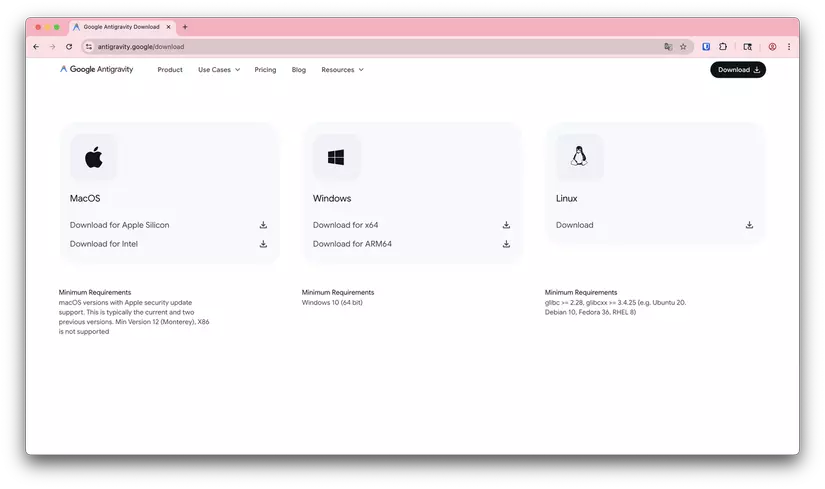
Grab the installer from the official Antigravity site (Windows, macOS, Linux builds are available).
First launch
- Sign in with your Google account.
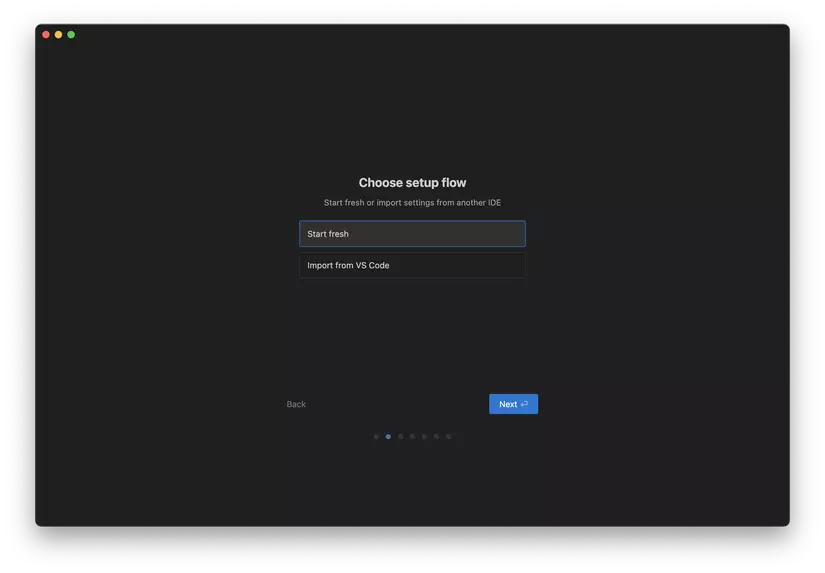
- Import settings from VS Code / Cursor or start fresh.
Pick your theme
Dark / light / high contrast—very familiar for VS Code users.
The most important part comes next: configuring agent permissions.
Critical Setup: What Are Agents Allowed to Do?
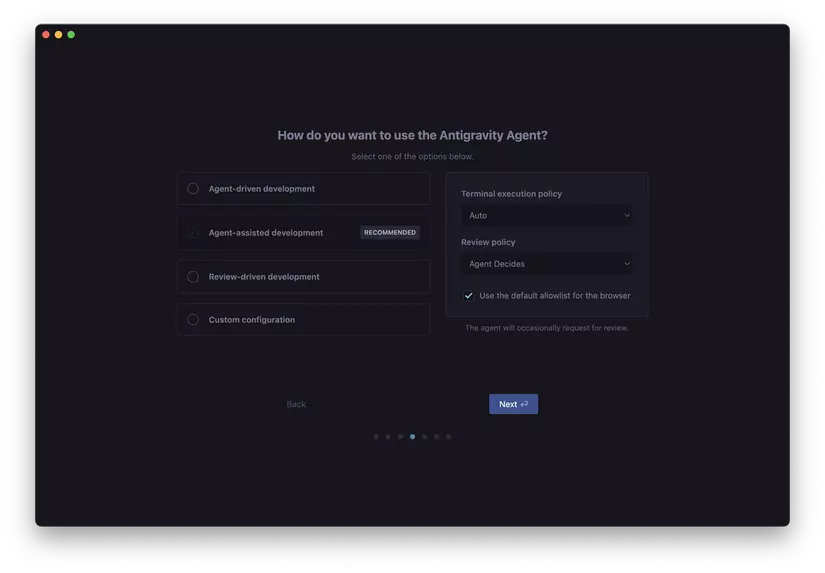
During setup, Antigravity asks you to define Terminal execution and Review policies. This is what makes it “agent‑first” instead of “chat‑first”.
1. Terminal Execution Policy
Controls whether agents can run shell commands directly:
| Mode | Description |
|---|---|
| Off | No automatic commands. Every command requires your confirmation. Safest mode, but slower. |
| Auto (Recommended) | The agent evaluates risk. “Safe” commands auto‑run; risky ones prompt for approval. Good balance between speed and control. |
| Turbo | Almost everything runs automatically unless blacklisted. Great for throwaway prototypes and sandboxes – use with caution on real environments. |
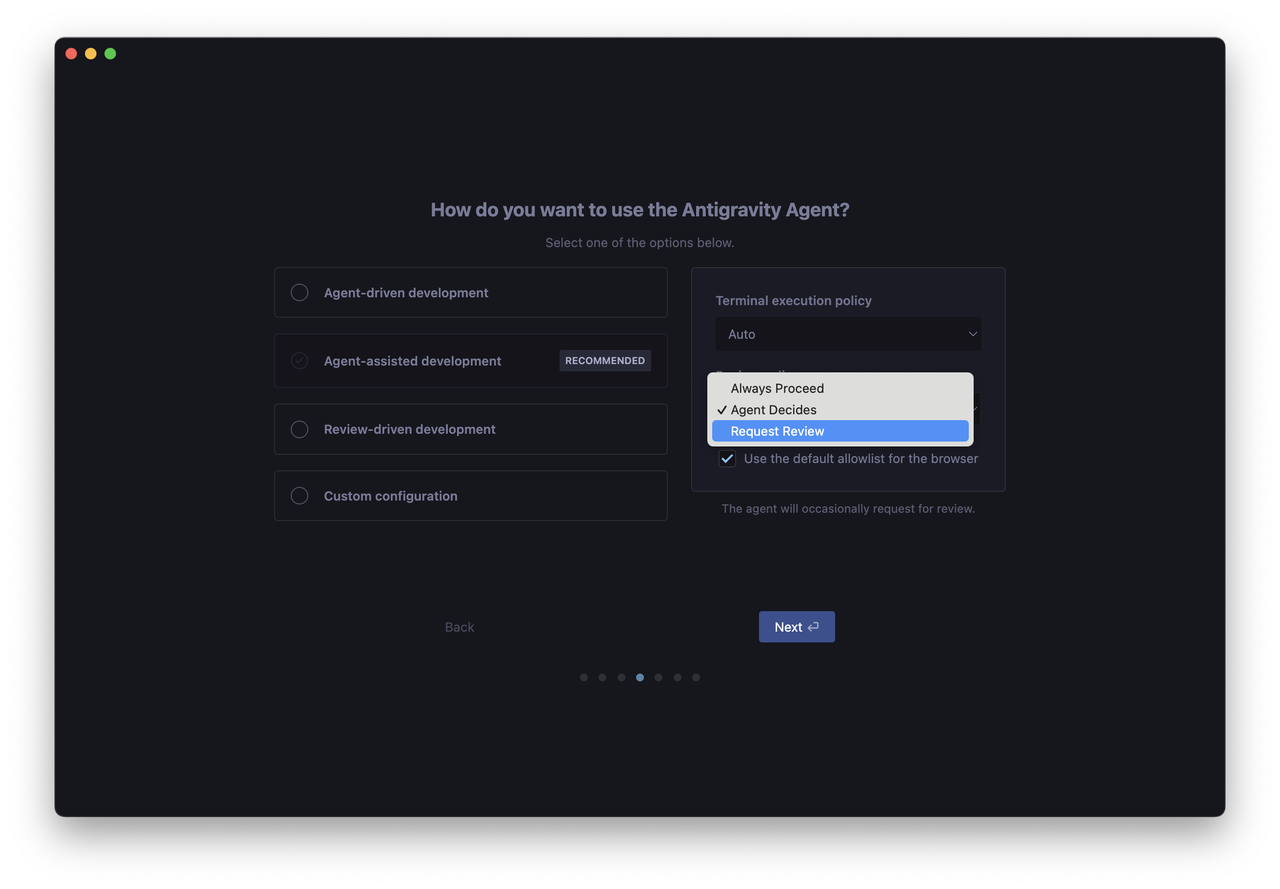
2. Review Policy
Defines who approves plans and code changes:
| Mode | Description |
|---|---|
| Always Proceed | The agent never stops to ask. Fastest, but easiest to lose oversight. |
| Agent Decides | The agent asks for review only at “important” checkpoints. Fewer interruptions while keeping key control. |
| Request Review | Every major artifact (plan, diff, etc.) requires explicit approval. Slower, but appropriate for critical codebases or teams. |
A good starting point is an “Agent‑assisted development” preset: agents act autonomously most of the time, but still seek your input at key steps.
The UI: Agent Manager + Editor
Antigravity is built on VS Code, but the UX is reorganized around two main surfaces.
Agent Manager: Your Control Tower
When you launch Antigravity, you see an Agent Manager view instead of a traditional file tree. Each high‑level request becomes a “mission” for an agent. You can run multiple missions in parallel, e.g.:
- “Refactor auth module”
- “Upgrade dependency tree”
- “Write tests for billing service”
Each mission shows progress and artifacts independently, so you’re not stuck in a single linear chat thread.
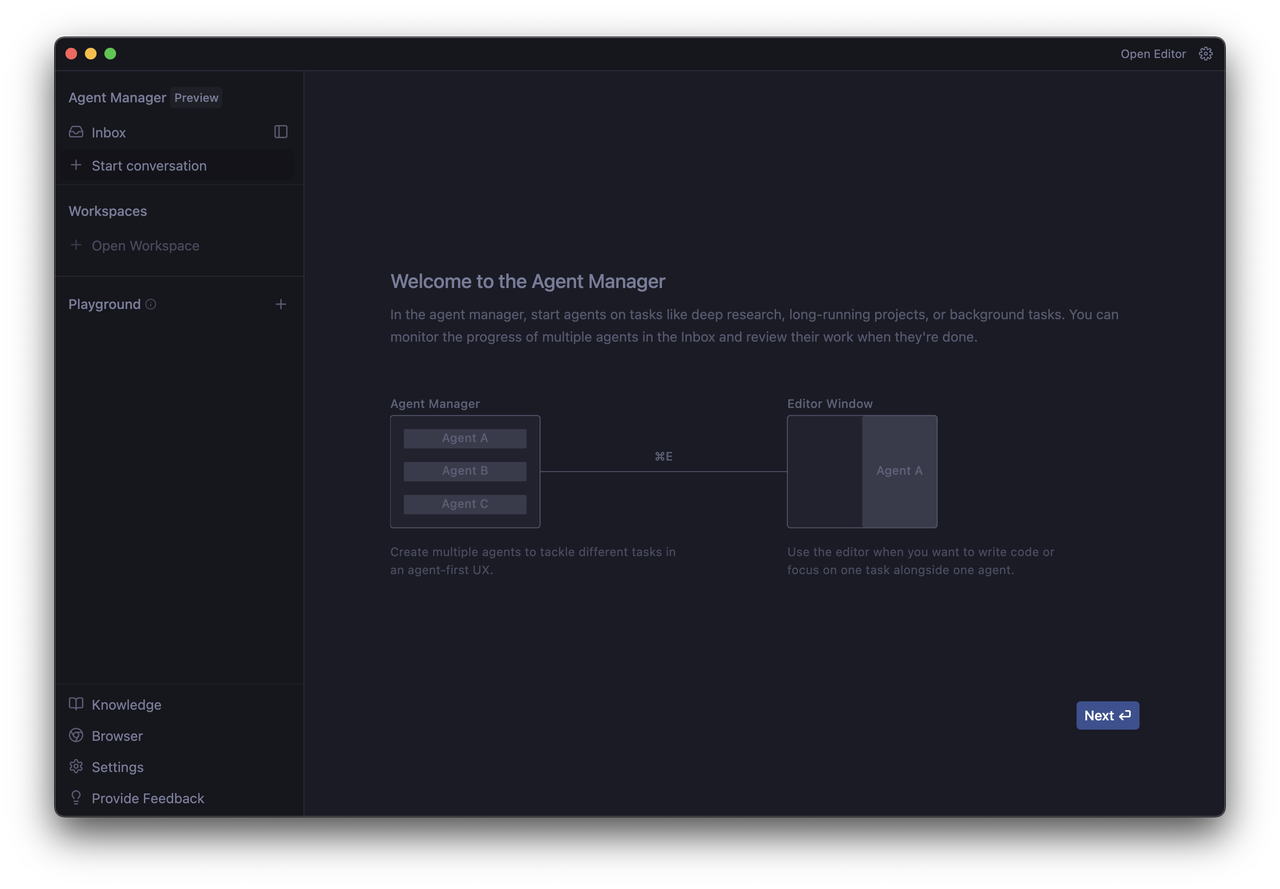
Editor: A Code Editor That Knows About Agents
Press Cmd/Ctrl + E to switch to the Editor view. You get the familiar VS Code experience—file explorer, syntax highlighting, extensions—plus an Agent Panel on the right that’s context‑aware:
- Highlight a block of code → ask the agent to refactor, explain, add tests, or port it to another framework.
- The agent sees the current file and project context.
It feels like VS Code with a deeply integrated AI teammate, wired into the global “mission” system you saw in Agent Manager.
Browser Agent: AI That Actually Uses a Browser
When you give tasks like:
- “Read the official docs at X, then configure the project accordingly.”
- “Run the app, log in as a test user, and verify the checkout flow.”
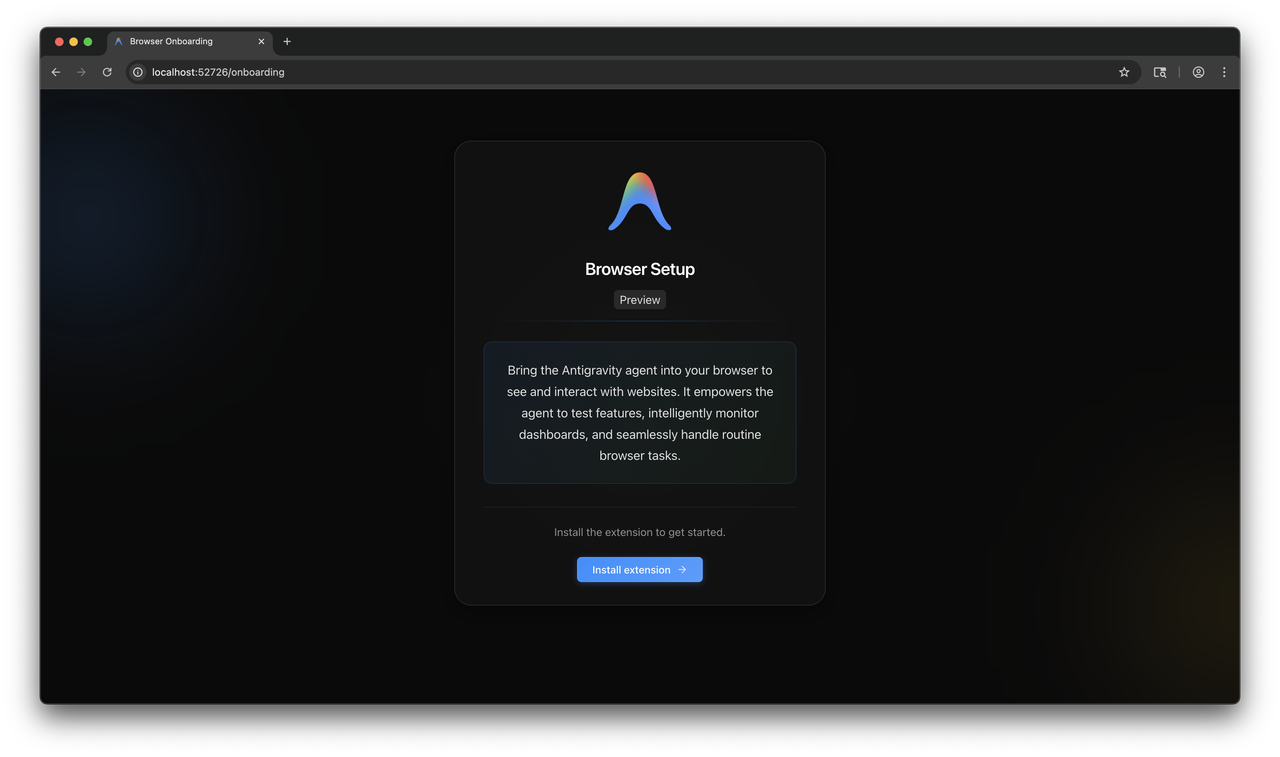
Antigravity spawns a browser sub‑agent that controls a dedicated browser instance: clicks, scrolls, typing, reading console logs. This browser environment is isolated—no shared cookies or history with your main browser—providing clean, reproducible test runs with better privacy and more objective results.
Artifacts: Plans, Diffs, Screenshots, and Video
When an agent says “Done,” you shouldn’t have to just trust it. Antigravity gives you Artifacts:
- Task Plans – a human‑readable outline of what the agent intends to do.
- Code Diffs – standard diff views, just like reviewing a PR.
- Screenshots – for UI‑related changes.
- Screen Recordings – video of the browser agent interacting with your app.
These artifacts let you verify, review, and approve the work before it becomes part of your codebase.