
Not a macOS 26 fan? Here’s how to block the alerts or downgrade
Source: 9to5Mac
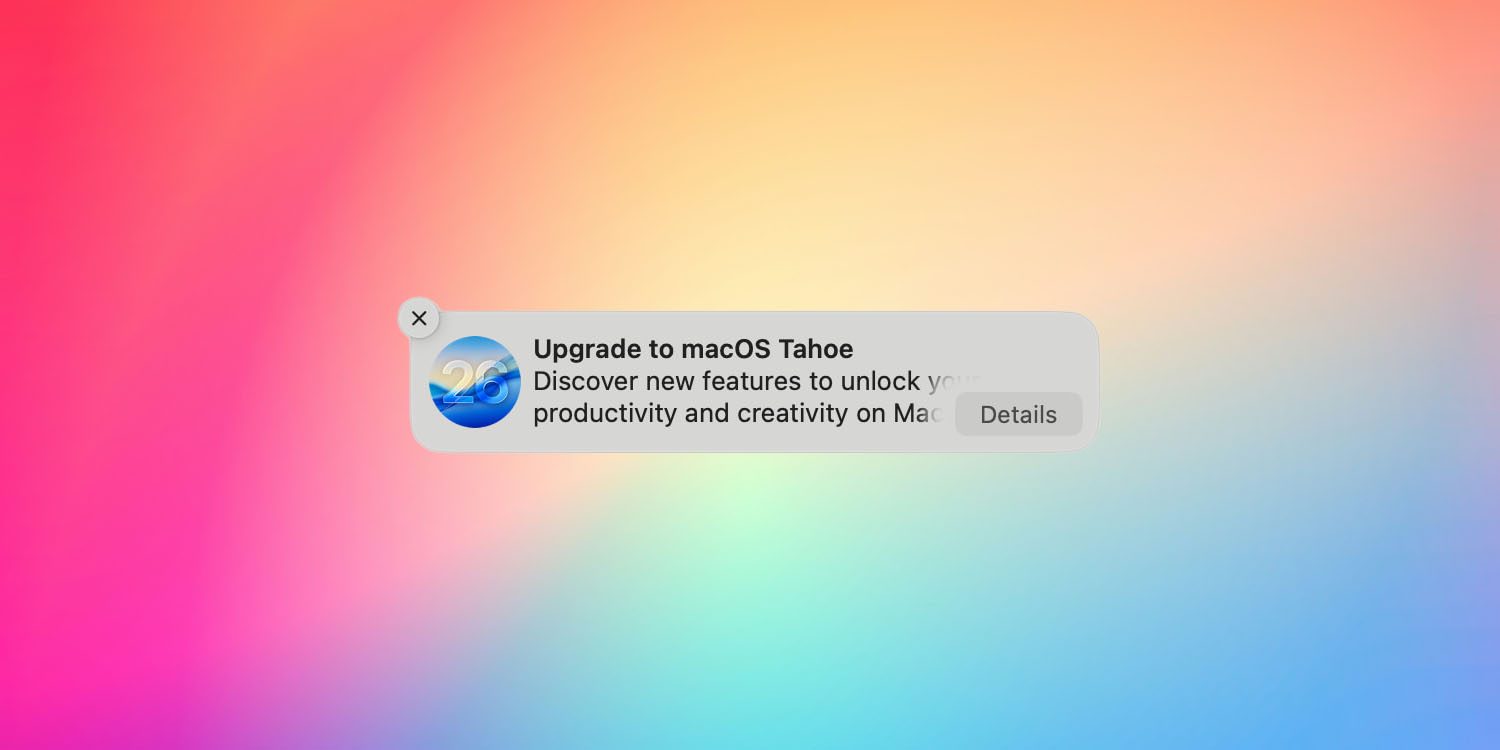
My personal view is that macOS 26 is a decent upgrade on balance, despite a few embarrassing mistakes. I also think that a minority of very vocal commenters have given a misleading impression about the level of opposition to the Liquid Glass update.
However, if you’ve decided not to upgrade, you can stop your Mac from nagging you to do so.
Block macOS 26 upgrade prompts
Rob Griffiths — who was annoyed by the upgrade nag — found a way to block the prompts. The method uses a configuration profile to defer upgrade prompts.
In Rob’s original instructions you would set:
forceDelayedSoftwareUpdates
enforcedSoftwareUpdateMinorOSDeferredInstallDelay30
enforcedSoftwareUpdateNonOSDeferredInstallDelay30
Change it to:
forceDelayedSoftwareUpdatesThis disables the forced delayed updates. The nag can be blocked for 90 days at a time, which is a significant improvement.
Downgrade from macOS 26
If you’ve already upgraded and regret it, you can downgrade back to macOS 15. Andrew Cunningham of Ars Technica provides a detailed guide, noting that Apple doesn’t make the process straightforward.
The easiest method is to create a macOS 15 installer on a USB drive (32 GB or larger). Cunningham recommends naming the volume MyVolume so the terminal commands in the guide work without modification.
Note: There is currently no downgrade path for machines with an M5 chip (e.g., the base‑model M5 MacBook Pro). The limitation also applies to more powerful M5 models released later.
Image credit: 9to5Mac/Apple/Codioful