
Making the terminal beautiful one pixel at a time
Source: Google Developers Blog
Nov. 13, 2025
We’re excited to announce a significant upgrade to the Gemini CLI user experience, making your terminal interactions more robust, intuitive, and visually stable. We have overhauled the foundation of how Gemini CLI is rendered to eliminate the visual noise often associated with terminal applications, bringing a level of polish you typically only expect from graphical interfaces directly into your terminal.
You no longer have to deal with flickering screens, bouncing input prompts, or losing your place in long output streams. It’s the same powerful Gemini CLI, just dramatically smoother.
Key Enhancements
Mouse-Based Navigation
You can now enjoy the convenience of using your mouse to click and navigate directly within the input prompt. No more needing to furiously click the arrow keys to navigate to the beginning of your prompt—just click!
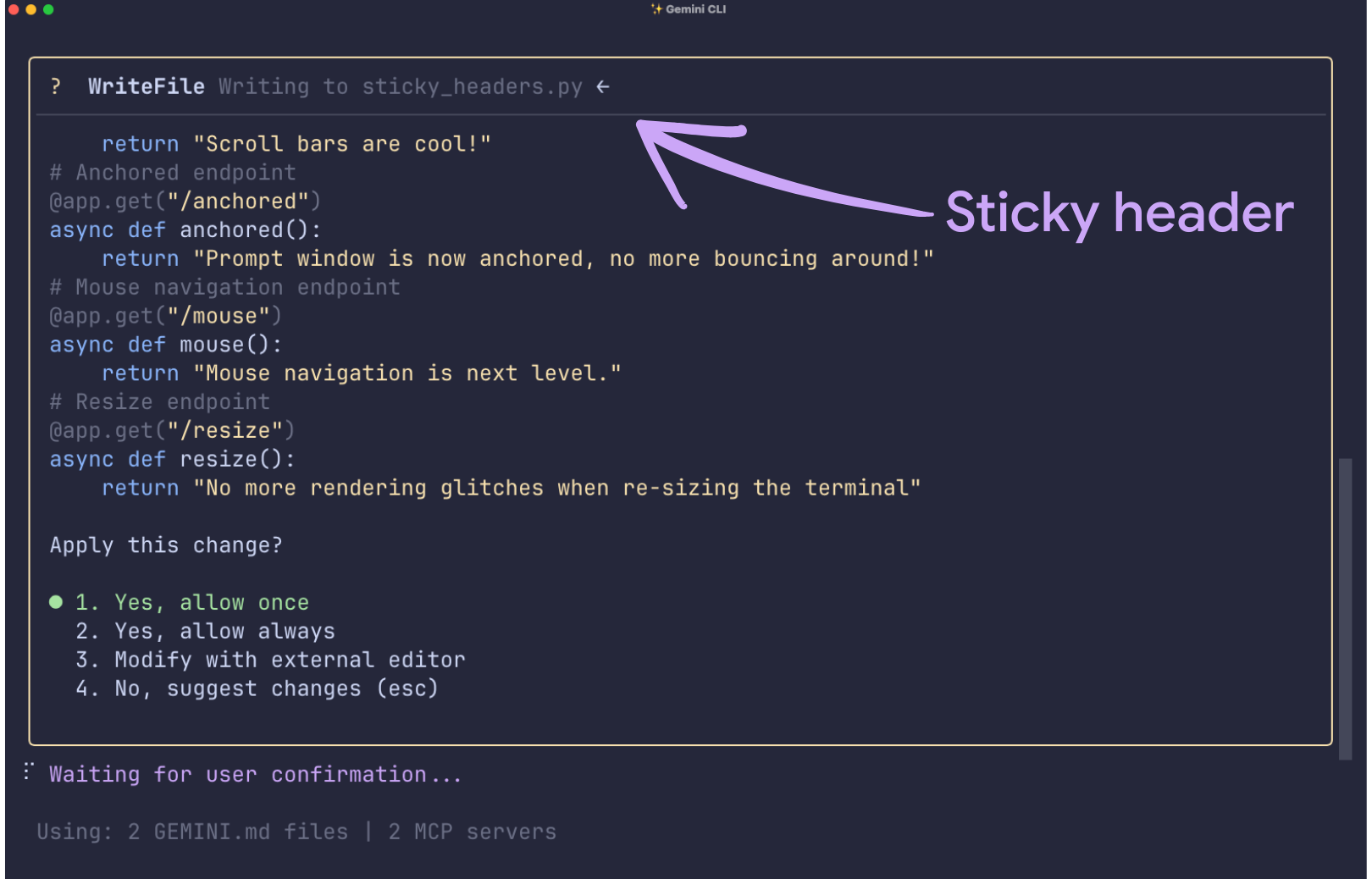
Context is vital when working in the CLI. We’ve introduced persistent header lines for tool confirmations and actions, ensuring you never lose track of what you are doing, even during complex interactions.
Flicker-Free Experience
Our new design virtually eliminates screen flicker. If you use a modern terminal such as VSCode, iTerm, Ghostty, etc., you will be able to say goodbye to a flickering screen for good and enjoy a smooth terminal.
Robust Rendering
Previously, resizing your terminal window could sometimes cause visual glitches or artifacts. Those rendering artifacts are now a thing of the past, providing a clean and polished display regardless of how you resize your window.
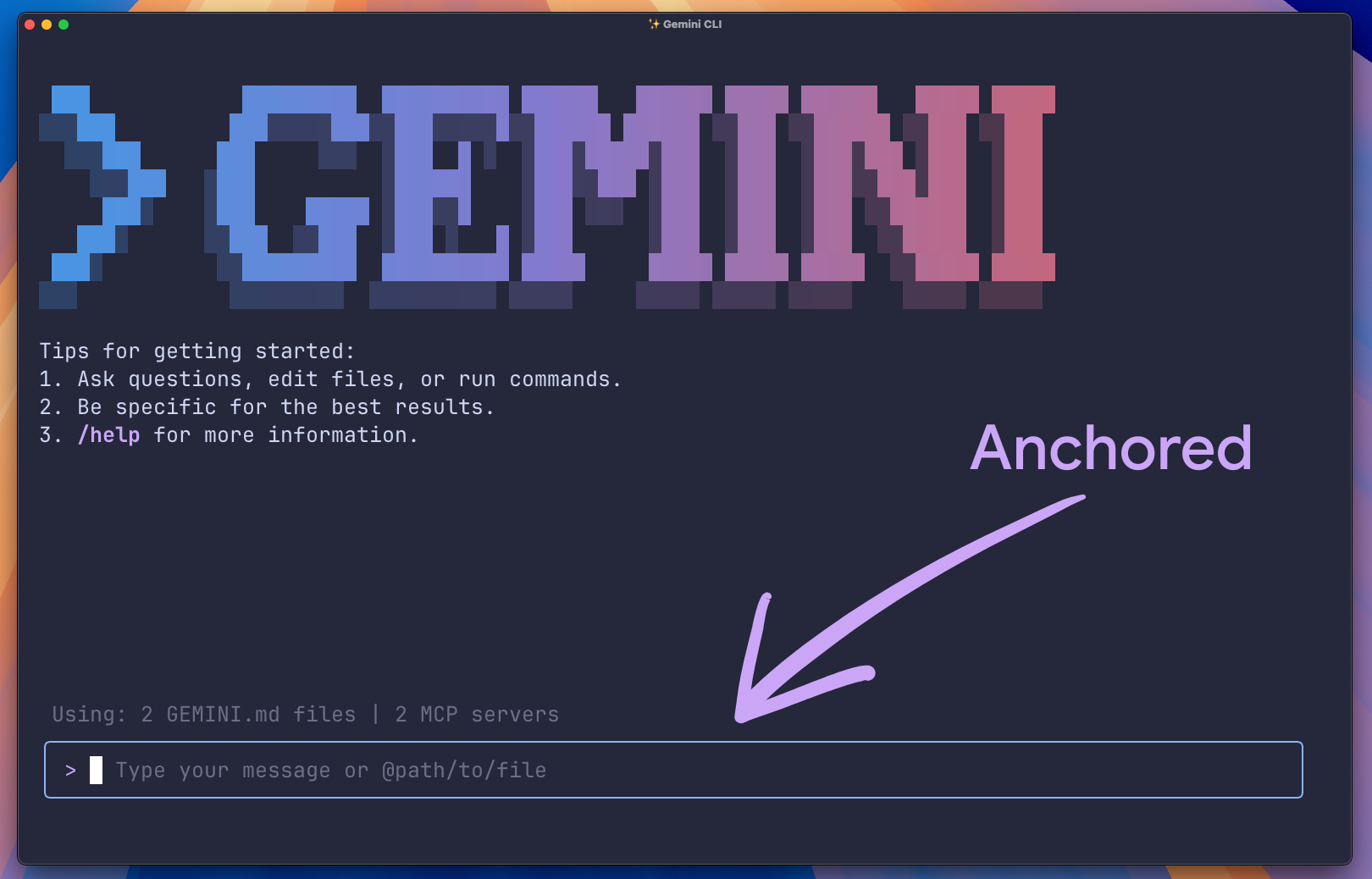
Stable Input Prompt
Say goodbye to the bouncing prompt box. The input field now remains firmly anchored at the bottom of your terminal for a consistent, predictable experience.
Preserved History
Despite using an alternate screen buffer for this seamless experience, your complete chat history is still accessible in your standard terminal after you exit Gemini CLI.
Getting Started with the New UI
These new UI improvements are enabled by default in Gemini CLI as of v0.15.0.
Upgrade to the latest version of Gemini CLI using the following command:
npm install -g @google/gemini-cli@latestWhat’s Next
This is just the beginning of what’s possible with our robust new TUI rendering foundation. We are actively working on further improvements, including click-and-drag functionality for scrollbars (currently, you can scroll using your mouse wheel or by pressing Shift+Up/Shift+Down).
We are also looking at providing a more seamless solution for copy and paste. In the meantime, if you need to select text, you can use standard copy/paste methods by pressing Ctrl‑S to temporarily exit mouse mode.
Try out the new seamless UI today and let us know what you think on our GitHub!