
How to Upgrade to VMware Cloud Foundation 9.1
Source: VMware Blog
The process of upgrading to VMware Cloud Foundation (VCF) 9.1 depends on the version of VCF that you’re currently running as well as a mix of environmental, software and hardware considerations. For example, a specific hardware requirement may have changed and is no longer supported in a later version of VCF.
The upgrade process for VCF 5.x has several different paths depending on the starting footprint of the environment. The steps vary depending on which existing VMware Aria Suite components need to be deployed or upgraded in the environment, as well as any remediations which may be required to the VMware vSphere and VMware NSX components.
It’s never been more important to keep your VCF environment current. As frontier AI models demonstrate an unprecedented ability to chain complex vulnerabilities together, regular updates to your VCF environment are essential to shrink your attack surface and harden your defense-in-depth architecture.
This blog walks through the typical process that VCF Professional Services uses to assess, plan and perform upgrades to VCF 9.1.
The first step is to assess and validate the environment. This includes the following:
-
Validate the existing component configuration. This includes checking software components that are installed, their versions, and configuration specifics. For existing VMware Aria Automation and VMware Aria Operations deployments, you must be on the latest release.
-
**Download and review the **Planning and Preparation Workbook. This workbook contains details on the general required configuration specifics for hardware, network, software, and environmental services.
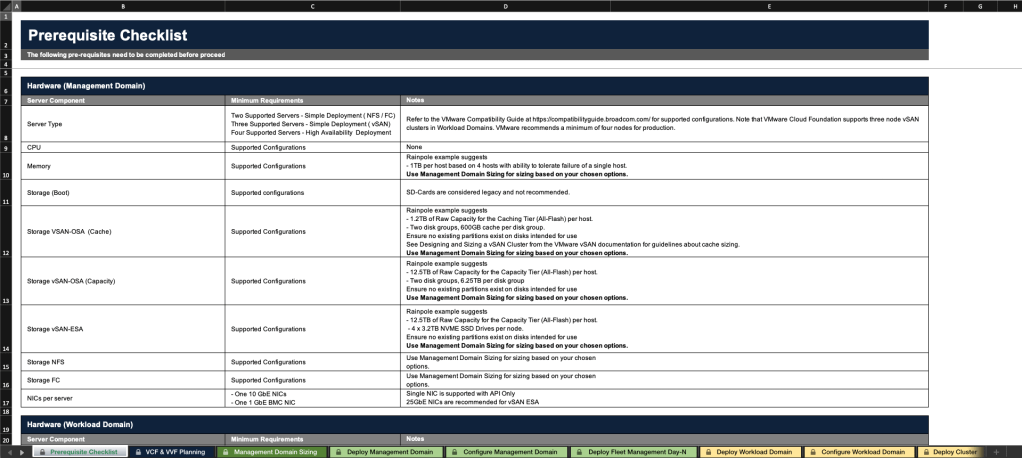
Validate each of the items to ensure that the requirements are met, and validate hardware against the VCF compatibility list. This step is important as it will indicate whether the upgrade can proceed, or if other remediations may be required.
-
**Review and remediate **core component upgrade prerequisites. There are software changes which require prerequisites to be met specific to the upgrade. This includes ensuring that a temporary IP address for each VMware vCenter server is available, downloading the upgrade bundles, checking the certificate and password validity, and making sure that the VMware vSAN hardware compatibility database is updated. The full list of these prerequisites must be reviewed and validated to ensure a smooth upgrade.
-
Perform an upgrade prerequisite check in VMware SDDC Manager. This is done to ensure that the environment has no errors prior to starting the upgrade process. If any errors are detected detailed instructions are provided in SDDC Manager on how to resolve the issue prior to starting an upgrade.
Step 2: Upgrade or Deploy VCF Operations (Previously Aria Operations) Components to VCF 9.1
Before VCF core components are upgraded, any existing Aria Operations instances that are deployed must be upgraded. Before it can be upgraded to VCF 9.1, it must be on version 8.18. This means that multiple upgrades may be required if on a version prior to this.
Note: VCF Operations is now a mandatory component in VCF 9.x. If it is not currently installed it will need to be installed as a part of the upgrade process.
The upgrade process has changed in version 9.1 and the high level steps can be found in the Upgrading to VCF Operations 9.1 guidance.****If you are upgrading from VCF 5.2.x, and your environment is using VMware Aria Operations 8.x, you will upgrade the environment using the VCF Operations 9.1 PAK file. Once upgraded, it will be removed from Aria Suite Lifecycle, which is only used to do Day-N operations for VMware Identity Manager 3.3.x. Post upgrade VCF management services is deployed, which will instantiate the new fleet management container for future updates and patches. If Aria Operations is not deployed, it will need to be deployed as a part of the upgrade process.
If you are upgrading from VCF 9.0.x, the upgrade process will proceed to manage the transition from VCF Operations fleet management to the VCF management services cluster as a part of the upgrade process. Once all data from fleet management is transferred, the appliance is decommissioned and shutdown, and data is transferred.
In addition a Cloud Proxy in the VCF Instance is required for the integration between VCF Operations, SDDC Manager and VCF management services. If the environment does not have a cloud proxy in the first VCF instance of the fleet where VCF Operations is hosted, one must be deployed to complete the upgrade process. Details can be found here.
Step 3: Upgrade SDDC Manager to version 9.1
Once Aria Operations has been upgraded to VCF Operations, SDDC Manager is then upgraded. The SDDC Manager upgrade has not significantly changed for VCF 9.1. It is started by navigating to Lifecycle Management > SDDC Manager in the SDDC Manager Client where the different versions available for the upgrade are presented.
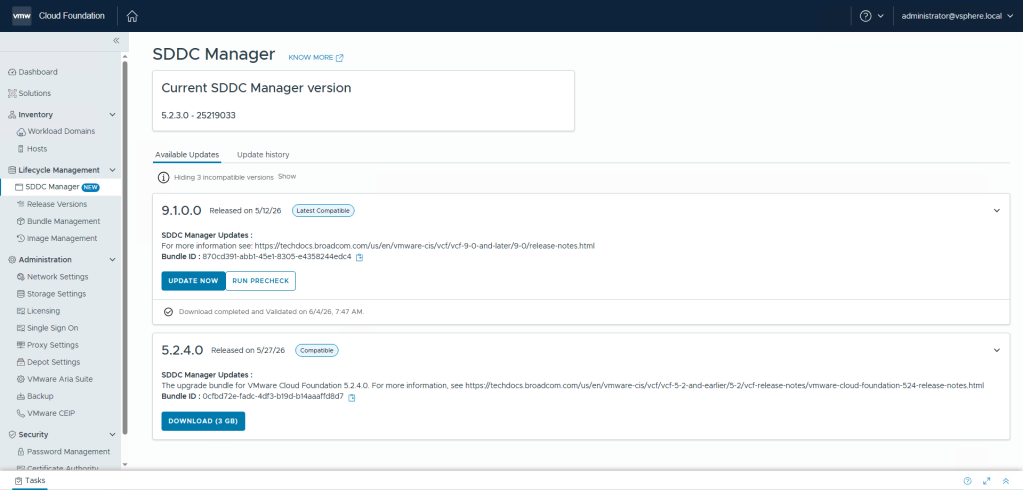
You will have the option to upgrade to 5.2.4.0, or 9.1.0.0. Select version 9.1.0.0 and download and run the precheck to validate any errors. Once the precheck passes the update can be run. After the upgrade is complete, SDDC Manager is ready to perform subsequent component upgrades as well as the deployment of the VCF management services.
Step 4: Deploy VCF Management Services and License Services
Prior to being able to upgrade other core components of the VCF instance, a new component of VCF 9.1 called VCF management services must be deployed into the environment. This new container cluster hosts many of the 9.1 lifecycle components such as fleet lifecycle, SDDC lifecycle, and the software depot as well as components such as the license server. It is a mandatory component that has an installation workflow in the interface.
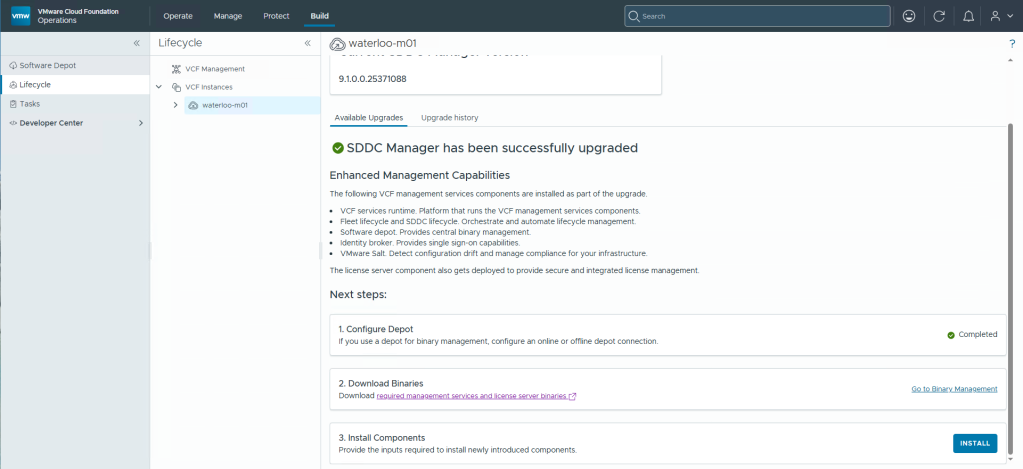
To deploy, follow the steps on the Build > Lifecycle tab above and the deployment wizard will be presented. Complete the wizard to deploy the management services which will deploy and enable VCF 9.1 functionality for functionality such as licensing, the software depot and complete the migration of the fleet management into the VCF management services cluster.
Step 5: Upgrade Remaining VCF Management Domain Core Components
Now that the VCF management services component is upgraded the remaining core components of VCF can be upgraded to 9.1. This includes, NSX, vCenter and VMware ESX hosts. You start by building an upgrade plan and then executing the upgrade as planned.
**Upgrade NSX. ** In VCF 9.x, upgrading NSX is a two step process because the NSX VIBs are included in ESX by default. The first step is to upgrade the VCF management stack by selecting the Build > Lifecycle > VCF Management workload domain name > Upgrades tab and then clicking the Run Prechecks button. Once the precheck is complete, select the Upgrade Now button to complete the upgrade. This will run another precheck, and once all issues have been corrected, the upgrade to NSX version 9.1 is started.
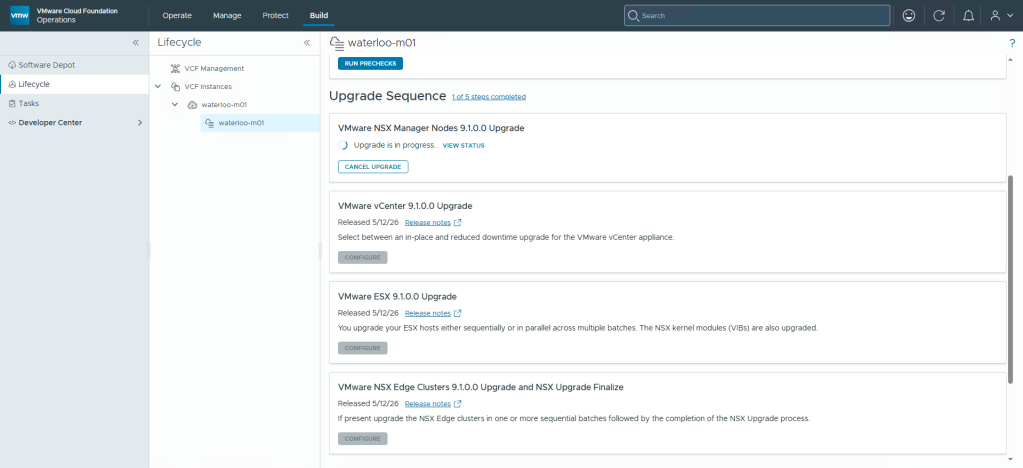
The process should be monitored while in progress so that you can address any errors that occur. The final step is done after the other components are upgraded.
Note: that if you are using NSX Federation see Upgrading NSX Global Manager Nodes prior to initiating the NSX local manager upgrade.
- **Upgrade vCenter. **The vCenter upgrade is next. If upgrading from VCF 5.2, you must use a Reduced Downtime Upgrade, as this is required between major versions of vCenter. If upgrading from 9.0.x to 9.1 you will be able to pick between an in-place upgrade and a reduced downtime upgrade. You can configure the upgrade options in the update workflow.
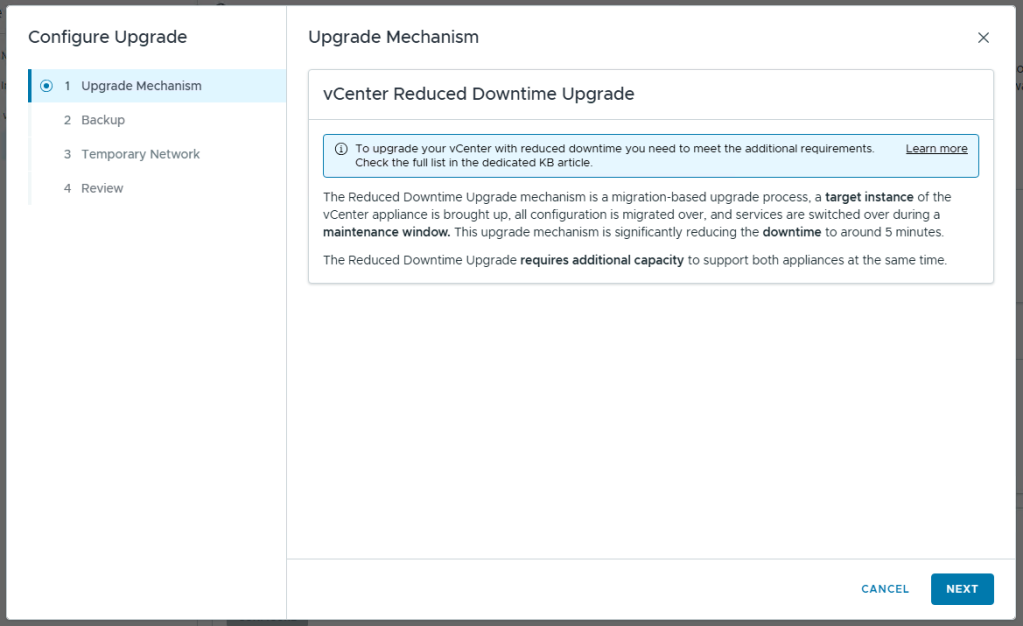
After configuring the update parameters such as the temporary network as well as picking a time for the upgrade to start, the upgrade workflow will run a prerequisite check and the upgrade can start. Once this is complete, vCenter is upgraded to version 9.1.
- **Upgrade ESX Hosts. **After vCenter has been successfully updated, the next step is to update each of the ESX hosts. This process to update to version 9.1 is similar to updating to previous versions, except that vSphere Lifecycle Manager Baselines are no longer supported in version 9.x. Thus clusters will all need to be updated to use vSphere Lifecycle Manager Images as a part of the upgrade process. Once the images have been created and are available to assign, the ESX upgrade can be completed.
The progress of the upgrade can be watched through the vSphere client as it remediates and in many cases will need to reboot the host.
- Upgrade the NSX Edge Cluster and Finalize NSX Upgrade. This last step will upgrade the edge cluster fully to 9.1, and finalize the workload domain upgrade.
This completes the core component upgrades, after a few minutes the SDDC Manager management domain will show as fully upgraded to VCF 9.1.
Step 6: Import, Upgrade and Deploy Other VCF Management Components
Once the management domain upgrade is complete, you can import, upgrade or deploy any other VCF management (previously Aria) components. These components can be upgraded or deployed at any point, however it is recommended to get to version 9.1 as soon as possible to take advantage of the accelerated patch releases for VCF 9.1.
- Upgrade Aria Automation to VCF Automation 9.1**. **While Aria Automation is not required for the core VCF stack upgrade, if it is configured in the existing environment it should be upgraded. Due to the complexity of Aria Automation and the different integrations which may be configured, we often recommend performing this as an independent upgrade workstream to streamline the VCF upgrade process as custom coding can take significant time to validate and remediate. To upgrade, you first import the Aria Automation appliances into VCF Operations and then perform the upgrade from the **Build > Lifecycle > VCF Management **page.
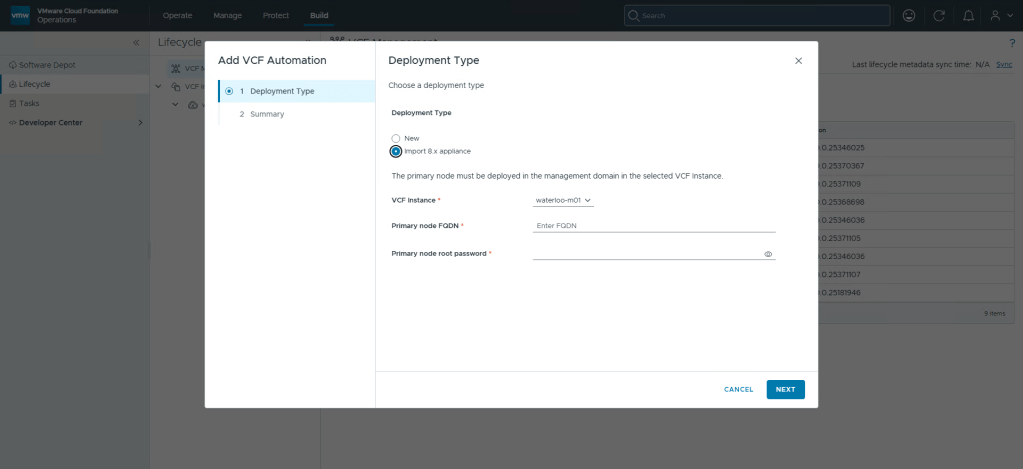
On the Lifecycle page, you can select the Components and Upgrade tabs to perform the operations.
-
Upgrade VMware Aria Operations for Networks to VCF Operations for networks 9.1**. **If Aria Operations for Networks is configured in the environment it should be upgraded. As it is not mandatory for the core VCF stack upgrade, the upgrade can be done later if needed. It can also be deployed if it has not been deployed already. Before you can upgrade, you must be on version 6.14. If you are not, you will need to upgrade to v6.14 first. Then you can import Aria Operations for Networks into VCF Operations fleet management. From there the installation can be upgraded to VCF Operations for Networks 9.0.
-
Upgrade VMware Aria Operations for Logs, to VCF log management 9.1. As with previous versions of VCF 9, no direct upgrade path is available. This is because VCF log management has been added as a part of the VCF management services cluster. In 9.1, you deploy the Log Management component from Build > Lifecycle > VCF Management. In VCF 9.1 you are also able to Transfer Log Data to the new instance once it has been deployed.
-
Upgrade or Deploy VCF Identity Broker 9.1. If you are using VCF Identity Broker in 9.0, you should upgrade it from the Build > Lifecycle > VCF Management page as well. If you are still using VMware Identity Manager 3.3.x from an Aria 8.x environment with 5.2.x, it is recommended to deploy transitioning identity management to VMware Identity Broker, and decommission the Identity Manager server.
Step 7: Finalize the Upgrade
After all the VCF core components are upgraded or deployed, the following activities should also be performed:
-
Upgrade any third party or other components which are not core to VCF. This varies based on what is being used in the environment.
Upgrading From VCF 4.x to VCF 9.1
If you’re currently running VCF 4.x, the environment will first need to be upgraded to VCF 5.2. After the upgrade to VCF 5.2 is complete, your environment can then be upgraded to VCF 9.1 using steps 1-7 above.
Need Help?
Upgrading to VCF 9.1 requires careful planning and execution to minimize disruptions. If you need assistance with your upgrade, VCF Professional Services can help. Contact your account director for more information.
Discover more from VMware Cloud Foundation (VCF) Blog
Subscribe to get the latest posts sent to your email.