How to install the Android 17 Beta on Google Pixel
Source: 9to5Google

Google has released Android 17 in beta for Pixel devices, skipping the usual Developer Preview given the arrival of new Canary builds, and you can install it now. Here’s how.Which Pixel devices can install the Android 17 Beta?
Google is supporting all Tensor‑powered Pixel smartphones with Android 17, from the 2021 Pixel 6 series up to the latest Pixel 10 devices.
Supported devices
- Pixel 6
- Pixel 6 Pro
- Pixel 6a
- Pixel 7
- Pixel 7 Pro
- Pixel 7a
- Pixel Tablet
- Pixel Fold
- Pixel 8
- Pixel 8 Pro
- Pixel 8a
- Pixel 9
- Pixel 9 Pro
- Pixel 9 Pro XL
- Pixel 9 Pro Fold
- Pixel 9a
- Pixel 10
- Pixel 10 Pro
- Pixel 10 Pro XL
- Pixel 10 Pro Fold
Note: This will be the last major Android OS update for the Pixel 6 series, with updates ending in October 2026.
Google’s upcoming Pixel 10a, confirmed for launch next week (9to5Google article), is expected to receive Android 17 Beta support shortly after its release.
How to Install Android 17 with the Android Beta Program on Pixel
-
Join the beta program
- Visit google.com/android/beta.
- Click “Opt in” for the device you want to enroll.
- Any compatible Pixel (see the list above) that’s signed in with the same Google account can be added from this page.
-
Check for the update
- After opting in, go to Settings → System → Software Updates → System Updates on your Pixel.
- Tap Install to begin downloading Android 17.
- The update usually appears within a few minutes to an hour, but it can occasionally take longer.
-
Leave the program (optional)
- If you decide you no longer want future beta updates, return to the beta page and click “Opt out.”
Screenshots
| Step | Image |
|---|---|
| Opt‑in page | 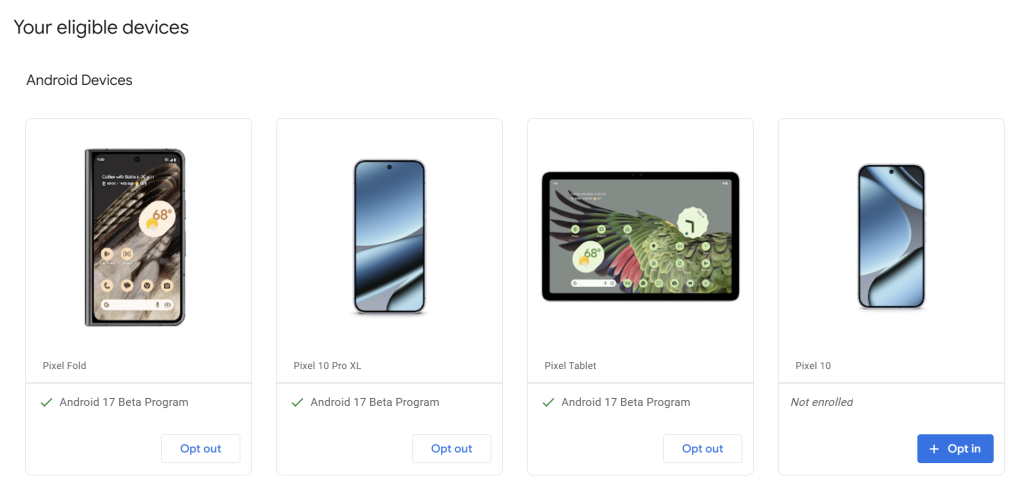 |
| System Updates screen |  |
| Update available | 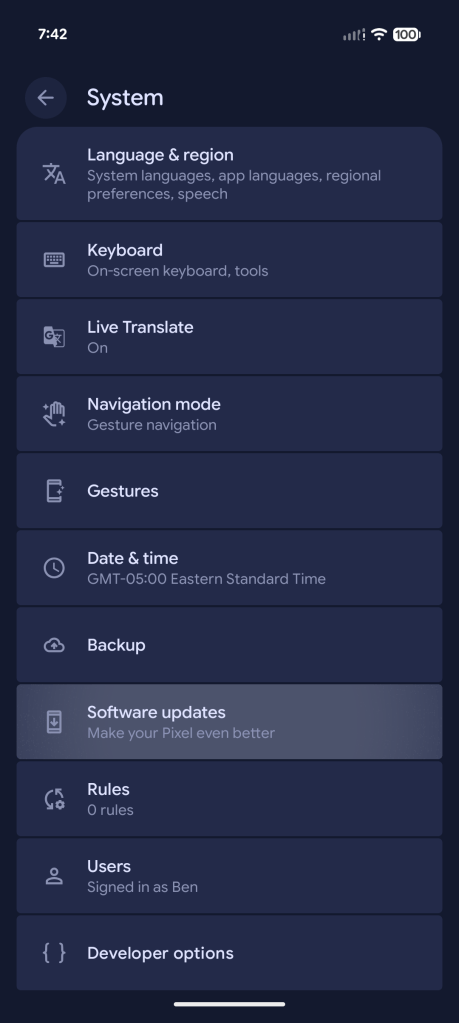 |
| Download progress | 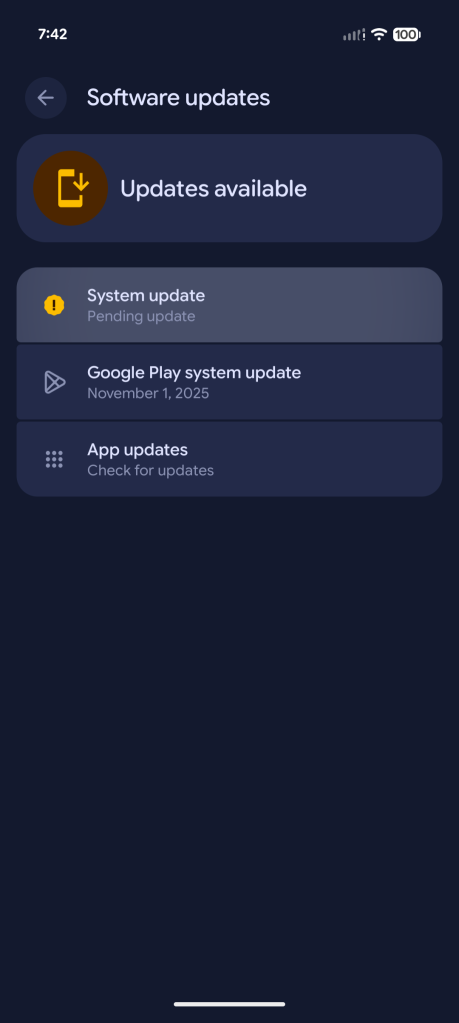 |
| Installation prompt | 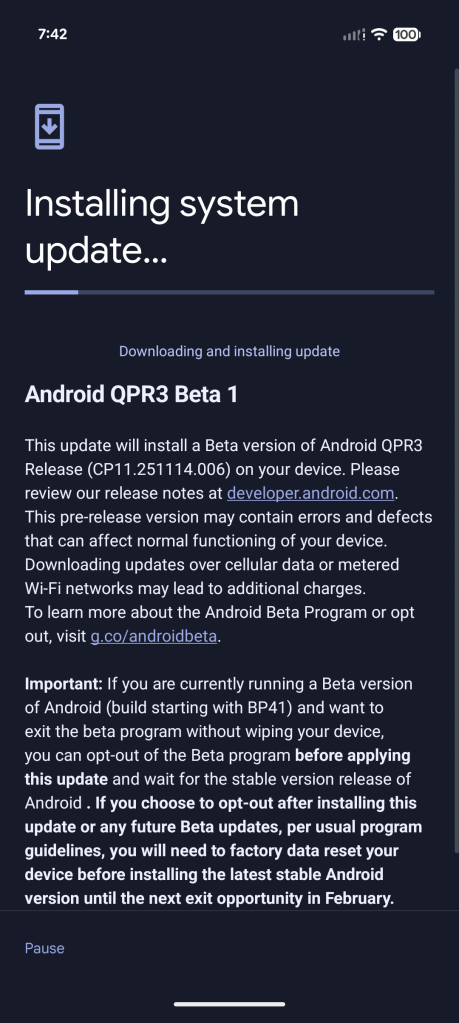 |
After the installation finishes, your Pixel will reboot into Android 17.
How to Manually Sideload Android 17 Beta on a Google Pixel
The fastest way to get a new Android version on your Pixel is to sideload it. The process is relatively easy, but you need to set up a few things first. Follow the steps below.
⚠️ Important
Android Beta releases are generally safe, but you should unlock your bootloader or at least enable “OEM unlocking” in Developer options before installing an OTA file.
1. Download the Android 17 Beta Files
There are two ways to obtain the update:
| Method | What it does |
|---|---|
| Factory Image | Wipes the phone and installs a fresh system. |
| OTA file (recommended for sideloading) | Installs over the current Android version without wiping data. |
- Go to the Full OTA Image hosting site and scroll to the entry for your device.
- Download the OTA zip for Android 17 Beta 1 (or the latest beta) from the official page: Android 17 Beta OTA downloads.
Supported devices (as of this writing): Pixel 6/6 Pro, Pixel 6a, Pixel 7/7 Pro, Pixel 7a, Pixel 8/8 Pro, Pixel 8a, Pixel Fold, Pixel 9 series, Pixel 9a, Pixel 10 series, Pixel Tablet.
Unsupported devices: Original Pixel/XL, Pixel 2/2 XL, Pixel 3/3 XL, Pixel 3a/3a XL, Pixel 4/4 XL, Pixel 4a/4a 5G, Pixel 5/5a, etc.
2. Boot into Recovery Mode
- Power off your Pixel completely.
- Press Power + Volume‑Down together until the bootloader screen appears (you’ll see a lying‑down Android robot).
- Use the Volume buttons to highlight Recovery mode and press Power to select.
Alternatively, if ADB is already set up, you can runadb reboot recoveryfrom a computer. - When you see a smaller Android with an exclamation mark, hold Power + Volume‑Up for about a second, then release Volume‑Up. You’ll enter the full Recovery UI.
3. Navigate to “ADB Sideload”
- In Recovery, scroll with the Volume buttons to Apply update from ADB.
- Press Power to confirm.
You’ll now see a mostly blank screen with a prompt at the bottom indicating that the device is ready for sideloading.
4. Prepare Your Computer
You need the ADB & Fastboot tools:
- Download the Command‑line tools (or Android Studio) from the Android Developers site.
- Windows users can also install the Universal ADB Drivers from ClockworkMod.
Tip: Extract the tools to a folder (e.g., C:\adb) and add that folder to your system’s PATH for easy access.
5. Sideload the OTA File
-
Open a terminal/command prompt in the folder containing the OTA zip (or navigate there with
cd). -
Run the appropriate command:
- Windows
adb sideload .zip - macOS / Linux
./adb sideload .zip
Replace
.zipwith the exact name of the OTA file you downloaded. - Windows
-
The device will display a progress bar while the file transfers and installs.
If the command hangs, make sure the phone is still in “ADB sideload” mode and that USB debugging is enabled.
6. Reboot the Phone
When the sideload finishes, you’ll be returned to the Recovery menu.
- Highlight Reboot system now and press Power.
Your Pixel will boot into Android 17 Beta.
Need Help?
If you run into any issues, drop a comment below or check the official Android developer forums for troubleshooting tips. Happy testing!
More on Android 17
- Google launches Android 17 Beta for Pixel
- Android 17’s blur, new screen recorder, & more in leaked screenshots (Gallery)
- Google wants to reduce Play Store fees and improve third‑party app‑store support in Android 17
Follow Ben:
Last updated 2/11/2026
Preferred‑source badges


FTC: We use income‑earning auto affiliate links. More.