
How to Install Python Package in Azure Synapse for Apache Spark pools
Source: Dev.to

Efficiently Installing Python Packages in Azure Synapse Analytics
When working in Azure Synapse notebooks, you can use the %pip command (e.g., %pip install pandas) in a code cell to install packages. However, this method is temporary: the package is only installed for the current notebook session and must be re‑installed every time the session starts. This repetition can lead to significant delays in notebook execution and is inefficient for frequently run jobs.
A more permanent and efficient solution is to install packages directly onto the Apache Spark pool. This approach ensures the libraries are pre‑installed and automatically available in every session attached to that pool.
How to Install Packages at the Spark Pool Level
This method involves uploading a requirements.txt file that specifies the packages and versions you need.
- Go to your Azure Synapse workspace in the Azure portal.
- Navigate to the Manage section on the left‑hand side.
- Select Apache Spark pools under the Analytics pools section.
- Choose the Spark pool where you want to install the package.
- Click the three dots on the right side of the Spark pool and select Packages.
- Upload the
requirements.txtfile that contains the list of packages you want to install. - Click Apply to save the changes.
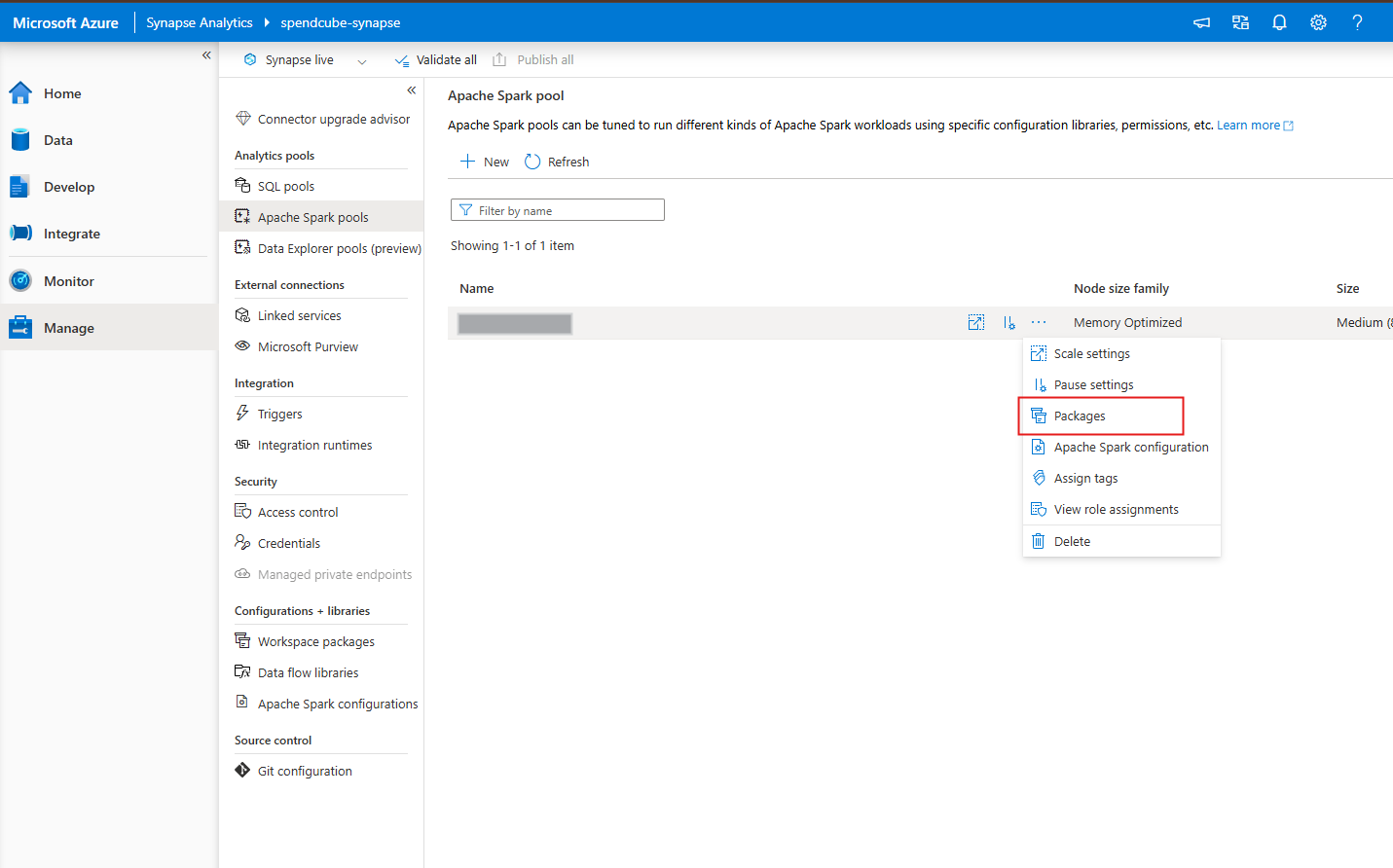
The Spark pool will update and automatically install the specified packages. This may take a few minutes. Once complete, all notebooks attached to this pool will have access to these libraries by default.
How to Generate requirements.txt File
The requirements.txt file is a simple text file that lists the packages to be installed. You can easily generate this file from your local Python environment.
pip freeze > requirements.txtThis command captures all packages and their exact versions from your current environment and saves them into a file named requirements.txt. Uploading this file ensures that the exact same package versions are installed in your Synapse environment, providing consistency and preventing dependency conflicts.