
How to Explore and Work with MongoDB Data Visually
Source: Dev.to


Opening a MongoDB collection is quite easy, but understanding the data inside is the hard part.
A few JSON objects may be easy to handle, but as the data grows and the number of objects increases, it becomes really hard to visualize what is going on. That’s where most people get stuck—not because MongoDB is complicated, but because they haven’t learned how to explore the data yet.
In this guide we’ll walk you through a series of steps and focus on the most important things you need to know about MongoDB, such as:
- How to read your data
- How to understand your data
- How to filter your data
- How to query your data without getting confused
A Quick Example
We’ll use a simple payments collection:
{
  "amount": 129,
  "courseId": { "$oid": "69af3833c12d7f138927952e" },
  "currency": "USD",
  "method": "Credit Card",
  "status": "completed",
  "paidAt": { "$date": "2026-02-28T14:10:10Z" }
}
What Are We Trying to Do?
Before you start typing queries, ask yourself:
“Do I actually understand what’s inside this collection?”
If the answer is no, you’re essentially guessing every time you write a query.
Let’s look at the data first instead of jumping straight into code.
Step 1: Explore Your Data
The first thing to do is take a look around and see what the data actually looks like.
Use the tree view to:
- Expand fields
- Explore nested objects
- Understand the structure of the documents
It’s like clicking through folders to see what’s inside. You don’t have to understand everything right now—just get a feel for the data.

Step 2: View Your Data in Table Format
Once you understand the structure, switch to a table view. This makes it much easier to compare documents and spot patterns.
When you’re using a tool like VisuaLeaf, you can toggle between these views instantly. In table view each row is a document and each column is a field.
Typical questions you can answer:
- Which payments are in USD?
- Which amounts are greater than a certain value?
- Which status appears most frequently?
Mental model
Tree view   → understand the structure
Table view → compare the data
Step 3: Search and Edit Your Data
Now that you know the structure and can compare documents, you can start working with the data:
- Search for something specific
- Update the payment status
- Change the payment method
- Correct incorrect data
The data editor lets you search and edit values directly, turning a passive view into an active workspace.

Step 4: Filter Your Data (Query Builder)
When you’re comfortable working with the data, focus on specific results.
For example, you might want to see only completed payments in USD.
Instead of writing code, use a visual query builder:
- Select the field
- Choose the value
- Apply the filter
Tools like VisuaLeaf let you build queries with drag‑and‑drop, no code required.
Example filter (JSON syntax):
{
  "currency": "USD",
  "status": "completed"
}
Step 5: Query Your Data (SQL or Advanced)
Content for this section was truncated in the original source. Continue with your preferred query language (e.g., MongoDB’s aggregation pipeline, SQL‑like syntax, or the visual query builder) to retrieve, transform, and analyze the data as needed.
Happy exploring! 🎉
Queries
When you’re confident with exploring and filtering your data, you’re ready to begin writing queries yourself.
In MongoDB
db.payments.find(
  { currency: "USD" },
  { amount: 1, currency: 1, status: 1, paidAt: 1 }
).sort({ paidAt: -1 }).limit(10);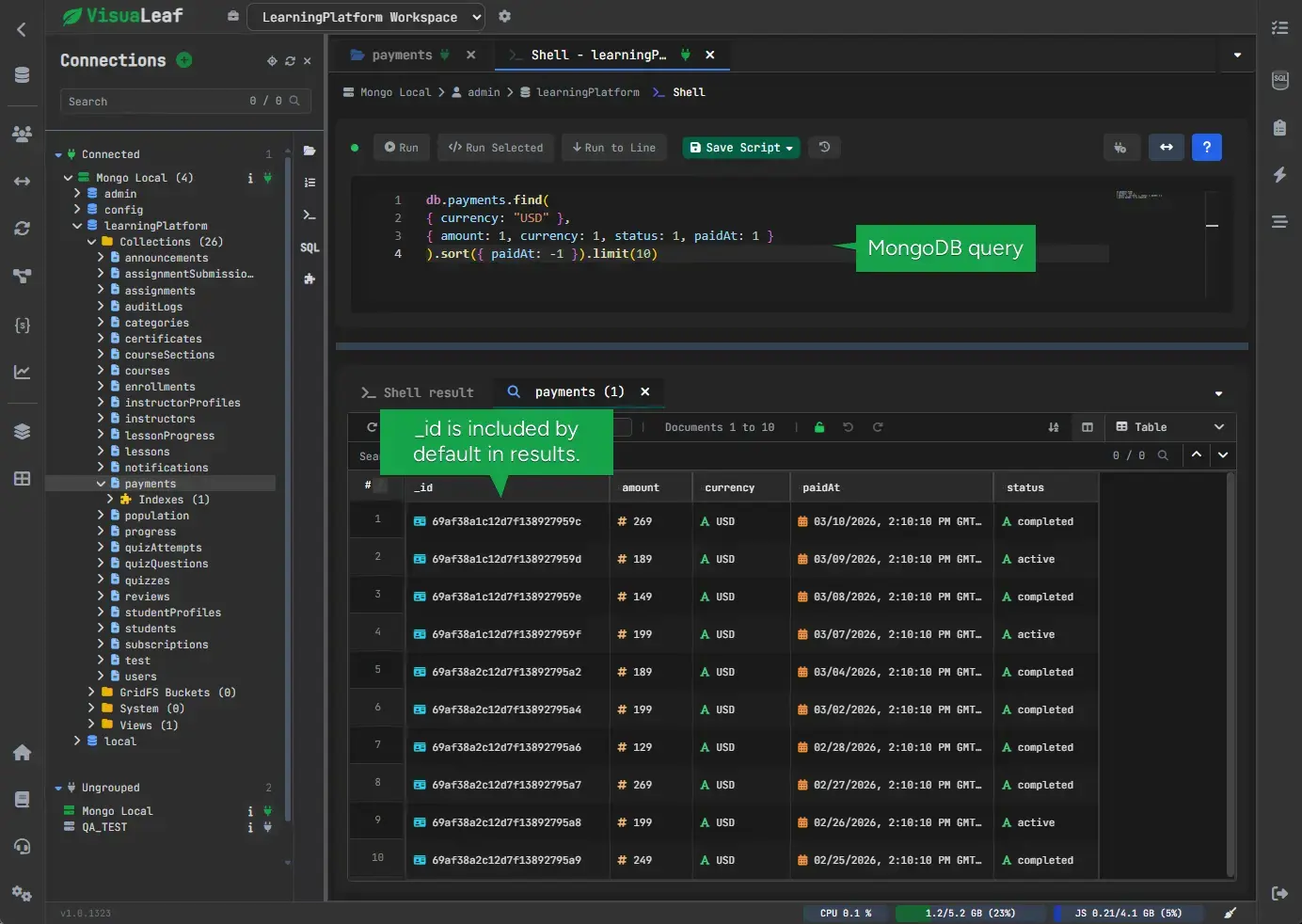
In SQL
SELECT amount, currency, status, paidAt
FROM payments
WHERE currency = 'USD'
  AND status = 'completed'
ORDER BY paidAt DESC
LIMIT 10;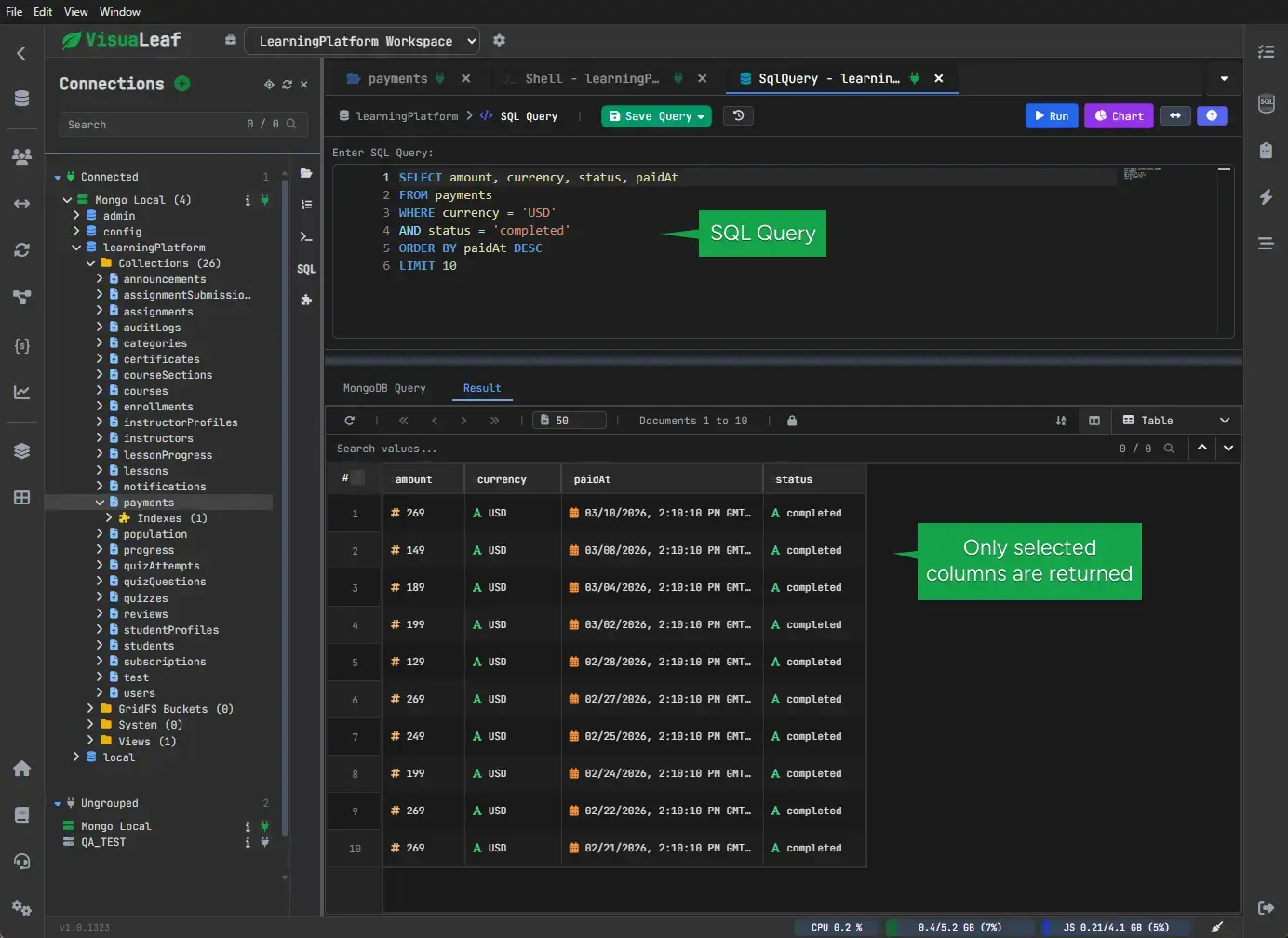
Both queries return the same result, just using different approaches.
- MongoDB works with documents and step‑by‑step operations.
- SQL describes the result in a more structured way.
Key point: It’s not about the syntax → it’s about understanding your data.
You don’t start with queries; you get there after exploring and filtering your data first.
Putting It All Together
Here’s the workflow you should follow whenever you open a new MongoDB collection:
- Browse the documents
- Understand the structure
- Compare documents in table view
- Edit or clean up inconsistent values
- Filter visually
- Write your queries with confidence
Each step builds on the previous one, making everything easier.
A Small but Important Lesson
While working with this dataset we discovered an interesting fact: some documents were missing values.
For example, if the method field is not filled in, such a payment won’t be included in a filter:
{ "method": "Credit Card" }This query will only retrieve documents where the method field exists and equals "Credit Card".
If a payment lacks a method field, it will not be returned, even though the document exists.
Takeaway: Consistent data is essential before you start querying.
Final Thoughts
- MongoDB gives you a lot of flexibility.
- The hardest part is understanding your data.
- The good part is you don’t have to dive into complex queries right away.
You can:
- Explore your data
- Switch between views
- Visually filter data
- Experiment freely
All of this helps you understand your data much faster.
If you want to explore your data this way, try it directly in VisuaLeaf.