
How to Converge a VMware vSphere Environment to VMware Cloud Foundation 9.0
Source: VMware Blog
📍 Path 1 – Create a New VCF Fleet from an Existing vSphere Environment
Use the VCF Installer to convert your vSphere deployment into a brand‑new VCF fleet.
-
When to choose this path
- No VCF instance is deployed yet.
- You already have VMware Cloud Foundation Operations, vCenter, and NSX components present in the environment.
-
What happens
- The existing components are leveraged to instantiate the VCF management domain.
- Any missing VCF components are automatically installed during the process.
📍 Path 2 – Import a vSphere Environment into an Existing VCF Fleet
Use VCF Operations to bring an additional vSphere instance under the control of an already‑deployed VCF.
-
When to choose this path
- A VCF instance (management domain) is already up and running.
- You want to manage a new vSphere instance as an additional VI workload domain.
-
What happens
- The vSphere instance is imported into the existing VCF fleet.
- Any required components (e.g., NSX) that are not yet present are deployed automatically during the import.
How to Determine the Exact Steps
The precise procedure varies based on:
| Factor | Impact on the Process |
|---|---|
| vSphere version | Determines compatibility and required upgrade paths. |
| VCF version | Determines which installer/operations tools are used and the supported feature set. |
Typical Workflow Used by VCF Professional Services
VMware’s Professional Services team follows a structured methodology when converting or importing vSphere into VCF. While the exact steps can differ per environment, the high‑level flow is:
-
Assessment & Planning
- Inventory current vSphere, vCenter, NSX, and hardware resources.
- Verify compatibility with the target VCF version.
-
Pre‑Installation Checks
- Validate network, storage, and DNS configurations.
- Ensure required licenses are in place.
-
Execution
- Path 1: Run the VCF Installer to create the management domain.
- Path 2: Use VCF Operations to import the vSphere instance and create a new workload domain.
-
Post‑Installation Validation
- Confirm that all VCF services (SDDC Manager, vCenter, NSX, etc.) are healthy.
- Perform workload migration testing.
-
Handover & Documentation
- Provide run‑books, monitoring setups, and support contacts.
For more details, refer to the official VMware resource:
VMware Cloud Foundation Professional Services
Quick Reference
| Path | Tool | Goal | Prerequisite |
|---|---|---|---|
| 1 | VCF Installer | Build a new VCF fleet from existing vSphere components | No VCF management domain yet |
| 2 | VCF Operations | Import vSphere into an existing VCF fleet as a workload domain | VCF management domain already deployed |
Path 1: Converting a vSphere Instance
This is the typical starting point for many vSphere customers who do not want to perform a fresh deployment of VCF 9.0 when there is no existing VCF instance in the environment. It allows the existing components to be used as building blocks for a VCF management domain.
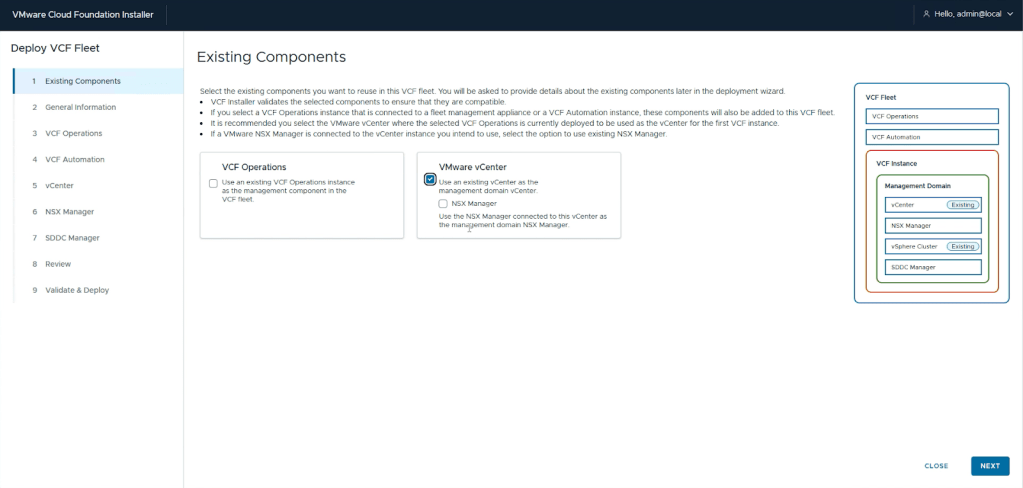
Step 1 – Assess, Check Prerequisites, and Remediate Core Components
- Assess and validate the environment – Review the prerequisites and minimum component versions.
- Check deployed components and their versions – Depending on the versions of vSphere, NSX, and VCF Operations, interim steps may be required.
- Example: Converting to VCF 9.0.0 does not support NSX, whereas VCF 9.0.2 does.
- Validate storage, network, and compute configurations – Features such as Enhanced Linked Mode (ELM) or an unsupported Distributed Virtual Switch (DVS) version must be remediated (e.g., remove ELM or upgrade the DVS).
- Select a supported scenario – The exact steps vary by component/version. See the list of supported scenarios.
Step 2 – Perform Upgrades to Appliances and ESX Hosts
The upgrade order is important. Not every step is required for every upgrade path, but the typical flow when all components are already deployed is:
| Order | Component | Minimum version for conversion |
|---|---|---|
| 1 | VMware Aria Suite Lifecycle | 8.18 Patch 2 or later |
| 2 | VMware Aria Suite Operations | VCF Operations 9.x |
| 3 | (Optional) VMware Aria Automation | Imported to VCF Operations and upgraded to 9.x (can be a separate workstream) |
| 4 | vCenter | • VCF 9.0.0 or VCF 9.0.1 (no NSX) → vCenter 9.0+ • VCF 9.0.1 (with NSX) → vCenter 8.0 U1a+ (NSX 4.1.0.2+) |
| 5 | VMware ESX hosts | • VCF 9.0.0 → ESXi 9.0+ • VCF 9.0.1 → ESXi 8.0 U1a+ |
After completing the required upgrades, the environment is ready for conversion.
Step 3 – Convert vSphere to VCF
- Deploy the VCF installer appliance – Since no VCF instance exists, the installer appliance must be deployed first.
- Download the VCF binaries – Retrieve the binaries for the target VCF version (this may take time on slower connections).
- Run the VCF installation wizard – During the wizard you will:
- Specify the existing components that will be reused.
- Provide deployment details for any new components (e.g., SDDC Manager, NSX).
- The wizard will add those components to the environment as part of the conversion.
Below is an example of the updated workflow:
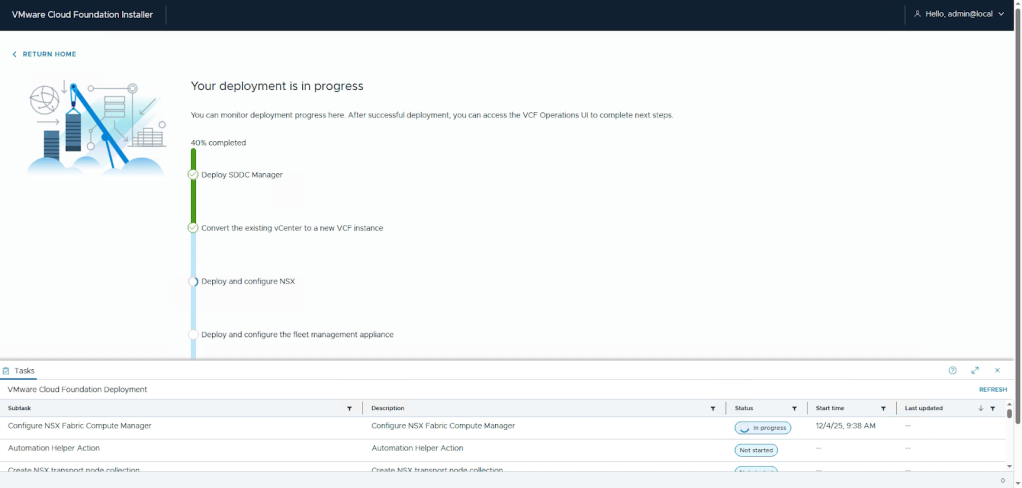
When the conversion completes, administrators can leverage VCF capabilities such as lifecycle management and certificate management.
Path 2: Importing a vSphere Instance into a VCF Fleet
When a VCF instance is already deployed, an existing vSphere environment can be imported and managed as a VI workload domain directly from the VCF Operations console.
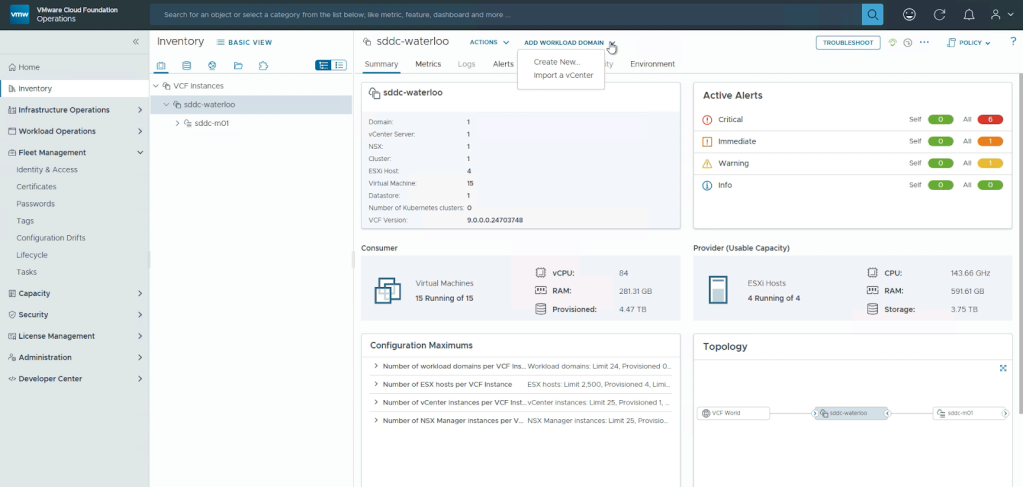
This capability lets you bring legacy environments into the same fleet for a unified view. If NSX is not present, it will be deployed automatically during the import.
Step 1 – Assess, Check Prerequisites, and Remediate Core Components
- Review prerequisites and minimum component versions – see the official guide.
- Check deployed components and their versions – vSphere, NSX, and VCF Operations must meet the supported matrix. Some version combinations require interim steps (e.g., upgrade or patch) before import.
- Validate storage, network, and compute configurations – ensure that:
- Enhanced Linked Mode (ELM) is removed or upgraded as required.
- Distributed Virtual Switch (DVS) versions are supported.
- All hardware and networking settings align with VCF‑recommended configurations.
Step 2 – Remediate Any Errors
During validation the system checks:
- Required hardware specifications
- Network topology and switch versions
- Default settings that must match VCF recommendations
If any checks fail, update the configuration accordingly.
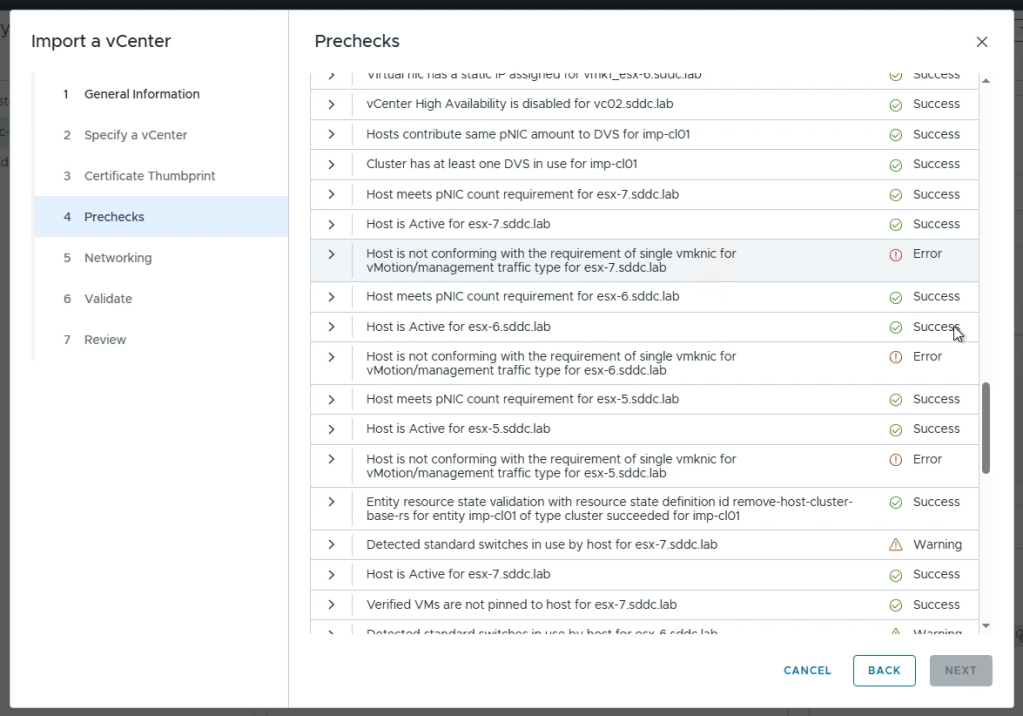
Step 3 – Import vSphere into VCF
Once validation succeeds, start the import:
- The vCenter is added as a workload domain under the selected VCF instance.
- If NSX is absent, the import workflow automatically deploys the required NSX configuration.
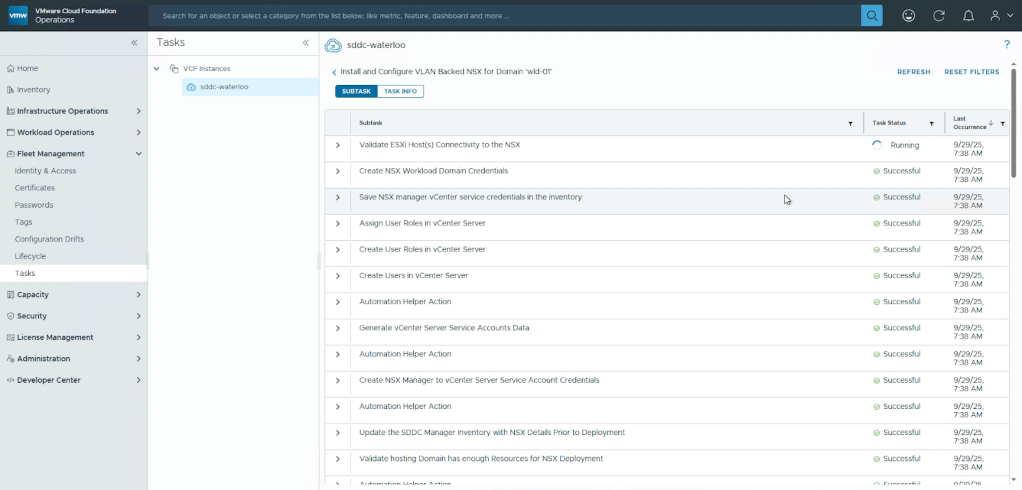
When the process finishes, the imported environment appears as a fully managed workload domain, indistinguishable from a domain that was originally provisioned by VCF.
Need Help?
Converging your vSphere environment to VCF 9.0 requires careful planning and execution to minimize disruptions. If you need assistance, consider using VCF Professional Services. Contact your account director for more information.
Discover More from the VMware Cloud Foundation (VCF) Blog
Subscribe to receive the latest posts directly in your inbox.