
Google just made my favorite Phone app feature even better. Here’s how to use it
Source: Android Authority
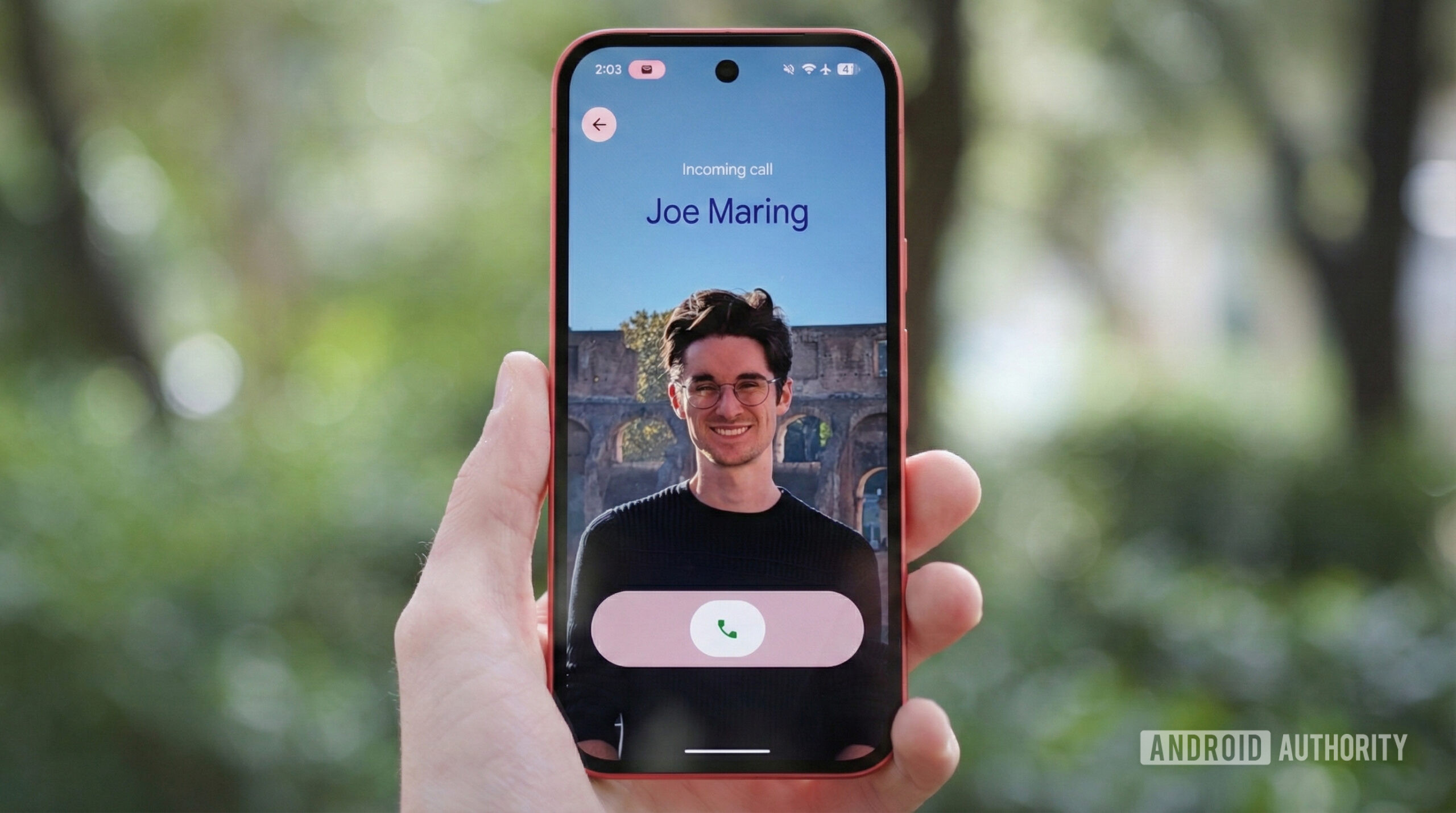
Last August, the Google Phone app got a feature I immediately fell in love with: Calling Cards. Calling Cards allow you to create a customized screen whenever a contact calls you, including a personalized full‑screen photo and customized text. For a customization geek like myself, it’s wonderful.
However, there’s been an issue with Calling Cards since their release. You could only create Calling Cards for your contacts, and only you could see them. Thanks to an update on March 3, you can now create a Calling Card for yourself — and people you call will see it on their end.
Ready to create your own Calling Card? Here’s how to do it.
Do you use Google’s Calling Cards?
14 votes
How to create your own Calling Card
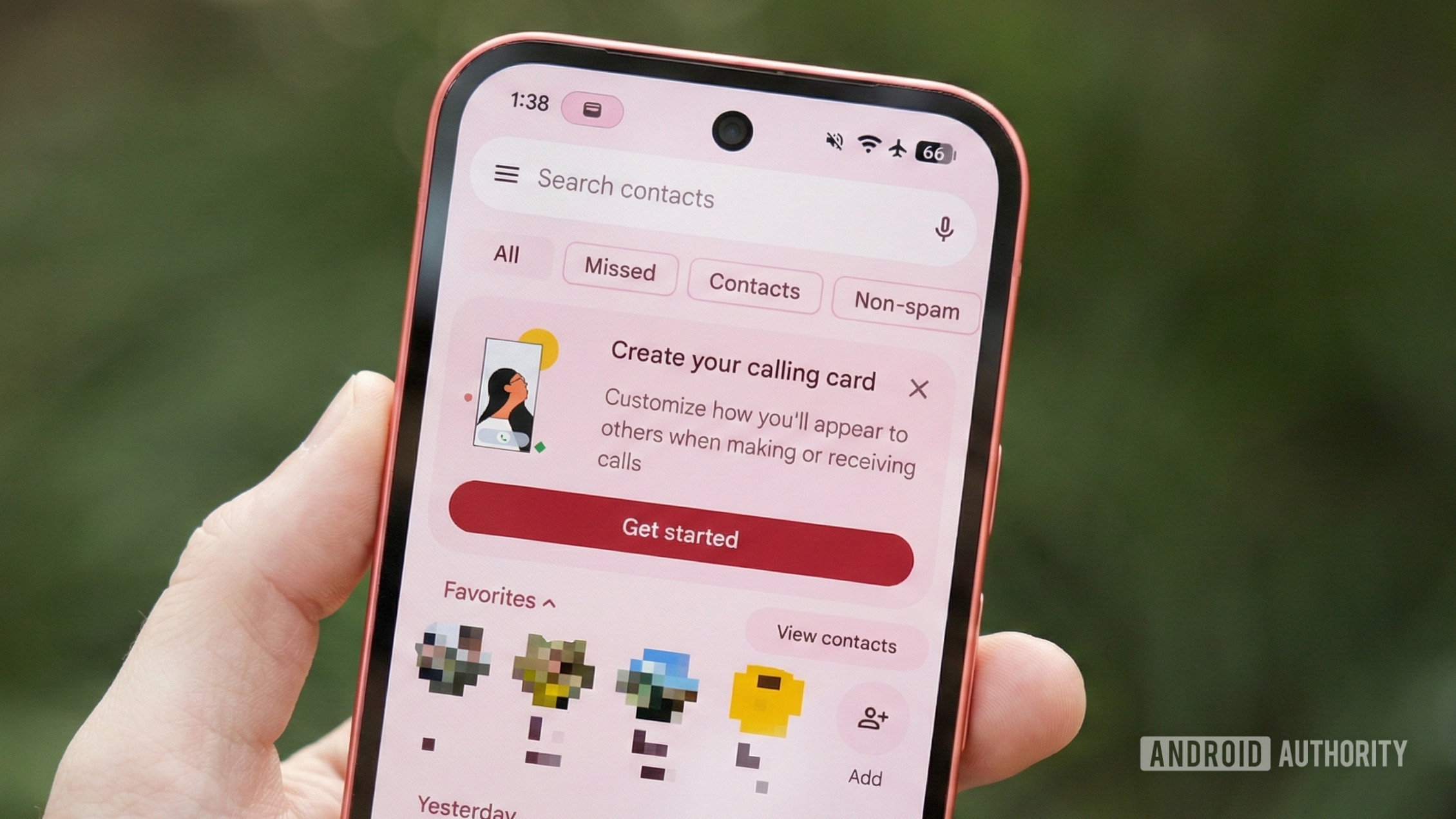
Getting started with the new personal Calling Cards is really simple. You should see a pop‑up highlighting it right when you open the Google Phone app—a banner at the top that says “Create your calling card.” If you see this, tap the Get started button.
If you don’t see the pop‑up, you can also access your own Calling Card by following this path:
- Tap the three lines in the top‑left corner.
- Tap Settings.
- Scroll down to the bottom of the page.
- Tap Calling card.
- Under “Your calling card,” tap Create.
After confirming which Google profile you want to link your Calling Card to, it’s time for the fun part.
Choose a photo
You can add a photo in three ways: Camera, Gallery, or Google Photos. Select whichever you prefer and pick a picture you like. Once you choose a photo, you can move it around and zoom in/out to get it just right.
Customize text
At the bottom of the screen are your text‑customization tools. The first row houses your font options, and below them are the colors you can choose from. The first font option lets you fine‑tune the width, weight, and roundness. Tap your Calling Card at any time to see a full‑screen preview.
When you’re happy with your creation, tap Done in the top‑right corner. The next page shows a preview of your card, along with sharing options. By default, your Calling Card is only shared with your contacts. You can tap Show your calling card to and change it to “everyone you talk to” if you prefer. Finally, tap Done at the bottom of the screen.
You’ve now made your very own Calling Card! If you want to change the design or adjust sharing preferences later, follow the same steps to return to the Calling Card page in the Phone app settings.
What to do if you don’t have the Calling Card update
Personal Calling Cards began rolling out widely in the Google Phone app as of March 3. Access is likely rolling out in stages, so it may take some time to reach your device.
If you don’t currently have Calling Cards on your Android phone:
- Open the Google Play Store.
- Ensure the Google Phone app is updated to the latest version.
If the app is up‑to‑date and you still don’t have access, you may need to wait for Google to enable the feature on its servers.