
Getting Started With Virtual Machine Scale Set: A practical Guide
Source: Dev.to


What is a Virtual Machine Scale Set (VMSS)?
A Virtual Machine Scale Set is a resource that lets you deploy and manage a set of identical virtual machines.
- Create many VMs with the same configuration.
- Scale up/down (vertical) or out/in (horizontal) based on demand.
- Built‑in features: load balancing, high availability, and auto‑scaling.
Ways to Create a Virtual Machine Scale Set
There are two ways to create a VMSS in the Azure portal:
- Search‑and‑Create – Type Virtual Machine Scale Set in the portal search bar, select it, and follow the wizard.
- Replicate an Existing VM – Create a VMSS by using an existing virtual machine as a source image.
In this guide we’ll walk through the replication method.
Step 1 – Create an Azure Compute Gallery
The compute gallery and the source VM must reside in the same resource group.
-
Search for “Azure compute gallery” in the Azure portal and select Azure Compute Galleries.

-
Click the + Create button.

-
Choose the resource group that contains the VM you want to replicate.

-
Give the gallery a name – for this tutorial we’ll use
holigallery.
-
Click Review + create.

-
When validation passes, click Create.

-
After deployment completes, click Go to resource.

Step 2 – Capture the Source VM as an Image
-
Return to the Azure portal home (click Microsoft Azure at the top‑left) and open the virtual machine you want to replicate.

-
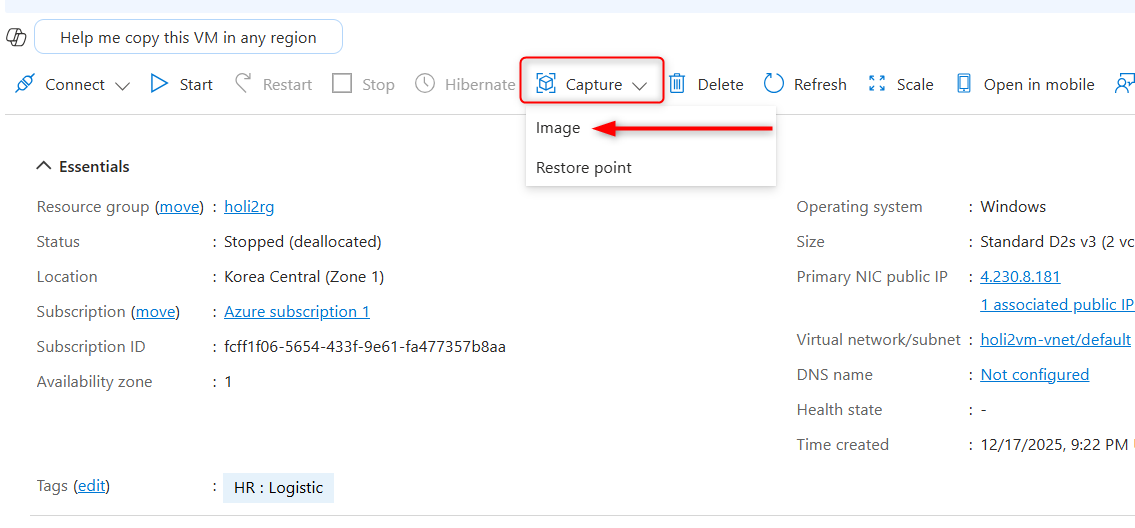
In the VM’s blade, click Capture.

-
In the Create image pane, fill in:
- Image name – e.g.,
myVmImage. - Resource group – same as the compute gallery’s group.
- Image type – select Image (not snapshot).
- Gallery – choose the gallery you created (
holigallery). - Version – accept the default or specify a version number.
- Image name – e.g.,
-
Click Review + create, then Create. Azure will generate an image and store it in the compute gallery.
Step 3 – Build the VM Scale Set from the Image
- In the portal search bar, type Virtual Machine Scale Set and select it.
- Click + Create and fill out the basics (subscription, resource group, VMSS name, region).
- Under Image, choose My Items → Gallery → holigallery → myVmImage.
- Configure the instance size, instance count, networking, and scaling policy as required.
- Review the settings and click Create. Azure will provision a scale set based on the captured image.
Summary
-
VMSS lets you manage identical VMs with built‑in scaling, load balancing, and high availability.
-
You can create a VMSS by search‑and‑create or by replicating an existing VM.
-
The replication workflow involves:
- Creating an Azure Compute Gallery.
- Capturing the source VM as an image stored in that gallery.
- Building a Virtual Machine Scale Set from the gallery image.
Follow these steps to quickly spin up a scalable set of VMs that share the exact configuration of your existing machine. Happy scaling!
Step‑by‑Step Guide
-
Add the image
 -
Select the gallery – Click the dropdown sign and choose the gallery where you want to put the image.

-
Operating System state – Choose Specialized.
- Specialized – No password or username is required before the VM can be used.
- Generalized – A password and username are required.

-
Name the VM – Click Create new, type a name for the new VM, then click OK.

-
Version details – Enter a version number (e.g.,
0.0.1,0.0.2,15.35.0).
-
Review + create – Click the Review + create button.

-
Validate and create – Wait until Validation passed appears, then click Create.

-
Go to resource – After deployment finishes, click Go to resource.

-
Create a VM Scale Set (VMSS) – Click + Create VMSS.

-
Scale set details – Provide a name for the Virtual Machine Scale Set.

-
Select orchestration mode – Choose between Flexible and Uniform.
- Flexible – Highly available with multiple identical VMs.
- Uniform – Suited for large‑scale, stateless workloads.
For this guide we select Flexible.

-
Review + create – Click Review + create again.

-
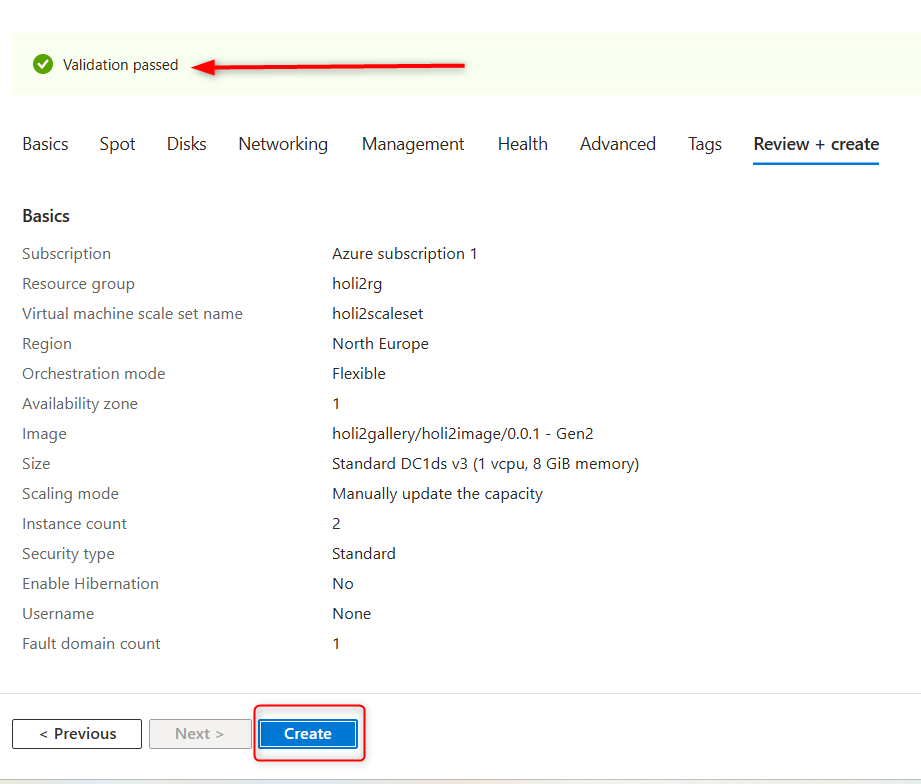
Validate and create – Wait for Validation passed, then click Create.

22. Wait for your deployment to complete and click **Go to resource**
[](https://dev-to-uploads.s3.amazonaws.com/uploads/articles/9gq4f5xb5h4huvreee94.png)
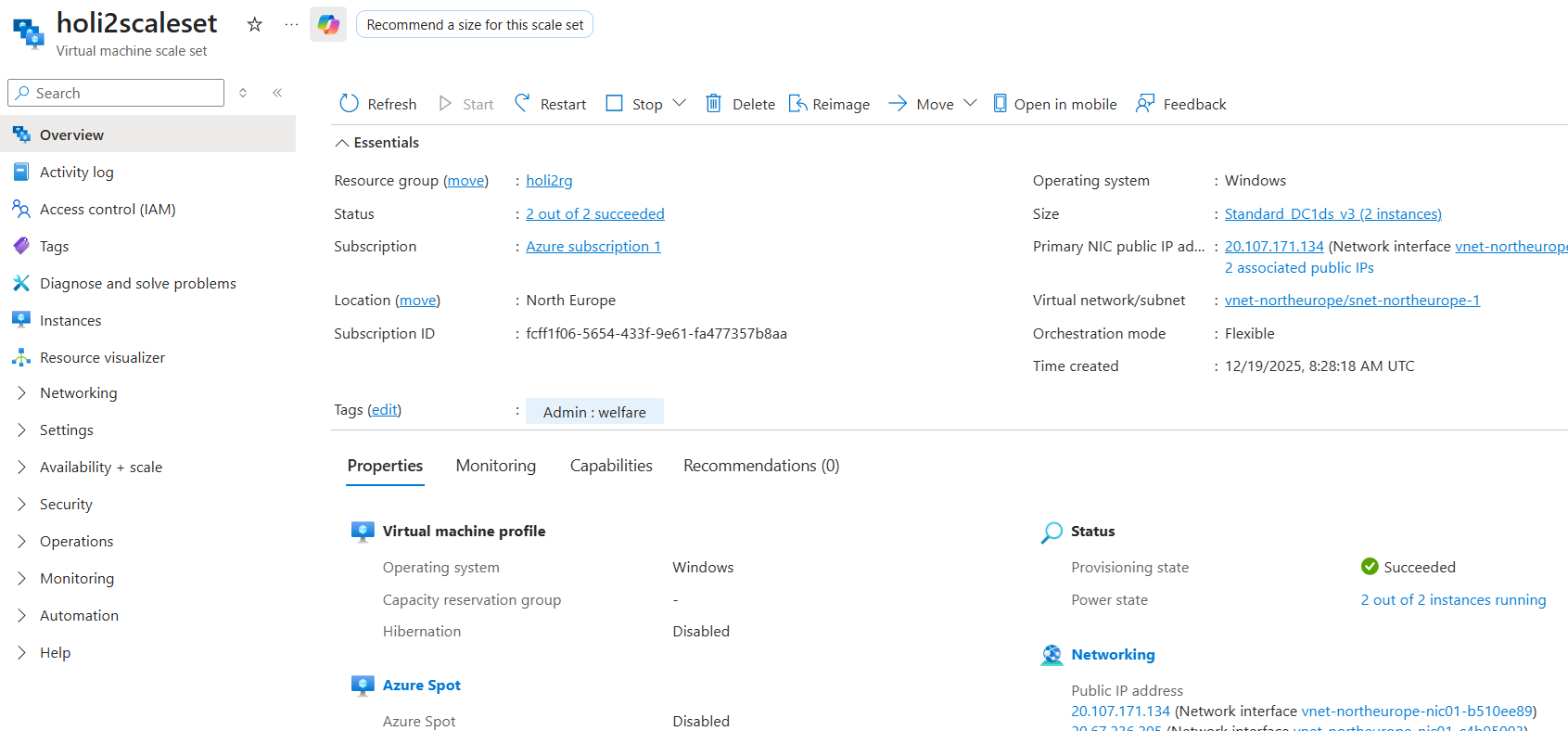
23. Congratulations! Your **Virtual Machine Scale Set** is ready
[](https://dev-to-uploads.s3.amazonaws.com/uploads/articles/ousv1jquu4kl5mm0bkwr.png)