
Getting Started with Ollama: From Installation to Testing
Source: Dev.to
Running AI Models Locally with Ollama
If you want to run your AI models locally without relying on a cloud API (like the public ChatGPT website), Ollama gives you a straightforward way to do it. In this guide we’ll show you how to:
- Install Ollama
- Verify the installation
- Download a model
- Run the model and test it with a simple prompt
What is Ollama?
Ollama is an open‑source framework that lets you run Large Language Models (LLMs) such as Llama 3, Mistral, DeepSeek, and others directly on your own hardware (laptop or desktop). It handles the heavy lifting—memory management, GPU communication, and model‑file downloading—so you can simply type a command and start chatting.
Why does Ollama exist?
Before Ollama, running a model locally was a nightmare. You had to:
- Manually download multi‑gigabyte files.
- Configure complex Python environments and C++ libraries.
- Hope your GPU drivers were compatible with the specific model version.
Ollama simplifies all of this into a single click or a single terminal command. It packages the model weights, configuration, and inference engine into one neat bundle.
Benefits of running Ollama locally
| Category | Benefit |
|---|---|
| Privacy & Security | Your data never leaves your computer—ideal for handling sensitive medical, legal, or personal information. |
| Zero Cost | No “per‑token” fees. You only pay for electricity; the AI software itself is free forever. |
| Offline Access | Works on a plane, in a basement, or anywhere without an internet connection. |
| Developer Friendly | Automatically sets up a local API (http://localhost:11434) that mimics OpenAI’s API, making it easy to build your own apps. |
| Performance Optimization | Uses quantization (model size reduction) so powerful AI can run on consumer laptops, not just $10 k servers. |
1. Install Ollama
Ollama provides both a GUI app and a command‑line interface (CLI).
- Visit the official website:
- Download the installer for your operating system.
- Run the installer and follow the prompts. After installation, Ollama can be opened from your system menu or launched from the terminal.
2. Verify the Installation
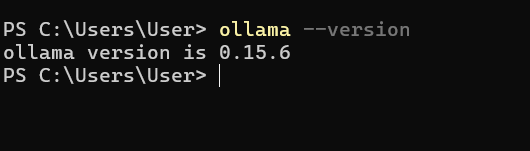
Open a terminal (or Command Prompt) and run:
ollama --versionYou should see the version information printed, confirming that Ollama is correctly installed.
3. Download a Model
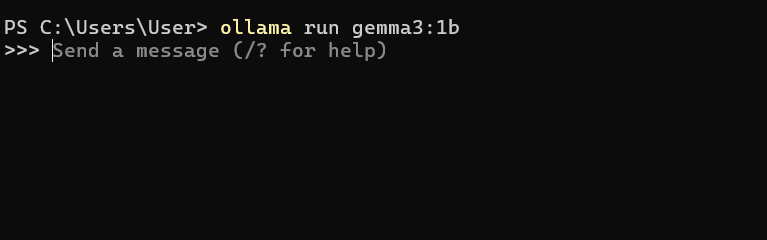
You can download and start using a model with a single command. If the model isn’t already on your machine, Ollama will pull it automatically.
ollama run llama3(Replace llama3 with the name of any model you want, e.g., gemma3.)
The command above both downloads the Llama 3 model (if needed) and launches an interactive session.

4. Run the Model
After the download finishes, you’ll be dropped into a prompt where you can type queries:
>>> What is the capital of France?If you see the prompt and receive a response, congratulations—you’ve successfully installed and run your model locally!
Example Interaction
>>> Tell me a short joke.
Why don't scientists trust atoms? Because they make up everything!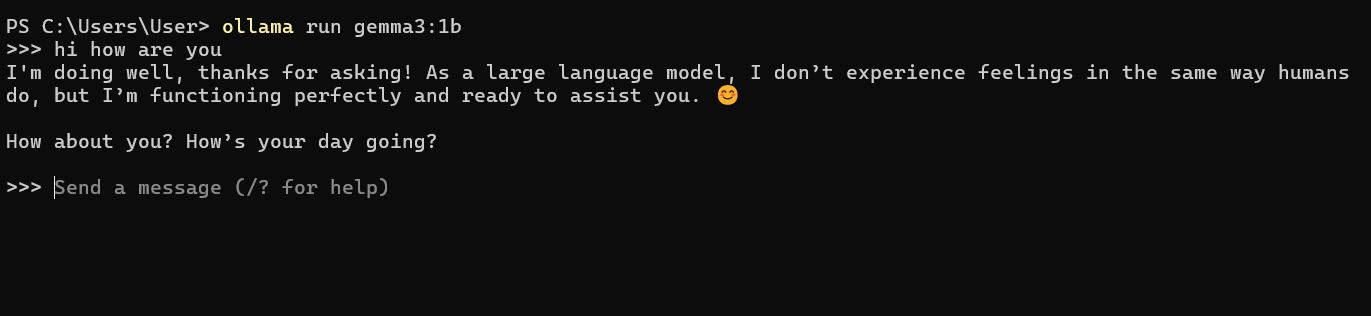
Notable Fallbacks
| Issue | What to Expect |
|---|---|
| RAM is King | Running a model larger than your available RAM (or VRAM) will be painfully slow or cause a crash. Rough guidelines: |
| • 8 GB RAM for 3B–7B models | |
| • 16 GB+ for 8B–13B models | |
| • 32 GB+ for 30B+ models | |
| Silent GPU Fallback | If Ollama can’t find a suitable GPU (or runs out of VRAM), it silently falls back to the CPU. You’ll notice the speed drop from “lightning fast” to “one word every two seconds.” |
| Storage Hog | Models are large. A “medium” model like Llama 3 8B occupies ~5 GB. Downloading many models can quickly fill up your drive. |
TL;DR
- Install Ollama from .
- Verify with
ollama --version. - Pull a model:
ollama run. - Interact via the terminal prompt.
Enjoy private, offline, and cost‑free AI on your own machine!
No “Long‑term” Memory
By default, Ollama doesn’t remember you between different sessions unless you use a UI (e.g., Open WebUI) or write a script to manage the conversation history.
Even more so, Ollama plays a significant role in your future projects!
Ollama’s Roles in Any Project
Ollama serves two critical functions:
- The Librarian – Model management
- The Engine – Inference server
The Librarian (Model Management)
Ollama handles the “messy” parts of working with AI models so you don’t have to.
- Downloading – Pulls massive model files (e.g., Llama 3, Mistral) from the internet.
- Storage – Organizes them on your hard drive so they’re ready to use.
- Optimization – Quantizes the models, shrinking them so they can actually run on a normal laptop instead of a giant server.
The Engine (Inference Server)
This is Ollama’s main job during a project. It runs in the background and waits for instructions.
- The API – Creates a local “doorway” at
http://localhost:11434. Your web app or script knocks on this door and sends a prompt. - Brain Power – When a prompt arrives, Ollama “starts” the model’s brain, using your computer’s RAM/GPU to think and generate an answer.
- Process Isolation – Keeps the AI separate from your code. If the AI model crashes because it ran out of memory, your actual website or app won’t crash; only the Ollama engine stalls.
There you have it! I’m looking forward to seeing your upcoming projects integrated with Ollama. Hopefully this article will be helpful, and good luck with your future work!
Thank you, and please let me know your feedback on this article—I’ll keep improving it. :)